Wix Source Data Export
Prepare Wix products, contacts, and orders CSV files for Next-Cart source data file upload.
Wix Source Data Export
Section titled “Wix Source Data Export”A complete Wix export gives Next-Cart the source files required by the selected migration path.
When to use this guide
Section titled “When to use this guide”Use this guide when:
- Wix is the Source Platform;
- Next-Cart shows source data file upload for Wix;
- you need to prepare Products, Contacts, and Orders CSV files before upload.
Prerequisites
Section titled “Prerequisites”Before you begin, confirm that:
| Requirement | Why it matters |
|---|---|
| Wix account access | You need access to the correct Wix site dashboard. |
| Product export permission | You need permission to export store products. |
| Contact export permission | Customer-related data may be exported through Contacts. |
| Order export permission | You need permission to export orders and purchased item details. |
| Secure storage location | Exports can contain customer, order, and sales information. |
Data types to export
Section titled “Data types to export”| Data type | Export file | Notes |
|---|---|---|
| Products | Product CSV | Export all, filtered, or selected products only when that matches the approved scope. |
| Customers | Contacts CSV | Use regular CSV format unless Next-Cart requests another format. |
| Orders | Orders CSV | Include purchased item details where available. |
Before you export
Section titled “Before you export”Create a folder such as:
source-exports/└── wix/ ├── products/ ├── contacts/ └── orders/Export the files
Section titled “Export the files”- Sign in to Wix and open the correct site dashboard.
- To export products, go to Store Products > Products.
- Select More Actions > Export.
- Choose all products, filtered products, or selected products according to the approved scope.
- Download the product CSV and save it in the products folder.
- To export contacts, go to Contacts > Contacts.
- Open the actions menu and select Export contacts.
- Choose the approved contact subset and select Regular CSV file.
- Export and download the contacts CSV.
- To export orders, go to Orders > Orders.
- Select all orders or the approved order subset.
- Select Export.
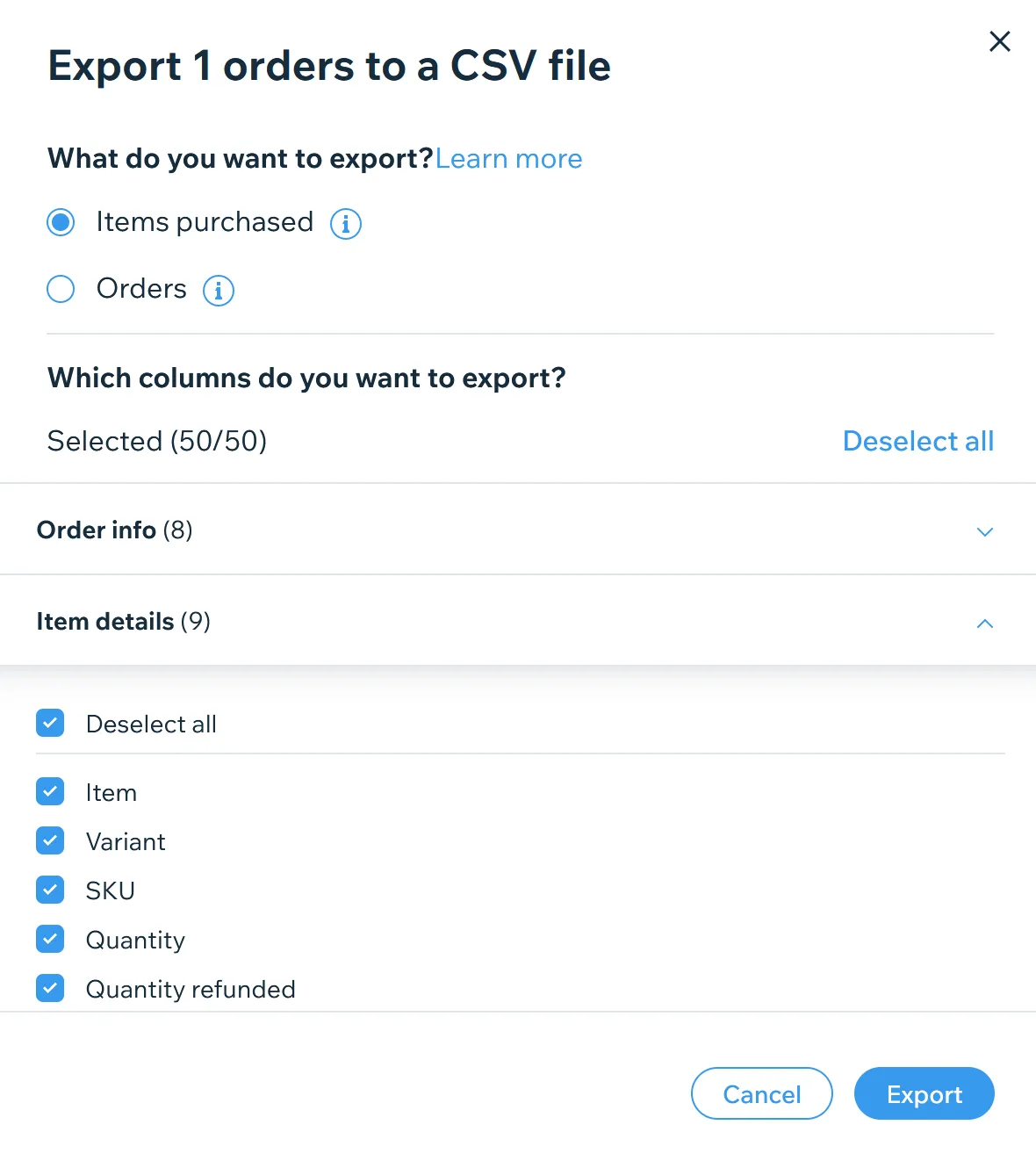
- In the export dialog, include all available item-purchased columns when the option is shown.
- Export and download the orders CSV.
Organize the exported files
Section titled “Organize the exported files”| File | Place it in |
|---|---|
| Product CSV | source-exports/wix/products/ |
| Contacts CSV | source-exports/wix/contacts/ |
| Orders CSV | source-exports/wix/orders/ |
Keep original file names where possible. If you add context, include only the export date or scope label.
Expected result
Section titled “Expected result”You have Wix Products, Contacts, and Orders CSV files ready for upload to Next-Cart.
Verify the export
Section titled “Verify the export”| Check | Pass condition |
|---|---|
| Products | The product CSV contains the approved product set. |
| Contacts | The contacts CSV uses regular CSV format and contains the expected customer-related records. |
| Orders | The orders CSV covers the approved order scope and includes purchased item details where available. |
| Site selection | All files come from the correct Wix site. |
| File integrity | CSV files open without corruption and retain original headers. |
If the export is incomplete
Section titled “If the export is incomplete”| Issue | What to check |
|---|---|
| Products are missing | Confirm that the product export was run from the correct site and that no unintended filter was applied. |
| Contacts are missing | Confirm the selected contact subset and export format. |
| Orders are incomplete | Check the order selection and export the missing range. |
| Item details are missing from orders | Re-export orders and include purchased item columns where the dialog provides that option. |
| Files were edited manually | Re-download the original CSV files and upload the unmodified copies. |
| Required data is not available in standard exports | Document the missing data and submit it as a Custom Service requirement. |
Next step
Section titled “Next step”| Goal | Go to |
|---|---|
| Upload the prepared files | Upload Source Data Files |
| Verify source file readiness | Verify Platform Connections |
| Ask for help with missing export data | Tickets |