Skip to content
Back to Site

nopCommerce Source Data Export

Prepare nopCommerce Products, Manufacturers, Categories, Customers, and Orders export files for Next-Cart source data file upload.

A complete nopCommerce export gives Next-Cart the source files required by the selected migration path.

Use this guide when:

  • nopCommerce is the Source Platform;
  • Next-Cart shows source data file upload for nopCommerce;
  • you need to prepare Products, Manufacturers, Categories, Customers, and Orders files before upload.

Before you begin, confirm that:

RequirementWhy it matters
nopCommerce admin accessYou need permission to open catalog, customer, and sales admin areas.
Export permissionThe account must be allowed to export records to XML and Excel formats.
Scope decisionsConfirm whether to export all found records or only a defined subset approved for the migration.
Stable admin sessionLarge exports can take time. Avoid changing filters or closing the session during export.
Secure storage locationPrepare a local folder for XML and XLSX files.
Data typeExport fileNotes
ProductsProducts XML and Products XLSXExport both formats because each may carry useful source structure.
ManufacturersManufacturers XMLRequired when manufacturer data is in scope.
CategoriesCategories XMLRequired to preserve category structure where supported.
CustomersCustomers XMLExport all found customers unless scope is intentionally limited.
OrdersOrders XLSXExport all found orders or the approved order set.

Create a folder such as:

source-exports/
└── nopcommerce/
├── products/
├── manufacturers/
├── categories/
├── customers/
└── orders/
  1. Sign in to the nopCommerce admin area.
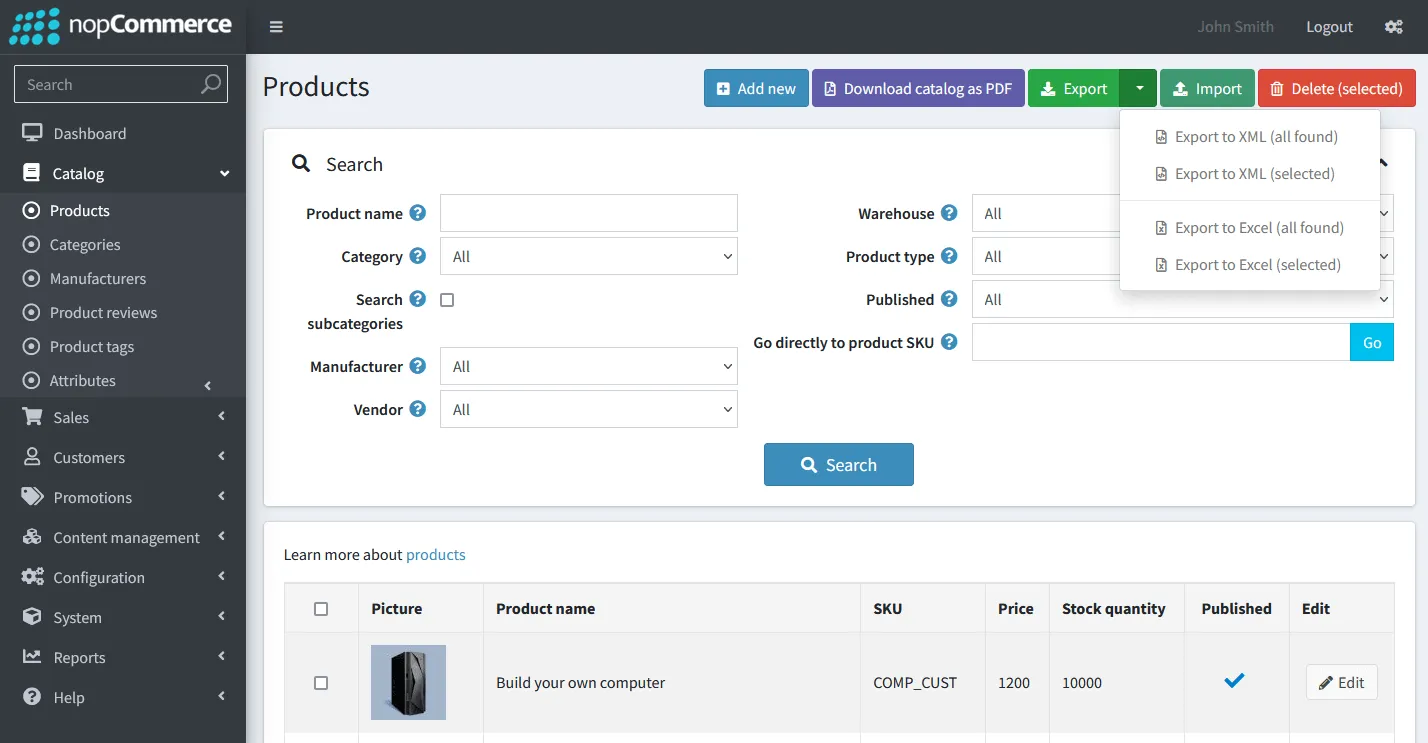
  2. Go to Catalog > Products.
  3. Select Export > Export to XML (all found) and download the products XML file.
  4. On the same Products page, select Export > Export to Excel (all found) and download the products XLSX file.
  5. Go to Catalog > Manufacturers.
  6. Select Export > Export to XML and download the manufacturers XML file.
  7. Go to Catalog > Categories.
  8. Select Export > Export to XML and download the categories XML file.
  9. Go to Customers > Customers.
  10. Select Export to XML (all found) and download the customers XML file.
  11. Go to Sales > Orders.
  12. Select Export to Excel (all found) and download the orders XLSX file.
FilePlace it in
Products XML and Products XLSXsource-exports/nopcommerce/products/
Manufacturers XMLsource-exports/nopcommerce/manufacturers/
Categories XMLsource-exports/nopcommerce/categories/
Customers XMLsource-exports/nopcommerce/customers/
Orders XLSXsource-exports/nopcommerce/orders/

Keep the original file names where possible. Add a short export date if you need to distinguish multiple export attempts.

You have nopCommerce Products, Manufacturers, Categories, Customers, and Orders export files ready for upload to Next-Cart.

CheckPass condition
ProductsBoth XML and XLSX product files are present.
ManufacturersThe manufacturers XML is present when manufacturer data is in scope.
CategoriesThe categories XML is present and readable.
CustomersThe customers XML contains the expected customer records.
OrdersThe orders XLSX contains the expected order records.
File integrityXML files open as valid XML and Excel files open without repair prompts.
IssueWhat to check
Product file is missingRe-export Products to both XML and Excel.
Export contains only a filtered subsetClear unintended admin filters and export all found records again.
Manufacturers or Categories are missingExport each data type separately from its own Catalog page.
Orders are incompleteCheck order filters before exporting from Sales > Orders.
File opens with errorsRe-export the file and confirm the download completed.
Required data is stored outside standard nopCommerce exportsDocument the field or table and submit it as a Custom Service requirement.
GoalGo to
Upload the prepared filesUpload Source Data Files
Verify source file readinessVerify Platform Connections
Ask for help with missing export dataTickets