Quickbutik API Connection
Prepare Quickbutik API connection values for a Next-Cart migration service when API setup is shown for Quickbutik.
Quickbutik API Connection
Section titled “Quickbutik API Connection”A valid Quickbutik API connection gives Next-Cart the authorized platform access required by the selected migration path.
Next-Cart may ask for your Quickbutik API Key. Prepare this value from the correct Quickbutik control panel before you test the connection.
When to use this guide
Section titled “When to use this guide”Use this guide when:
- Quickbutik is the Source Platform or Target Platform in your selected migration path;
- Next-Cart shows Quickbutik API setup;
- Next-Cart asks for API Key or related Quickbutik connection values.
Prerequisites
Section titled “Prerequisites”Before you begin, confirm that:
| Requirement | Why it matters |
|---|---|
| Quickbutik control panel access | You need access to the store control panel. |
| Permission to manage API keys | Your user role must allow API key creation. |
| Access to the correct store | The API key must belong to the store selected in your migration path. |
| Secure storage | API credentials should be copied only into approved secure locations. |
Required values
Section titled “Required values”| Required value | Where to prepare it | Notes |
|---|---|---|
| API Key | Settings / Inställningar > Behind the shop / Bakom butiken > API | Create a new key and copy it exactly as shown. |
Prepare the API connection values
Section titled “Prepare the API connection values”- Sign in to the Quickbutik control panel.
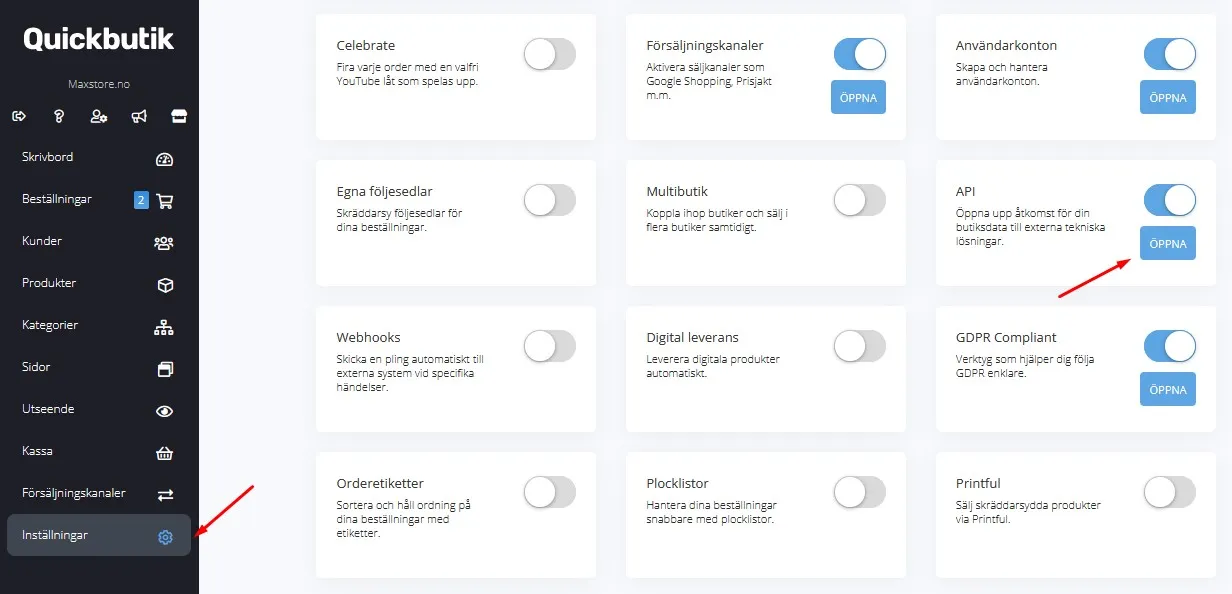
- Open Settings / Inställningar from the left menu.
- At the bottom of the settings area, locate Behind the shop / Bakom butiken.
- Open the API block.
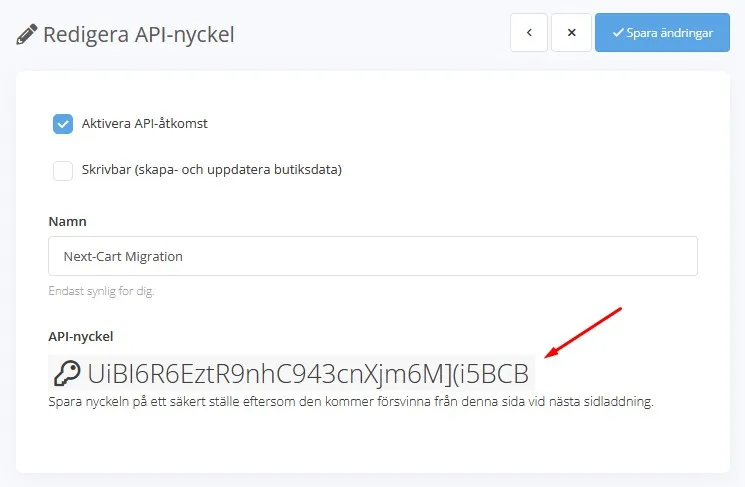
- Click Create new API key / Skapa ny API-nyckel.
- Enter a clear name for the key, such as Next-Cart Migration Service.
- Save the new key.
- Copy the API Key into a secure temporary location.
Enter the values in Next-Cart
Section titled “Enter the values in Next-Cart”In the Next-Cart connection setup screen, enter only the values requested by the interface.
| Next-Cart field | Platform value |
|---|---|
| API Key | API key created in Quickbutik API settings. |
Expected result
Section titled “Expected result”The Quickbutik API connection values are ready to test in Next-Cart.
Verify the connection
Section titled “Verify the connection”| Check | Pass condition |
|---|---|
| Store match | The API Key belongs to the Quickbutik store in the selected migration path. |
| Credential completeness | The API Key is copied in full. |
| Permission readiness | The API Key can access the data included in the migration scope. |
| Connection test | Next-Cart can authenticate and read supported Quickbutik data. |
If the connection fails
Section titled “If the connection fails”| Issue | What to check |
|---|---|
| Authentication error | Copy the API Key again or create a new key if the original value is not visible. |
| Wrong store connected | Confirm that you are signed in to the correct Quickbutik control panel. |
| Permission issue | Confirm that API access is enabled and available for the account. |
| Data preview fails | Confirm that the store contains supported records for the selected data types. |
Security cleanup
Section titled “Security cleanup”After migration work is complete and verified:
- remove or revoke temporary API credentials where the platform provides that option;
- reduce access if a broader permission set was used only for migration work;
- remove copied credentials from insecure notes, tickets, chats, or shared files;
- review the store admin account or API user used for API setup.
Next step
Section titled “Next step”| Goal | Go to |
|---|---|
| Test the connection | Verify Platform Connections |
| Fix an authentication or permission issue | Troubleshoot Connection Setup |
| Continue after the connection passes | Configure Your Migration |