Skip to content
Back to Site

PinnacleCart API Connection

Prepare PinnacleCart API connection values for a Next-Cart migration service when API setup is shown for PinnacleCart.

A valid PinnacleCart API connection gives Next-Cart the authorized platform access required by the selected migration path.

Next-Cart may ask for your PinnacleCart API Username, API Password, and Security Token. Prepare these values from the correct PinnacleCart admin account before you test the connection.

Use this guide when:

  • PinnacleCart is the Source Platform or Target Platform in your selected migration path;
  • Next-Cart shows PinnacleCart API setup;
  • Next-Cart asks for API Username, API Password, Security Token, or related PinnacleCart connection values.

Before you begin, confirm that:

RequirementWhy it matters
PinnacleCart admin accessYou need access to the area where API access is enabled.
Permission to enable API accessYour user role must allow API settings changes.
Access to the correct storeThe credentials must belong to the store selected in your migration path.
Secure storageAPI credentials should be copied only into approved secure locations.
Required valueWhere to prepare itNotes
API UsernameAPI access settingsUse the dedicated username created for API access.
API PasswordAPI access settingsUse the password created for API access.
Security TokenAPI access settingsGenerate and copy the token exactly as shown.
  1. Sign in to the PinnacleCart admin panel.
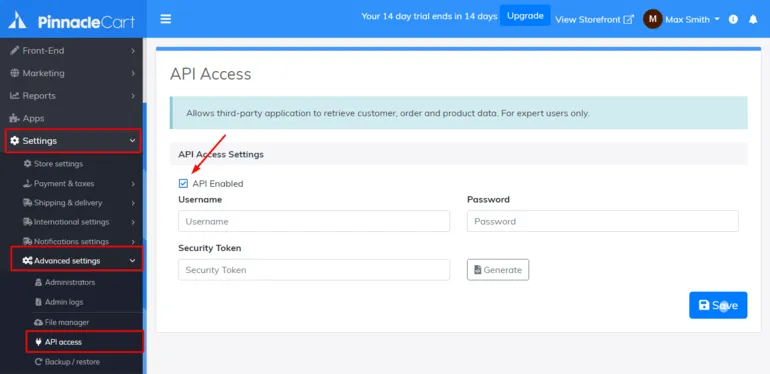
  2. Navigate to Settings, then Advanced settings, then API access.
  3. Enable API access if it is disabled.
  4. Enter a dedicated API Username.
  5. Enter a dedicated API Password.
  6. Click Generate to create a Security Token.
  7. Save the API access configuration.
  8. Copy the API Username, API Password, and Security Token into a secure temporary location.

In the Next-Cart connection setup screen, enter only the values requested by the interface.

Next-Cart fieldPlatform value
API UsernameUsername created in PinnacleCart API access settings.
API PasswordPassword created in PinnacleCart API access settings.
Security TokenGenerated Security Token from API access settings.

The PinnacleCart API connection values are ready to test in Next-Cart.

CheckPass condition
API enabledAPI access is enabled in PinnacleCart.
Credential completenessAPI Username, API Password, and Security Token are copied in full.
Store matchThe credentials belong to the store in the selected migration path.
Connection testNext-Cart can authenticate and read supported PinnacleCart data.
IssueWhat to check
Authentication errorCopy the username, password, and token again and check for extra spaces.
API disabledReturn to API access settings and confirm API access is enabled.
Wrong store connectedConfirm that you are signed in to the correct PinnacleCart admin panel.
Permission errorConfirm that the API credentials can access the selected data types.

After migration work is complete and verified:

  • remove or revoke temporary API credentials where the platform provides that option;
  • reduce access if a broader permission set was used only for migration work;
  • remove copied credentials from insecure notes, tickets, chats, or shared files;
  • review the store admin account or API user used for API setup.
GoalGo to
Test the connectionVerify Platform Connections
Fix an authentication or permission issueTroubleshoot Connection Setup
Continue after the connection passesConfigure Your Migration