

Configure Data Transformation
Transform supported values through Target Field, Operator, and Value rules before later mapping Add-ons run.
Configure Data Transformation
Section titled “Configure Data Transformation”Data Transformation changes supported values before the mapping stages that follow. Each rule uses Target Field -> Operator -> Value.
Both Source and Target platforms must support this Add-on.
Screenshots illustrate the procedure. Available entities, fields, values, and controls depend on your migration path and platform versions.
Configure a transformation
Section titled “Configure a transformation”-
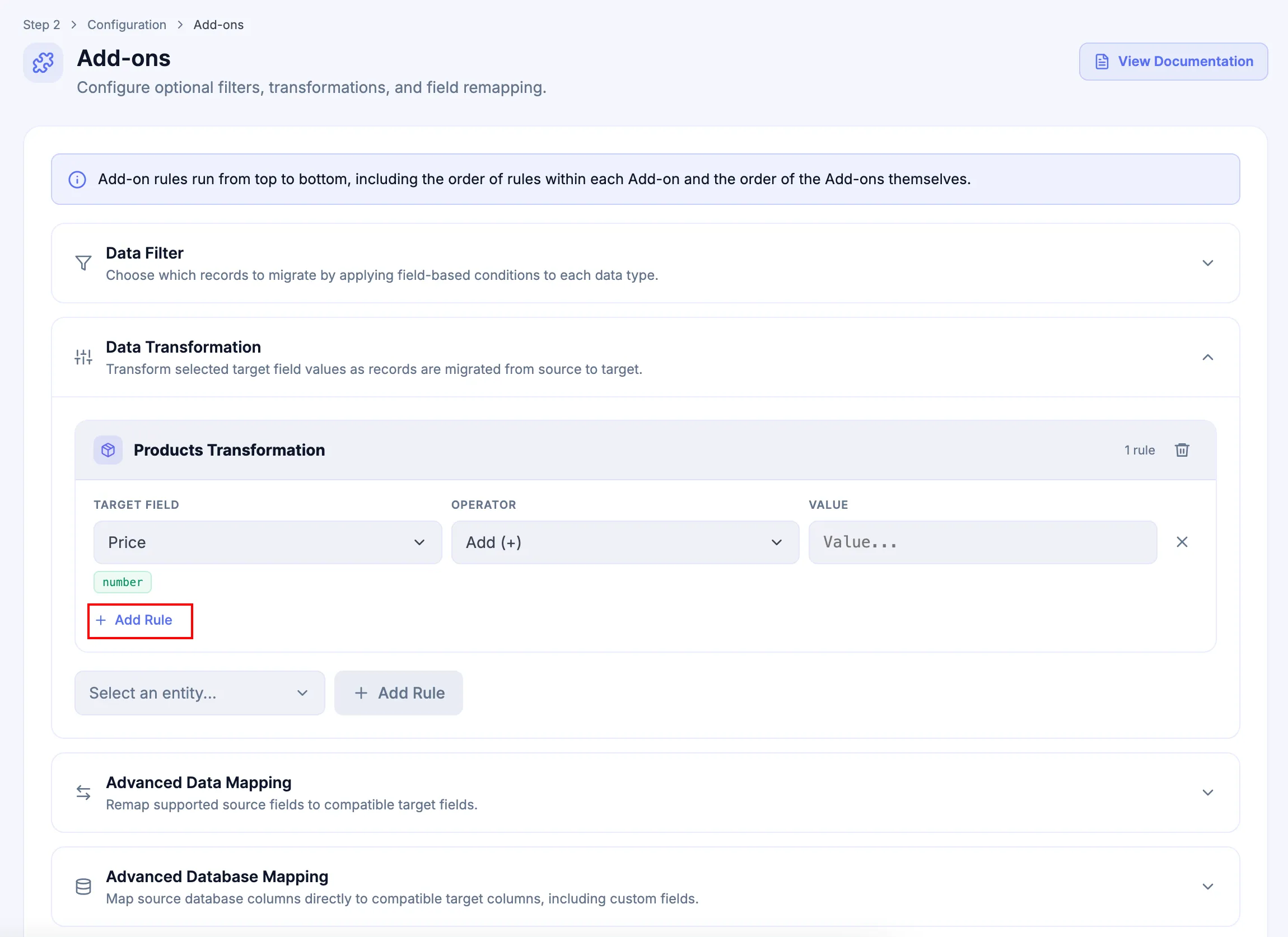
In the Configuration step, expand Data Transformation, select the entity, and click Add Rule.
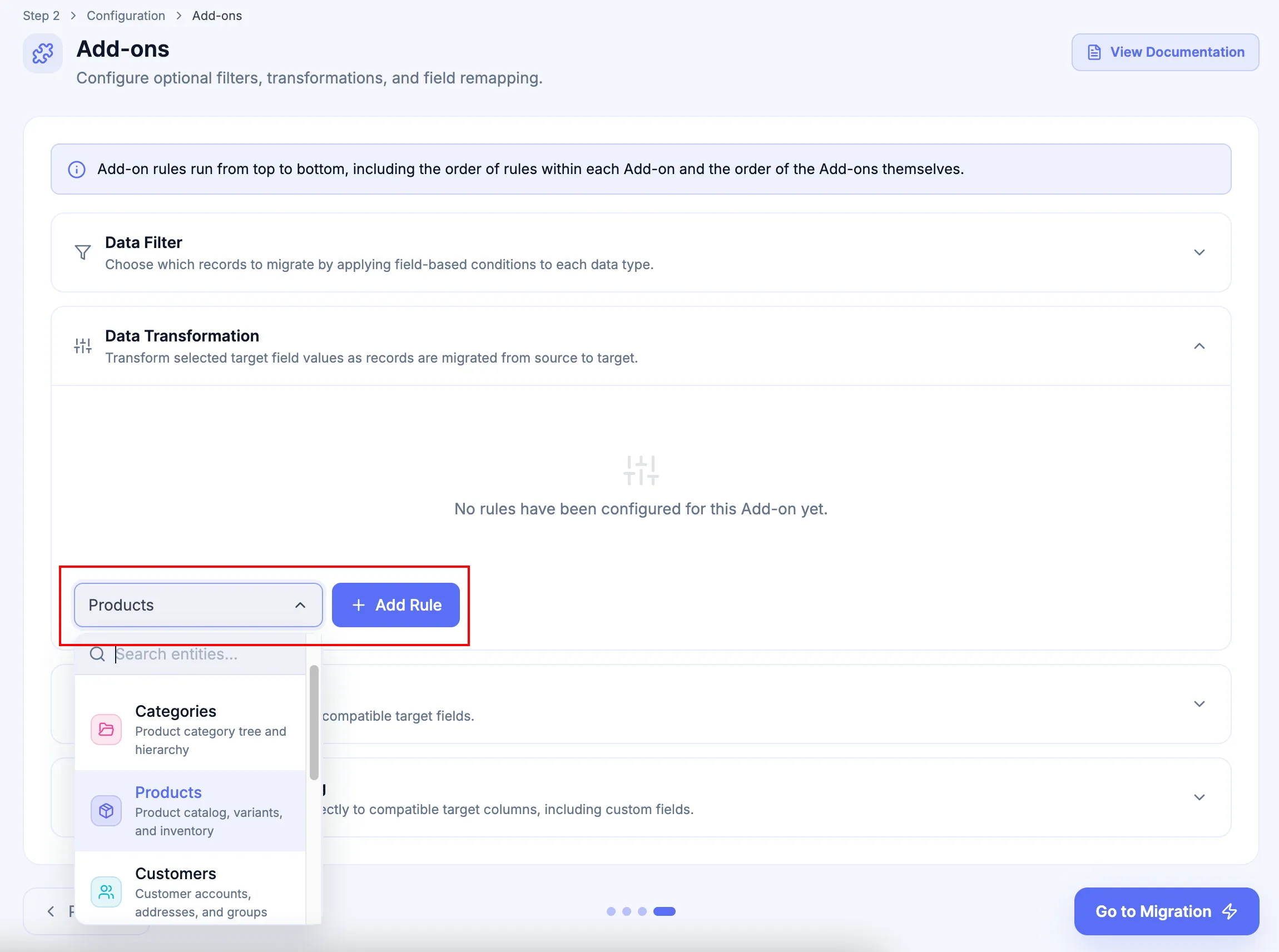
-
Select the supported Target Field whose value should be transformed.
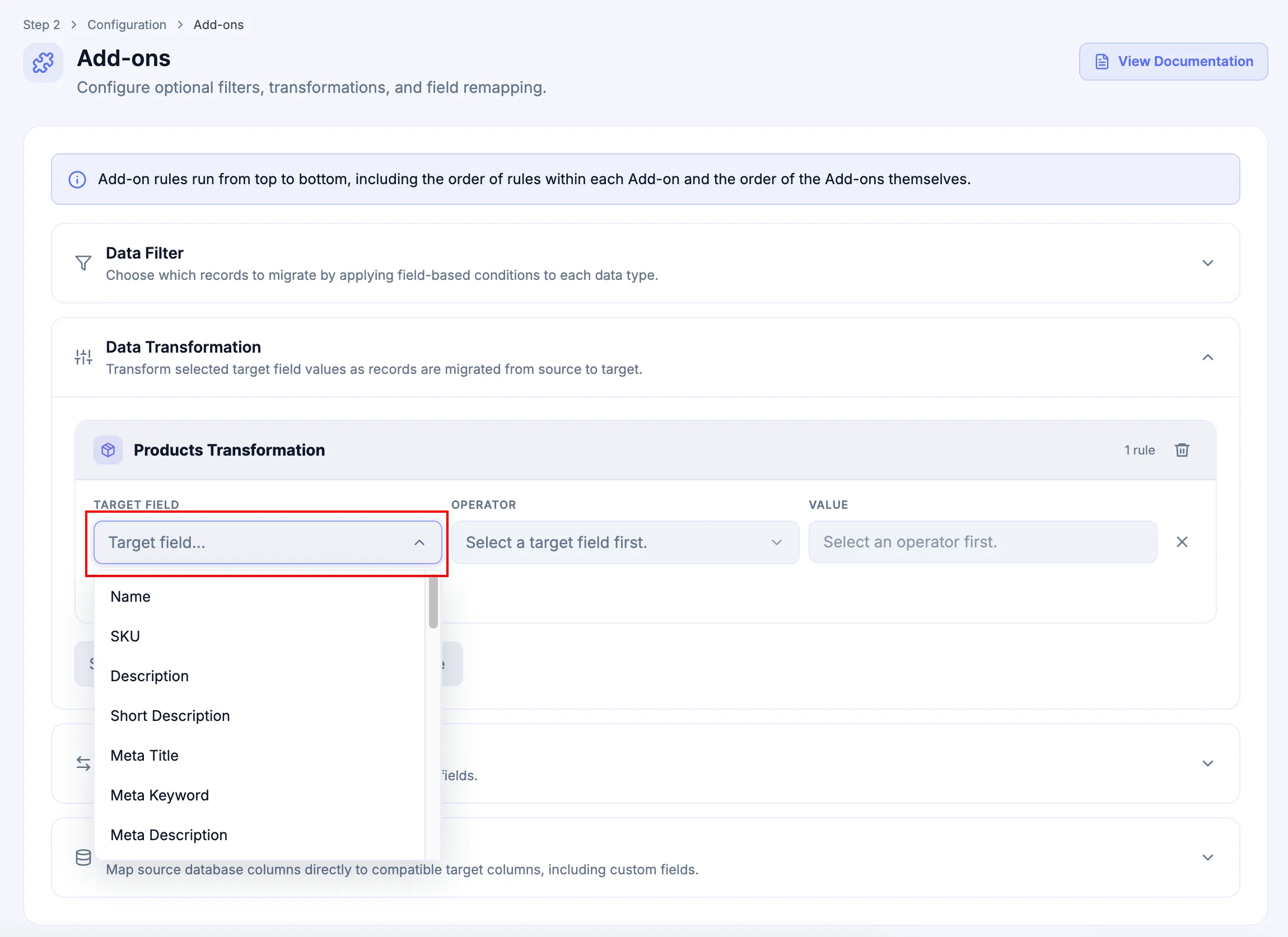
-
Select the supported transformation Operator.
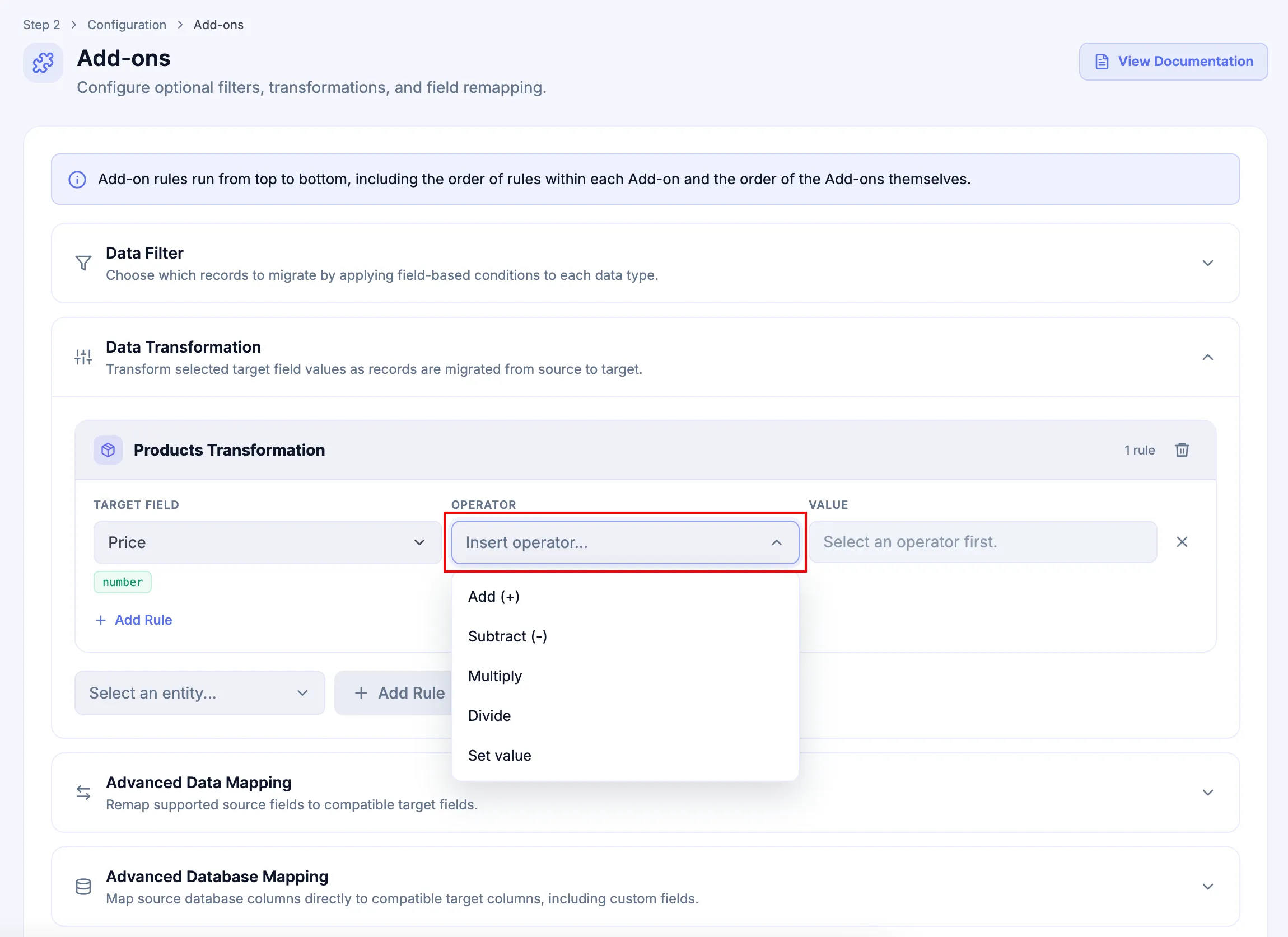
-
Enter the required Value when the selected operator requires one.
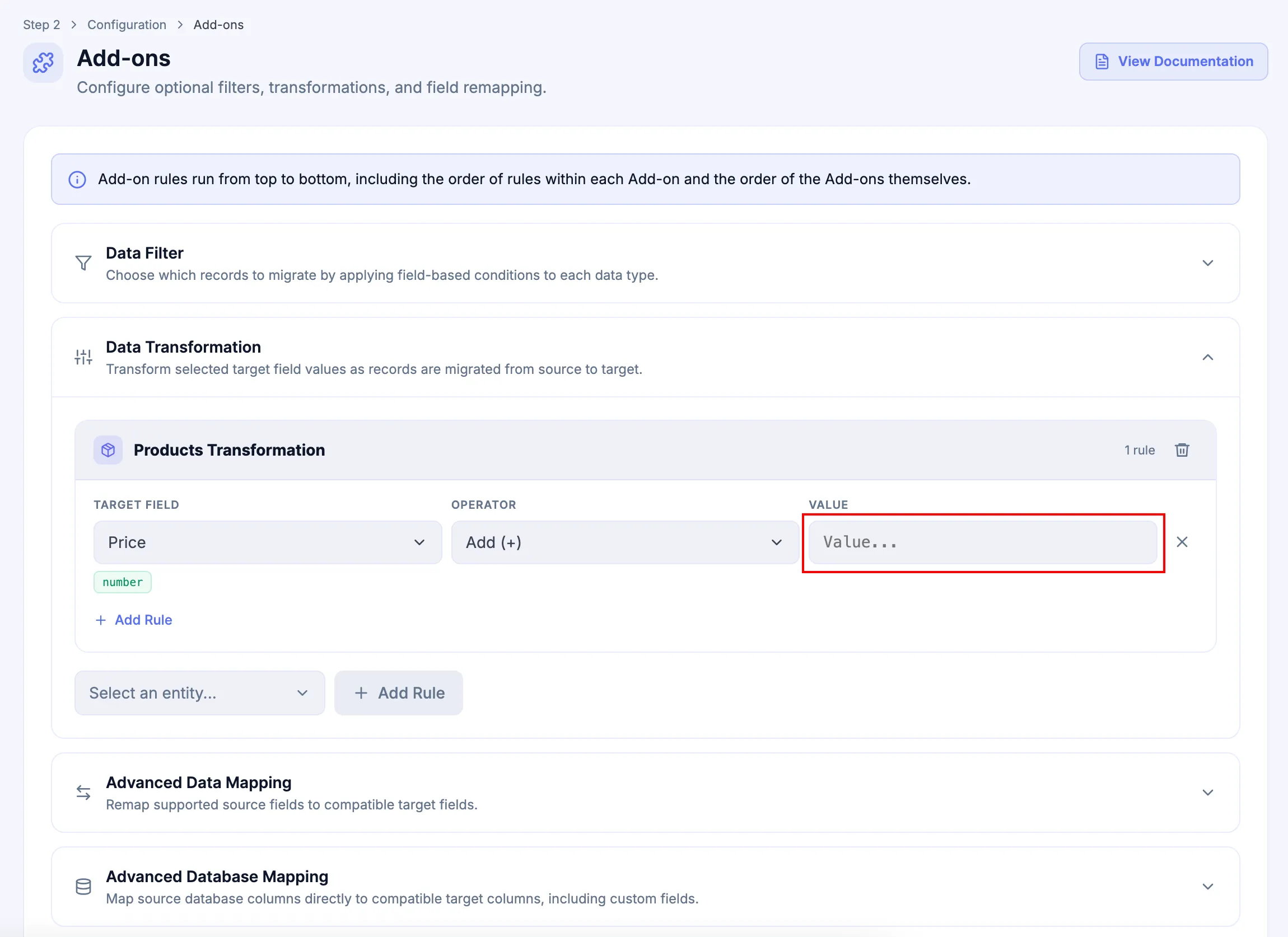
-
Click Add Rule to add another transformation for the same entity when required.
Example: add a prefix to Product names
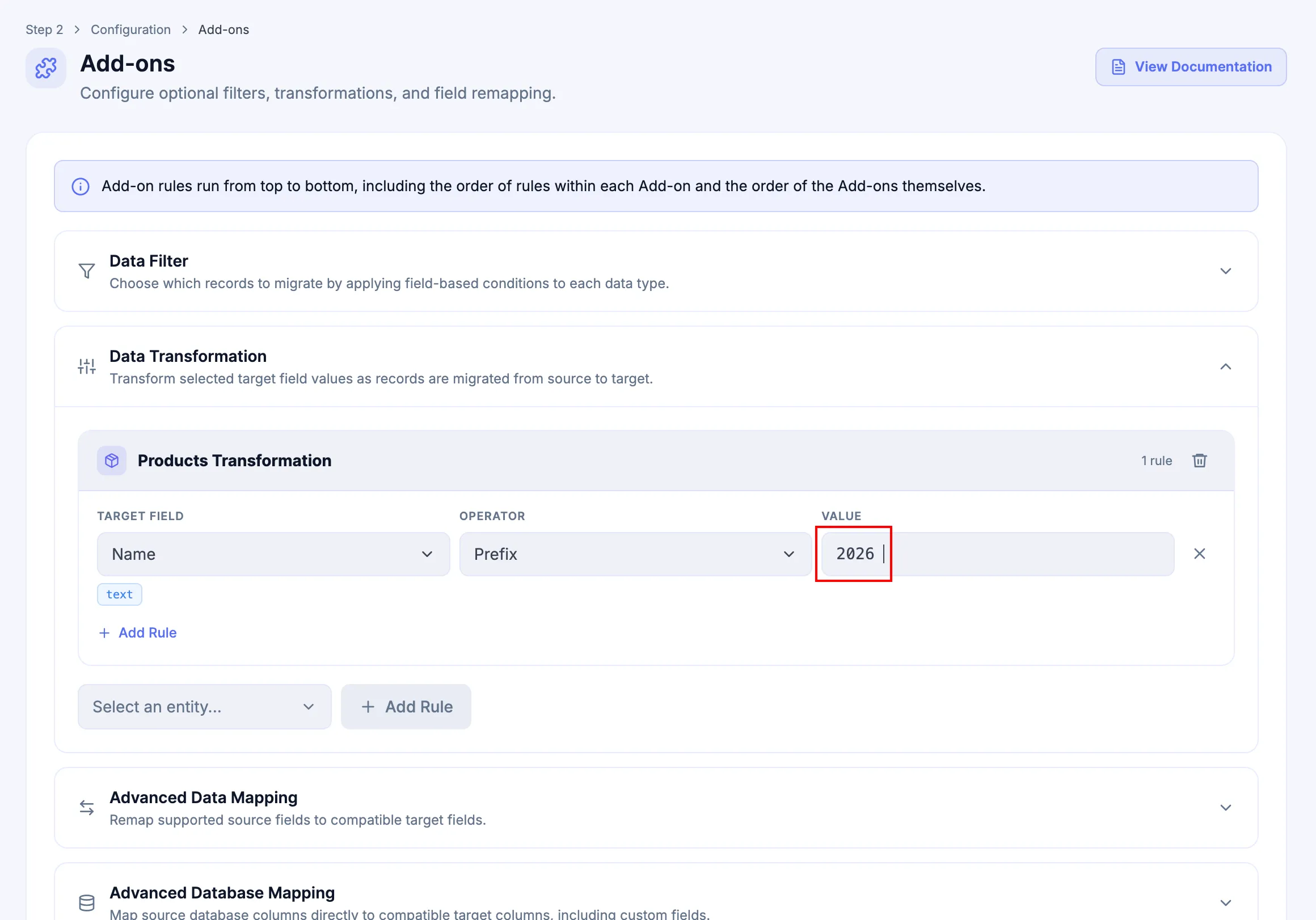
Section titled “Example: add a prefix to Product names”To add 2026 before migrated Product names, configure:
| Setting | Value |
|---|---|
| Entity | Products |
| Target Field | Name |
| Operator | Prefix |
| Value | "2026 " |
The Value is the exact string "2026 ", including the trailing space after 2026. A Product name such as Jacket therefore becomes 2026 Jacket instead of 2026Jacket.
Field types and operator labels
Section titled “Field types and operator labels”The selected Target Field determines its Field Type, and the Field Type determines which Operator Labels are available in the Operator dropdown. Use the visible Operator Label that matches the transformation you want to apply.
| Field Type | Available Operator Labels | Typical use |
|---|---|---|
text | Prefix, Suffix, Uppercase, Lowercase, Set value | Add or normalize text, or replace the value with an explicit value. |
number | Add (+), Subtract (-), Multiply, Divide, Set value | Apply supported arithmetic changes or set an explicit numeric value. |
date | Add days, Subtract days, Add months, Subtract months, Add years, Subtract years, Set value | Shift or replace a date value. |
datetime | Add minutes, Subtract minutes, Add hours, Subtract hours, Add days, Subtract days, Add months, Subtract months, Add years, Subtract years, Set value | Shift or replace a date-and-time value. |
boolean | Set true, Set false | Set a supported true/false value explicitly. |
Select the operator by its visible label. If the required transformation is not available for the selected Field Type, do not substitute a superficially similar operator. Define the requirement through Custom Migration instead.
Verify the transformation
Section titled “Verify the transformation”Before continuing, check Target Field, Operator, and Value against the intended result. Include required spaces or punctuation in literal text.
After a Full Migration, test representative records that exercise the rule and compare transformed values with the expected result.
If a value is wrong, check the field type, operator, exact input, and rule order. When rules affect the same value, check each intermediate result. Use Custom Migration if supported operators cannot express the required change.
Rule order and removal
Section titled “Rule order and removal”Transformation rules inside an Entity Transformation run from top to bottom. An earlier transformation can change the value received by a later rule, so review dependent transformations in sequence.
-
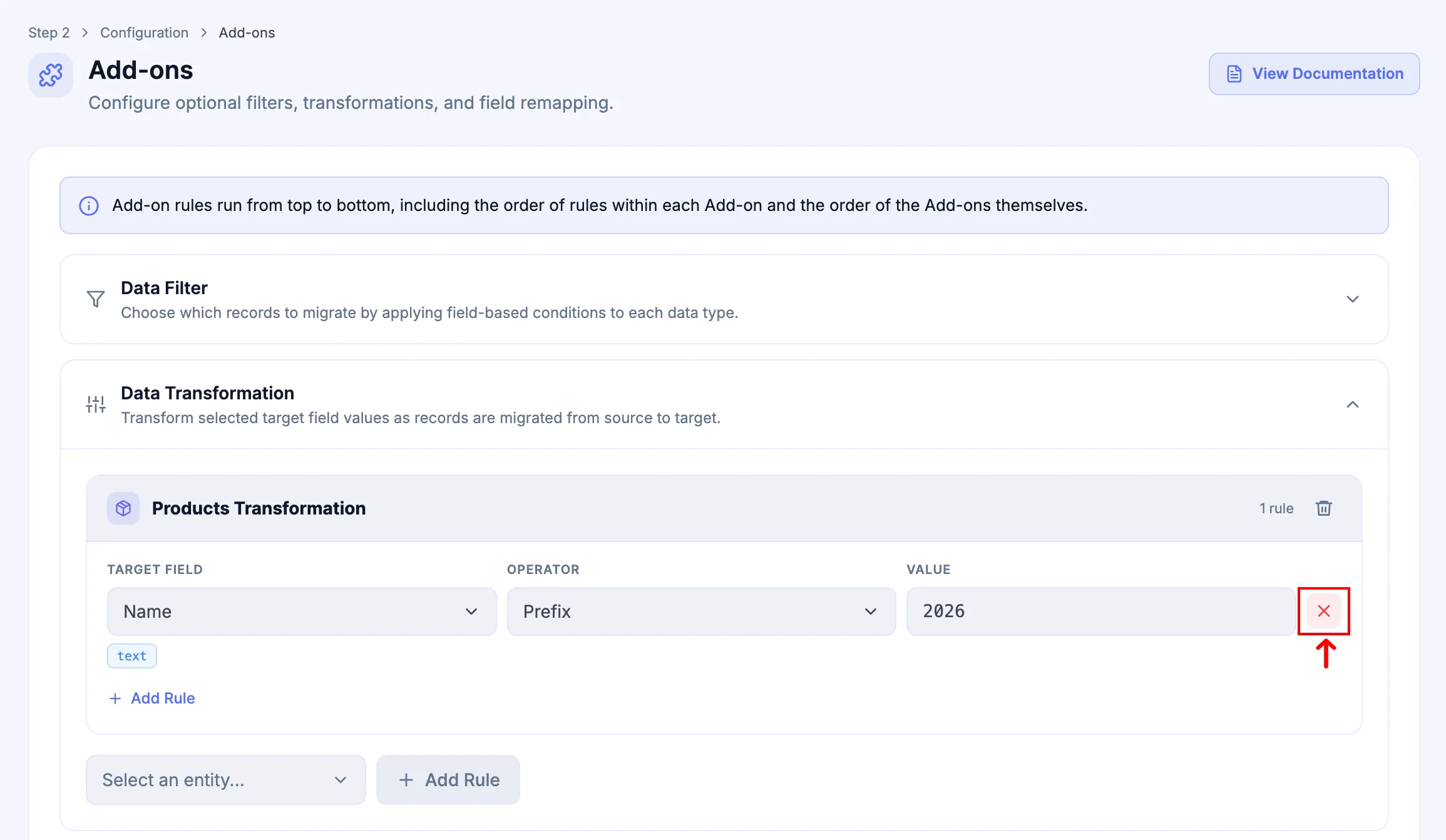
Click x to remove an individual rule.
-
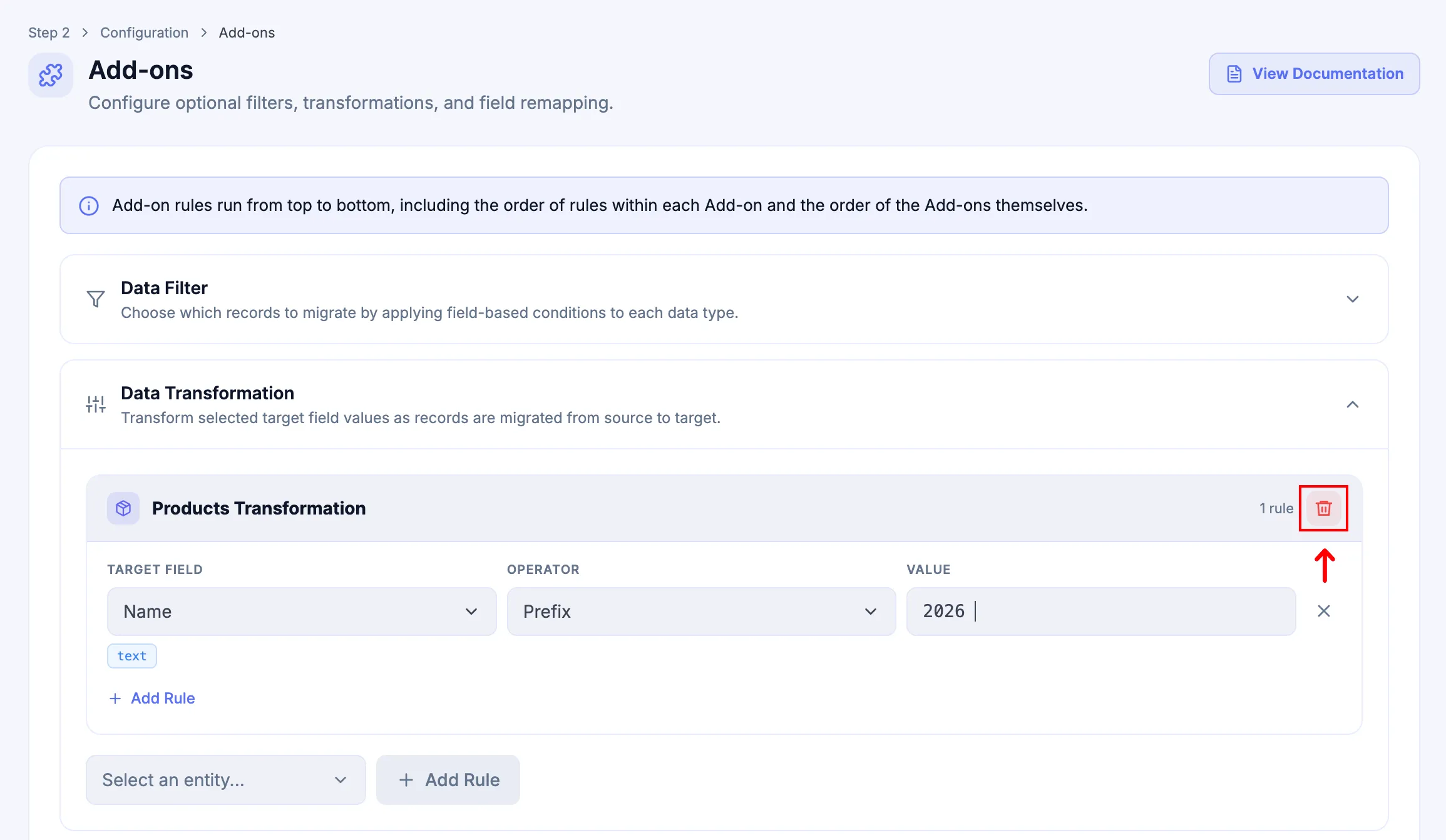
Use the remove control for the Entity Transformation to delete the entire transformation group.
Next Steps
Section titled “Next Steps”If Advanced Data Mapping is included, configure it next. Otherwise continue to the next included Add-on shown in Add-ons.