

Migrations
Open Demo or purchased migration records, verify the live project state, review Statistics and History, and enter the correct migration workflow.
Migrations
Section titled “Migrations”Migrations is the Dashboard group for Demo and purchased migration records. It owns the live project view: use it to confirm which migration is active, what package is in effect, and which operational action is available. Use Orders when you need the financial history behind that project.
Open Migrations
Section titled “Open Migrations”-
Sign in to Next-Cart.
-
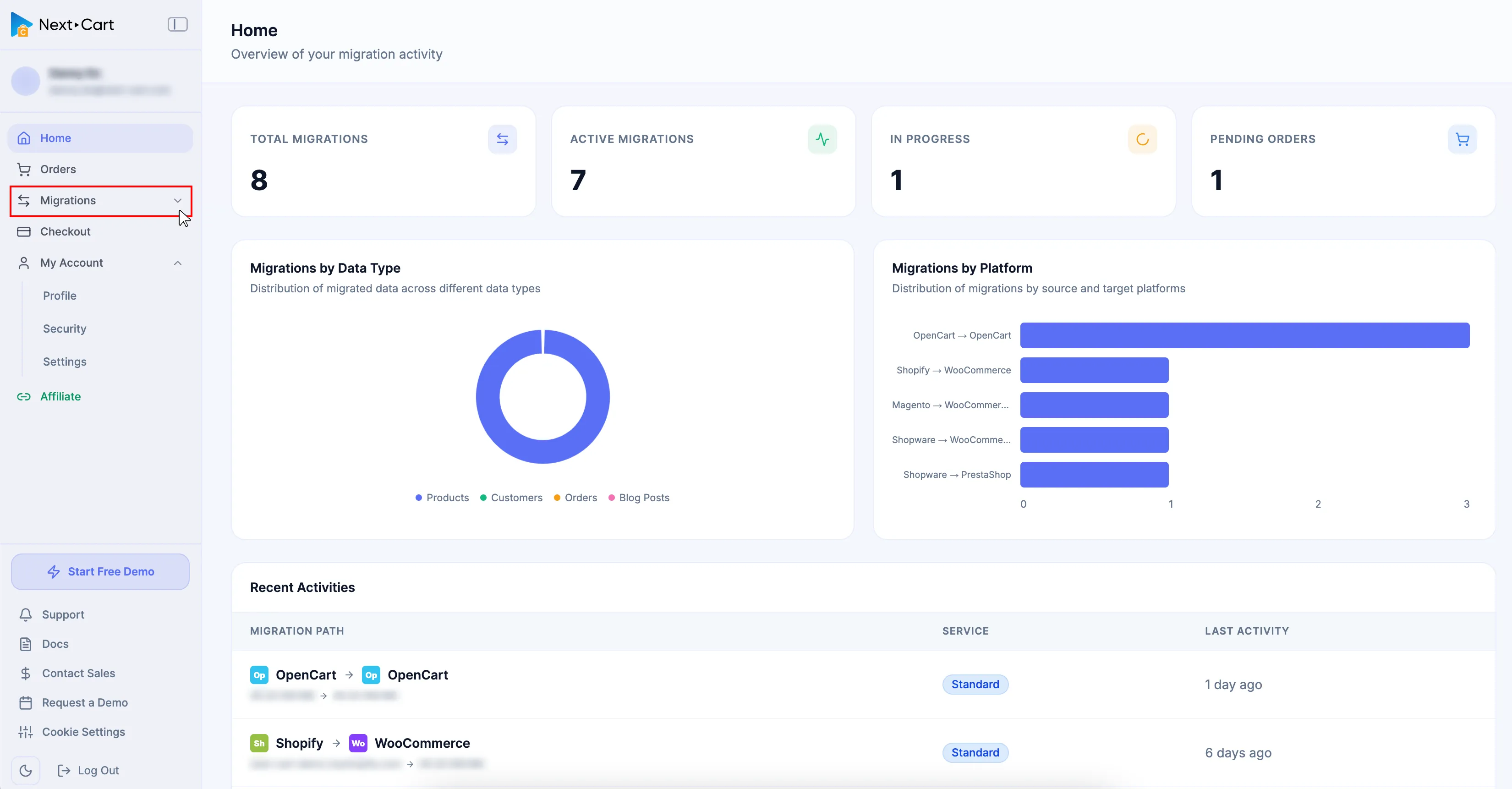
Expand Migrations in the Dashboard sidebar.
-
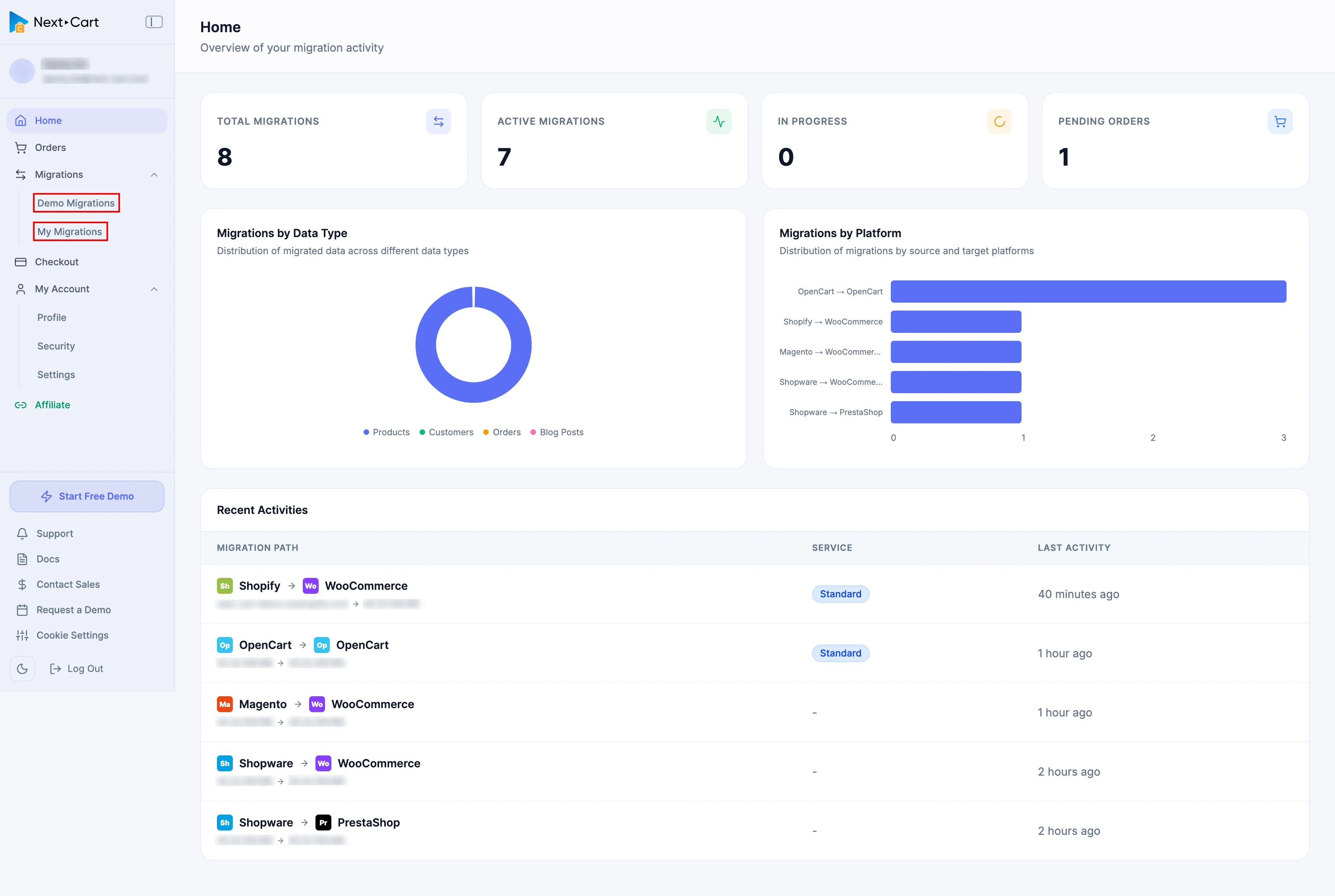
Select Demo Migrations for a limited test or My Migrations for a purchased service.
-
Find the intended migration path.
-
Review the record and choose the action required for the task.
Demo Migrations
Section titled “Demo Migrations”| Action | Use it to |
|---|---|
| Statistics | Review summary and progress information for the Demo. |
| Start | Open the three-step Demo workflow. |
| History | Review recorded Connect Stores, Configuration, and Migration activity. |
| Start a New Demo | Create another Demo, subject to the Demo frequency limit. |
Use Demo Migrations for the Dashboard controls and the Demo Migration walkthrough for the full operating procedure and limits.
My Migrations
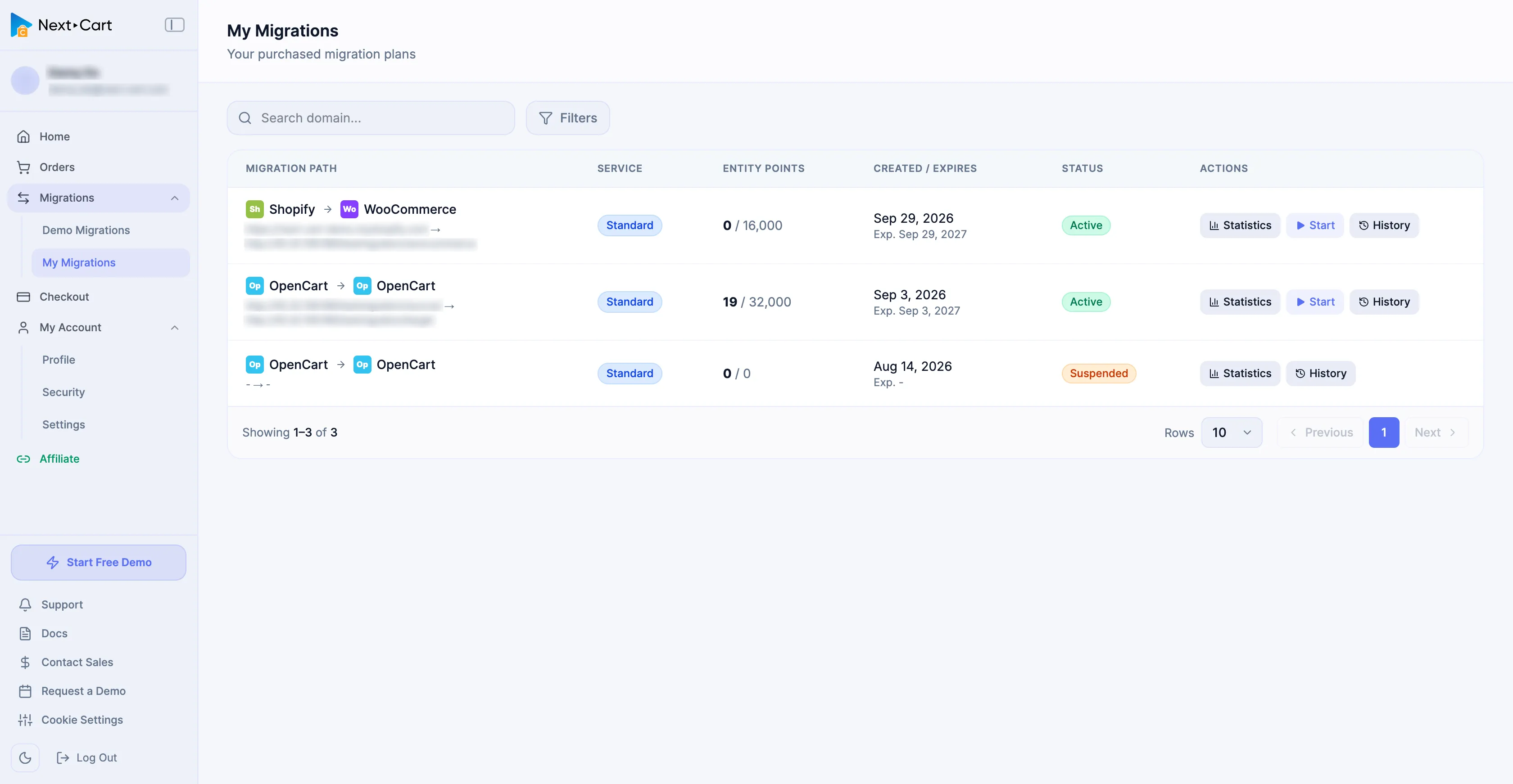
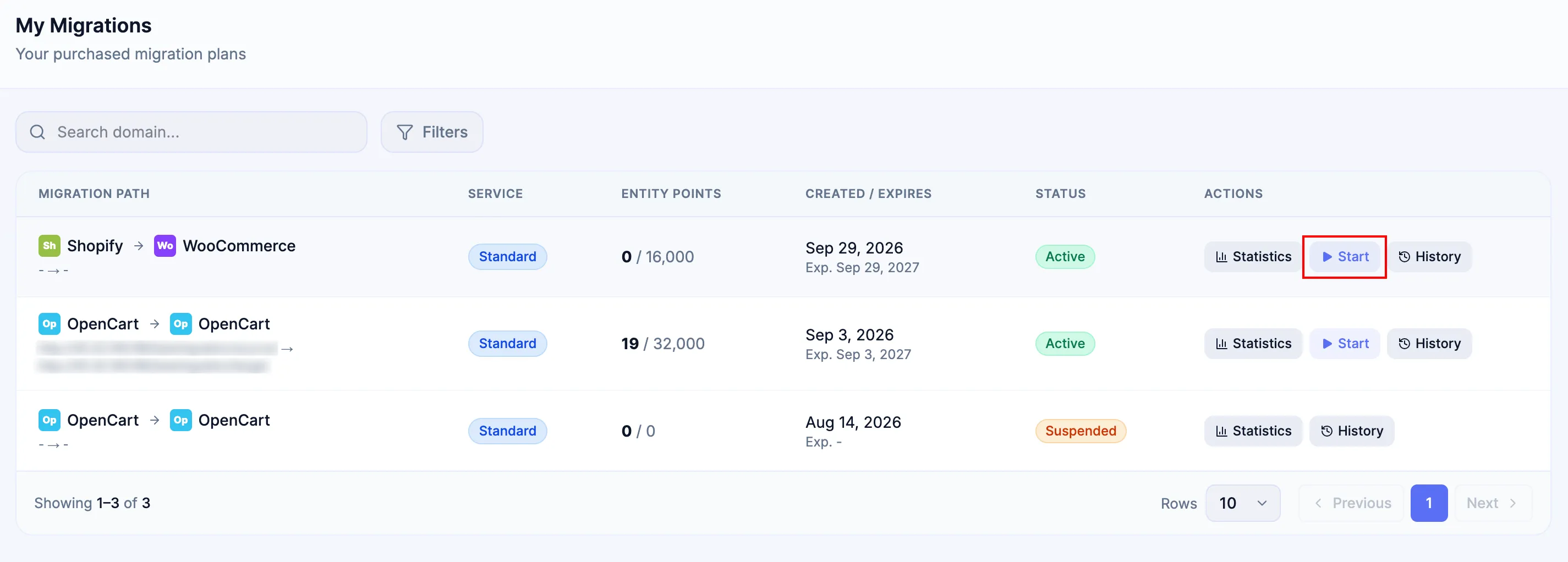
Section titled “My Migrations”Each purchased migration remains one project record even after successful Upgrade or Extend Orders. The migration path stays fixed; the row and Statistics view show the package and service state that are actually in effect.
| Information | What to verify |
|---|---|
| Migration Path | The fixed Source Platform → Target Platform project is the one you intend to operate. |
| Service / Entity Points | The active Service and capacity match the latest effective purchase state. |
| Created / Expires | Expires reflects the active 12-month period. Upgrades do not extend it; a successful Extend starts a new 12-month period from extension-payment settlement. |
| Status | Active can be operated when no other requirement blocks access. Expired requires the available extension path. Suspended requires order/support review. |
| Actions | Statistics opens live project details, History opens activity evidence, and Start enters the migration when available. |
For Custom Migration, the agreed Self-Execute or Expert Handle mode defines execution responsibility. A Paid Custom Order can still require approved Customization to be prepared before that custom scope is ready to run.
Review Statistics and History
Section titled “Review Statistics and History”-
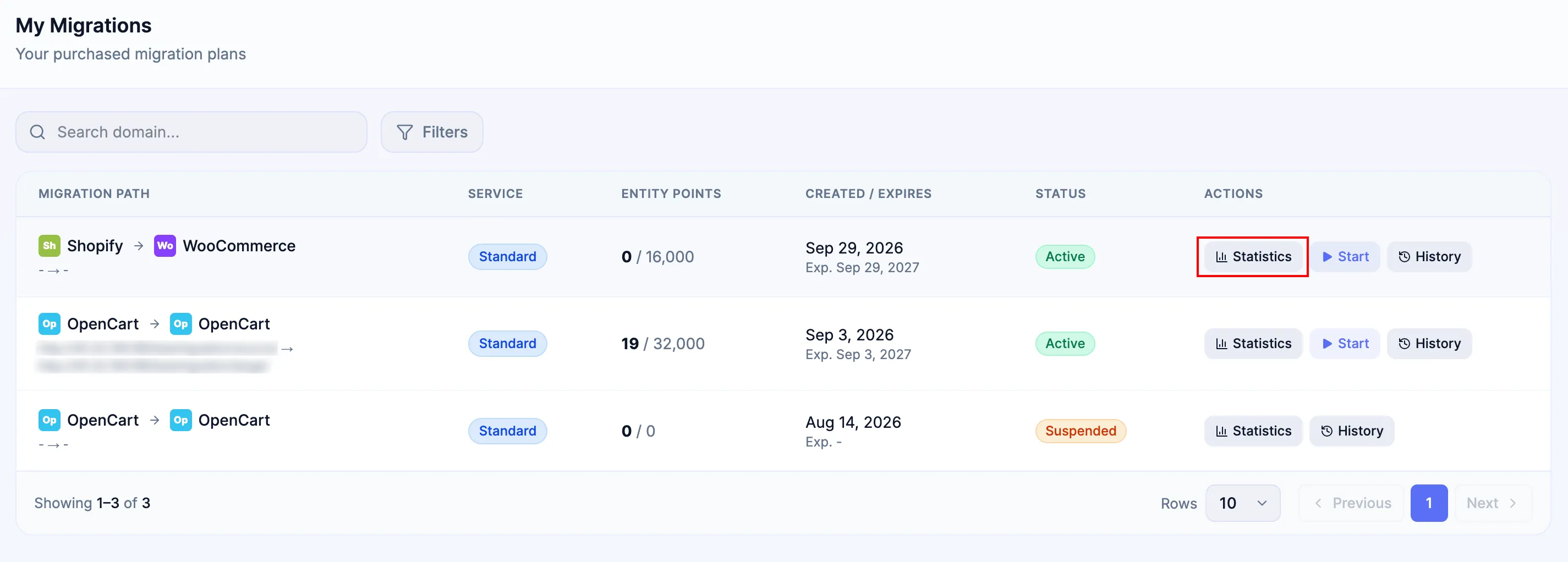
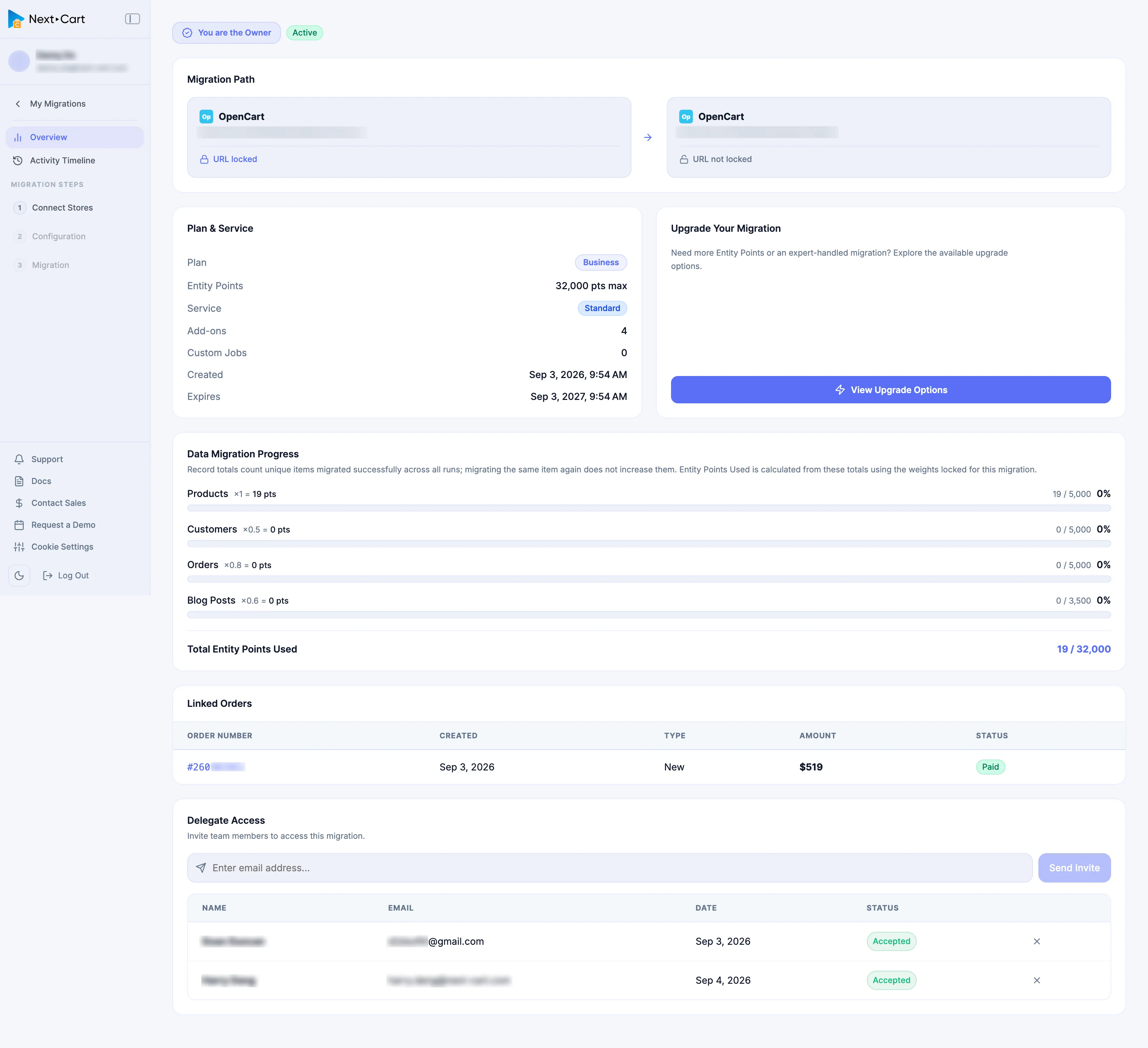
In My Migrations, select Statistics for the intended project.
-
Review the migration Overview, Plan & Service, Entity Points, data-migration progress, Linked Orders, and Delegate Access information.
-
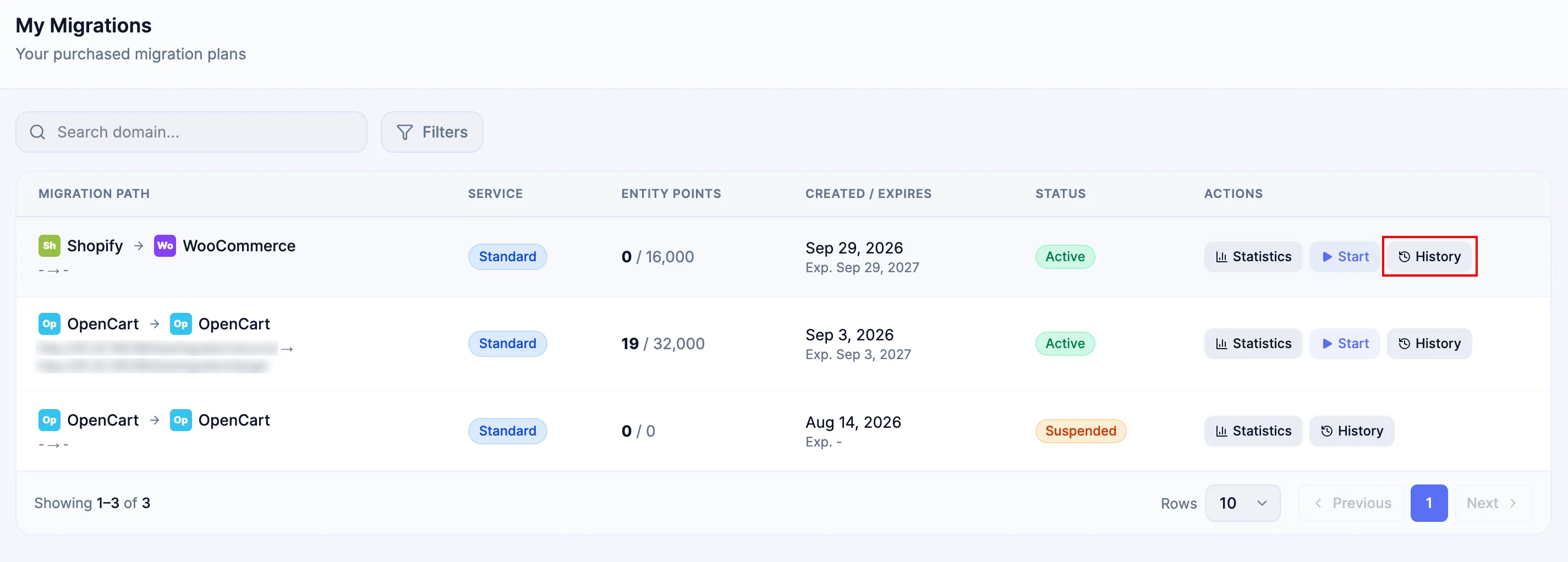
Return to My Migrations and select History when you need the project’s activity record.
-
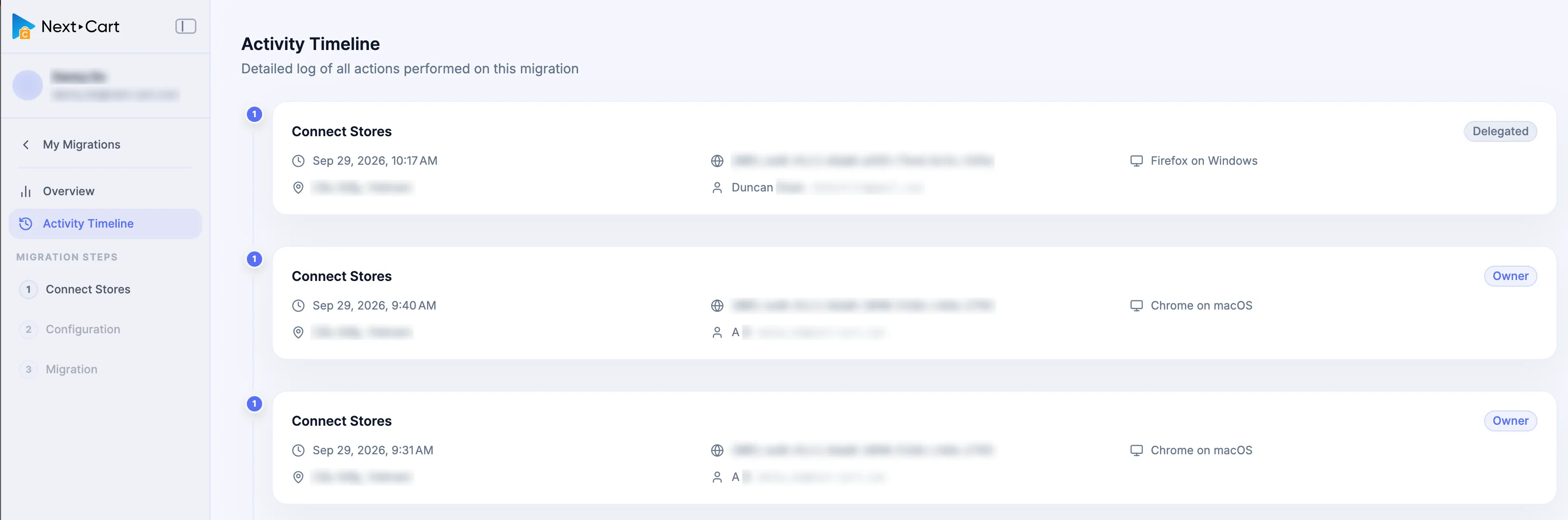
Review the Activity Timeline for recorded actions across Connect Stores, Configuration, and Migration.
Review Linked Orders for this migration
Section titled “Review Linked Orders for this migration”Linked Orders inside Statistics is the project-level financial trail. It shows the Order Number, Created date, Type, Amount, and Status for transactions associated with this migration, including failed or pending attempts that do not change the active package.

Select the hyperlinked Order # when you need that transaction’s full Order Details. Use Orders for transaction state, billing, invoices, refunds, and the difference between historical Orders and the live migration package.
Upgrade a purchased migration
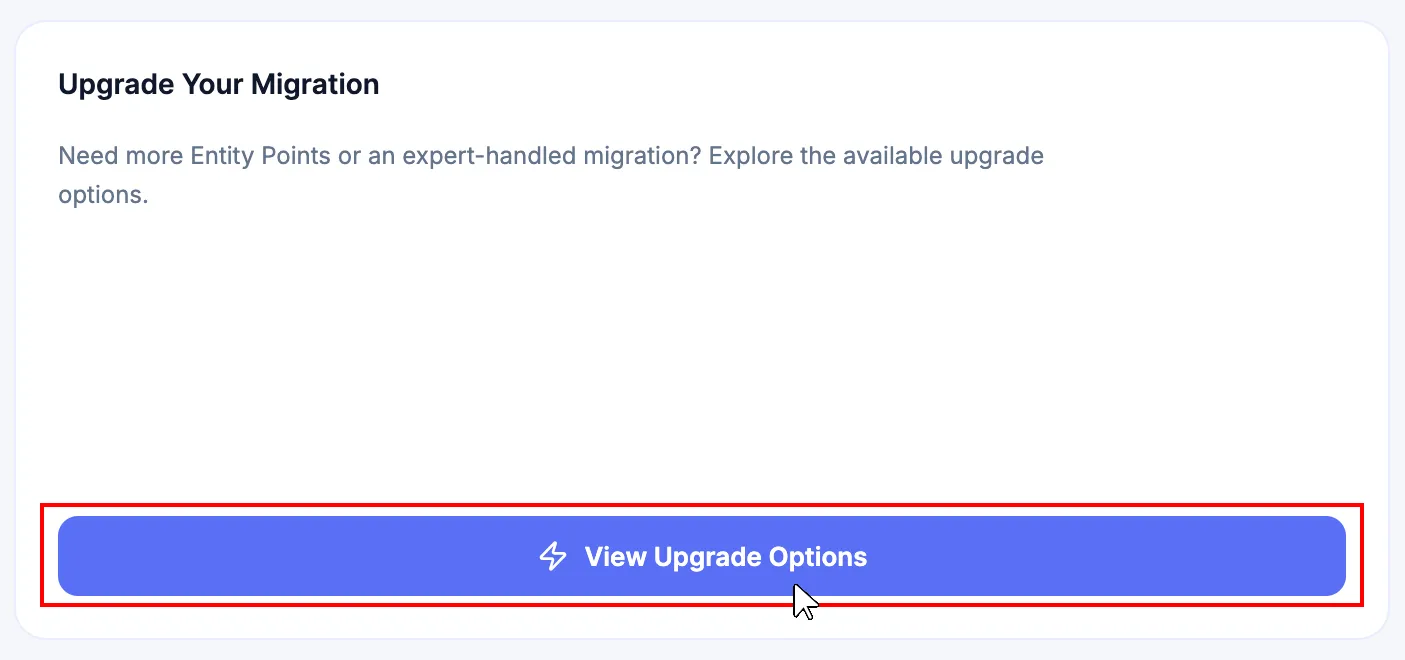
Section titled “Upgrade a purchased migration”From Statistics, select View Upgrade Options when the active project needs a supported higher Service tier, more Entity Points capacity, or additional Add-ons. Follow Purchase a Migration Upgrade for the continuous Checkout workflow. An Upgrade remains attached to the same migration and does not renew its service period.
Extend an expired migration
Section titled “Extend an expired migration”Use the available extension option for the intended expired migration when the project should continue on the same fixed migration path. Do not purchase an unrelated new migration merely because the previous 12-month service period ended. Extend renews the existing migration and preserves its fixed migration path and established Store URL identity.
Review the retained package and any concurrent upgrade in the resulting Extend order before payment. After the Extend order becomes Paid, the renewed access period runs for 12 months from the successful extension-payment settlement timestamp. Support during the renewed validity period follows the applicable Service Level Agreement (SLA). The renewed period does not create an unlimited technician-operated migration entitlement; execution responsibility still depends on the active Migration Service and agreed scope.
Any configuration adjustment or expert-led work after extension depends on the active Migration Service and accepted scope. Standard Migration and Custom Migration with Self-Execute remain customer-operated; Managed Migration and Custom Migration with Expert Handle follow the agreed Next-Cart execution responsibility.
For the extension billing baseline, which successful changes form the active package, and how an Extend order is synchronized back to the migration, use Orders.
Understand a partial refund
Section titled “Understand a partial refund”An approved partial refund removes the refunded value or components from the effective migration package. Historical Orders remain reviewable, while the live migration continues from the state supported by the remaining purchase history.
Use the Refund Policy and Orders for eligibility and transaction evidence. Do not infer refund eligibility from the migration row alone.
Start a purchased migration service
Section titled “Start a purchased migration service”-
In My Migrations, find the intended project.
-
Confirm the migration path, Service, Entity Points, Expires, and Status.
-
Open Statistics first when you need to verify the active package, Linked Orders, progress, upgrade options, or Delegate Access.
-
Open History first when previous activity must be reviewed before another run.
-
For Custom Migration, confirm the agreed operation mode and any required Customization readiness before executing dependent work.
-
Select Start for an eligible Active migration.
-
Continue through Connect Stores, Configuration, and Migration according to the active Service and execution responsibility.
Verify before selecting Start
Section titled “Verify before selecting Start”| Check | Pass condition |
|---|---|
| Category | My Migrations is selected for purchased migration work. |
| Migration Path | Source Platform and Target Platform match the intended project. |
| Service and responsibility | The selected service matches Standard Migration, Managed Migration, or Custom Migration; Custom Migration also has an agreed Self-Execute or Expert Handle mode. |
| Capacity | Entity Points coverage is sufficient for the intended work. |
| Validity | Expires and Status show that the service is Active. |
| Access | You can open the migration as the owner or through valid Delegate Access. |
Failure handling
Section titled “Failure handling”| Issue | What to do |
|---|---|
| A purchased migration is missing | Confirm the New Order is Paid in Orders. If an authorized user still cannot access it, submit a Support Ticket with the Order #. |
| Start is unavailable | Check Status and Expires. Extend an Expired migration when appropriate; review the related Order or Support case for a Suspended migration. |
| The migration path is wrong | Do not proceed. Review the related Order and contact Support if the purchase does not match the intended path. |
| Entity Points coverage is insufficient | Open Statistics and use View Upgrade Options for the intended migration. |
| A Paid Upgrade or Extend is missing | Compare Linked Orders and the active project state, preserve the Order #, and submit a Support Ticket if the effective package is not updated. |
| Customization is not ready | Do not treat Paid as engineering readiness. Use the agreed readiness communication and Support process. |
| An activity is unfamiliar | Open History. If delegated access is involved, review or revoke it through Delegate Access. |
Next Steps
Section titled “Next Steps”Select Start for an eligible purchased migration and continue through Connect Your Source and Target Platforms, Configure Your Migration, and Run Your Migration.