

Configure Data Filter
Build entity-level filters with supported Field, Operator, and Value rules, including the operator syntax available for direct expressions.
Configure Data Filter
Section titled “Configure Data Filter”Data Filter controls which records of a selected entity remain in the migration. Each visual rule uses Field -> Operator -> Value, and multiple rules inside one Entity Filter can be combined with AND or OR.
Both Source and Target platforms must support this Add-on.
Screenshots illustrate the procedure. Available entities, fields, values, and controls depend on your migration path and platform versions.
Configure a filter
Section titled “Configure a filter”-
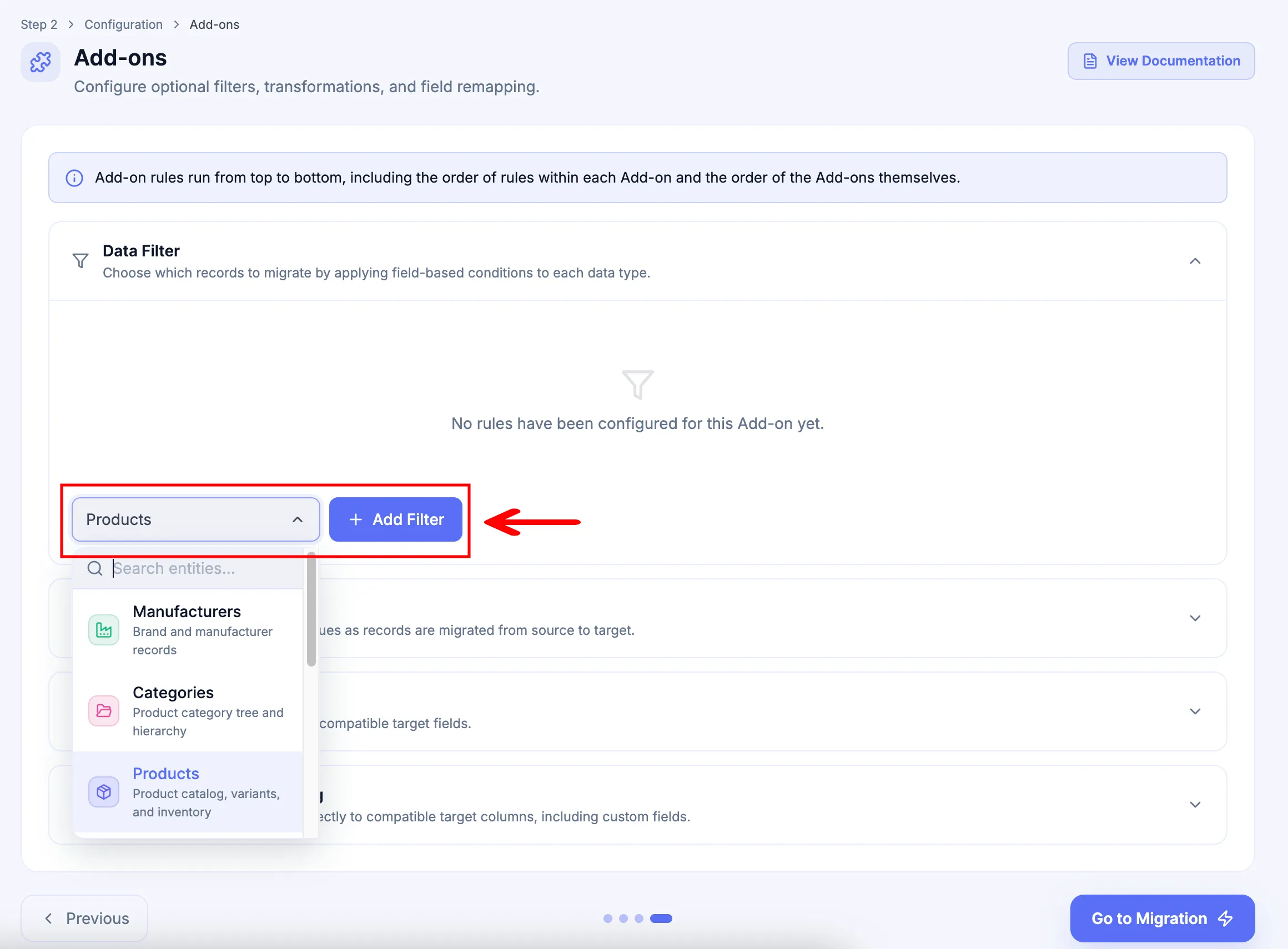
In the Configuration step, expand Data Filter, select the entity to filter, and click Add Filter.
-
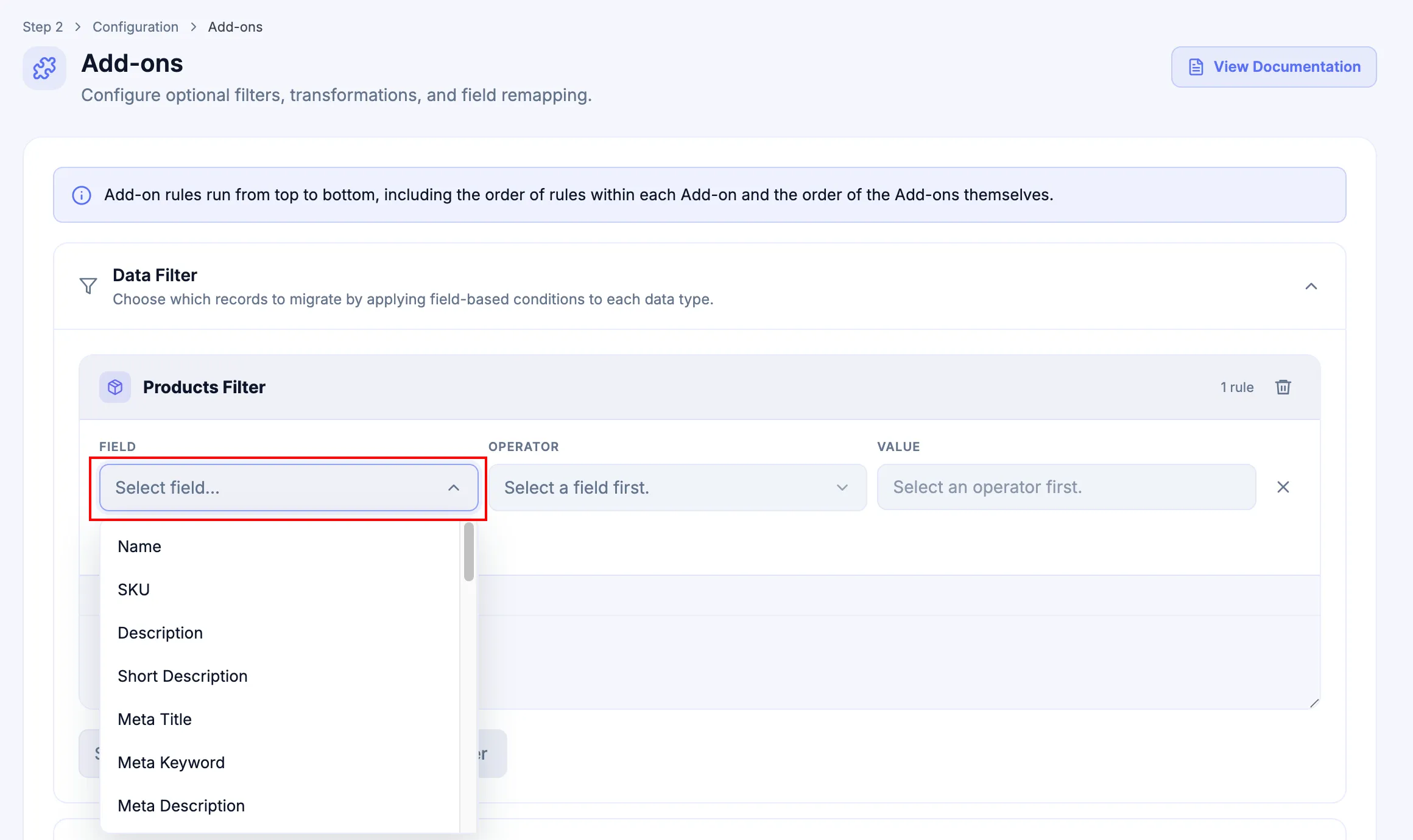
Select the source Field used by the condition.
-
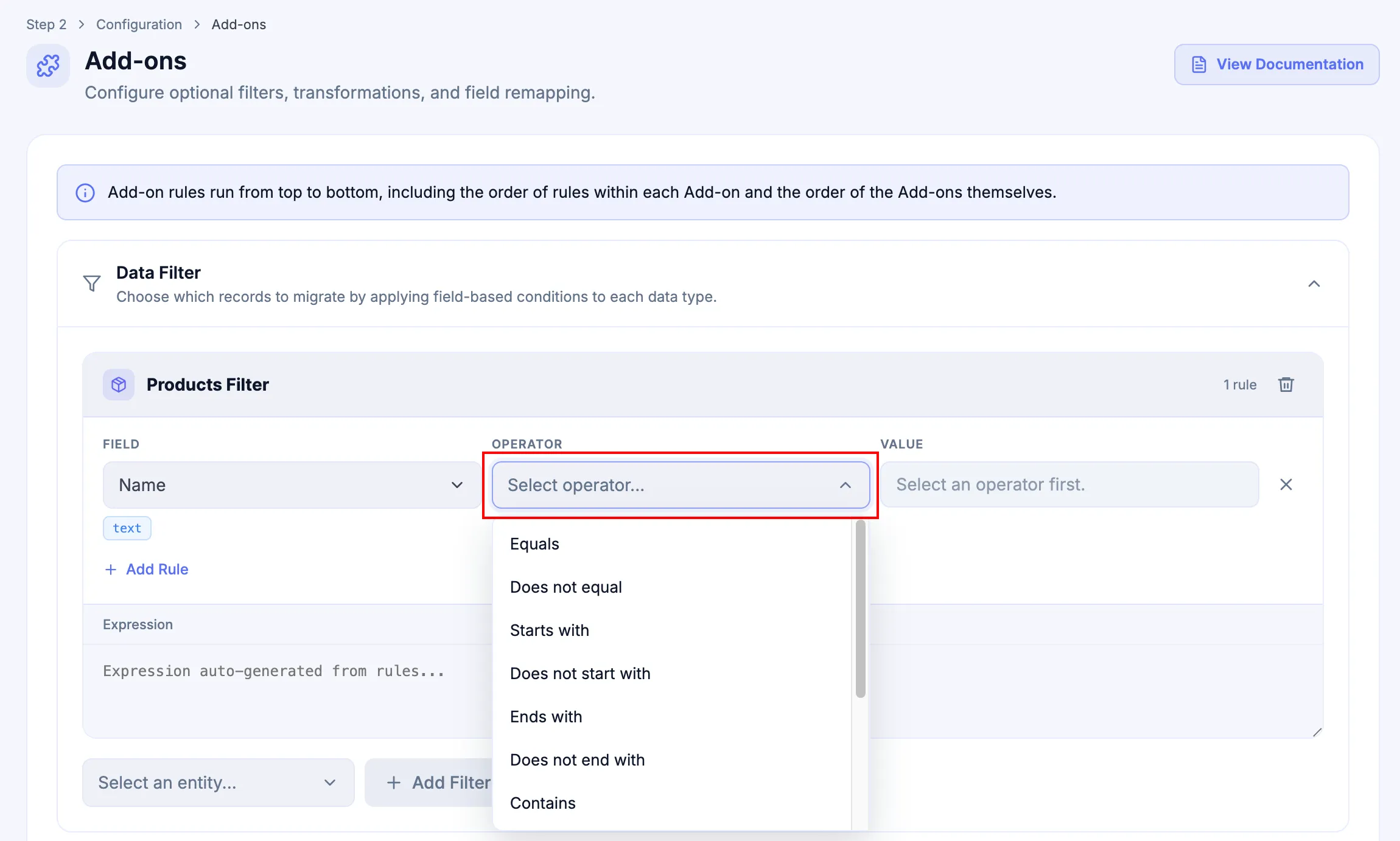
Select the Operator that evaluates the field.
-
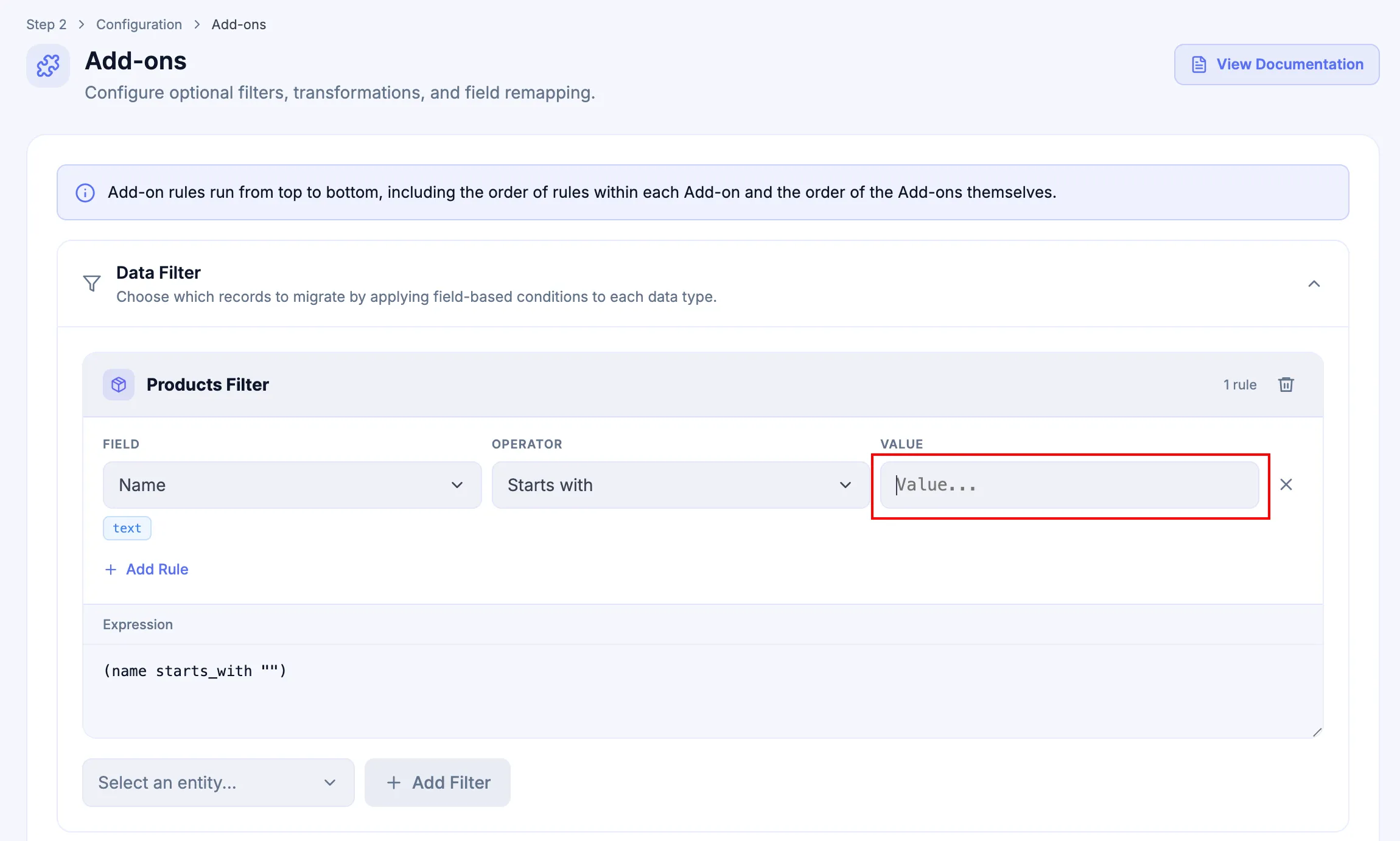
Enter the comparison Value required by that operator.
-
Click Add Rule when the same Entity Filter needs another condition.
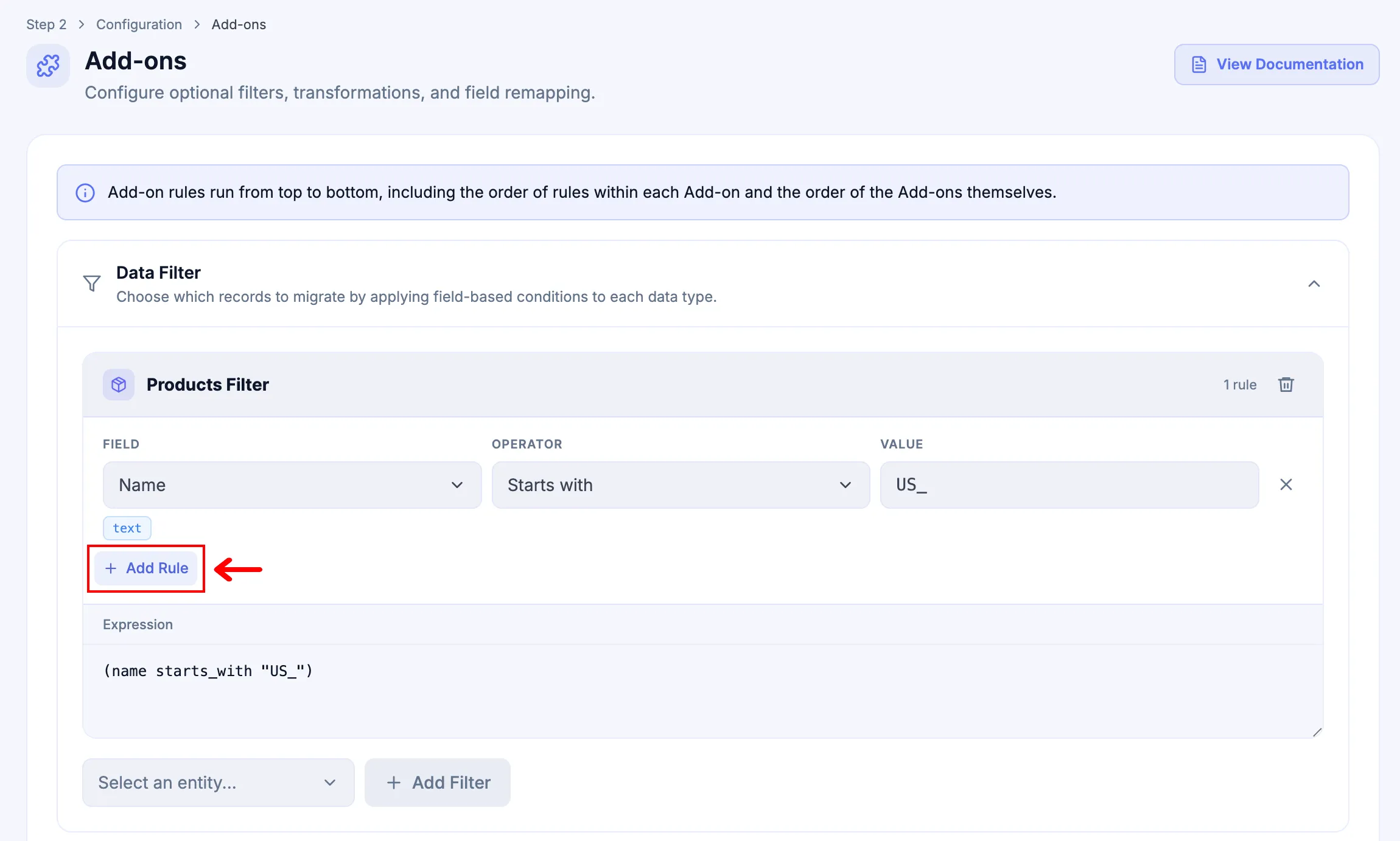
-
Use AND or OR to define how multiple conditions relate, then repeat the process for other entities when needed.
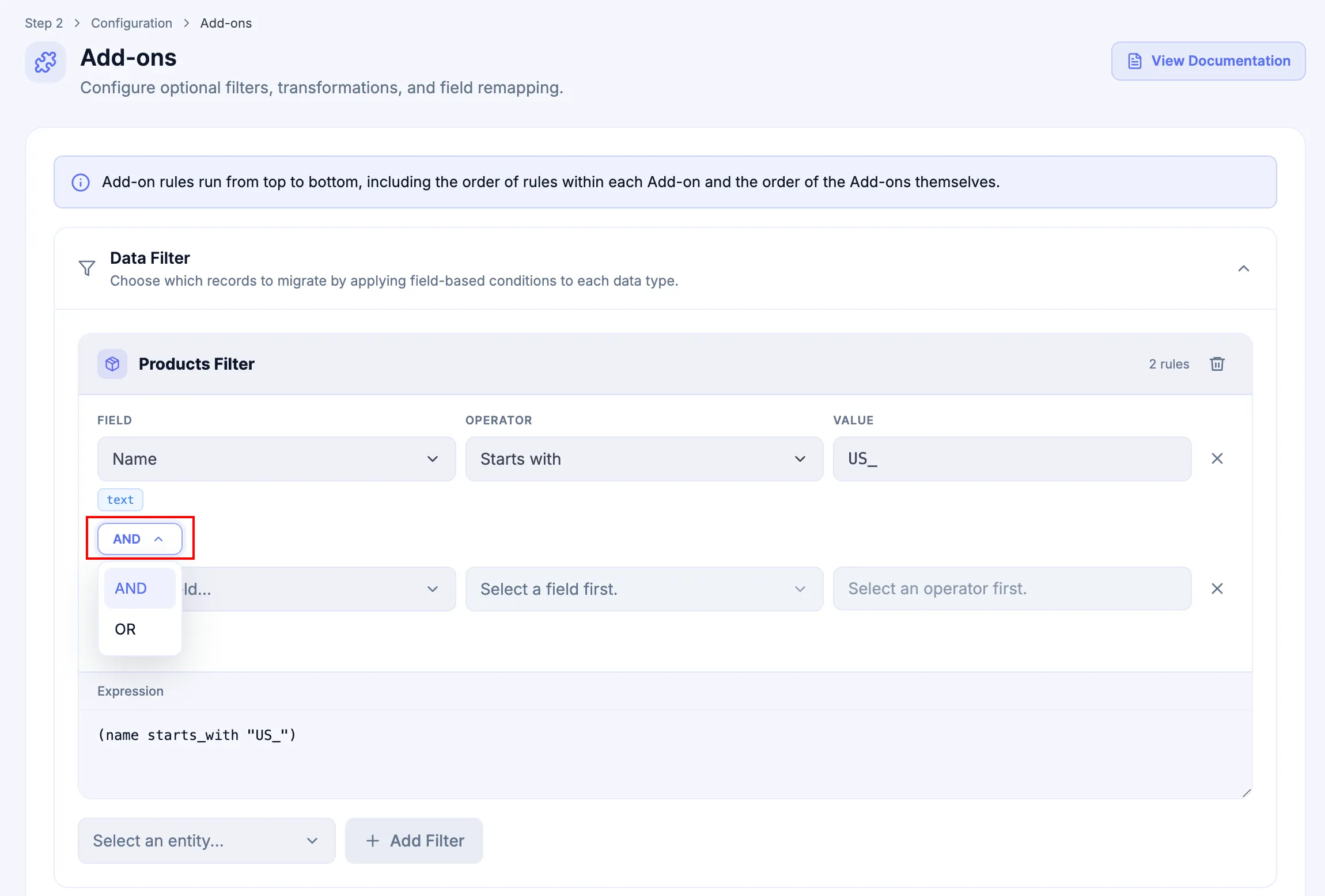
Example: filter Manufacturers
Section titled “Example: filter Manufacturers”To migrate only Manufacturers whose names start with US_, configure:
| Setting | Value |
|---|---|
| Entity | Manufacturers |
| Field | Name |
| Operator | Starts with |
| Value | US_ |
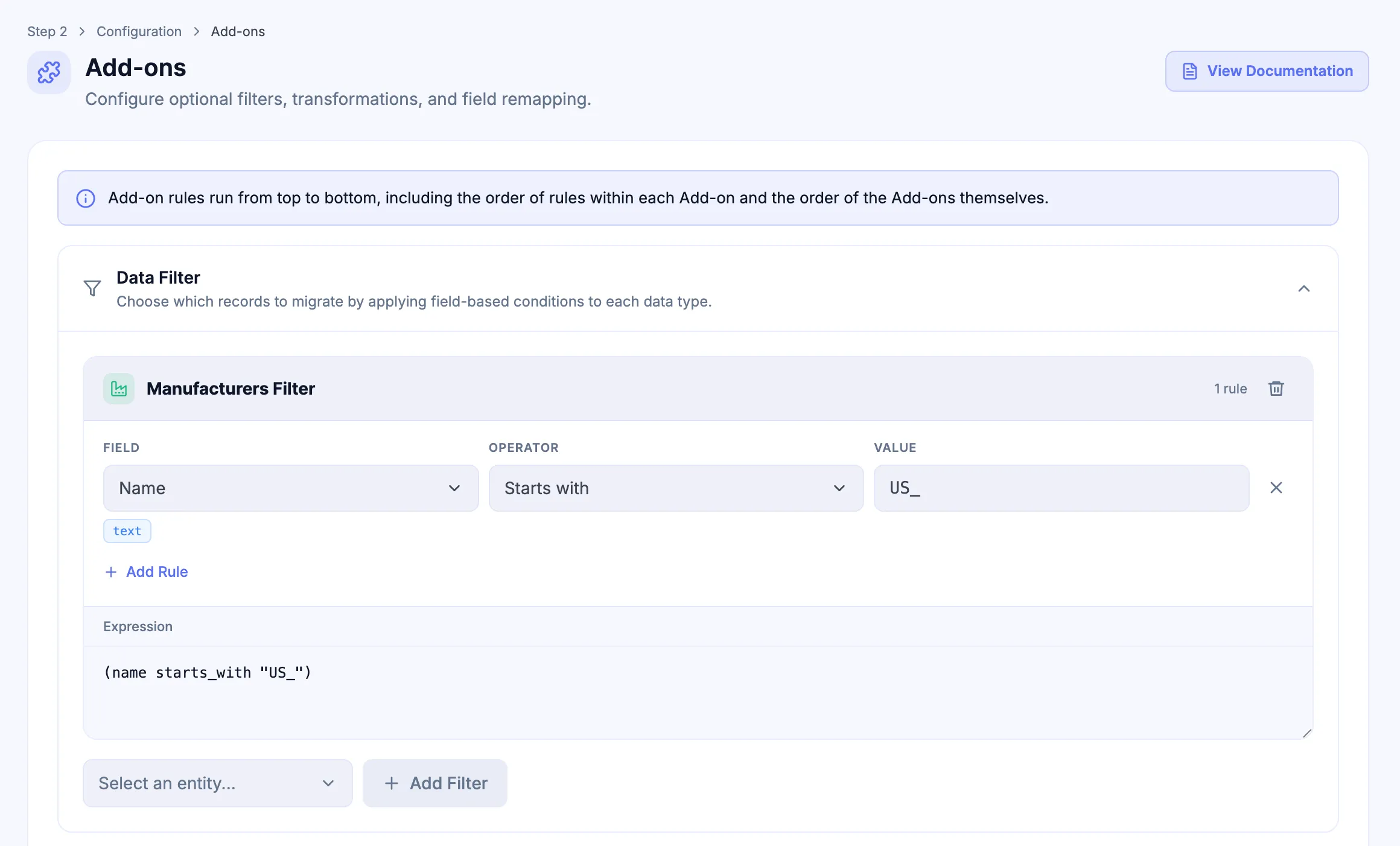
The generated expression is:
(name starts_with "US_")To narrow the same Entity Filter further, add another rule with AND:
| Setting | Value |
|---|---|
| Field | Created Time |
| Operator | Is after |
| Value | 09/11/2001 |
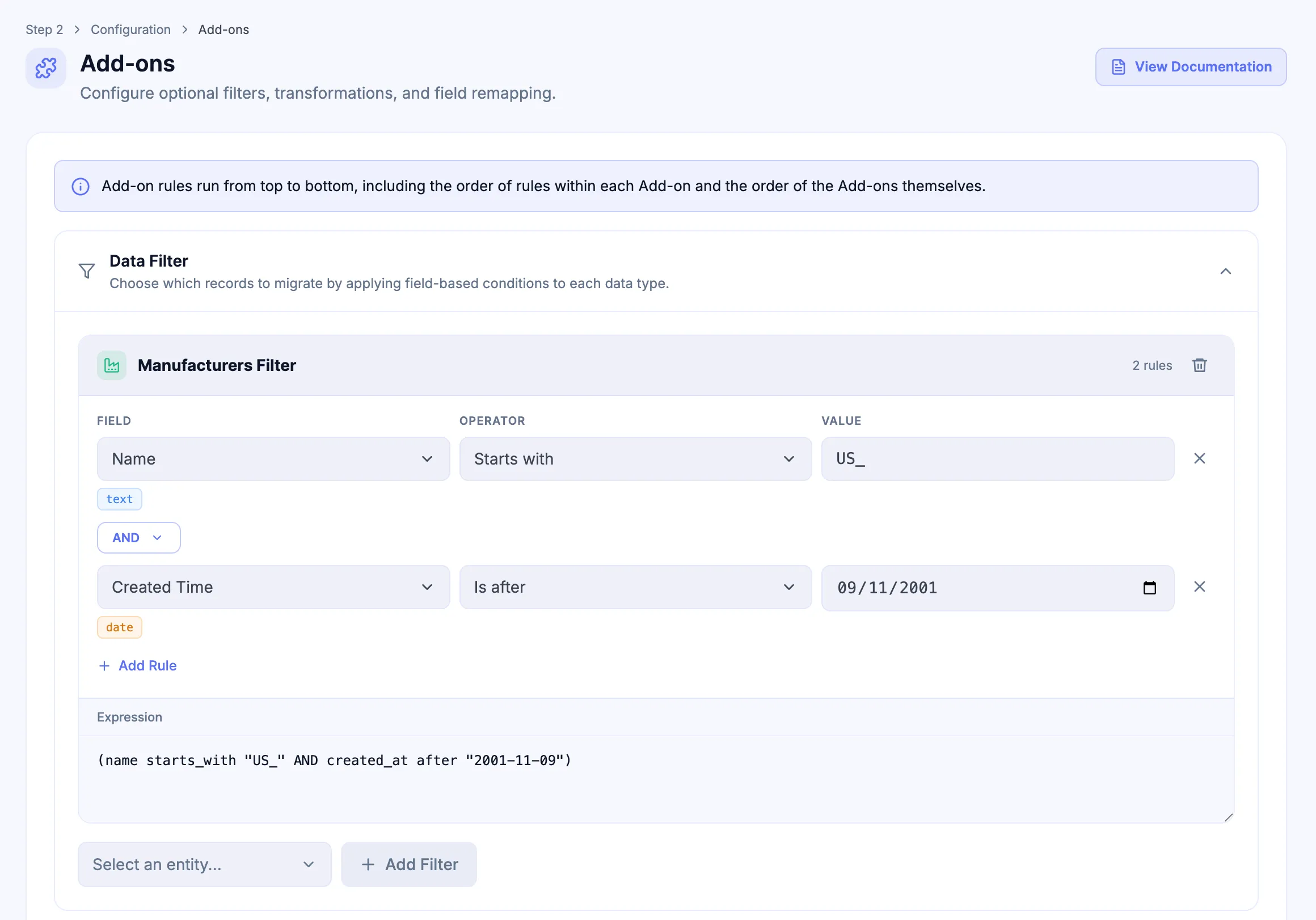
For 9 November 2001, the combined expression is:
(name starts_with "US_" AND created_at after "2001-11-09")The filter keeps only Manufacturers whose names start with US_ and whose creation time is after the example date.
Direct expression editing
Section titled “Direct expression editing”Expression is generated automatically from the visual rules. Review the generated condition before continuing.
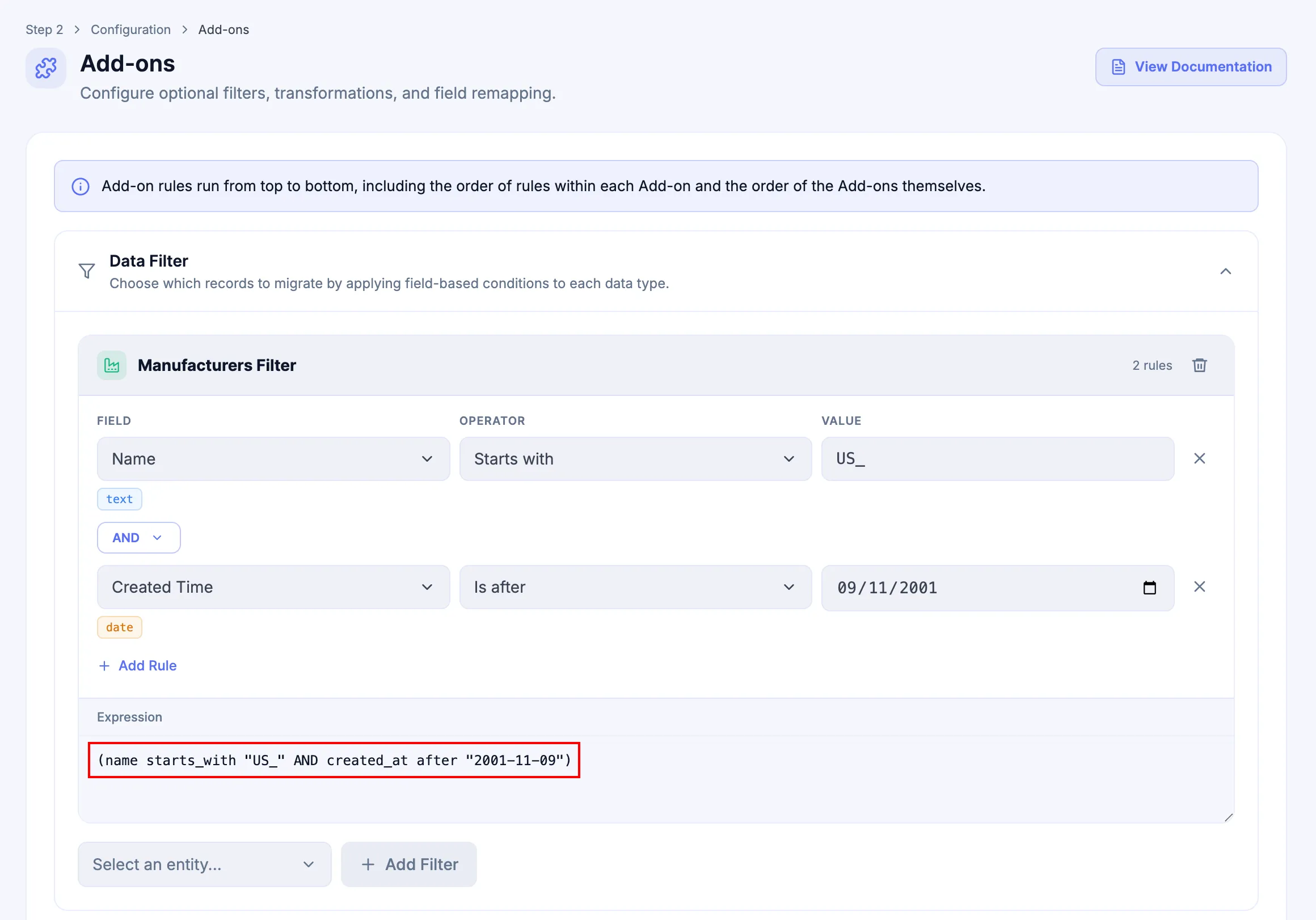
Direct editing is available when a supported condition is easier to express manually. When direct editing begins, the visual rule controls are hidden and the editor shows:
The visual rules are hidden because this expression is being edited directly.
Operator reference
Section titled “Operator reference”Label is the operator name shown in the dropdown. Operator Identifier is the syntax used when manually writing or editing expressions.
| Label | Operator identifier |
|---|---|
| Equals | equals |
| Does not equal | not_equal |
| Starts with | starts_with |
| Does not start with | not_starts_with |
| Ends with | ends_with |
| Does not end with | not_ends_with |
| Contains | contains |
| Does not contain | not_contains |
| Is in | in |
| Is not in | not_in |
| Is empty | empty |
| Is not empty | not_empty |
number
Section titled “number”| Label | Operator identifier |
|---|---|
| Equals | equals |
| Does not equal | not_equal |
| Is less than | less_than |
| Is greater than | greater_than |
| Is less than or equal to | less_than_or_equal |
| Is greater than or equal to | greater_than_or_equal |
| Is in | in |
| Is not in | not_in |
| Is empty | empty |
| Is not empty | not_empty |
| Is zero | zero |
| Is not zero | not_zero |
| Label | Operator identifier |
|---|---|
| Equals | equals |
| Does not equal | not_equal |
| Is between | between |
| Is not between | not_between |
| Is before | before |
| Is after | after |
| Is empty | empty |
| Is not empty | not_empty |
datetime
Section titled “datetime”| Label | Operator identifier |
|---|---|
| Equals | equals |
| Does not equal | not_equal |
| Is between | between |
| Is not between | not_between |
| Is before | before |
| Is after | after |
| Is empty | empty |
| Is not empty | not_empty |
boolean
Section titled “boolean”| Label | Operator identifier |
|---|---|
| Is true | is_true |
| Is false | is_false |
Common record-scope questions
Section titled “Common record-scope questions”Start with the Field choices actually available for the selected entity in the active migration. A business requirement is suitable for Standard Data Filter only when those fields and the supported operators can express the requirement without changing its meaning.
| Requirement | Default behavior without the qualifying filter | Standard Data Filter is suitable when | Use Custom Migration when |
|---|---|---|---|
| Only active Products | Selected Products are not automatically limited to an active/saleable subset. | An available Product field represents the exact active or saleable state required by the project. | The active/saleable state cannot be expressed by the available Product fields/operators. |
| Only recent Orders | Selected Orders are not automatically limited to a recent date window. The migration imports Order history in chronological order. | An available Order creation date/time field can be evaluated with Is after or Is between using the agreed boundary, such as the last three years. | The required Order date window cannot be expressed by the available Order field/operator. |
| Products from selected Categories only | Selected Categories and Products are not automatically limited to the requested Category subset. | An available Product condition represents the required Product-to-Category membership. | Exact Product-to-Category membership cannot be expressed by the active Data Filter. |
| Customers who placed at least one Order | Selected Customers are not automatically limited to Customers with an Order. | An available Customer condition represents the required Customer-to-Order relationship or the approved equivalent. | The required Customer-to-Order relationship cannot be represented by the available condition. |
| Products that are in stock | Selected Products are migrated regardless of stock status unless a qualifying filter is applied. | The project defines what in stock means and the available Product fields can express that exact rule, such as the required stock state, quantity rule, or location-aware condition. | The required stock rule depends on unsupported fields or logic. |
| Valid or unused Coupons | Selected Coupons are not automatically limited to active, valid, or unused records. | The project defines valid and unused, and available Coupon fields can represent every required condition, such as status, effective dates, or usage boundaries. | The active/unused rule cannot be represented exactly by the available Coupon fields/operators. |
| Blog Posts published after a date | Selected Blog Posts and CMS Pages are not automatically limited to a publication timeframe. | An available Blog Post field represents the actual publication time required by the project. | The required publication-time condition is unavailable or depends on unsupported logic. |
Do not approximate Category membership with Product name or SKU, substitute an update timestamp when the requirement is based on Order creation time, or use a similar-looking field when its meaning does not match the business rule.
Establish record scope before processing begins
Section titled “Establish record scope before processing begins”Configure the intended record-level filter before the migration activity whose scope it should control. A condition added after processing has already begun cannot retroactively redefine records already processed or counted for that activity.
A filter changes which records the activity attempts to migrate; it does not retroactively erase Entity Points already consumed by records that were first migrated successfully before the scope change. If the required scope changes after processing has started, stop and determine the correct next migration action/configuration before continuing rather than assuming the active run can be rewritten in place.
Verify the filter
Section titled “Verify the filter”Before continuing, check Field, Operator, Value, and AND / OR against the intended record scope. Read the generated expression from left to right.
After a Full Migration, confirm that representative records were included or excluded as intended. Check examples on both sides of the filter boundary.
If the scope is wrong, check the field type, operator, comparison value, and rule combination before running the filter again. For a directly edited expression, also check operator identifiers and grouping syntax. Use Custom Migration when supported operators cannot express the requirement safely.
Rule order and removal
Section titled “Rule order and removal”Rules inside an Entity Filter are evaluated from top to bottom. AND / OR controls how the rules in that filter are combined.
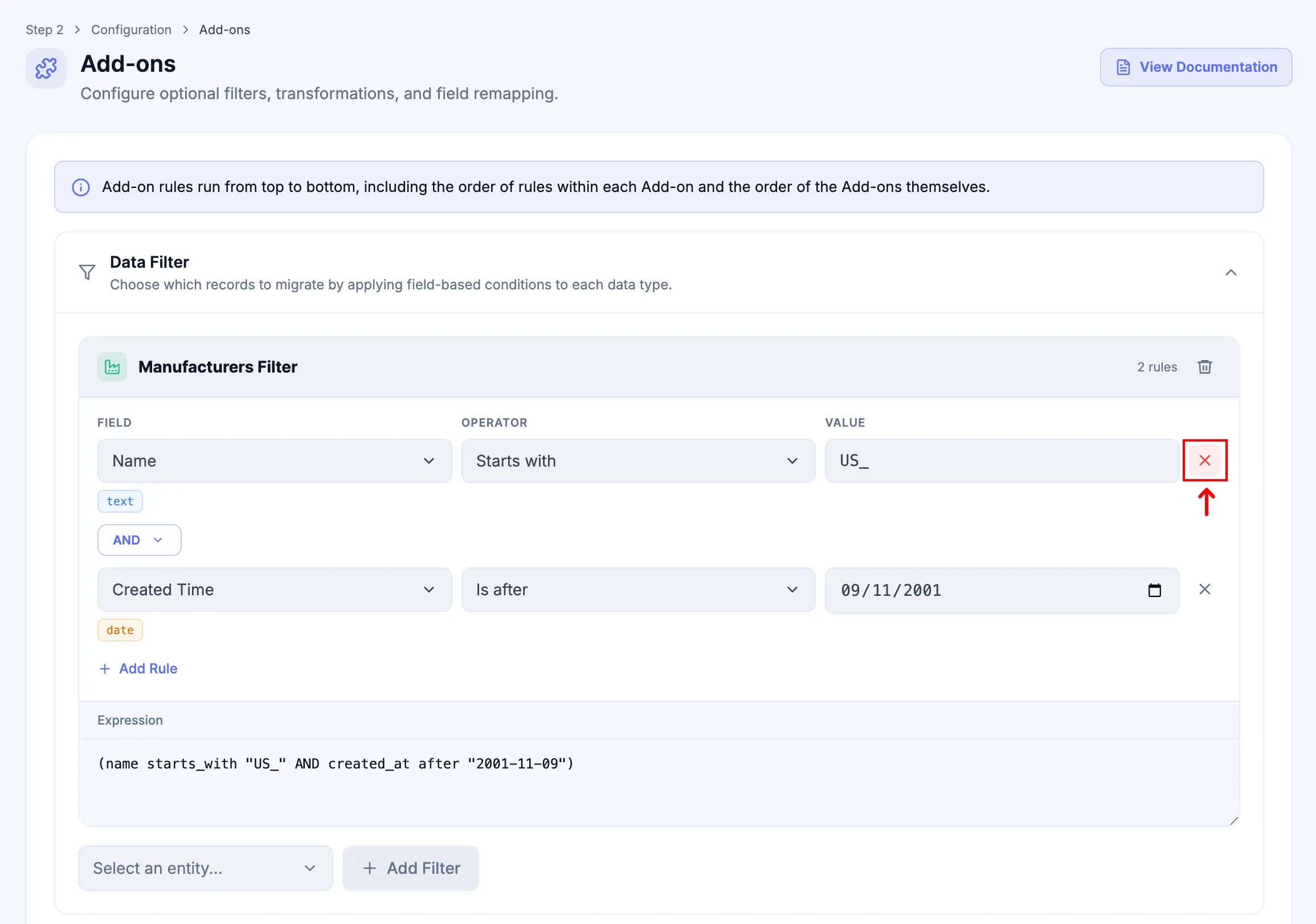
-
Click x to remove an individual rule.
-
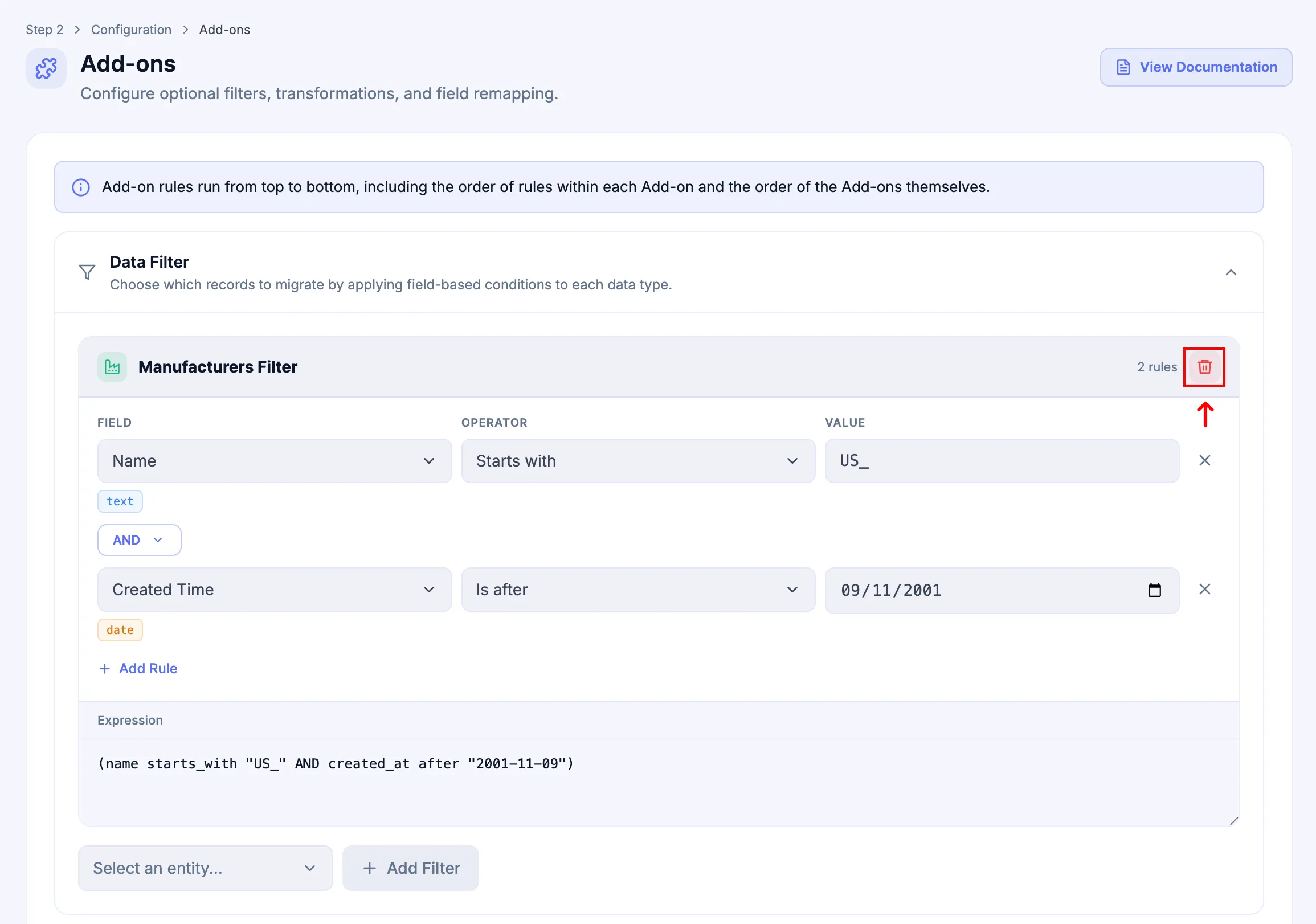
Use the remove control for the Entity Filter to delete the entire filter group.
Next Steps
Section titled “Next Steps”If Data Transformation is included, configure it next. Otherwise continue to the next Add-on shown in Add-ons, keeping the four processing stages in order.