

Purchase a Migration
Build the correct purchase from migration path through Entity Points, service tier, Add-ons, and billing, then follow direct payment or Custom scoping without mixing lifecycles.
Purchase a Migration
Section titled “Purchase a Migration”Use Checkout to create a new purchased migration for one fixed Source Platform to Target Platform path. Every new purchase starts with the migration path, Migration Service, data-volume estimate, applicable Add-ons, and billing information. The final order path then depends on the selected Service.
- Standard Migration and Managed Migration proceed directly to payment when the selected migration path supports customer Service selection.
- Custom Migration proceeds to Request a Quote so the non-standard scope can be assessed, itemized, aligned, and approved before payment.
- If Source Platform is CSV, XLS, or XML, Custom Migration is required. The included file workflow migrates Products only. Add Customers, Orders, other entity types, or special logic to Custom Requirements so the additional handling can be scoped and developed.
- A platform outside the standard supported Source or Target directory is handled through Custom Migration according to the requested scope.
Before you start
Section titled “Before you start”Prepare the information that defines the purchase and prevents avoidable scope changes later.
| Requirement | What to confirm |
|---|---|
| Migration path | Confirm the intended Source Platform and Target Platform. The purchased migration stays tied to this fixed directional path. Before continuing, review Store URL Locking and Store Identity because the applicable Store URL lock is committed when the successfully connected Connect Stores setup proceeds to the Configuration step, according to the Source/Target URL-field rules. |
| Service requirement | Whether Standard Migration, Managed Migration, or Custom Migration matches the required operating model and technical scope. |
| Data-volume estimate | Realistic counts for Products, Customers, Orders, and Blog Posts so Entity Points can be calculated. |
| Add-on requirements | Any applicable Add-ons required by the migration scope. |
| Custom requirements | For Custom Migration, the non-standard rules, source structures, mappings, dependencies, examples, and expected target results that need assessment. |
| Billing information | The customer or business details that should be associated with the order and invoice. |
Use Define Migration Scope when the required data, Add-ons, exclusions, or non-standard handling are not yet clear. For Custom Migration, prepare testable requirements before requesting a quote through Prepare Custom Migration Requirements.
Configure the purchase in Checkout
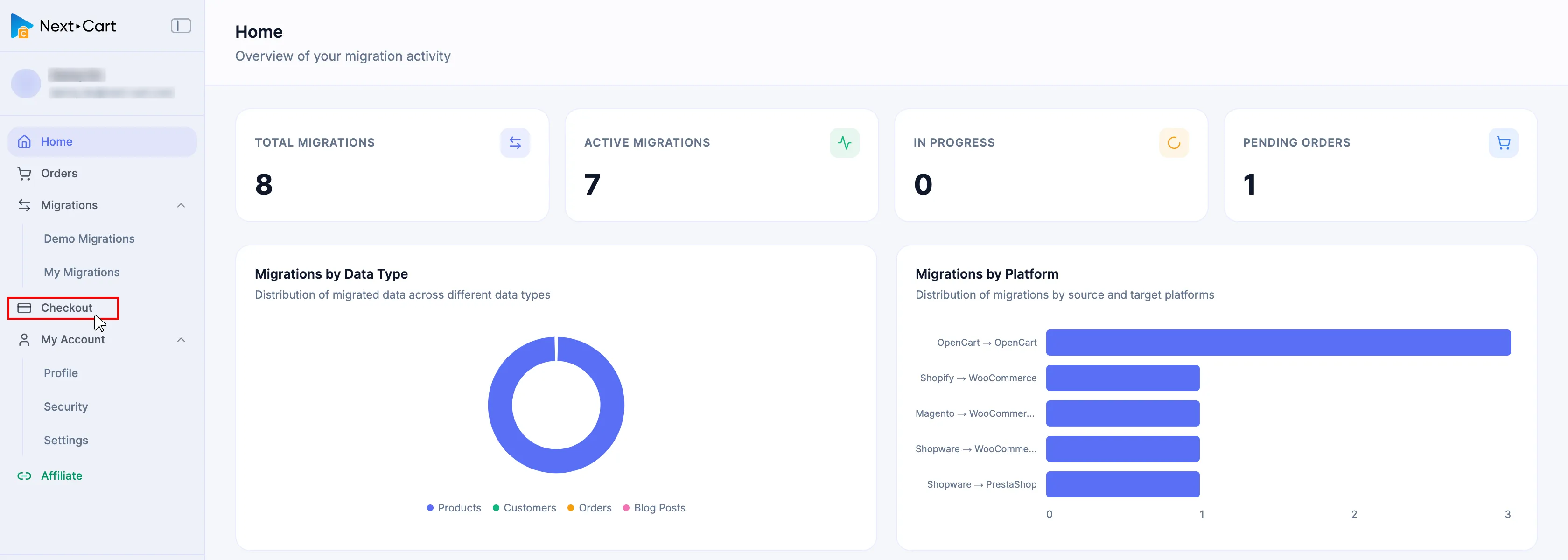
Section titled “Configure the purchase in Checkout”From the Dashboard sidebar, select Checkout to open the New migration purchase flow.
-
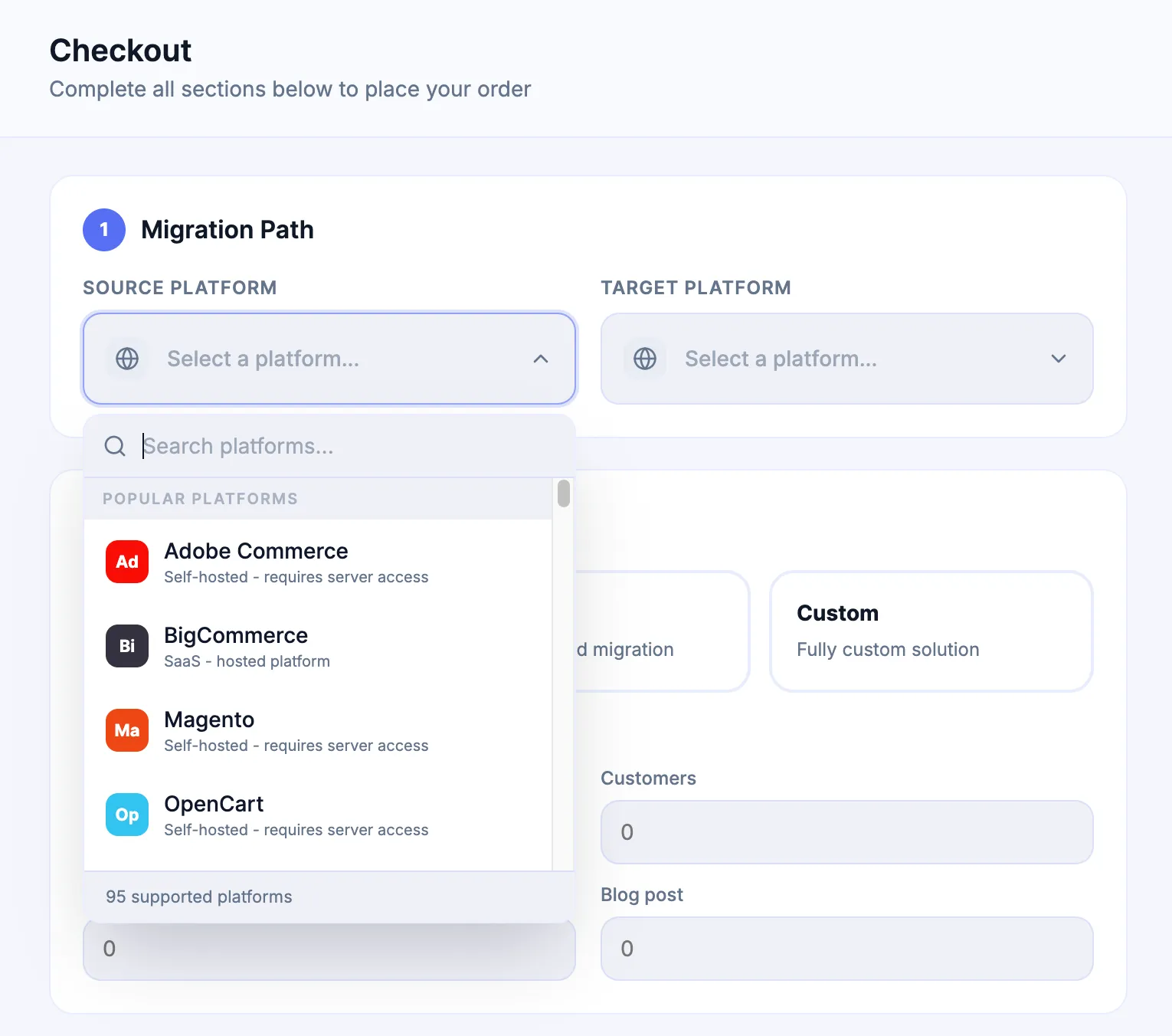
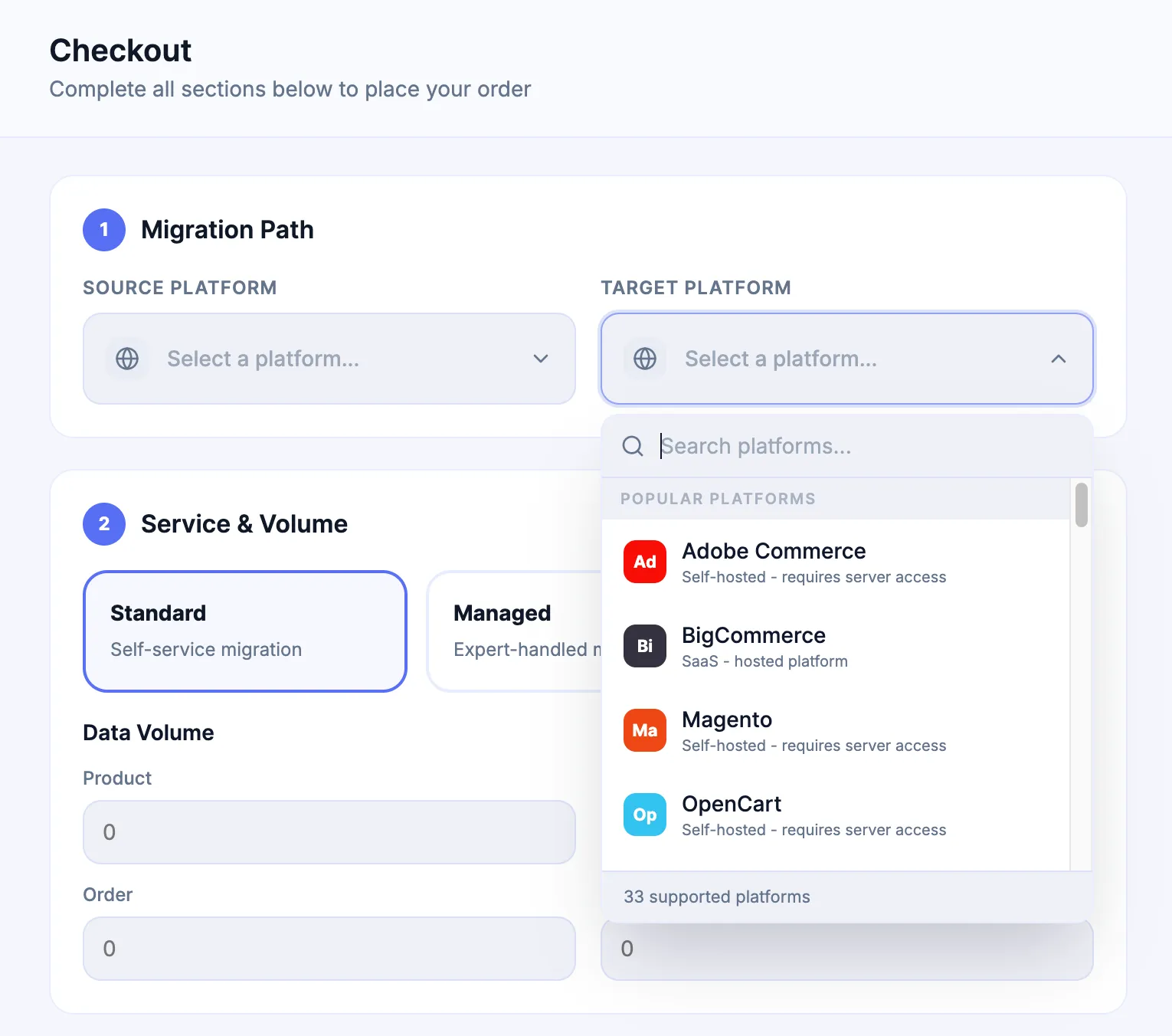
Select the migration path
Choose the Source Platform and Target Platform. Confirm the direction carefully because the purchased migration is created for that path only.
Source Platform selection
Target Platform selection
-
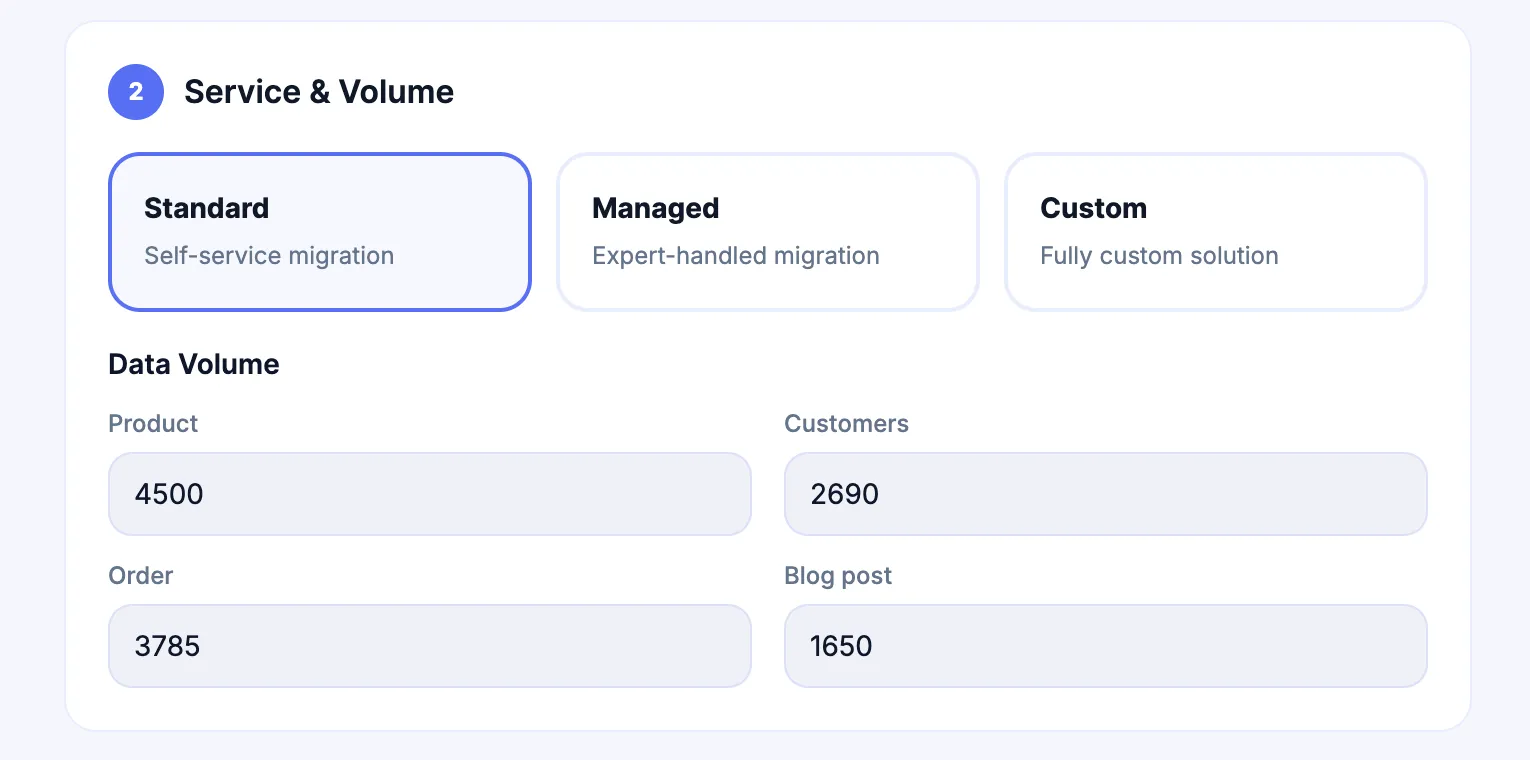
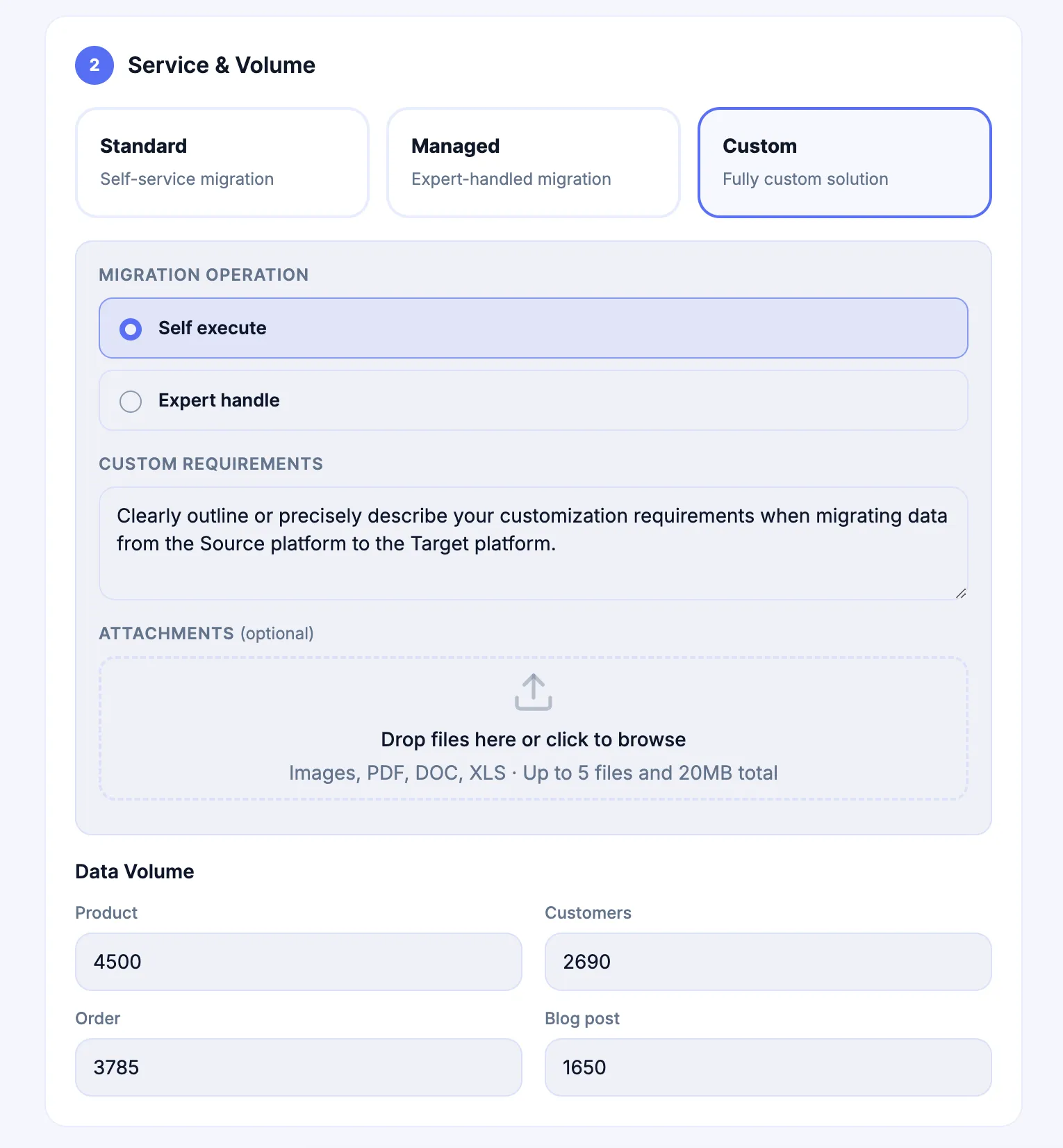
Select the Migration Service and enter data volumes
In Checkout, select Standard for Standard Migration, Managed for Managed Migration, or Custom for Custom Migration. Enter realistic Products, Customers, Orders, and Blog Posts volumes. The same Entity Points calculation applies to all three Services.
-
Complete the Custom Migration fields when Custom is selected
Choose the Migration Operation, describe the custom requirements, and attach supporting specifications when useful. This additional information is used for scoping and does not convert the request into a paid order yet.
-
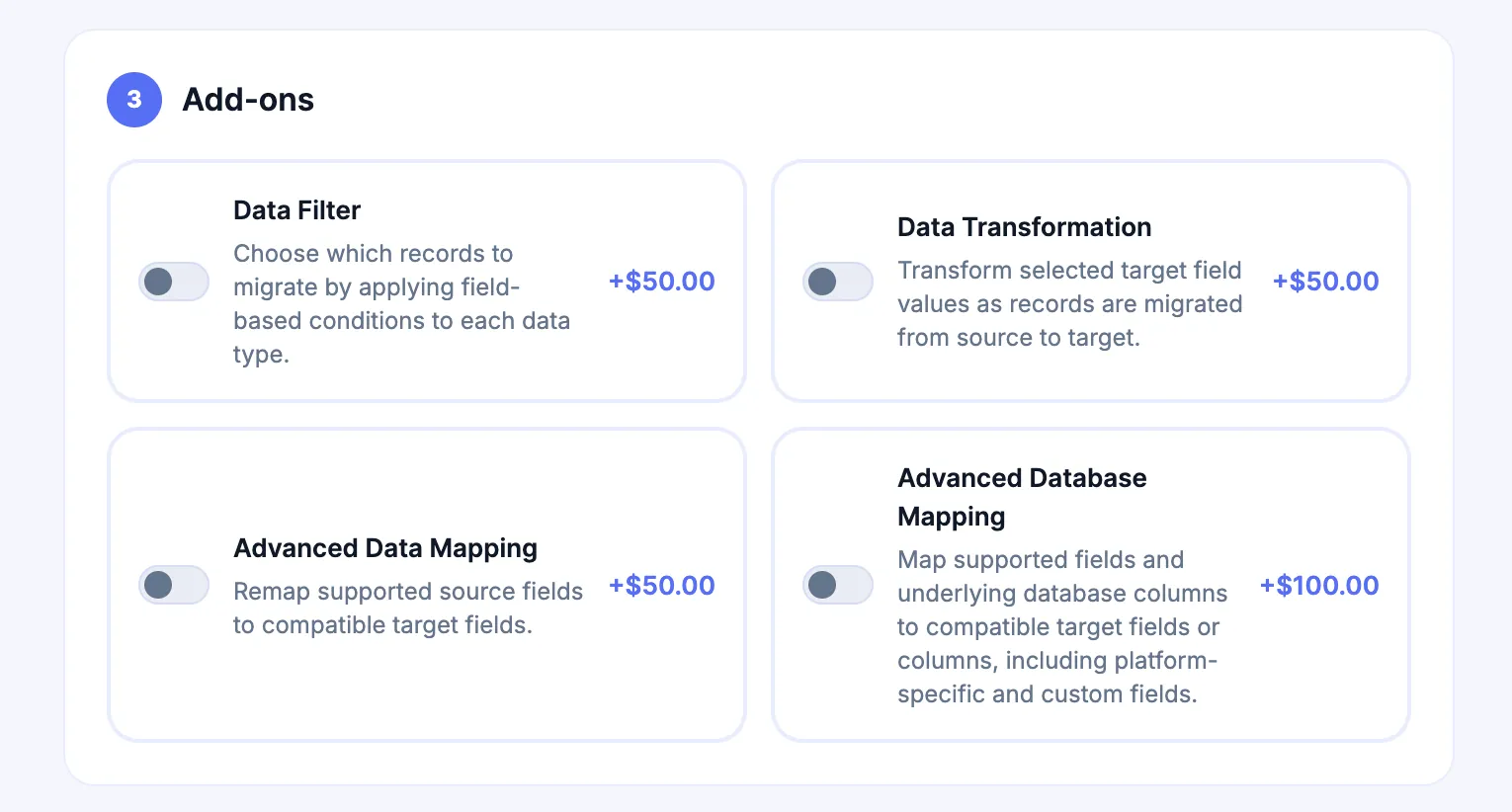
Review applicable Add-ons
Select only the Add-ons required for the intended scope and available for the migration path. Add-ons and Custom Migration are separate parts of the purchase.
-
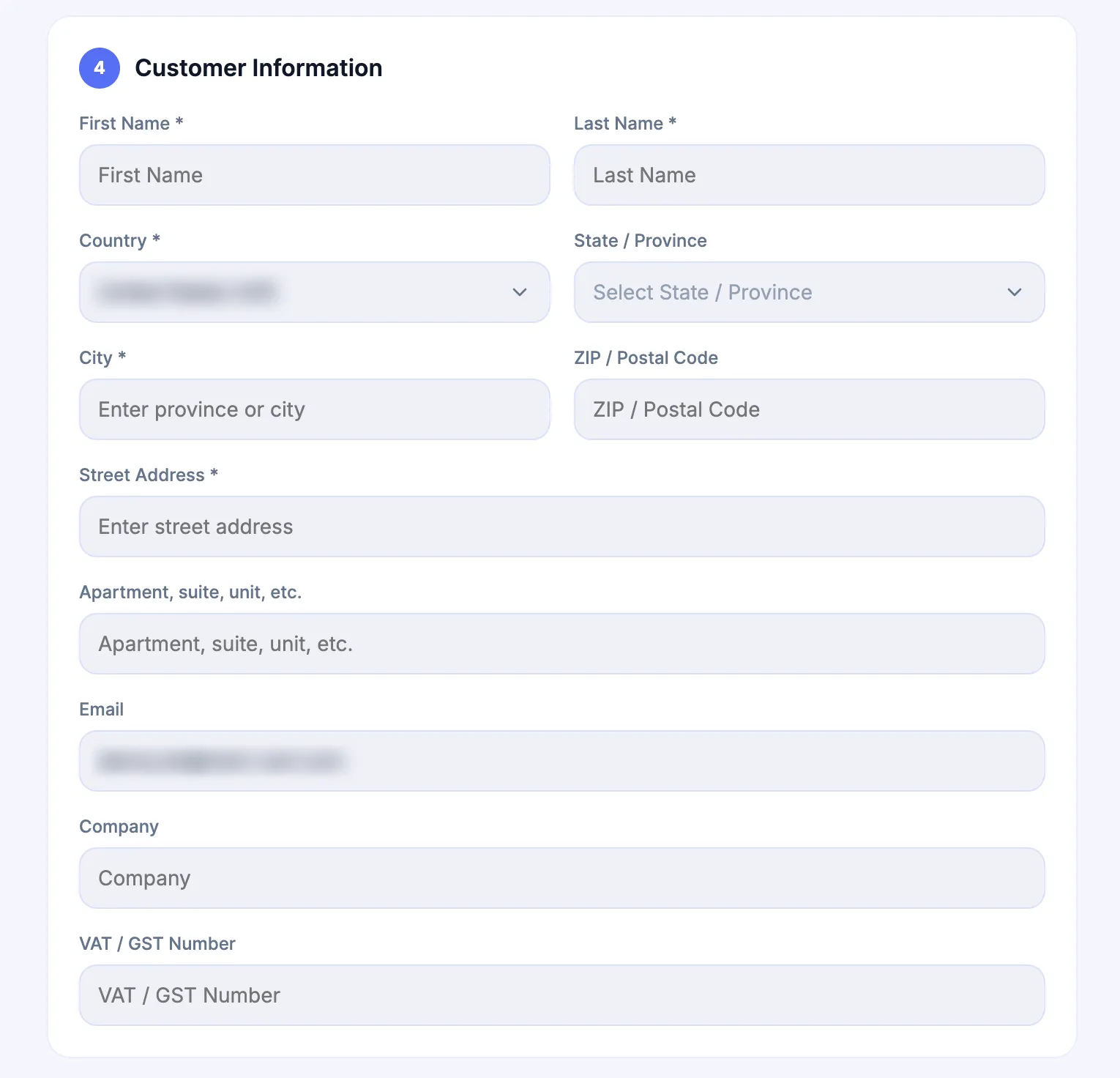
Enter customer and billing information
Confirm the name, address, email, company, and VAT or GST information that applies to the order. Use the legal billing details that should appear on the invoice where applicable.
-
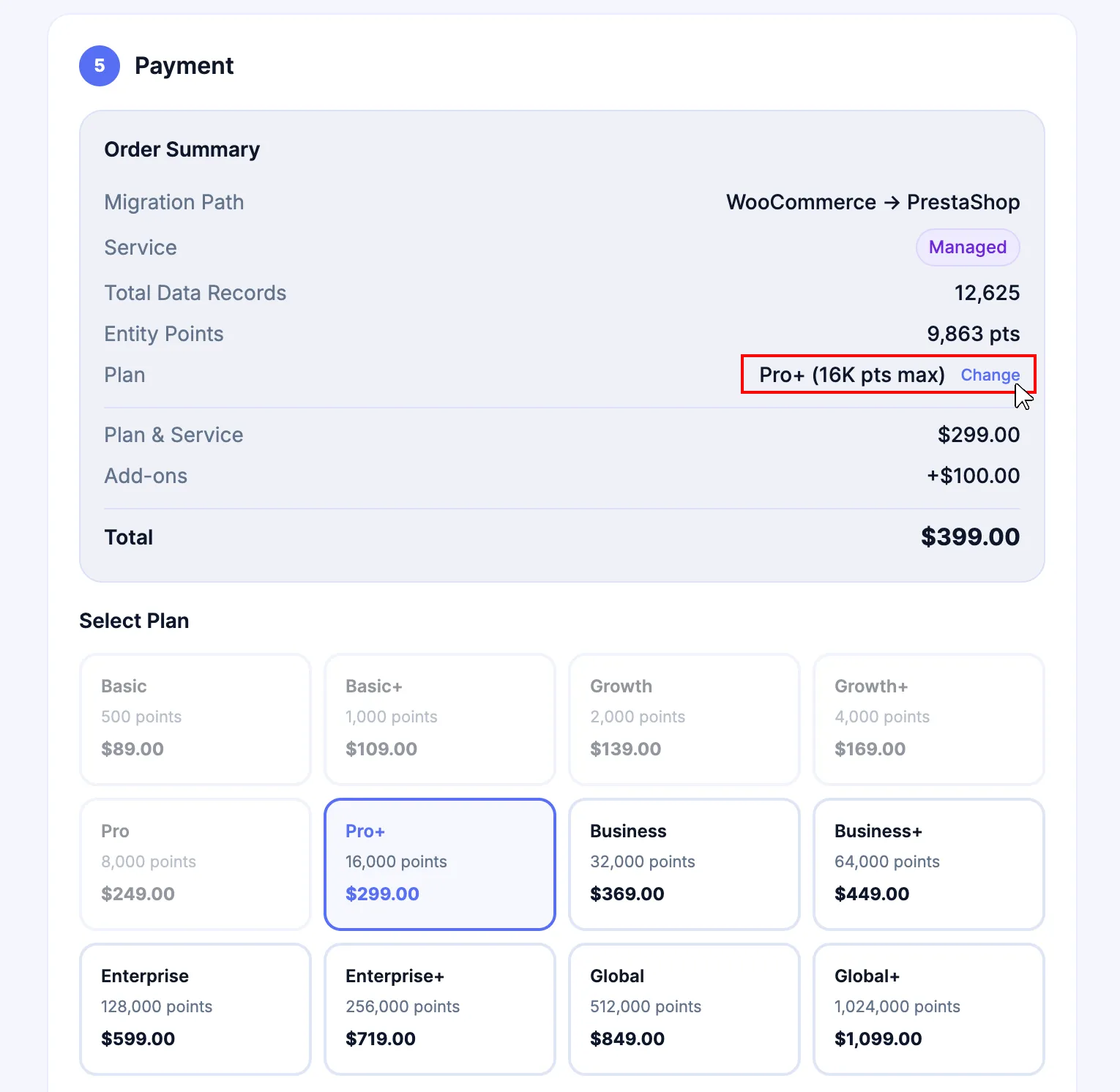
Review Entity Points and the recommended plan
Checkout calculates Entity Points from the entered data volumes and selects the nearest Entity Points Plan with enough capacity. Keep that plan or choose a higher plan when you want additional buffer for growth or records that may be added before the final migration activity.
-
Review the order summary
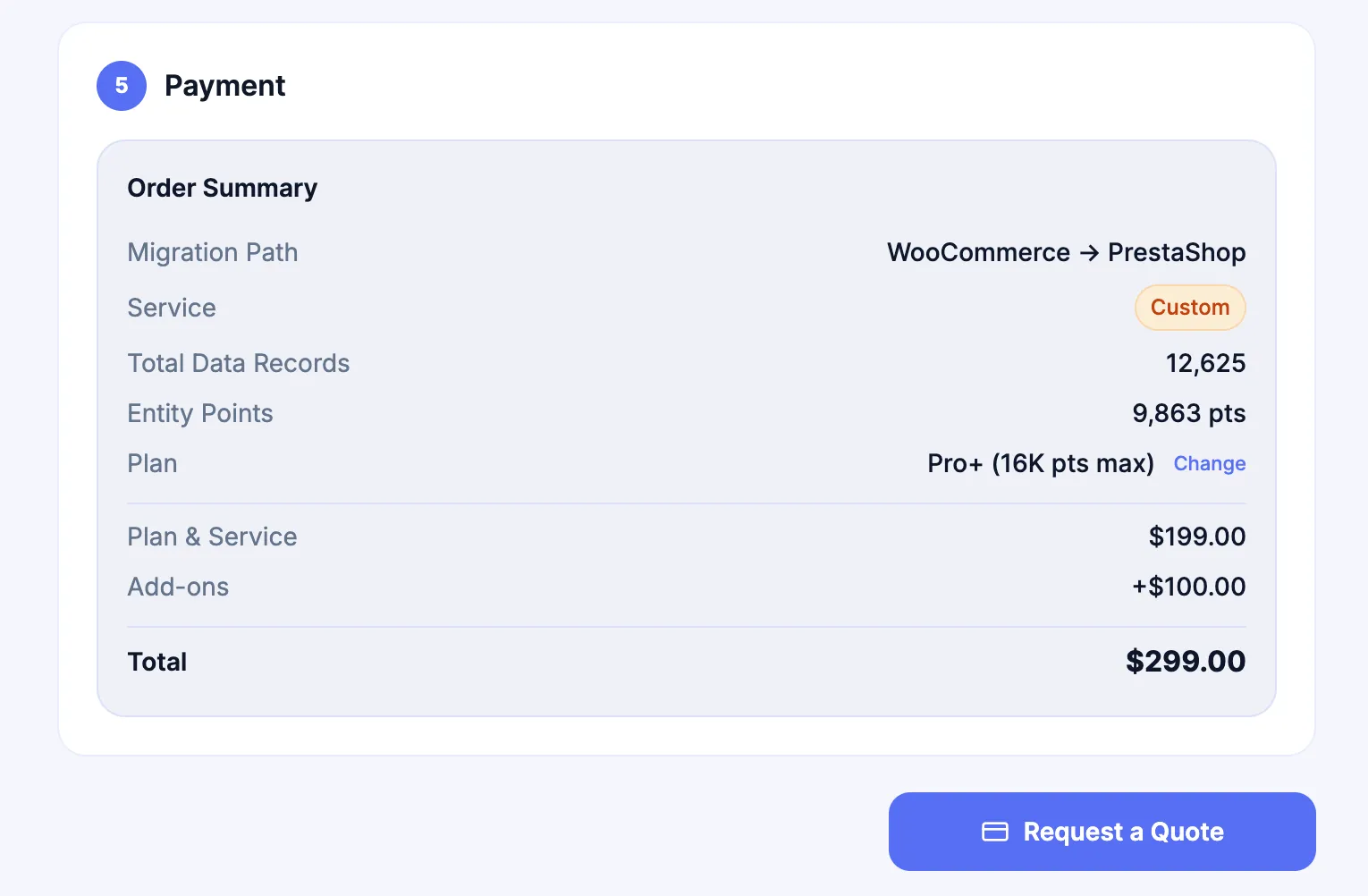
Confirm the migration path, Service, Entity Points, selected Plan, Add-ons, discounts, and other displayed charges before continuing to the Service-specific order path below.
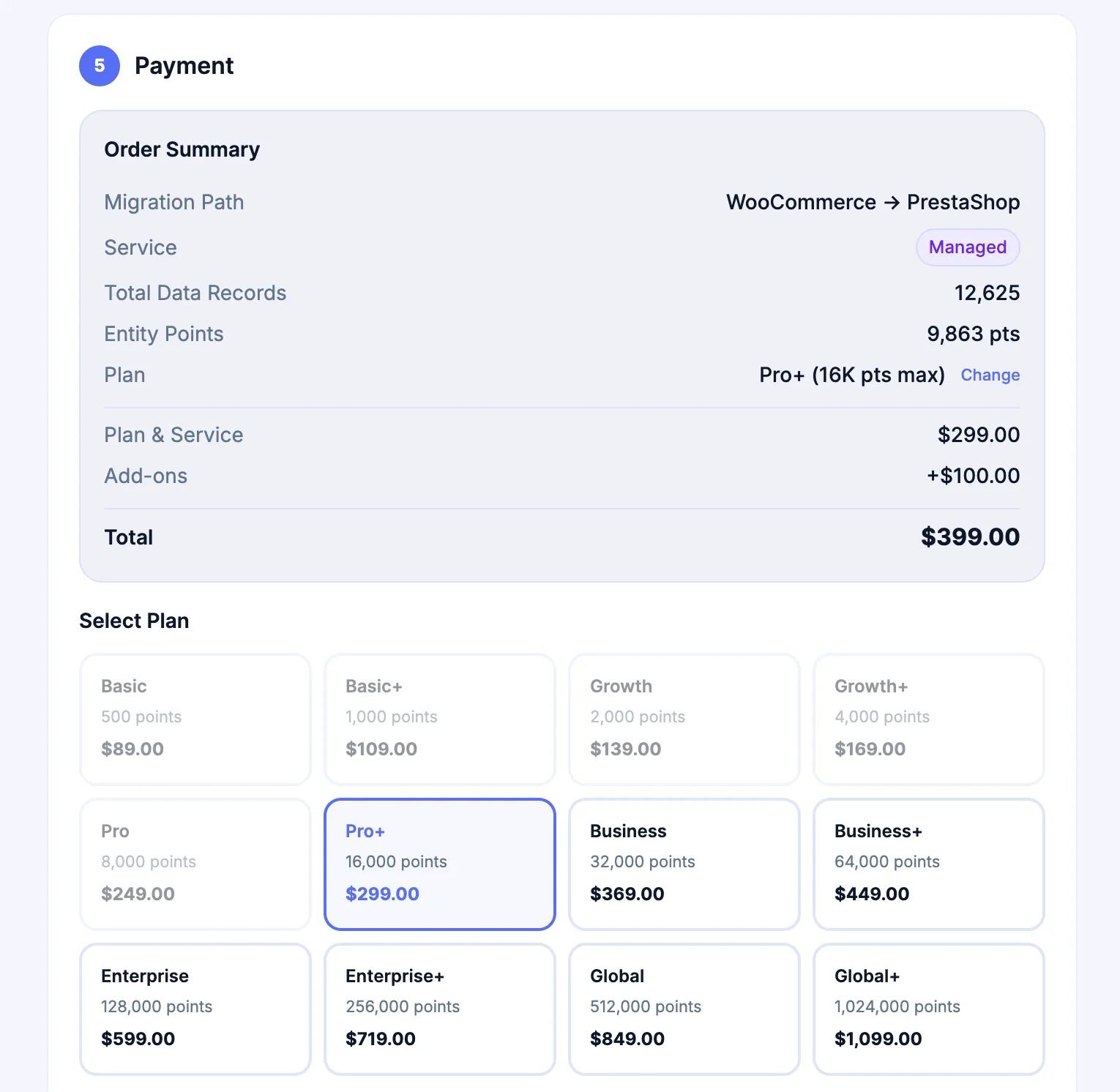
Follow the order path for the selected Service
Section titled “Follow the order path for the selected Service”Standard Migration and Managed Migration use the direct checkout path. The purchase can proceed to payment as soon as the configuration and billing information are correct.
-
Review the final order summary and confirm that the selected Entity Points Plan provides sufficient capacity.
-
Choose an available payment method.
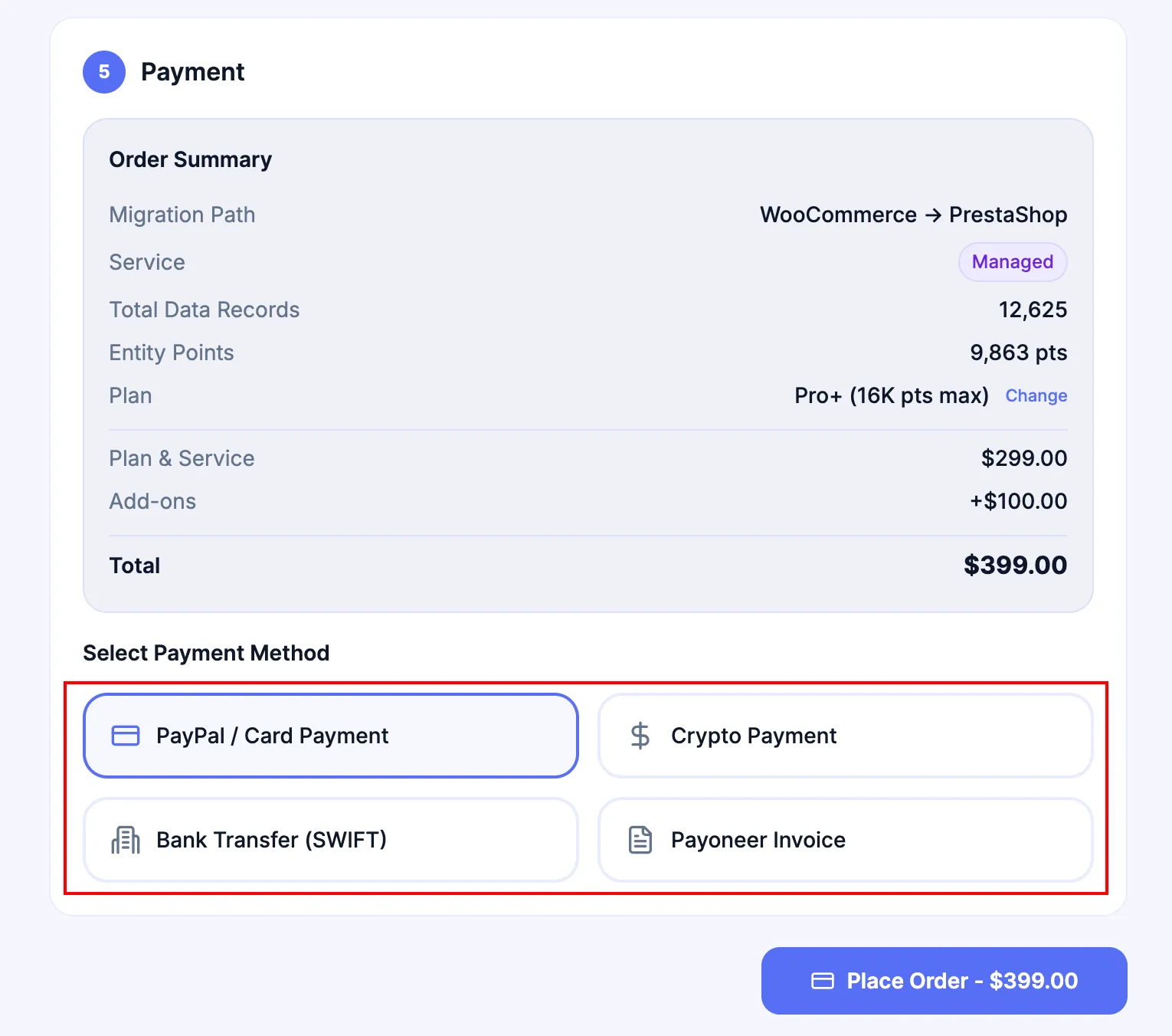
-
Select Place Order only when the migration path, Service, Plan, Add-ons, billing information, and total are correct.
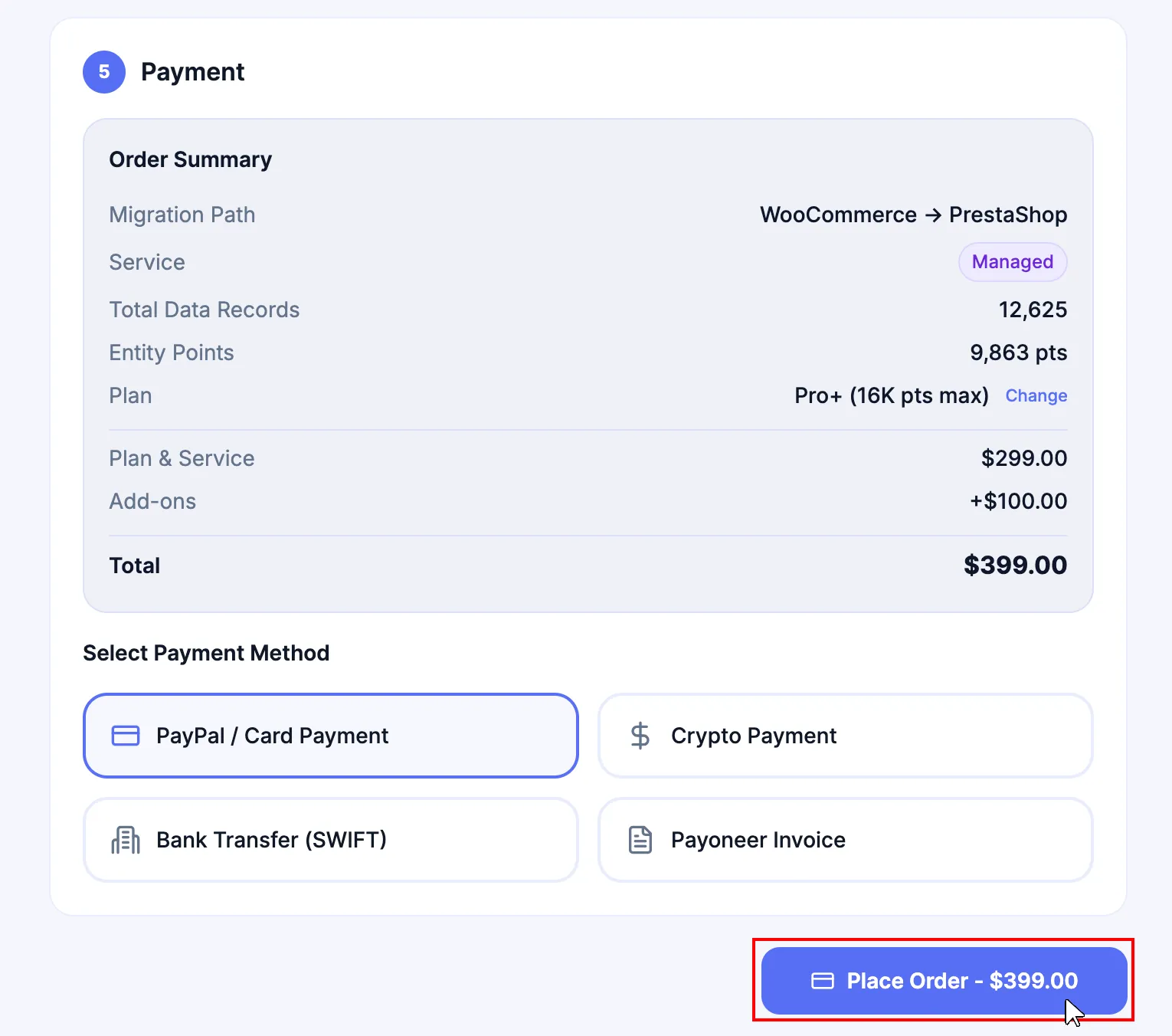
-
Complete the selected payment workflow. For Bank Transfer, use the beneficiary details and exact Reference / Memo shown on the secure payment page. The order can remain Pending Approval until settlement is received and verified.
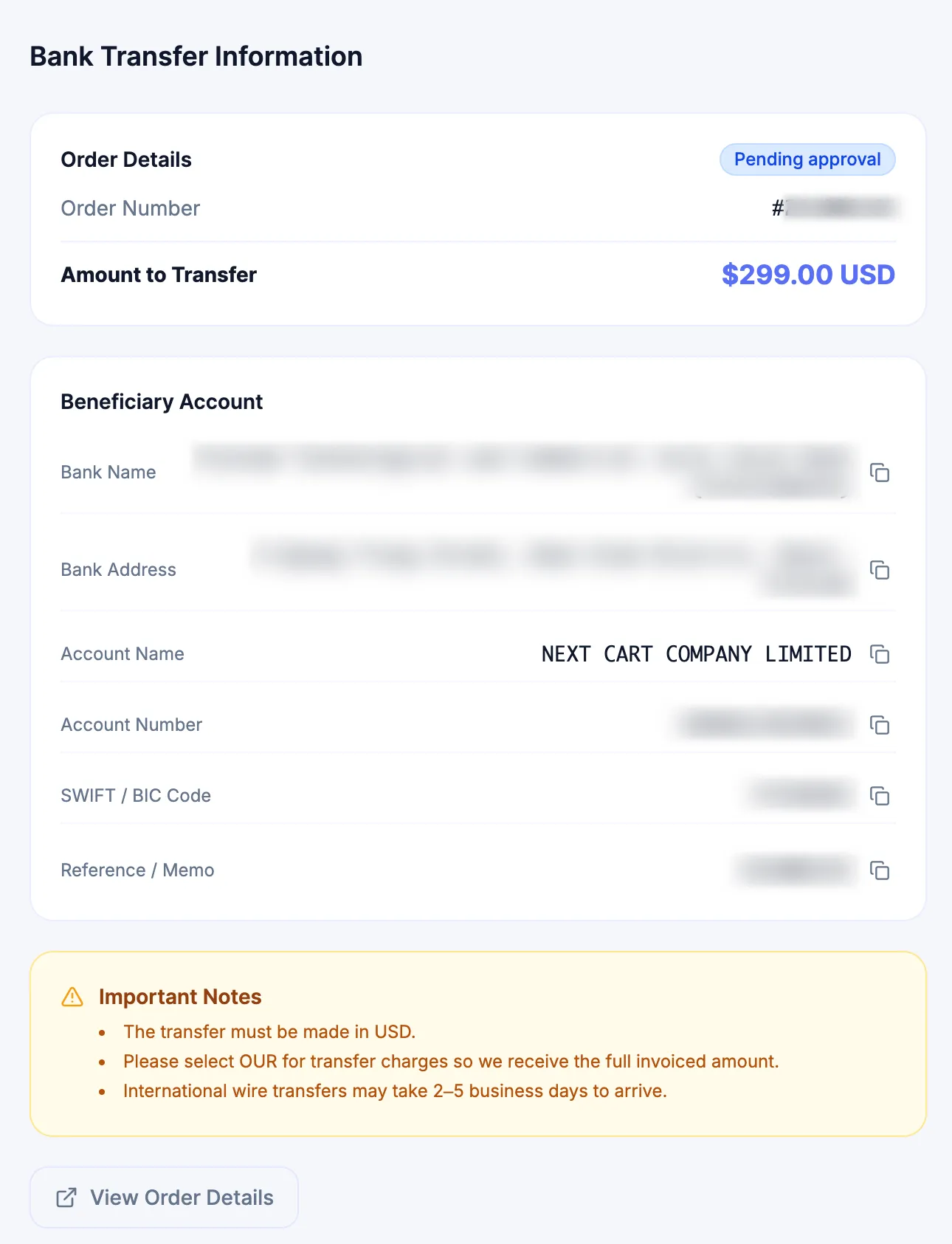
-
Confirm that the order reaches Paid before treating the purchase as settled.

-
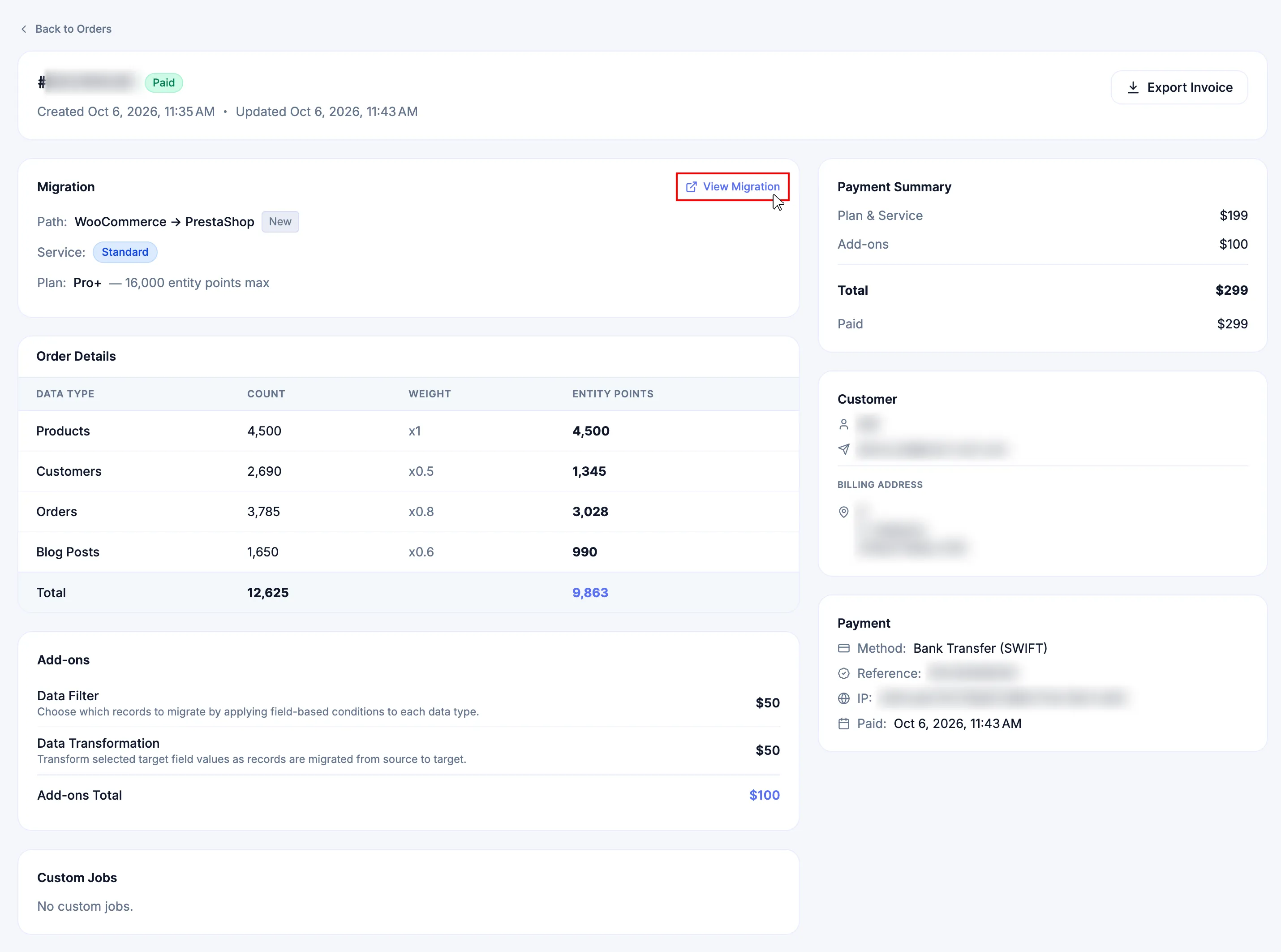
Open the paid Order Details and use View Migration when available, or expand Migrations and select My Migrations to open the purchased migration.
-
Confirm the migration path, Service, Plan, Add-ons, and purchased scope before beginning configuration or migration work.
A new Standard Migration or Managed Migration order that reaches Paid activates the purchased migration for immediate Dashboard access. The operating responsibilities still follow the selected Service, but the customer retains access to inspect and operate the project through the Dashboard.
Bank Transfer customers also receive payment-instructions and payment-confirmation emails with direct links, but the complete workflow can be performed from Checkout, the secure payment page, Orders, and My Migrations. Use Payment Methods and Verification for the exact manual-payment requirements and confirmation states.
Custom Migration does not proceed directly from the initial Checkout configuration to payment. Request a Quote creates the scoping order so the approved non-standard work can be defined and priced first.
Choose the Migration Operation
Section titled “Choose the Migration Operation”| Operation mode | Responsibility |
|---|---|
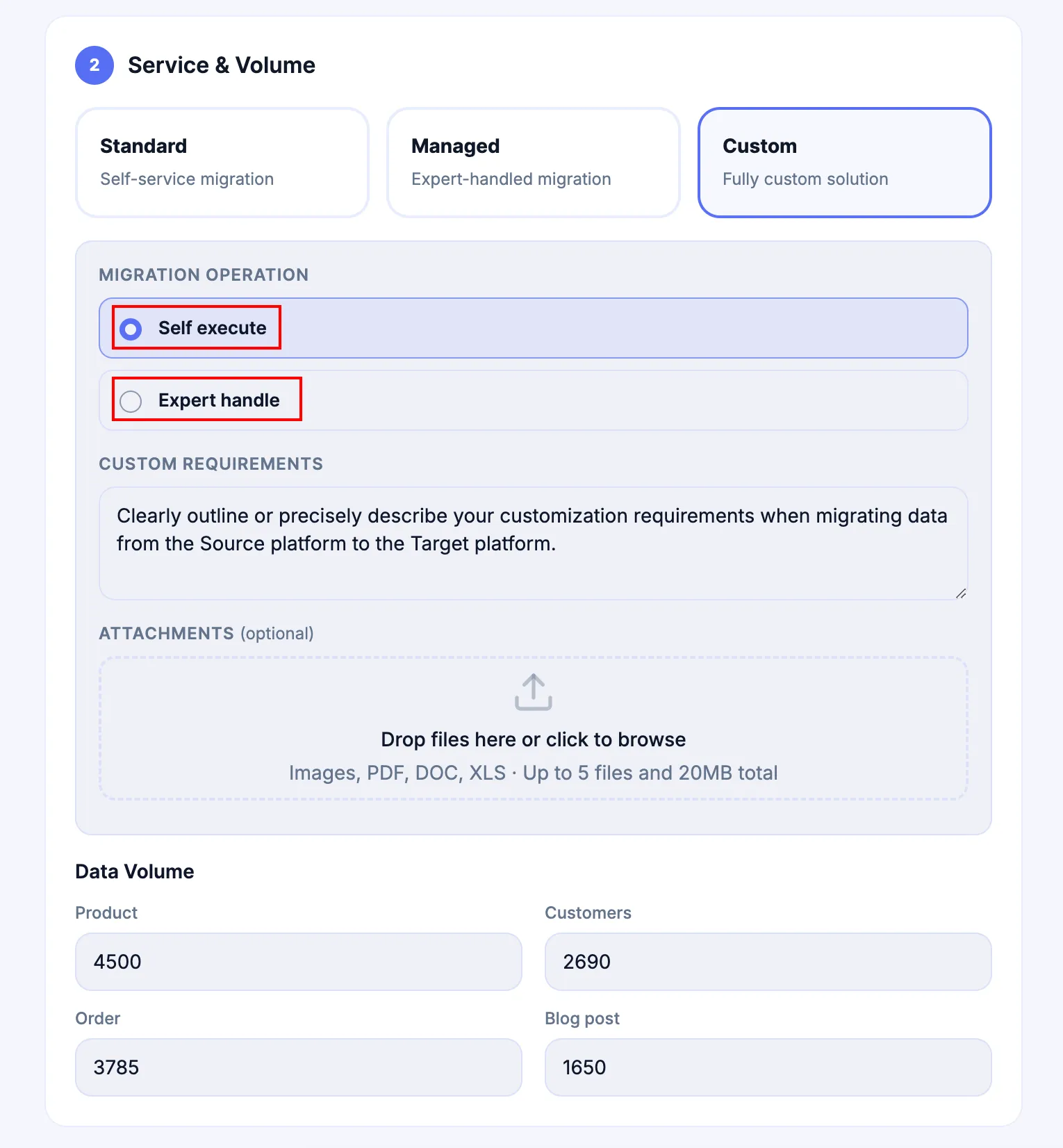
| Self-Execute | You operate the migration through the Dashboard after Next-Cart prepares and verifies the approved Customization required for the project. |
| Expert Handle | Next-Cart engineers manage and execute the agreed migration work. The additional engineering fee is included in the final itemized quote. |
The selected operation mode does not remove customer Dashboard access. You retain operational access to inspect and manage the migration and to use the execution controls available to the project. With Expert Handle, Next-Cart remains responsible for the agreed execution, so coordinate customer-initiated execution with the agreed operating schedule to avoid conflicting activity.
File-based Source Platform scope
Section titled “File-based Source Platform scope”When CSV, XLS, or XML is selected as the Source Platform, Custom Migration is required and the included file workflow migrates Products only. Use the matching Source Data File guide for the Product structure. If Customers, Orders, other entities, or special business logic must also be migrated, describe that additional scope in Custom Requirements so it can be assessed and developed for the project.
When the required Source or Target Platform is not present in the standard supported directory, describe the platform and requested migration behavior in the Custom Migration scope. The approved project scope defines the extraction, conversion, relationships, and Target handling required for that migration.
Submit the Custom Migration request
Section titled “Submit the Custom Migration request”-
Select Custom and choose Self-Execute or Expert Handle.
-
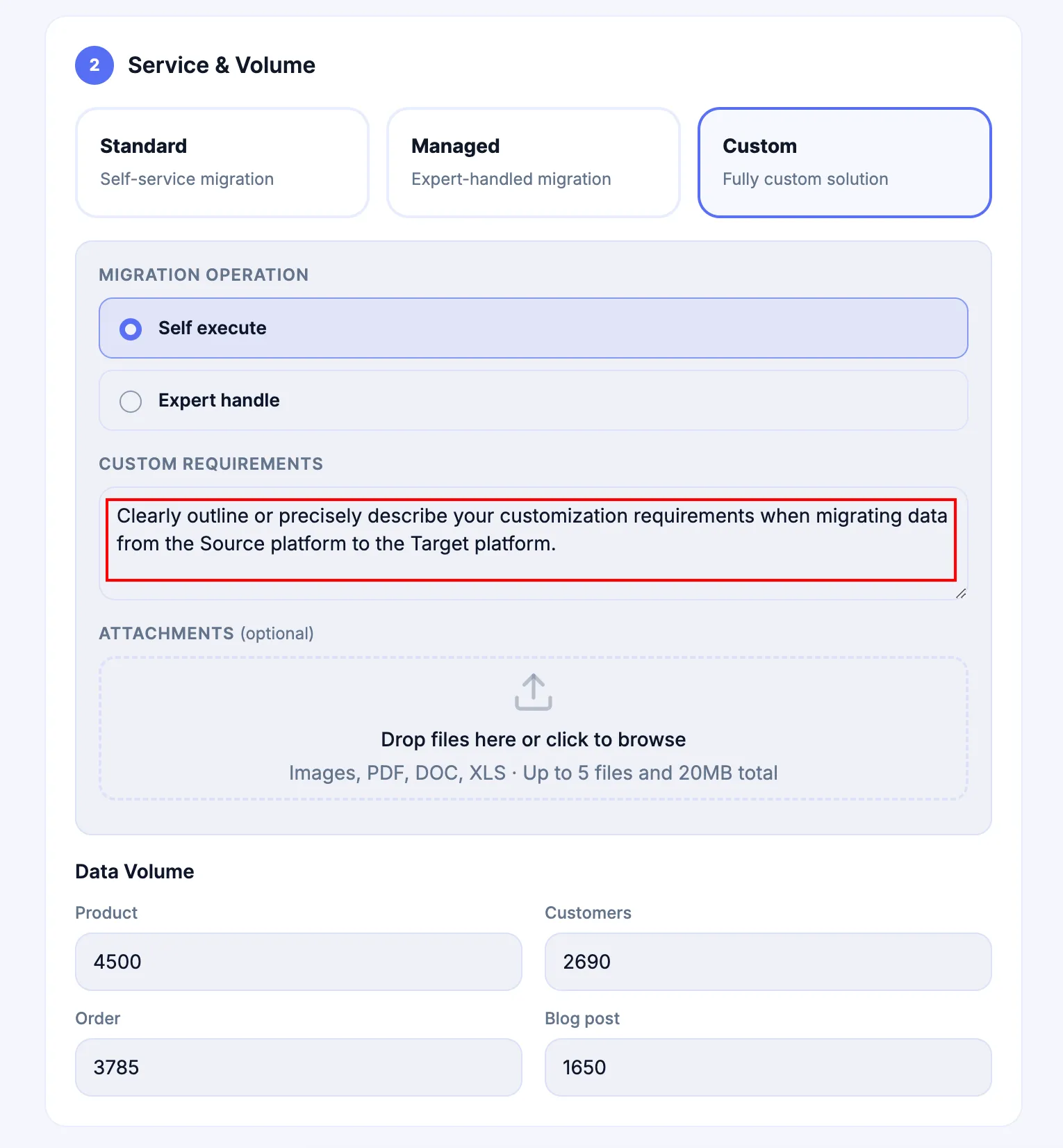
Describe the non-standard requirements in Custom Requirements. Include the business rule, source data or schema involved, intended target result, and any custom mapping or transformation requirement that affects scope.
-
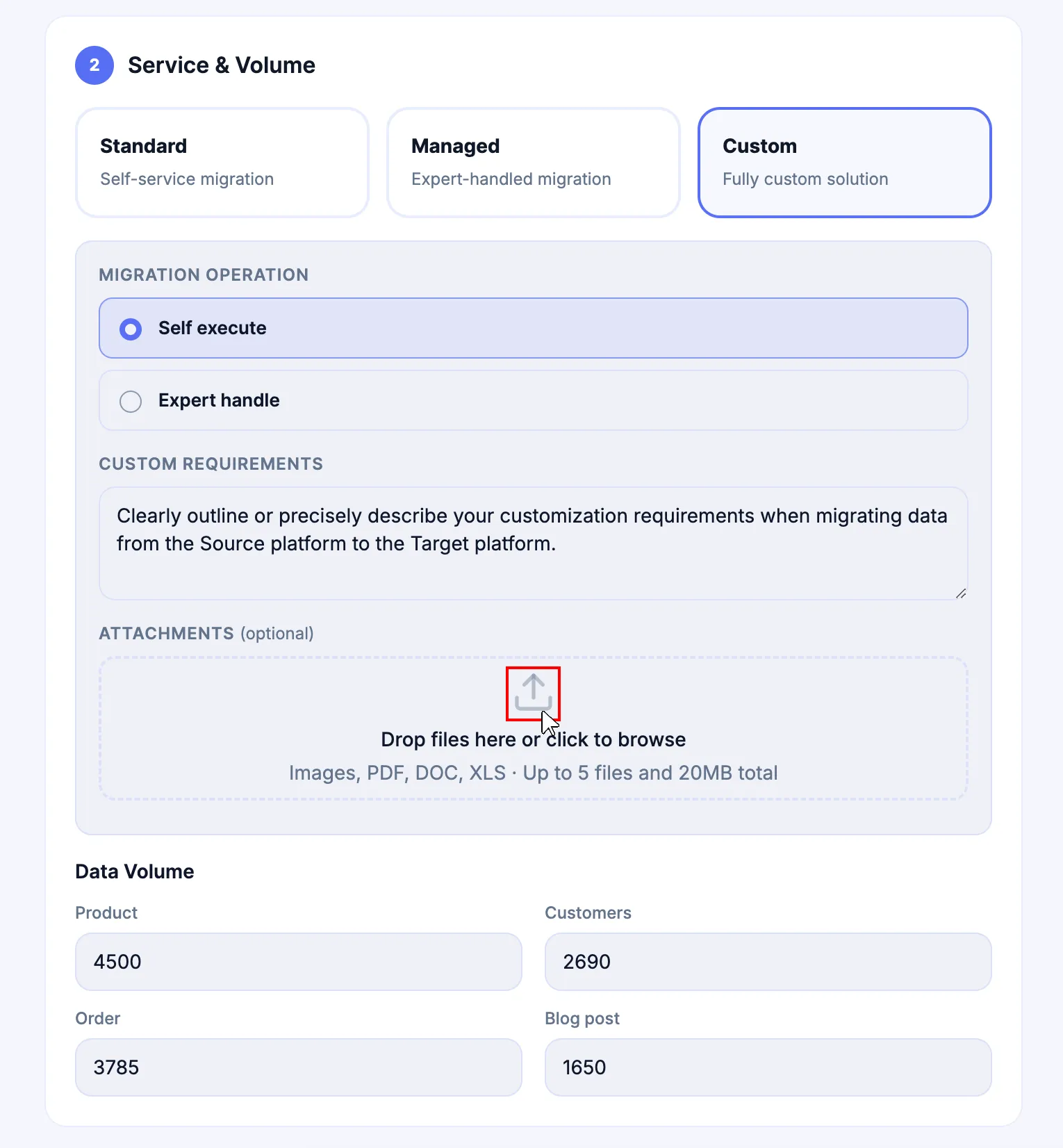
Add supporting attachments when they help explain the request, such as specification sheets, database schemas, field maps, or representative exports. Checkout accepts Images, PDF, DOC, and XLS attachments, with up to 5 files and 20 MB total for the request.
-
Complete the same data-volume, Add-on, billing-information, Entity Points, Plan, and order-summary review used for the other Services.
-
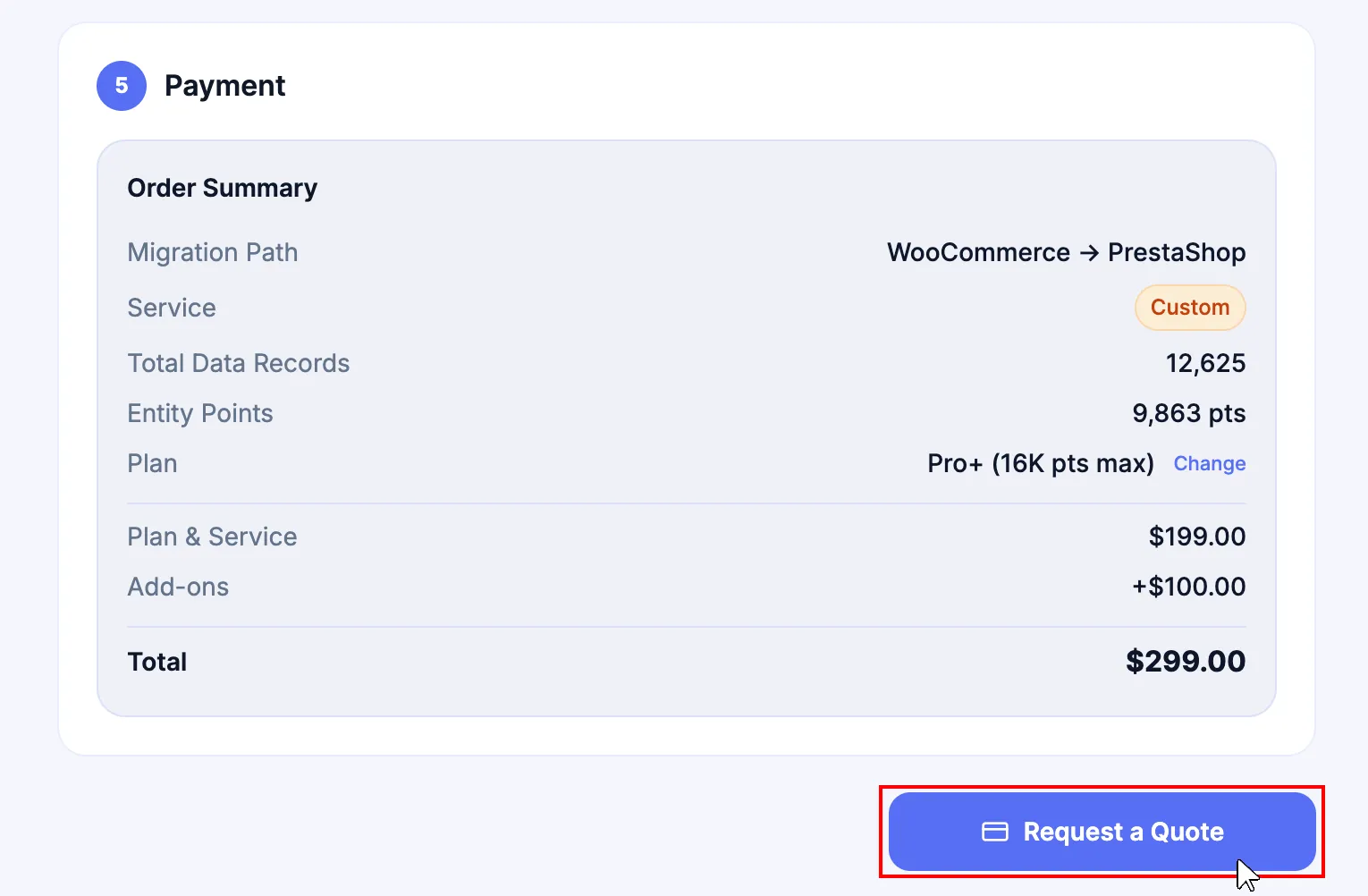
Select Request a Quote. Do not look for a payment method at this stage.
Align the scope and approve the quote
Section titled “Align the scope and approve the quote”A quote request creates a Draft order. While the order is Draft, Next-Cart and the customer align the technical scope before payment is enabled.
During this stage:
- Next-Cart assesses each requested non-standard modification and itemizes the approved custom work separately;
- technical parameters, custom mapping or transformation rules, dependencies, and expected results are clarified;
- the execution responsibility is confirmed through the selected operation mode;
- the expected implementation or turnaround timeline is aligned;
- the Draft order is updated as the approved scope and pricing are finalized.
Review the itemization carefully. Each quoted custom item should correspond to an understood functional requirement and agreed result.
When the finalized quote and order configuration are approved, the order moves to Pending Payment. Open the order, select Pay or Pay Now, and complete an available payment method. The order becomes Paid only after the required payment confirmation or verification is complete.
Wait for Custom Migration readiness
Section titled “Wait for Custom Migration readiness”Paid confirms that the Custom Migration order is financially settled. It does not by itself confirm that the approved Customization is ready for execution.
Next-Cart engineers prepare and verify the approved custom modifications within the agreed scope and timeline. When that work is ready, an automated email confirms that the migration project is configured for execution. For Self-Execute, use that readiness confirmation before running migration work that depends on the approved Customization. For Expert Handle, Next-Cart proceeds according to the agreed execution responsibility and schedule.
Billing information and invoices
Section titled “Billing information and invoices”The customer information entered during purchase is associated with the order and is used for billing and invoice records. Verify the legal name, company details, billing address, billing email, and VAT or GST information before submitting the order or quote request.
For a successfully settled order:
-
open Orders;

-
locate the Paid order;
-
select Invoice from the order row, or open Details and use Export Invoice;
From the order row: Invoice

From Order Details: Export Invoice

-
retain the Order # with the invoice for future billing or support reference.
A Paid order remains available in Orders, so the invoice can be retrieved later. If a formal invoice copy cannot be obtained through the available Invoice or Export Invoice action, request it through Support Tickets and include the Order #.
Review before submitting
Section titled “Review before submitting”| Check | Pass condition |
|---|---|
| Migration Path | Source Platform and Target Platform match the intended directional project. |
| Service | Standard Migration, Managed Migration, or Custom Migration matches the required handling. |
| Data volumes | Products, Customers, Orders, and Blog Posts estimates are realistic. |
| Entity Points Plan | The selected Plan covers the calculated requirement, with any intentional buffer included. |
| Add-ons | Required available Add-ons are included and unnecessary ones are not selected. |
| Custom operation | For Custom Migration, Self-Execute or Expert Handle matches the agreed responsibility. |
| Custom requirements | Non-standard rules, source locations, target results, dependencies, examples, and attachments are sufficient for assessment. |
| Billing information | Customer or business details are accurate for the order and invoice. |
| Direct payment | For Standard Migration or Managed Migration, the payment method and final total are correct before Place Order. |
| Custom quote | For Custom Migration, the request is ready for assessment before Request a Quote. |
Expected result
Section titled “Expected result”The successful result depends on the Service path:
- Standard Migration or Managed Migration: the order reaches Paid, the purchased migration appears under My Migrations, and the project is available for immediate Dashboard access and the applicable migration workflow.
- Custom Migration: the quote request is created as Draft, the approved scope is finalized and itemized, the order progresses through Pending Payment to Paid, and the project receives a readiness notification after the approved custom modifications are prepared and verified.
Regardless of Service or Custom operation mode, the customer retains Dashboard visibility and operational access to inspect, manage, and use the available execution controls for the purchased migration. Where Next-Cart is responsible for execution, use those controls in alignment with the agreed operating schedule.
Failure handling
Section titled “Failure handling”| Issue | What to do |
|---|---|
| The Source Platform or Target Platform is wrong | Do not place the order or request the quote. Correct the migration path first. |
| The recommended Plan is too small for expected growth | Recheck the data volumes and select a higher sufficient Plan before submission. |
| A required Add-on or Custom requirement is missing | Stop and correct the scope before Place Order or Request a Quote. |
| A Custom Draft contains an unclear item or price | Do not approve it for payment. Clarify the affected requirement, expected result, responsibility, and quoted line item first. |
| A finalized Custom order is Pending Payment but the configuration is wrong | Do not select Pay. Preserve the Order # and request correction before payment. |
| Payment was submitted and the order is Pending Approval | Do not pay again. Follow Payment Methods and Verification and preserve the payment reference. |
| A Standard Migration or Managed Migration order is Paid but the migration is missing | Confirm the Order # in Orders, then submit a Support Ticket with the paid transaction details. |
| A Custom order is Paid but the readiness notification has not arrived within the agreed timeline | Review the agreed scope and timeline, then submit a Support Ticket with the Order # and Custom Migration requirement reference. |
| An invoice is unavailable for a Paid order | Open the order Details and check Export Invoice. If it remains unavailable, submit a billing support request with the Order #. |
Next Steps
Section titled “Next Steps”For a Paid Standard Migration or Managed Migration purchase, open Migrations and continue with the purchased project. For Custom Migration, track the order in Orders and use the readiness notification to confirm when approved Customization is ready for execution.