

Lightspeed eCom (C-Series) API Connection
Create a Lightspeed eCom C-Series API key with Read permissions and prepare the Store URL, API Key, and API Secret required by Next-Cart.
Lightspeed eCom (C-Series) API Connection
Section titled “Lightspeed eCom (C-Series) API Connection”Lightspeed eCom (C-Series) uses an API key created in the store’s developer settings. Prepare the key for the store used in the migration and grant the Read permissions required for data access. If the edition is not yet confirmed, use the Lightspeed Overview to compare all supported Lightspeed editions before continuing.
Get the connection details
Section titled “Get the connection details”-
Sign in to Lightspeed eCom and open Settings > Store Settings > Developers.
-
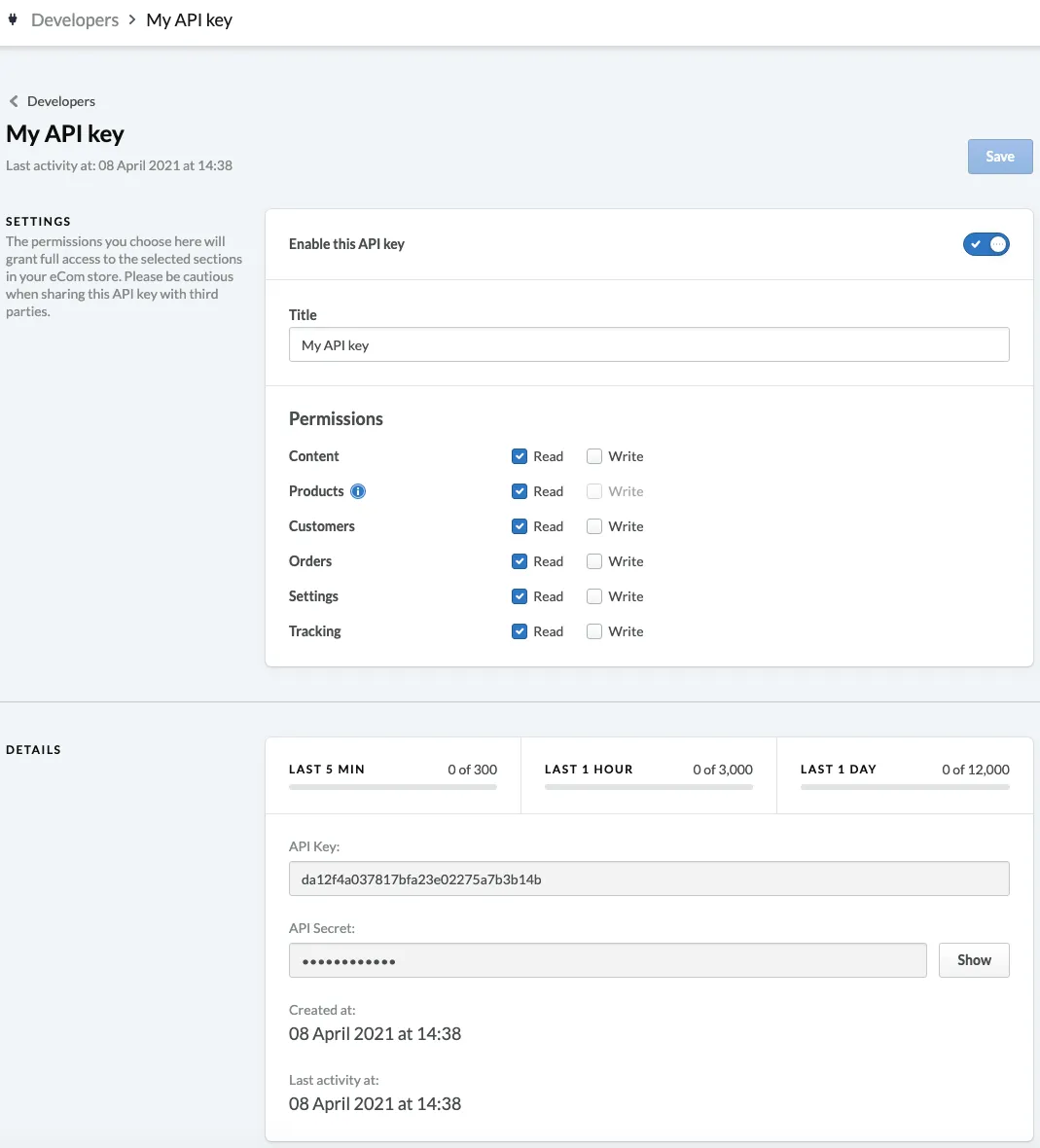
Click New API Key, enter a clear name for the connection, and click Save.
-
Open the key’s Settings, enable the key, and set the required permissions to Read.
-
Click Save.
-
Open Details and record the API Key and API Secret for this key.
Enter the values in Next-Cart
Section titled “Enter the values in Next-Cart”| Next-Cart field | Value to enter |
|---|---|
| Store URL | The Lightspeed eCom (C-Series) store URL. |
| API Key | The API Key created in Developers. |
| API Secret | The API Secret paired with that API Key. |
Verify this connection
Section titled “Verify this connection”Use Test Platform Connections for optional access verification. A successful test shows Connected.
| Check | Pass condition |
|---|---|
| Store identity | The Store URL identifies the intended Lightspeed eCom (C-Series) store or site, and the connection values used below belong to that same environment. |
| Credentials and values | API Key, API Secret are the values obtained for this same intended Lightspeed eCom (C-Series) store, account, or authorization setup. |
| Permissions or access | The API key remains enabled and the required permissions remain set to Read. |
A Connected result confirms that Next-Cart can access Lightspeed eCom (C-Series) with the supplied connection values. It does not confirm migration configuration, mappings, or final migrated data; validate those separately during the Configuration step and post-migration review.
If the platform remains Not connected, confirm the Store URL belongs to the intended C-Series store and that the API key is enabled with Read permissions, then use the shared recovery checks.