

Security
Harden sign-in and investigate suspicious access with passkeys, password controls, 2FA, Backup Codes, connected identities, and recent login evidence.
Security
Section titled “Security”Security protects account access and provides the controls needed to manage passkeys, passwords, two-factor authentication, connected login providers, and recent sign-ins.
Before you start
Section titled “Before you start”- Sign in to the Next-Cart account whose security settings you want to manage.
- Make sure you can access the account email.
- Use a device, browser profile, or security key that you control before adding a passkey.
- Keep your authentication device or a valid Backup Code available for protected changes.
- Before disconnecting a social account, confirm that another sign-in method will remain available.
Security controls
Section titled “Security controls”| Control | Use it to |
|---|---|
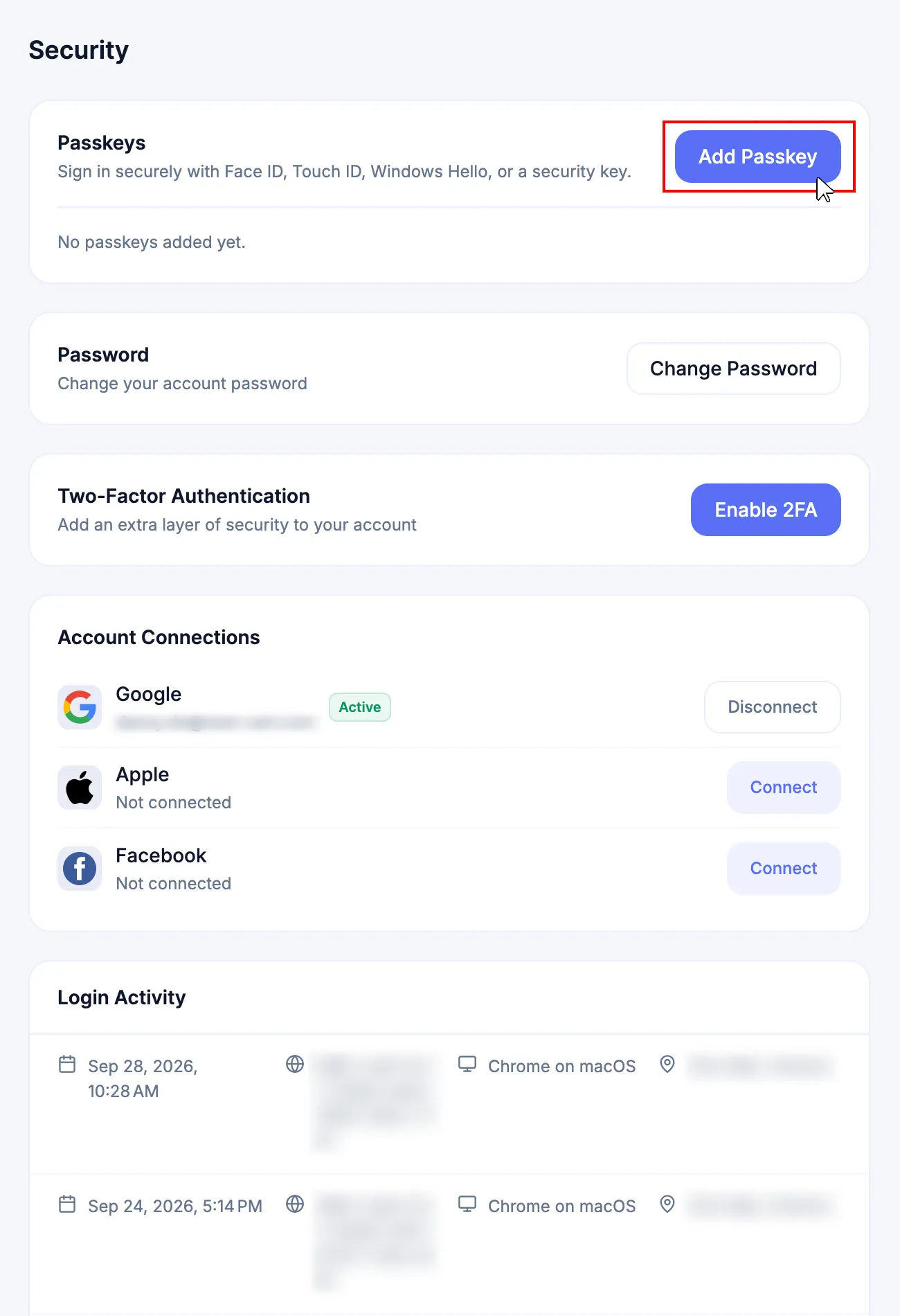
| Passkeys | Sign in securely with Face ID, Touch ID, Windows Hello, or a security key. |
| Password | Change the account password. |
| Two-Factor Authentication | Add or remove a second verification step. |
| Account Connections | Connect or disconnect Google, Apple, or Facebook. |
| Login Activity | Review recent sign-in dates, IP addresses, devices, locations, and status. |
Open Security
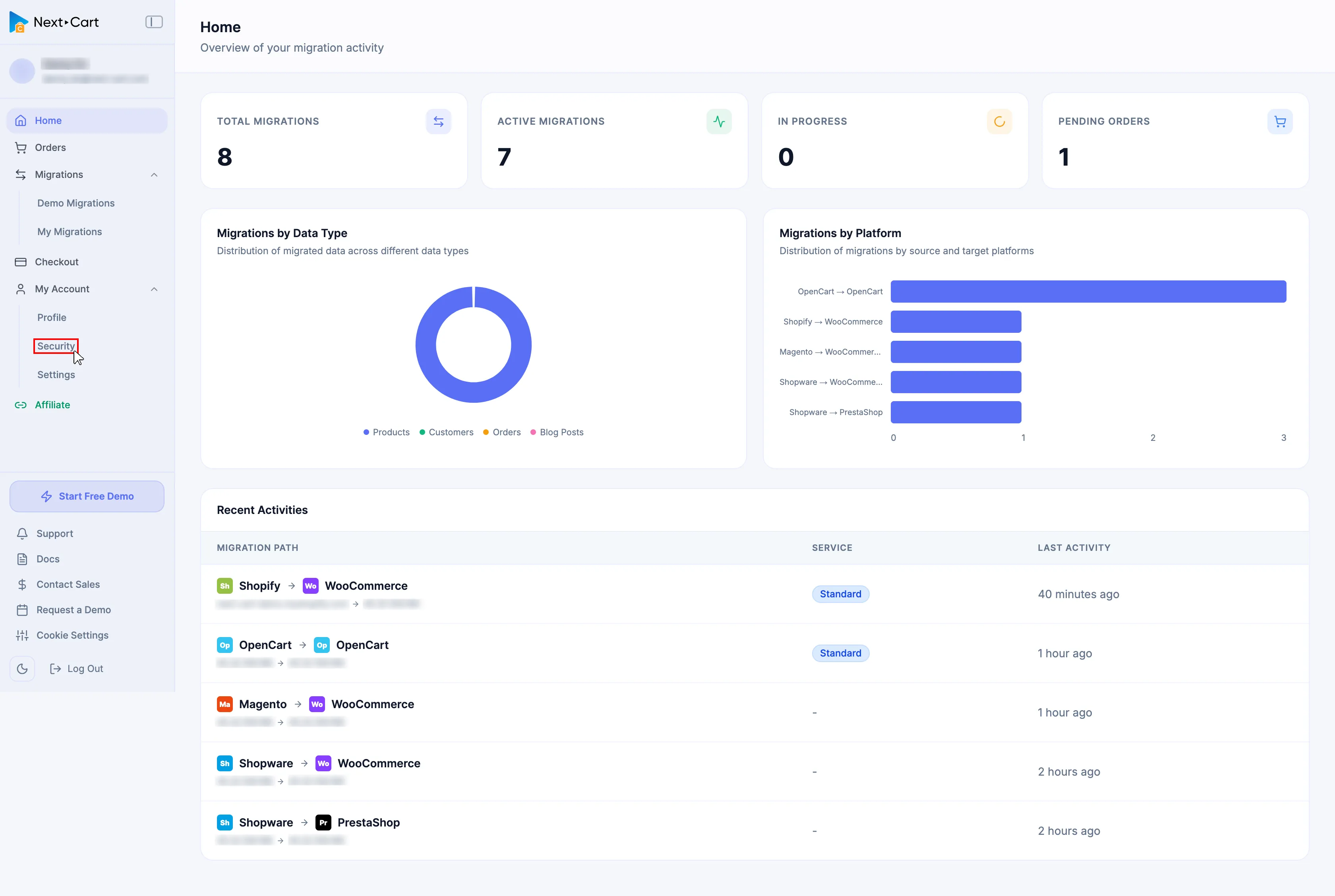
Section titled “Open Security”In the Dashboard sidebar, expand My Account, then select Security. Keep this page open while completing the procedures below.
Add a passkey
Section titled “Add a passkey”-
Select Add Passkey
-
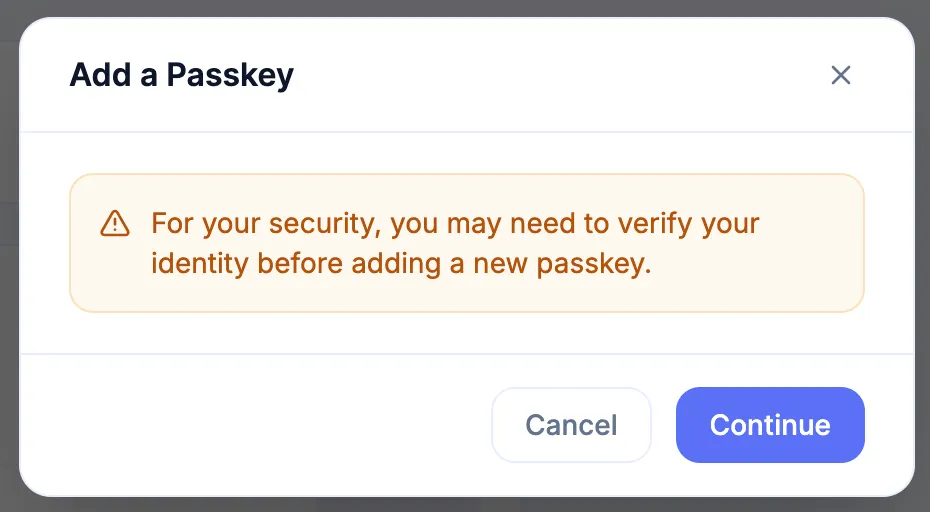
Continue to identity verification
-
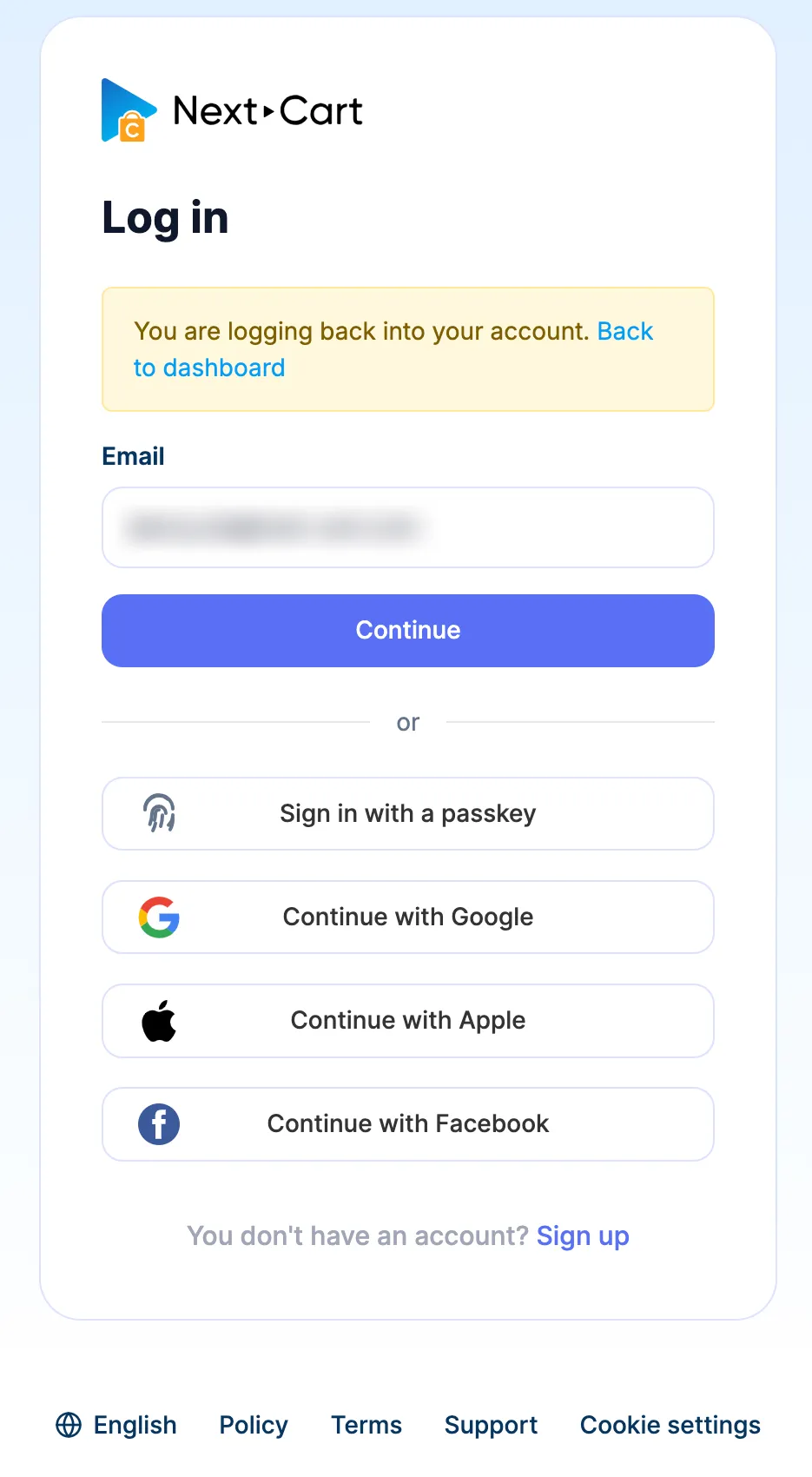
Log back in to Next-Cart
-
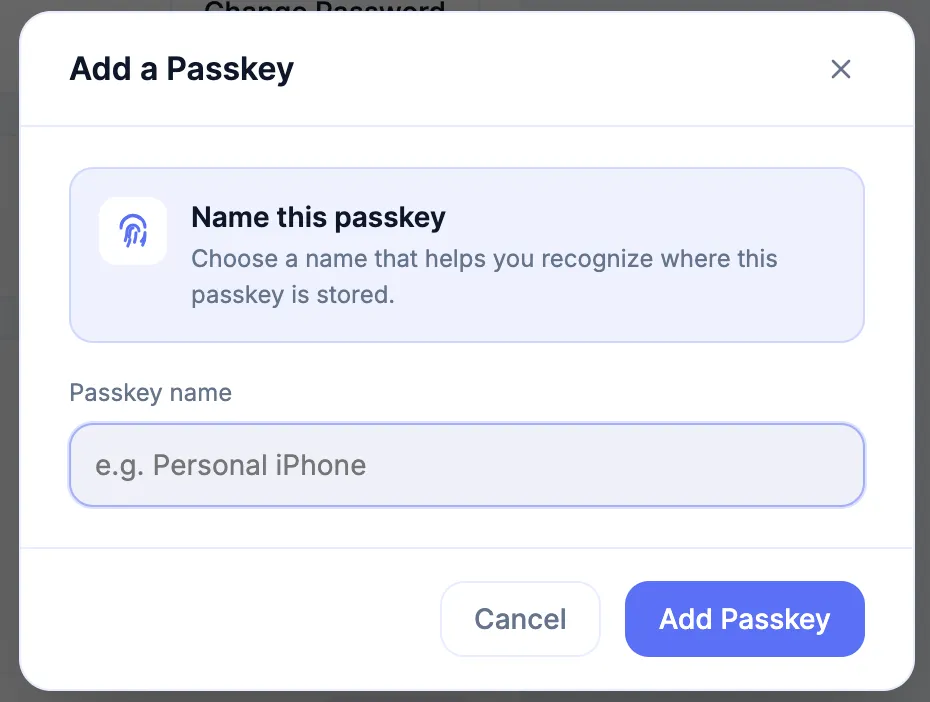
Name the passkey
Use a recognizable name for the device or security key.
-
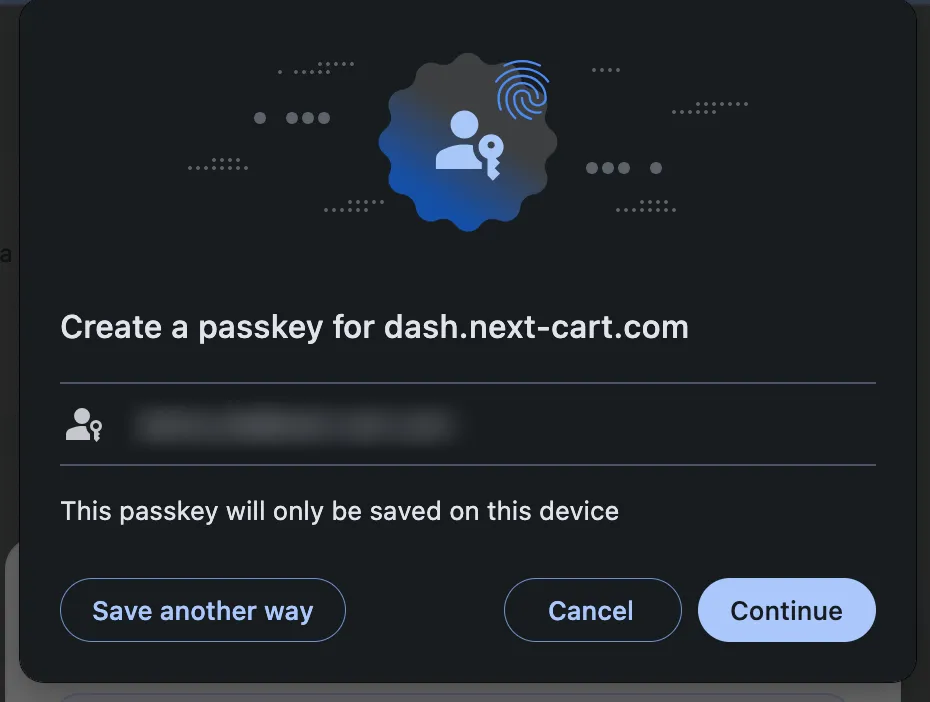
Confirm passkey creation
Complete the browser, operating-system, or security-key prompt and confirm creation.
-
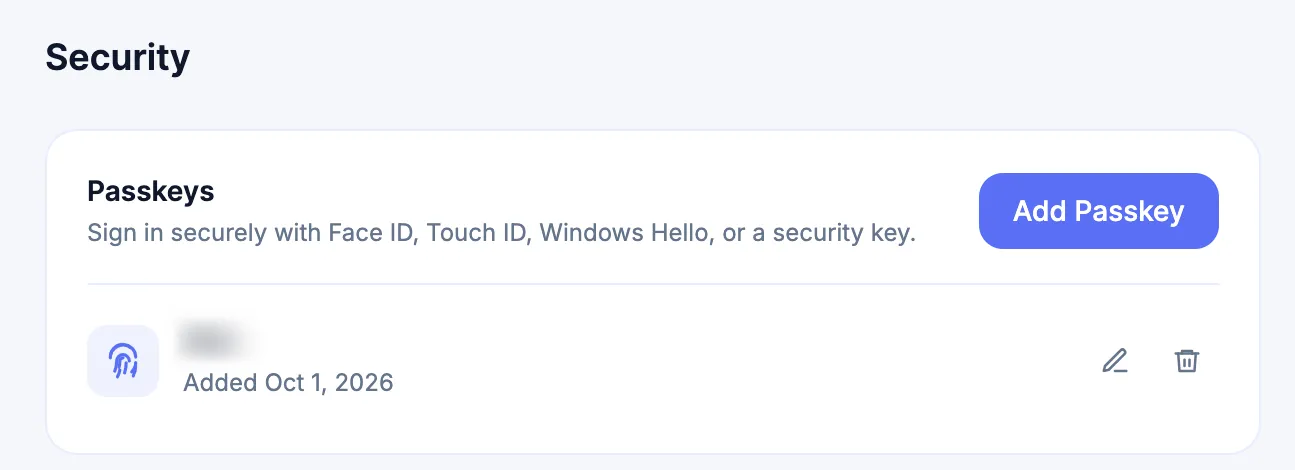
Verify the passkey was added
Return to Security and confirm that the new passkey appears under Passkeys. From this list, you can rename or delete the created passkey.
Change your password
Section titled “Change your password”-
Select Change Password

-
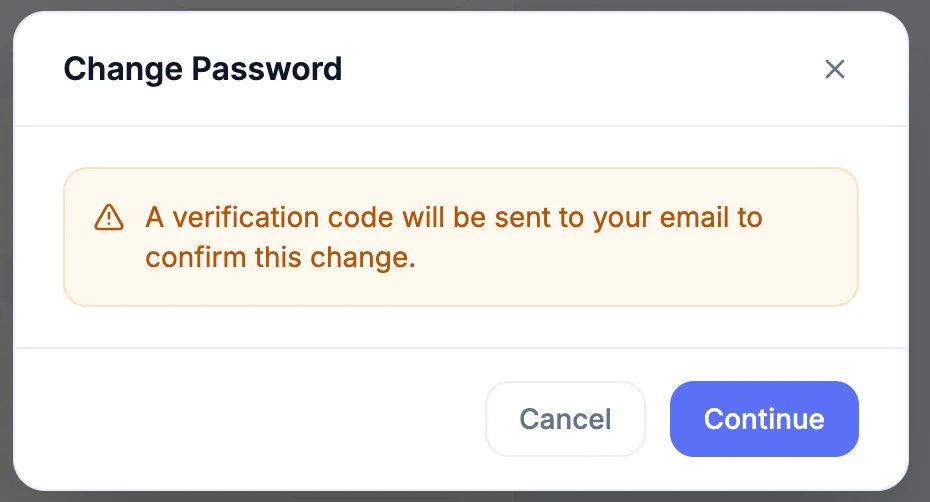
Continue from the email verification notice
-
Enter the verification code, then select Next
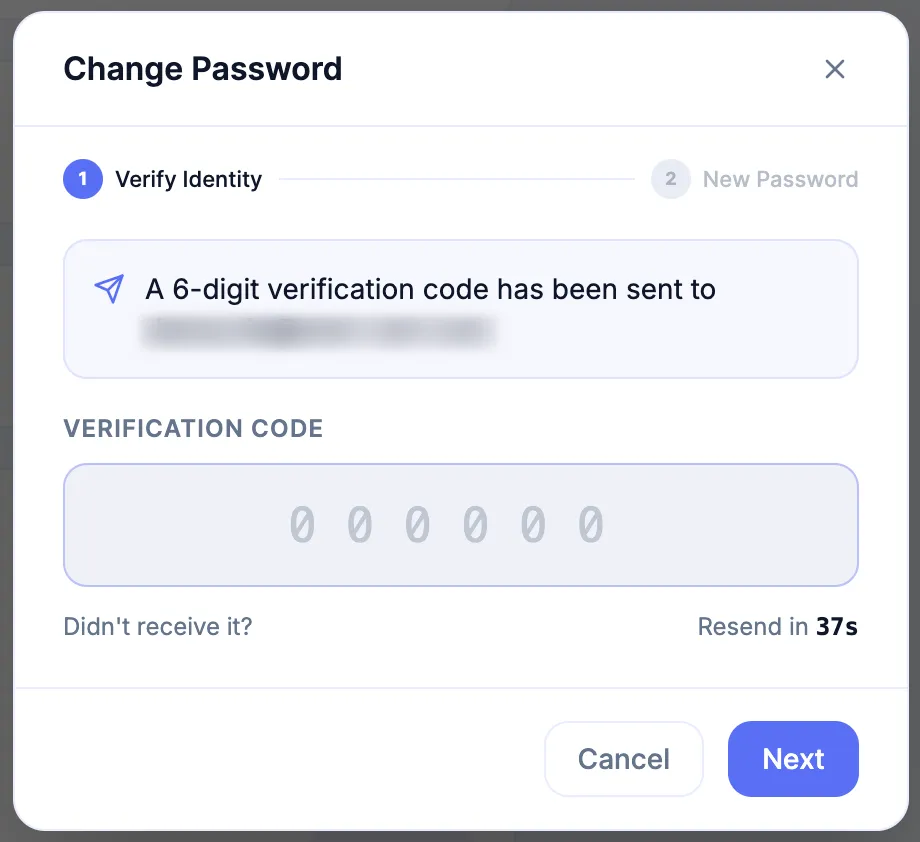
-
Enter and confirm the new password, then select Change Password
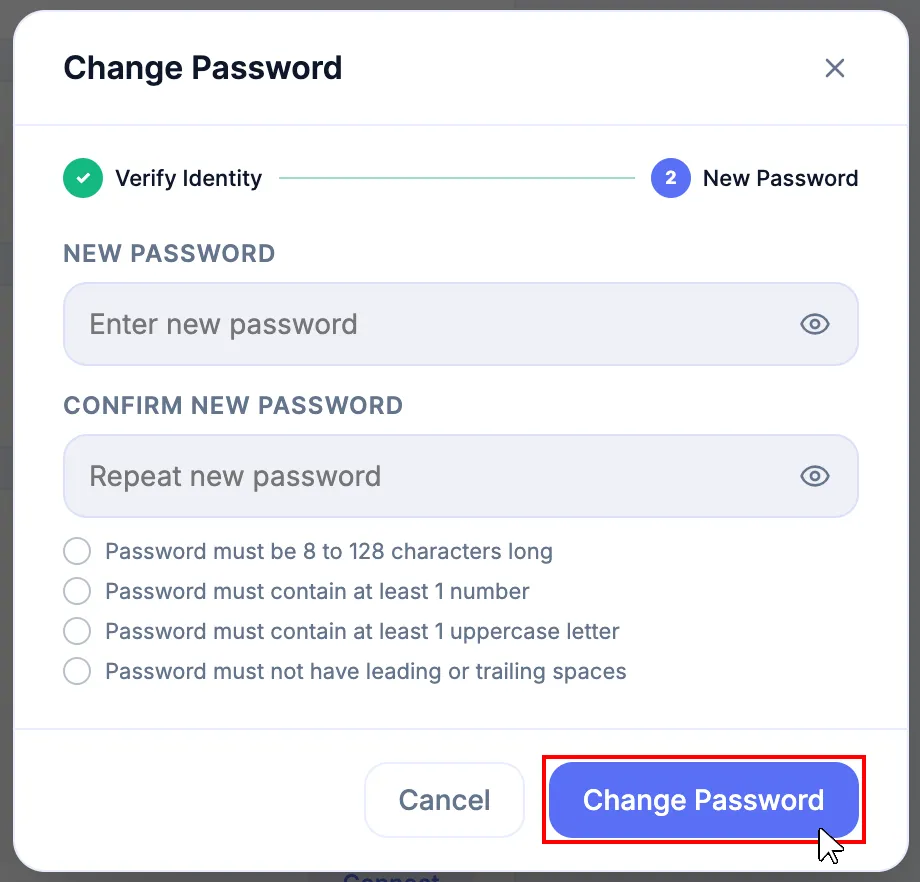
The password must meet these requirements:
| Requirement | Rule |
|---|---|
| Length | 8 to 128 characters |
| Number | At least 1 number |
| Uppercase letter | At least 1 uppercase letter |
| Whitespace | No leading or trailing whitespace |
After a successful password change, Next-Cart sends an email notification and signs out other active sessions.
For your security, other active sessions have been signed out.
Manage two-factor authentication
Section titled “Manage two-factor authentication”Use 2FA to require a second verification method during sign-in and protected account changes.
Enable 2FA
Section titled “Enable 2FA”-
Select Enable 2FA
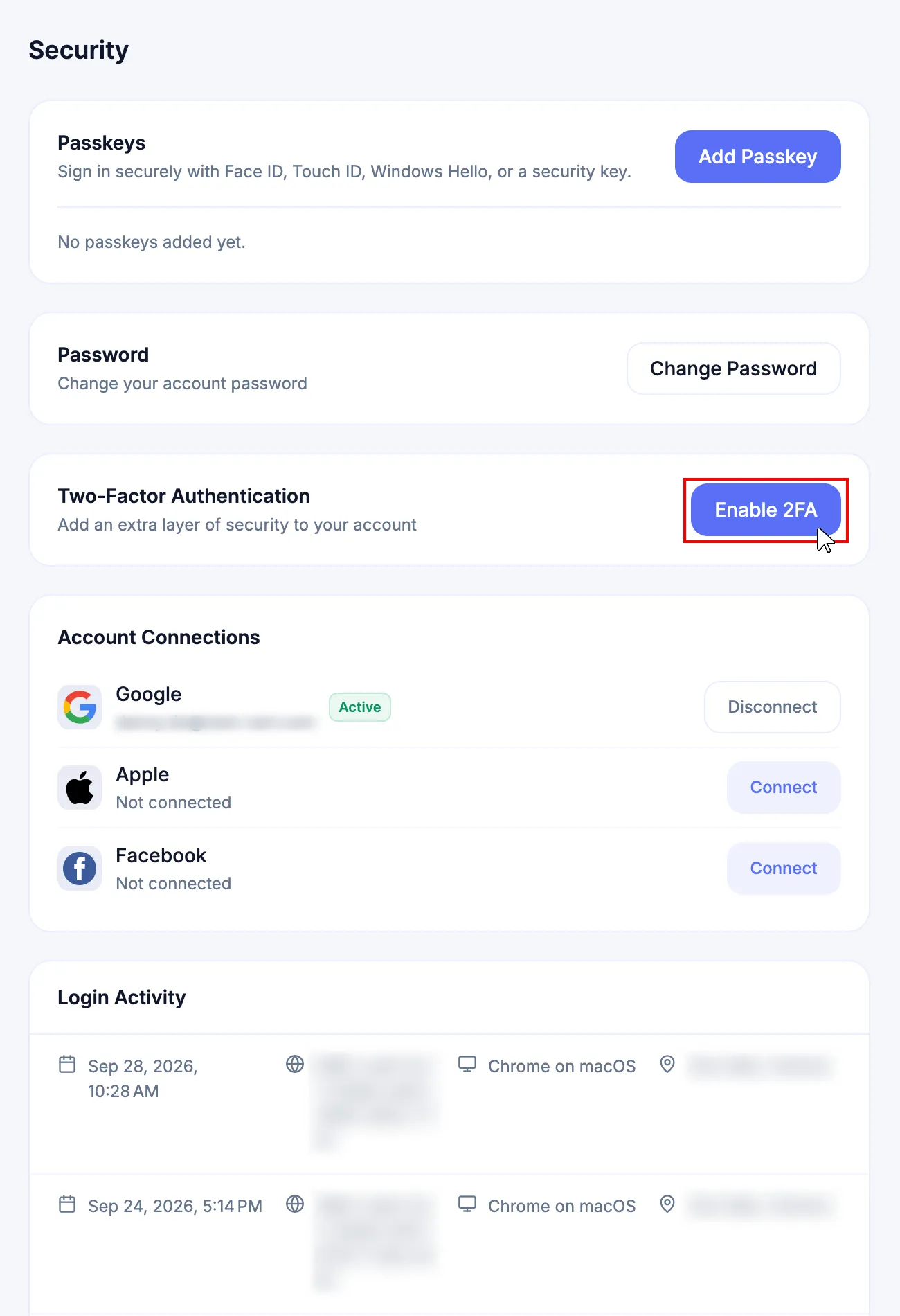
-
Continue to identity verification
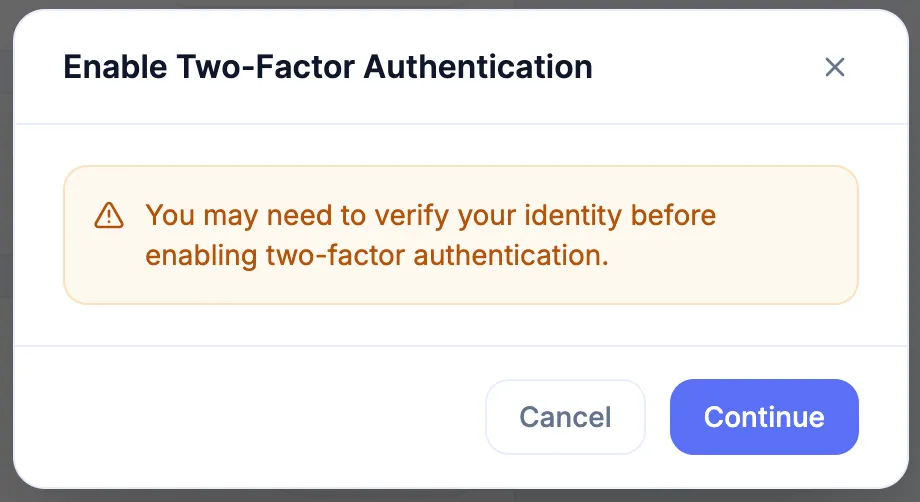
-
Log back in to Next-Cart
-
Complete the authenticator setup and save the Backup Codes shown after activation
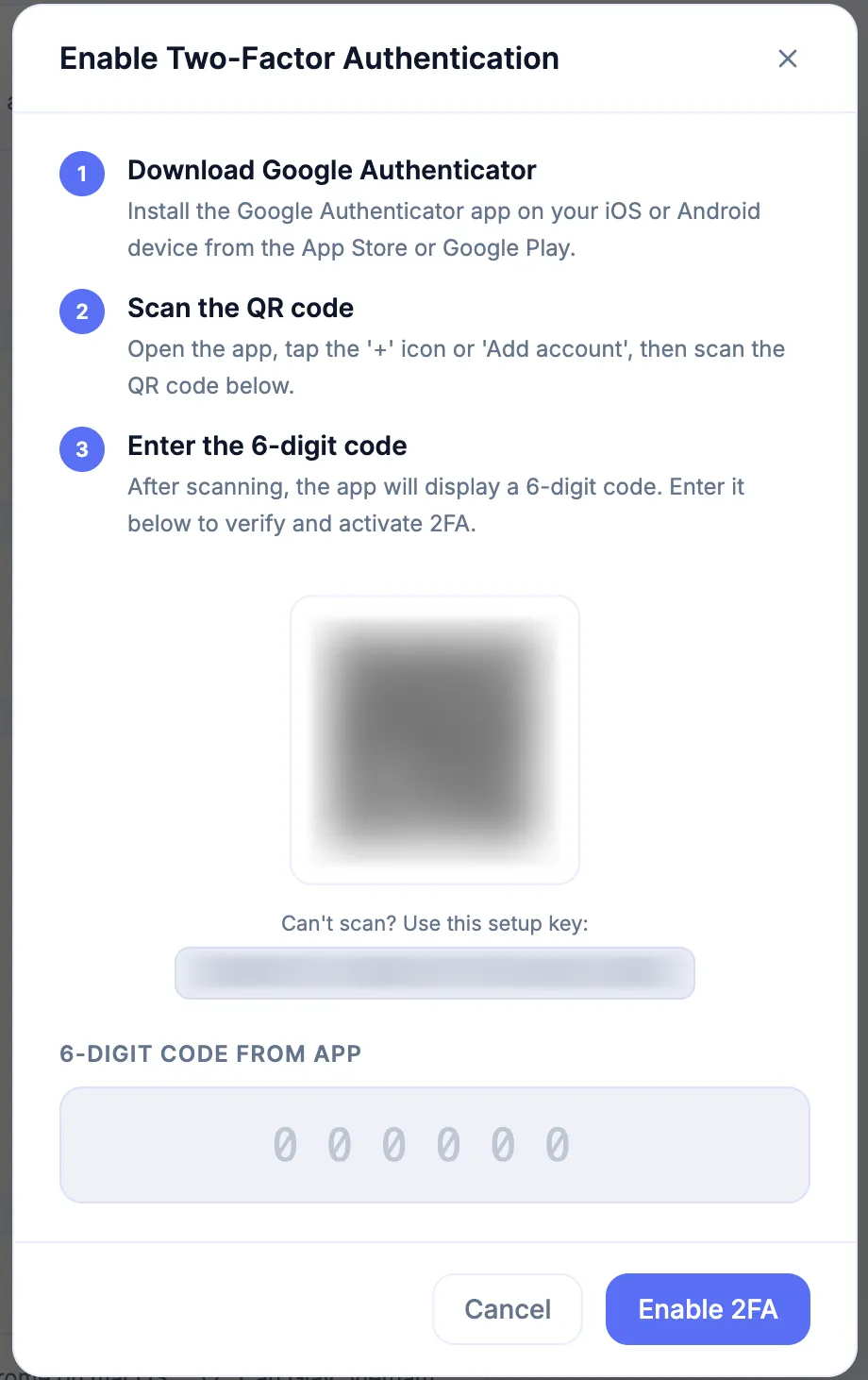
Each Backup Code works once. Keep the codes outside the device used for two-factor authentication.
Regenerate Backup Codes
Section titled “Regenerate Backup Codes”Select Regenerate, verify your identity with the active 2FA method or a valid Backup Code, then save the new set. The previous codes become invalid.
Disable 2FA
Section titled “Disable 2FA”Select Disable 2FA, sign in again, complete the active 2FA or Backup Code verification, and confirm the change.
Manage Account Connections
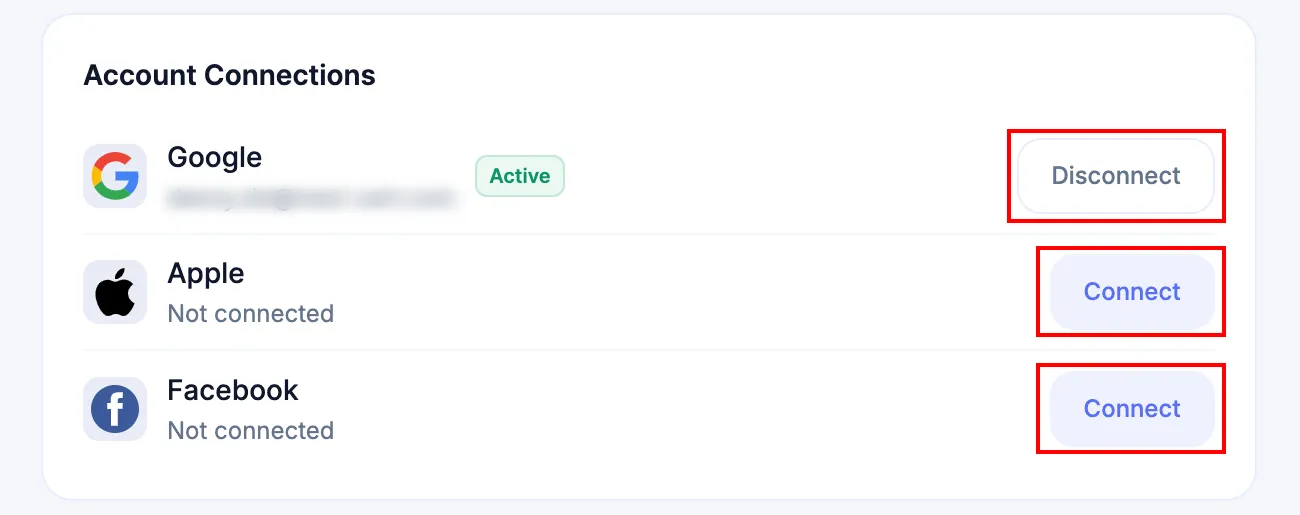
Section titled “Manage Account Connections”You can connect one Google account, one Apple account, and one Facebook account to the Next-Cart account.
Connect a social account
Section titled “Connect a social account”-
Choose a provider
Under Account Connections, select Connect for Google, Apple, or Facebook.
-
Authorize the connection
Sign in to the social account and follow the provider prompts.
-
Complete verification when required
If the social email differs from the Next-Cart account email, verify the connection through the primary account email.
-
Confirm the connection
Return to Security and confirm that the provider is connected.
A social account already connected to another Next-Cart account cannot be connected again until it is disconnected from the original account.
Disconnect a social account
Section titled “Disconnect a social account”Select Disconnect, confirm the request, and verify your identity. Next-Cart prevents disconnection if it would leave the account without a usable sign-in method.
Review Login Activity
Section titled “Review Login Activity”Login Activity shows the 10 most recent login attempts.
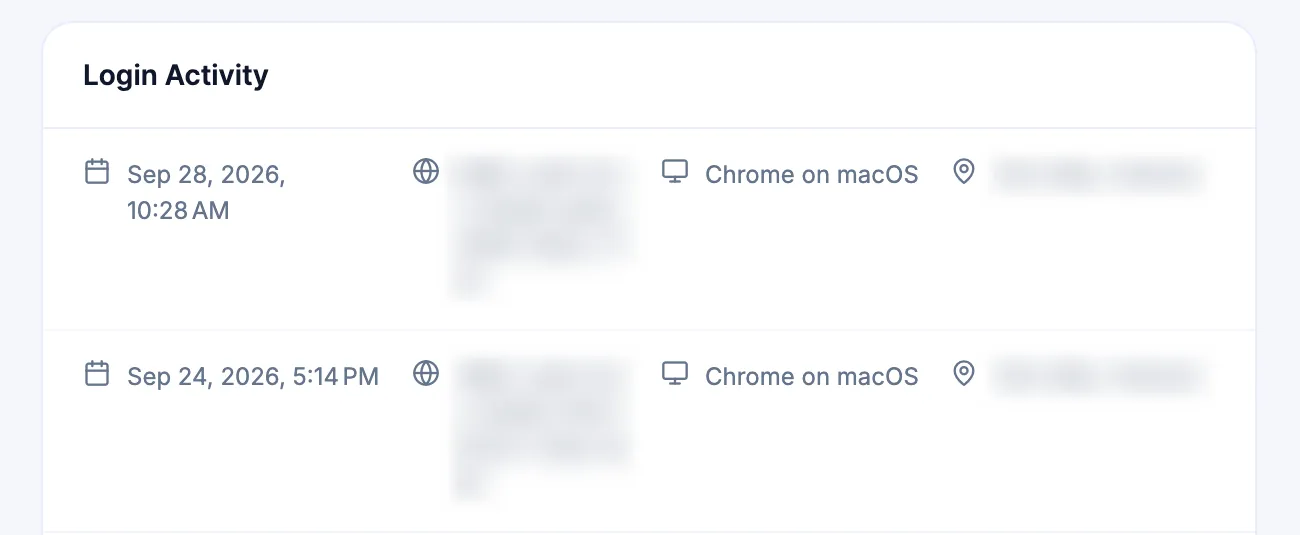
| Detail | What to review | Example |
|---|---|---|
| Date | When the login occurred | January 21, 2026, 5:33 p.m. |
| IP address | The IPv4 or IPv6 address used | 113.161.3.3 |
| Device | Browser and device or operating system | Chrome on Windows |
| Location | Estimated city and country | Hanoi, Vietnam |
| Status | Whether the attempt succeeded or failed | Success or Failure |
Review unfamiliar activity immediately, especially successful logins from an unexpected device, location, or IP address.
Expected result
Section titled “Expected result”After completing a Security task:
- the intended passkey is registered on a controlled device or security key;
- the intended password or 2FA status is active;
- active Backup Codes are stored securely;
- only approved social accounts remain connected;
- recent login activity is recognizable or investigated.
Verify the result
Section titled “Verify the result”| Check | Pass condition |
|---|---|
| Passkey | The Passkeys area confirms that a passkey has been added, and the device or security key is controlled by an authorized user. |
| Password | The new password works and other active sessions were signed out. |
| 2FA | The expected second verification step appears during sign-in. |
| Backup Codes | The active set is stored securely and old regenerated codes are no longer used. |
| Account Connections | Only authorized Google, Apple, and Facebook accounts are connected. |
| Login Activity | Recent successful logins match expected users, devices, locations, and IP addresses. |
If this does not work
Section titled “If this does not work”| Issue | What to do |
|---|---|
| You cannot sign in | Use Forgot password during sign-in or an already connected social account. |
| Add Passkey does not complete | Cancel the prompt, confirm that the browser, device unlock method, or security key is available, then try again. Record the browser, device, and visible error before contacting Support. |
| The new password is rejected | Check the length, number, uppercase, and whitespace requirements. |
| The 2FA device is unavailable | Use one unused Backup Code. |
| Backup Codes are unavailable | Submit a Support Ticket and prepare to verify account ownership. |
| A social account is already linked elsewhere | Sign in to the account that already uses it and disconnect it there first. |
| Disconnect is blocked | Set a password or connect another sign-in method before disconnecting the only available method. |
| Login Activity is unfamiliar | Change the password, review Account Connections, regenerate Backup Codes, and submit a Support Ticket if the activity may be unauthorized. |
Next Steps
Section titled “Next Steps”- Open Settings to manage account preferences and email.
- Open Account Security Best Practices for migration-related access cleanup.