

Demo Migrations
Use Demo Migrations as a controlled evaluation space: start a limited test, inspect Statistics and History, and keep Demo evidence distinct from purchased migration activity.
Demo Migrations
Section titled “Demo Migrations”Demo Migrations is the Dashboard entry point for choosing the Demo activity before any Demo connection setup or configuration begins.
Open an existing Demo with Start, or create another Demo with Start a New Demo. After that selection, the Demo opens its own Connect Stores, Configuration, and Migration step workflow. For planning context on what a Demo can and cannot prove, see Demo Migration in the Learning Center.
Open Demo Migrations
Section titled “Open Demo Migrations”-
Sign in to Next-Cart.
-
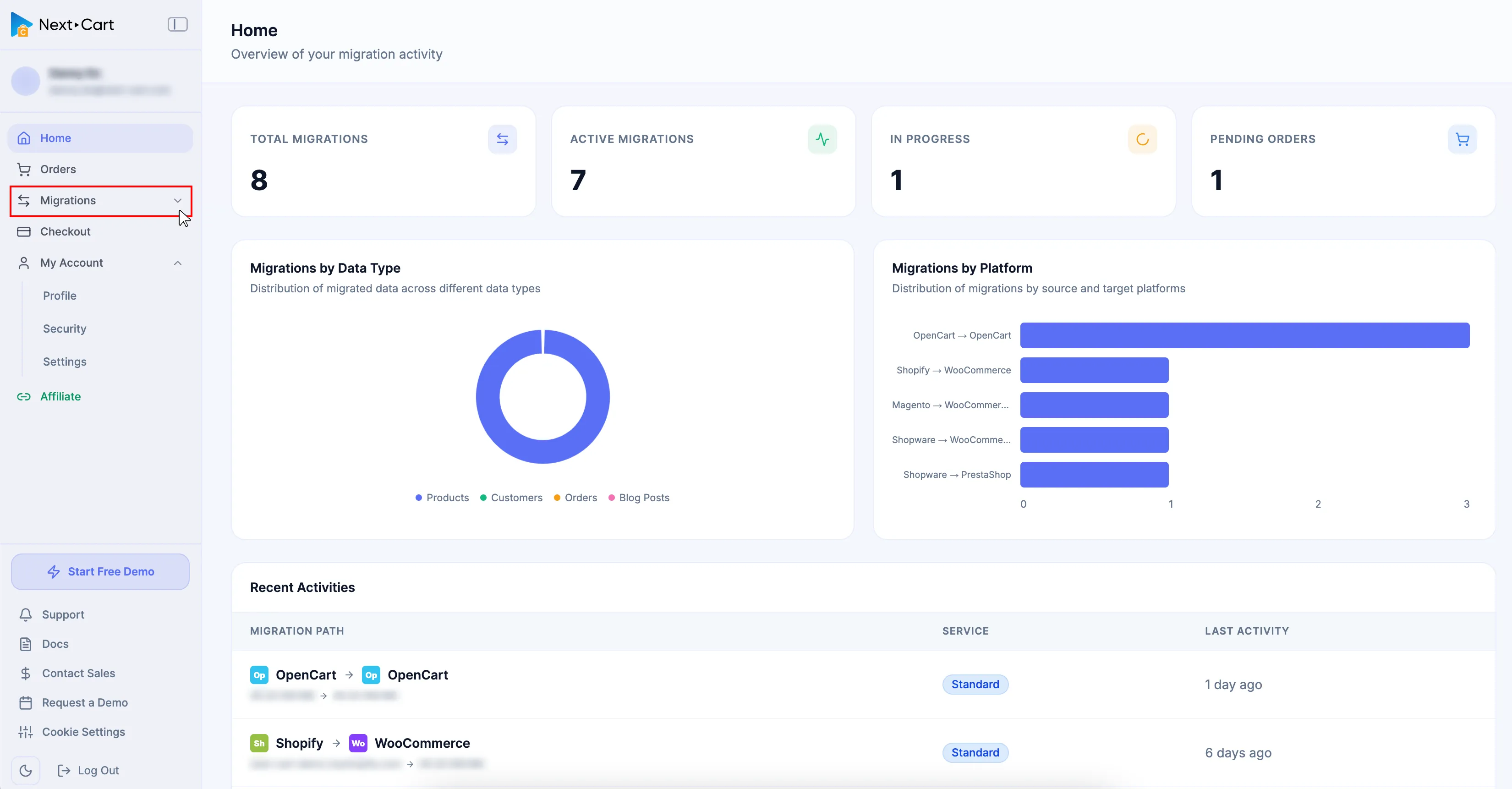
Expand Migrations in the Dashboard sidebar.
-
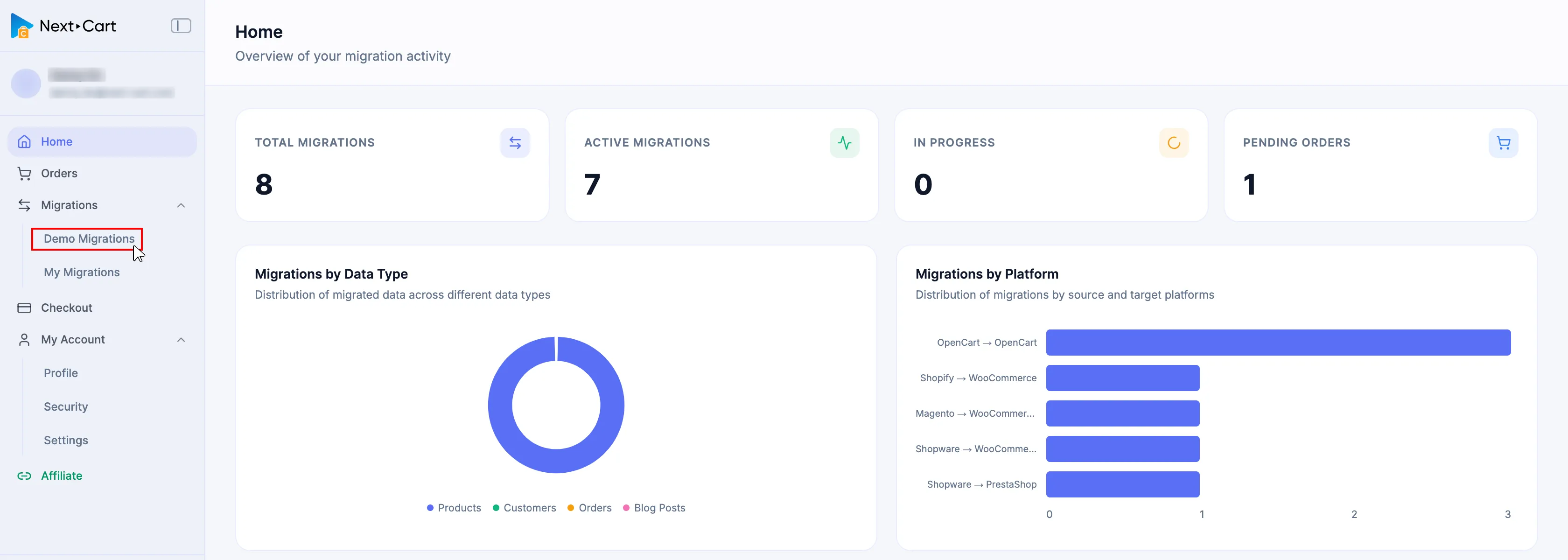
Select Demo Migrations from the expanded group.
-
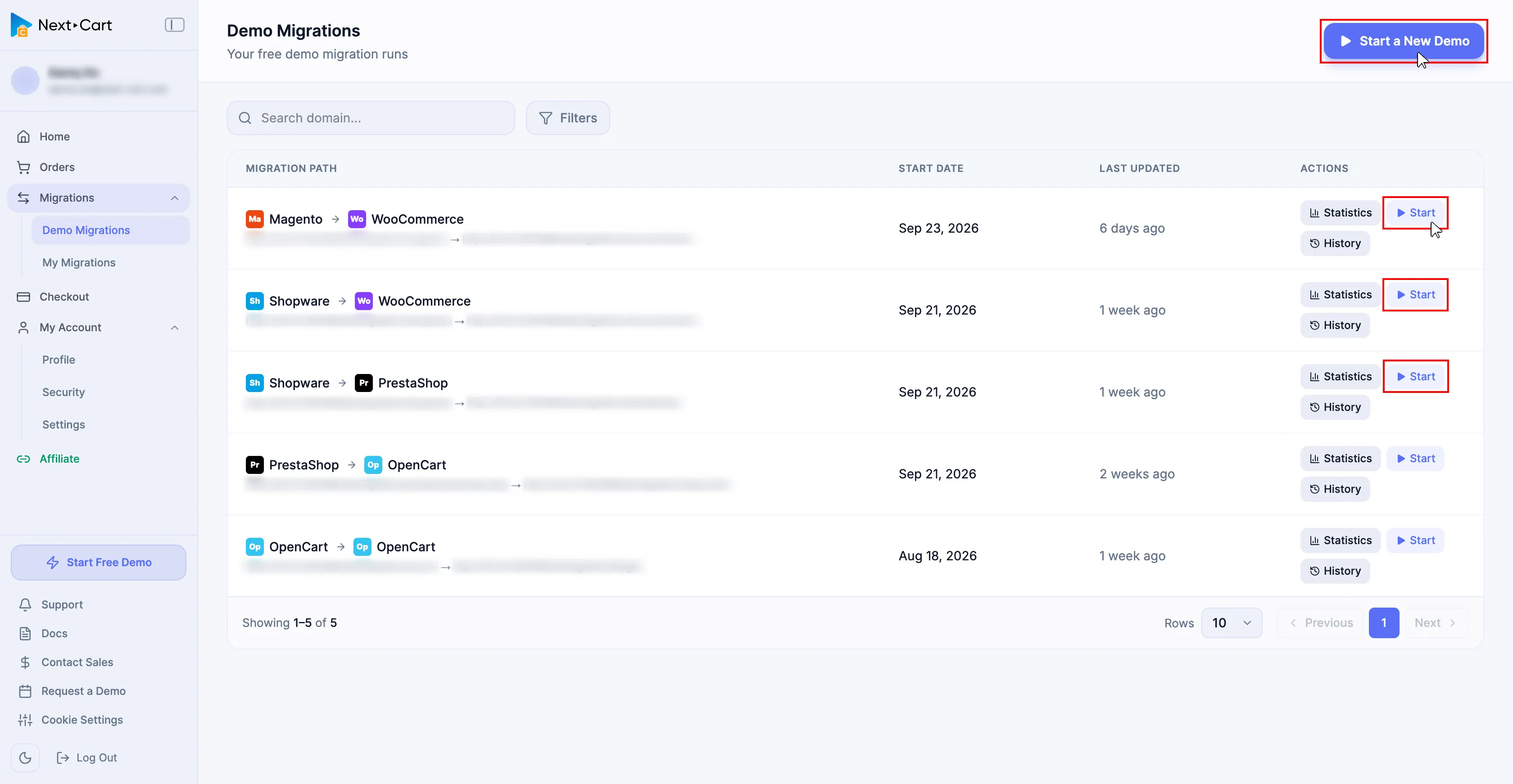
Select Start for an existing Demo Migration, or select Start a New Demo to create a new Demo.
-
If you start a new Demo, choose the Source Platform and Target Platform when prompted. If you reopen an existing Demo, confirm that its migration path is the one you intend to test.
-
Continue through the Connect Stores step, the reduced Configuration step available for Demo, and the Migration step.
Available actions
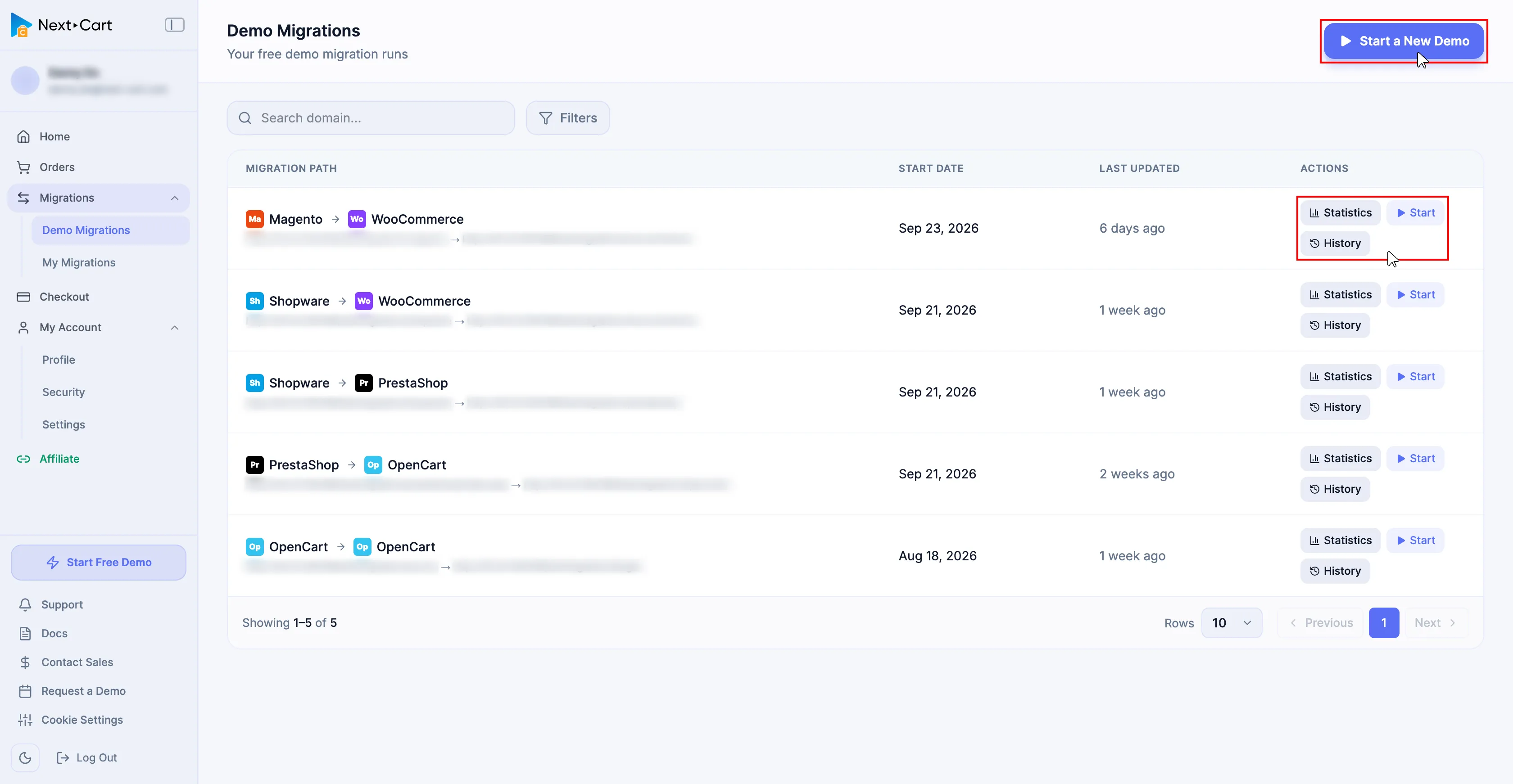
Section titled “Available actions”| Action | Use it to |
|---|---|
| Statistics | Review summary and progress information for the Demo Migration. |
| Start | Open the three-step Demo Migration process. |
| History | Review activity recorded for the Connect Stores, Configuration, and Migration steps. |
| Start a New Demo | Create another Demo Migration, subject to the daily account limit. |
Expected result
Section titled “Expected result”The selected Demo Migration opens and you can continue through:
- Connect Stores
- Configuration
- Migration
Verify account context
Section titled “Verify account context”| Check | Pass condition |
|---|---|
| Account | You are signed in to the account that should own the Demo activity. |
| Category | Demo Migrations is selected, not My Migrations. |
| Migration Path | The Source Platform and Target Platform are correct. |
| Daily allowance | The account has not reached the daily Demo Migration limit. |
| Target access | You can inspect the target store after the Demo completes. |
Failure handling
Section titled “Failure handling”| Issue | What to do |
|---|---|
| Start a New Demo is unavailable | Confirm the daily limit and account status. |
| The migration path is wrong | Create or open the correct Demo Migration before connecting stores. |
| Start does not open the workflow | Refresh the page once, check History, then submit a Support Ticket with the migration path and a screenshot. |
| Customization work is required | Record the requirement for a purchased migration service and Custom Migration review. It cannot be selected in Demo Migration. |
Next Steps
Section titled “Next Steps”Continue to Demo Migration walkthrough for the complete procedure and Demo limits.