

Delegate Access
Share a purchased migration without sharing credentials: invite the right collaborator or support specialist, revoke access instantly, and trace delegated actions through History.
Delegate Access
Section titled “Delegate Access”Delegate Access grants another user permission to a specific purchased migration while that person signs in with their own Next-Cart account. It does not require the owner and collaborator to share one account or exchange account credentials.
Delegated activity is recorded in the migration’s History so the owner can identify who performed an action and when it occurred. The owner can revoke delegated access at any time.
When to use Delegate Access
Section titled “When to use Delegate Access”Delegate Access is available for purchased migrations across Standard Migration, Managed Migration, and Custom Migration.
| Situation | Access model |
|---|---|
| Team member, colleague, or external project manager needs to work on the migration | The migration owner sends a Delegate Access invitation to that person’s email address. |
| Standard Migration needs Next-Cart technical support access | The migration owner manually grants Delegate Access to the Next-Cart specialist when access is requested through a Support Ticket or after AI Help connects the customer with a Support Agent. |
| Managed Migration | System-level access is provisioned automatically to Next-Cart engineers by default for expert-handled migration work. A manual Delegate Access invitation is not required for that engineering access. |
| Custom Migration without Expert Handle | The migration owner manually grants Delegate Access to the Next-Cart specialist when technical access is required. |
| Custom Migration with Expert Handle | System-level access is provisioned automatically to Next-Cart engineers by default so they can perform the migration and implement the approved tailored modifications. |
Automatic engineer access for Managed Migration and Custom Migration with Expert Handle is separate from customer-managed Delegate Access. The migration owner can still delegate the migration to authorized collaborators when needed.
Open the purchased migration
Section titled “Open the purchased migration”-
Sign in to Next-Cart as the migration owner.
-
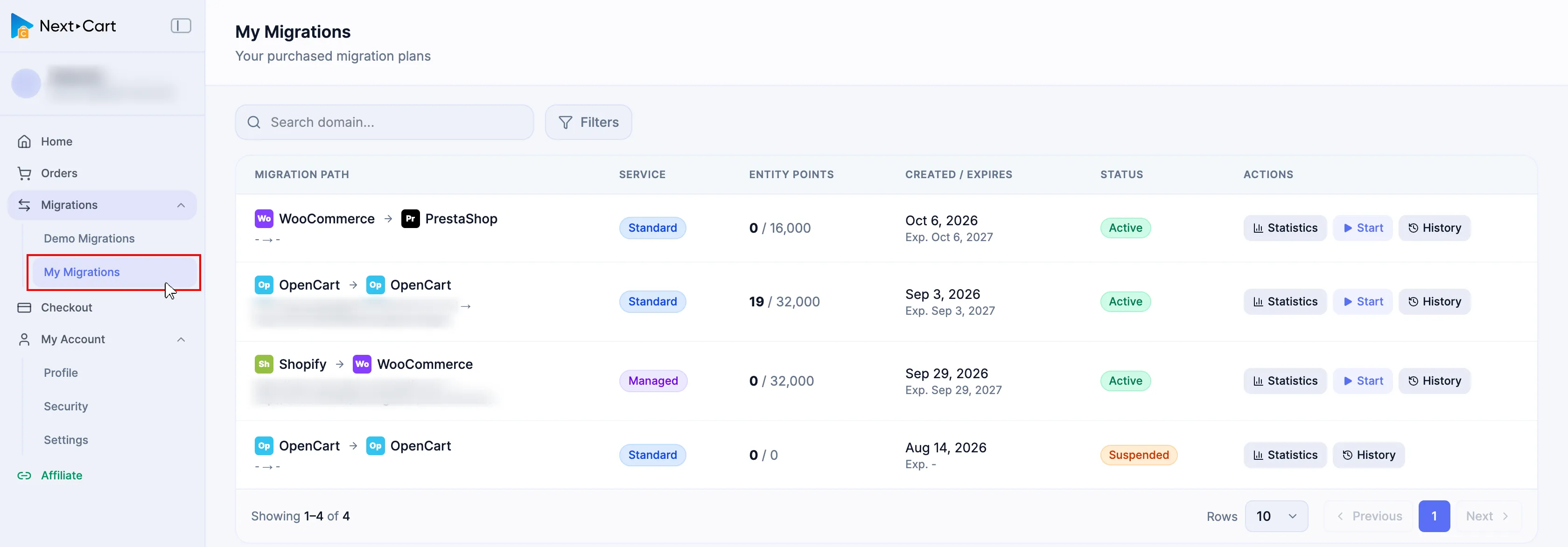
In the Dashboard sidebar, expand Migrations, then select My Migrations.
-
Find the intended purchased migration and confirm that its migration path is correct.
Keep My Migrations open while granting or revoking delegated access. Statistics owns the Delegate Access controls; History owns the activity audit trail.
Grant delegated access
Section titled “Grant delegated access”-
Select Statistics for the intended migration.
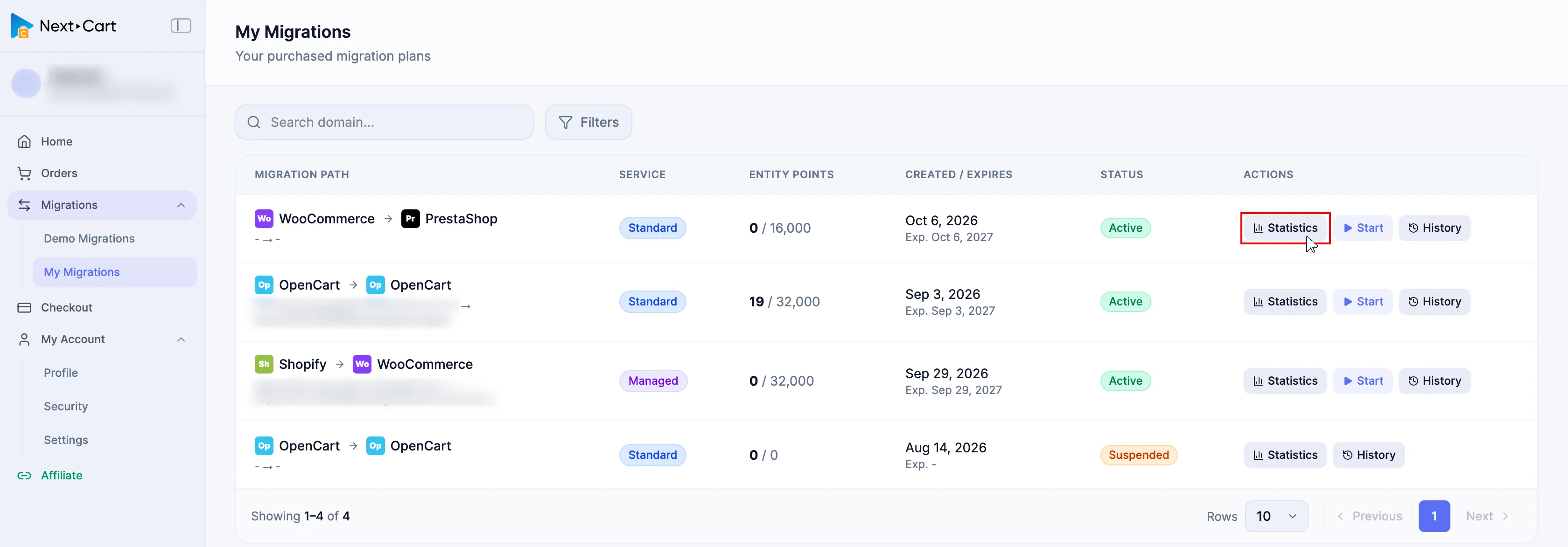
The Delegate Access panel is available in Statistics.

-
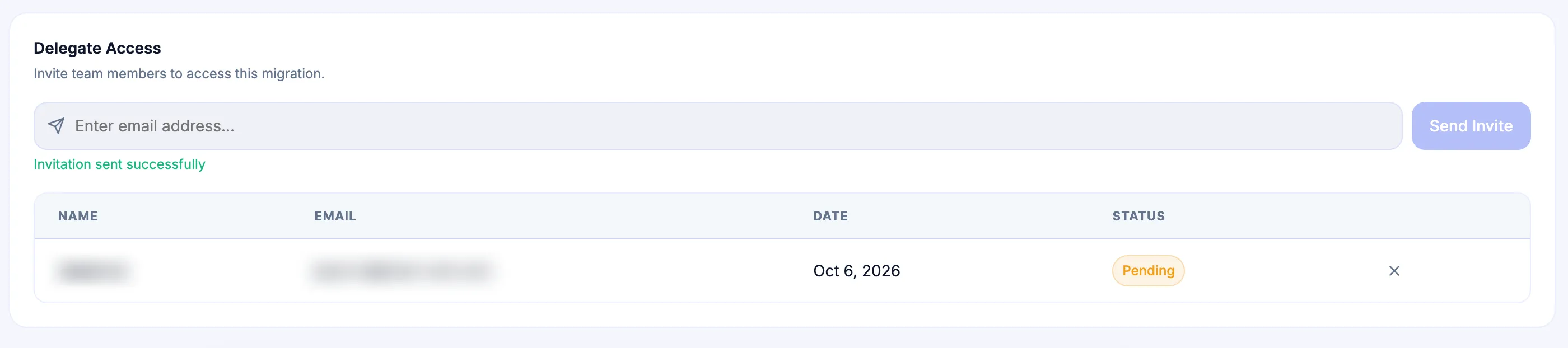
In the Delegate Access panel, enter the recipient’s email address.

-
Select Send Invite.
-
Tell the recipient to open the invitation email and complete the acceptance process using the same email address that received the invitation.
The invitation is tied to the selected migration. Before sending it, confirm that the migration path and recipient email are correct.
Accept a Delegate Access invitation
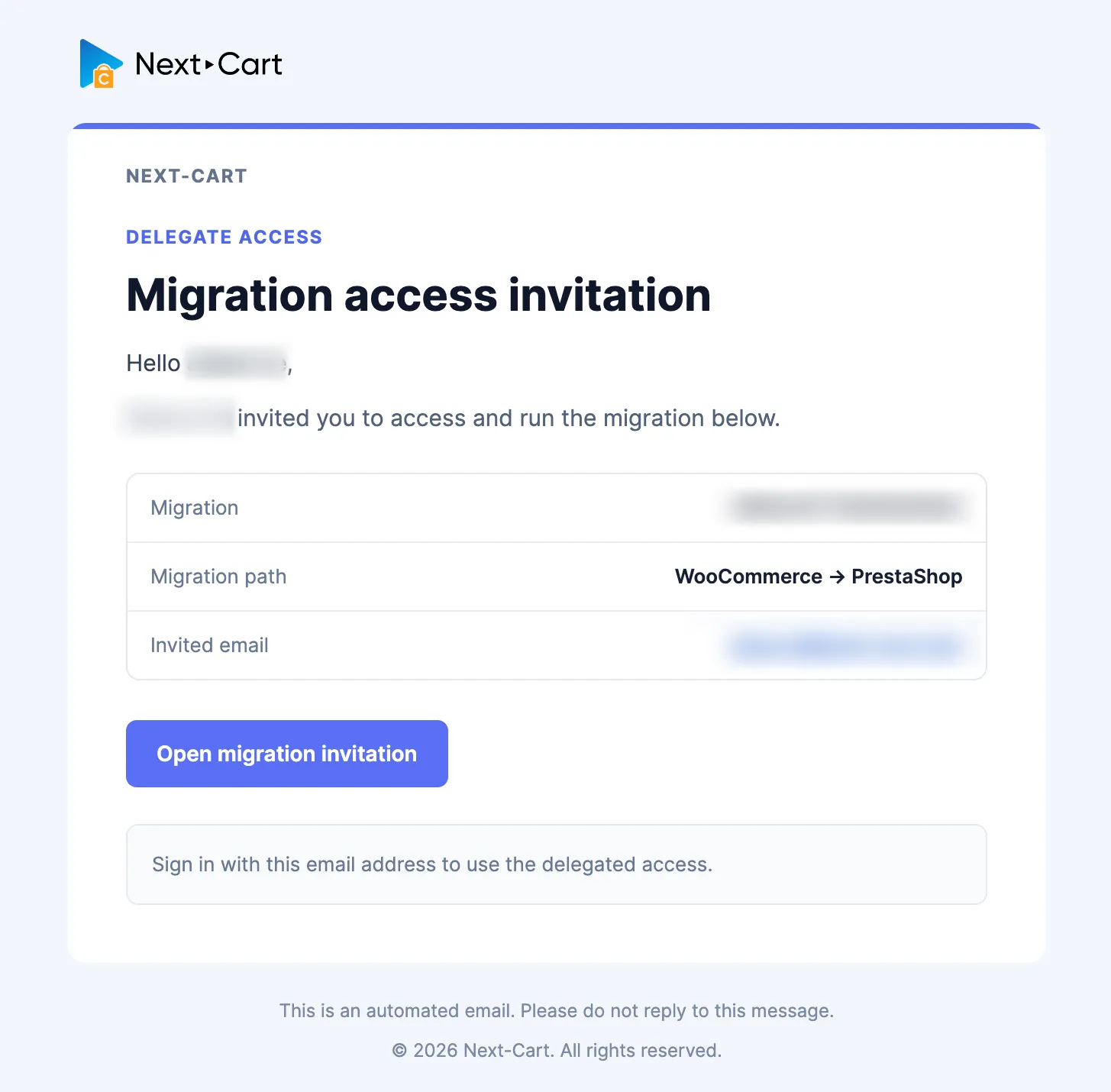
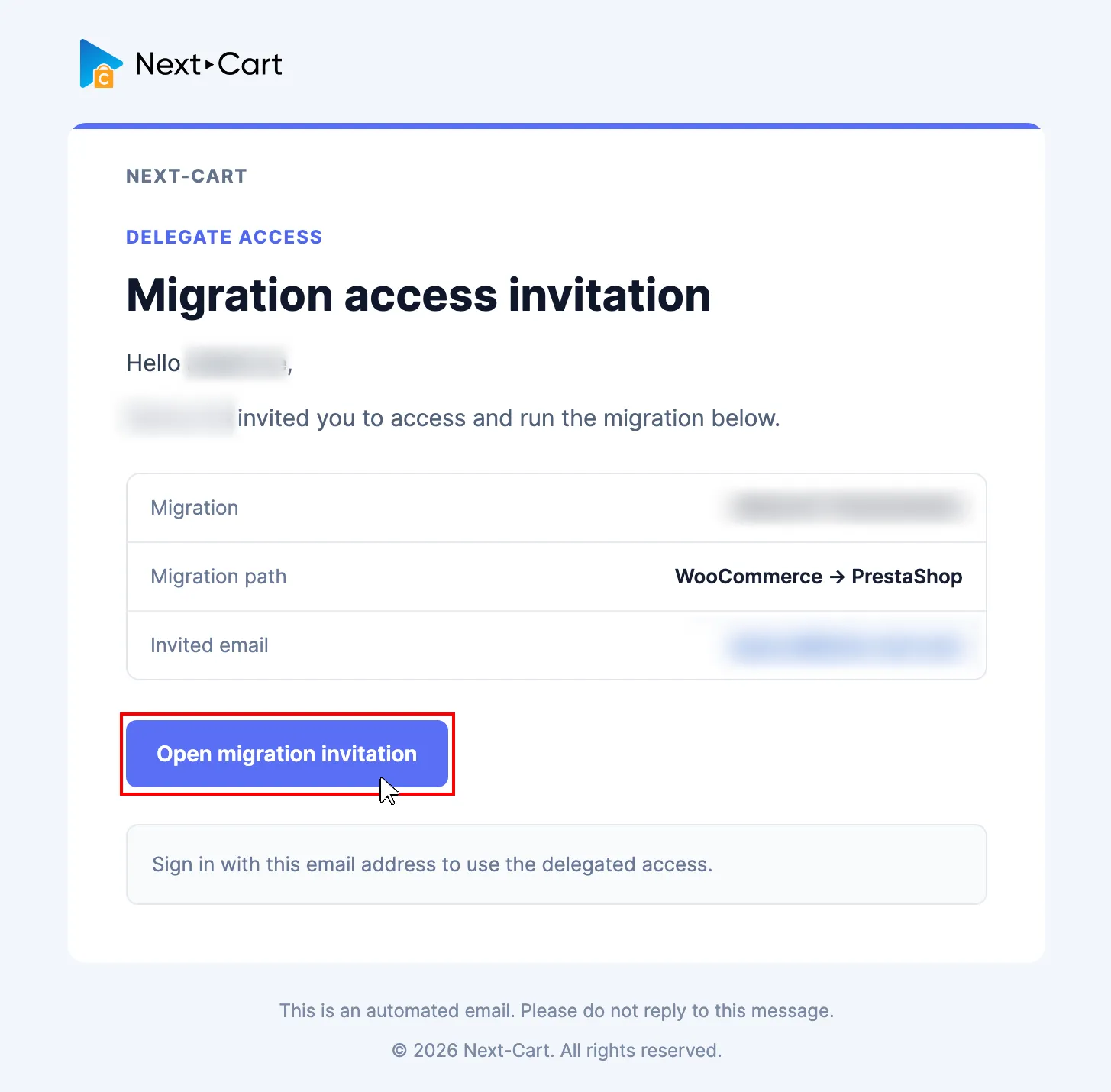
Section titled “Accept a Delegate Access invitation”The recipient receives a migration access invitation by email. The invitation identifies the migration and migration path and provides a link to open the invitation.
-
Open the Next-Cart migration access invitation email.
-
Select Open migration invitation.
-
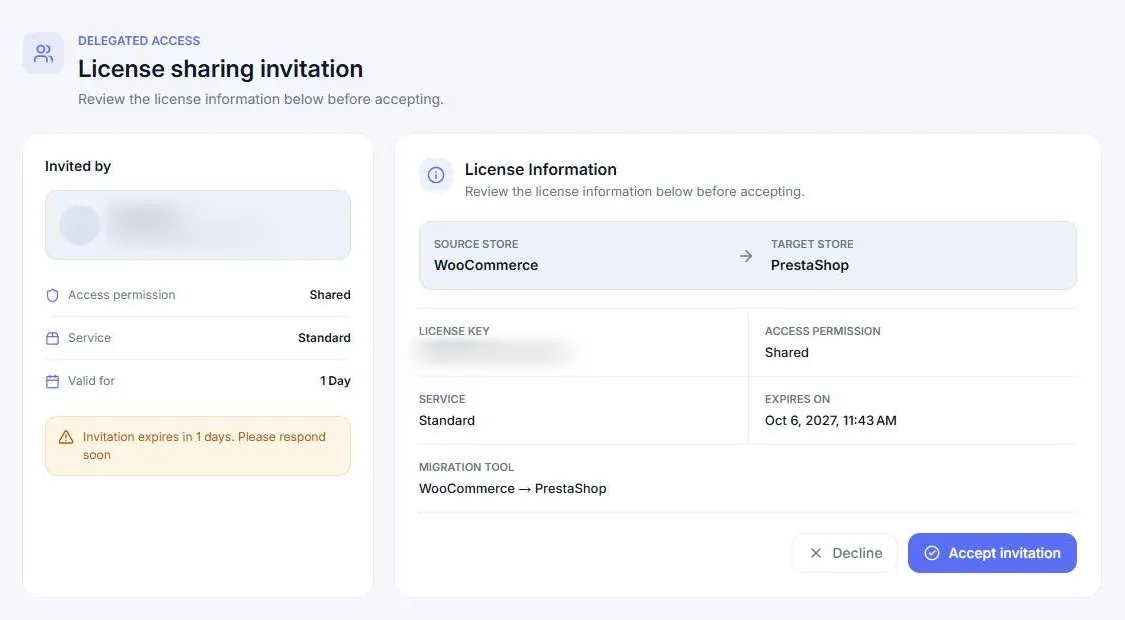
Sign in to Next-Cart with the email address that received the invitation.
-
Review the migration path, service, access permission, and expiration information shown on the invitation page.
-
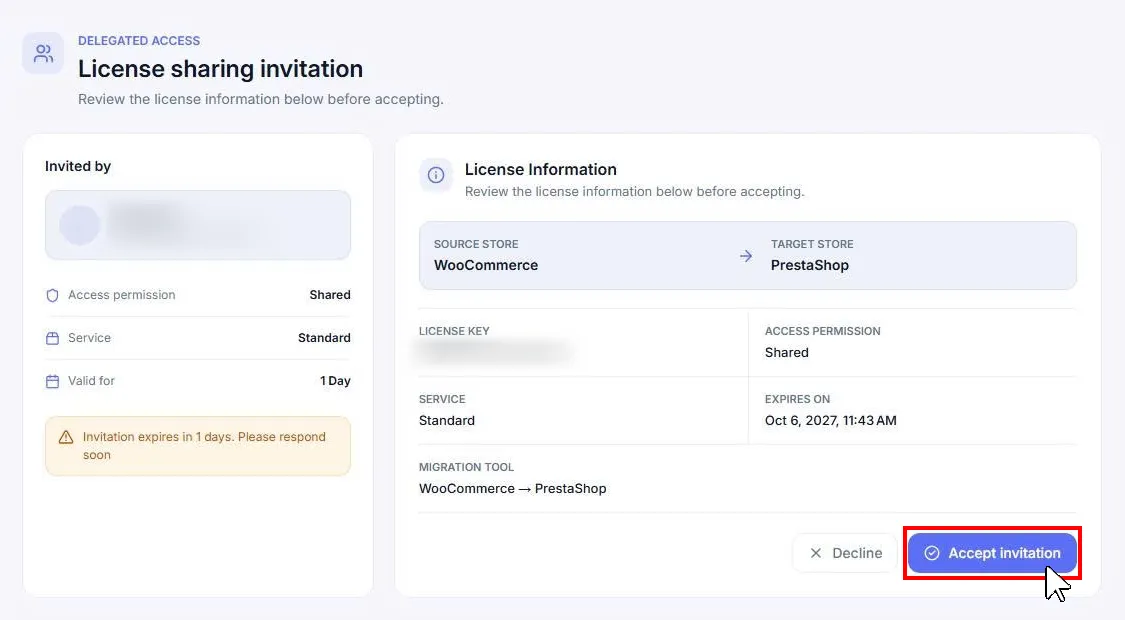
Select Accept invitation.
-
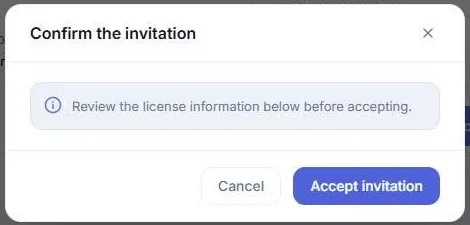
Review the confirmation dialog, then select Accept invitation again to confirm.
After acceptance, the recipient can access the delegated migration using the permissions available to delegated users.
Revoke delegated access
Section titled “Revoke delegated access”Revoke access as soon as a collaborator no longer needs to operate the migration, a support investigation is complete, or an invited person should no longer have access.
-
Select Statistics for the affected migration.
-
In the Delegate Access panel, locate the user whose access should be removed.
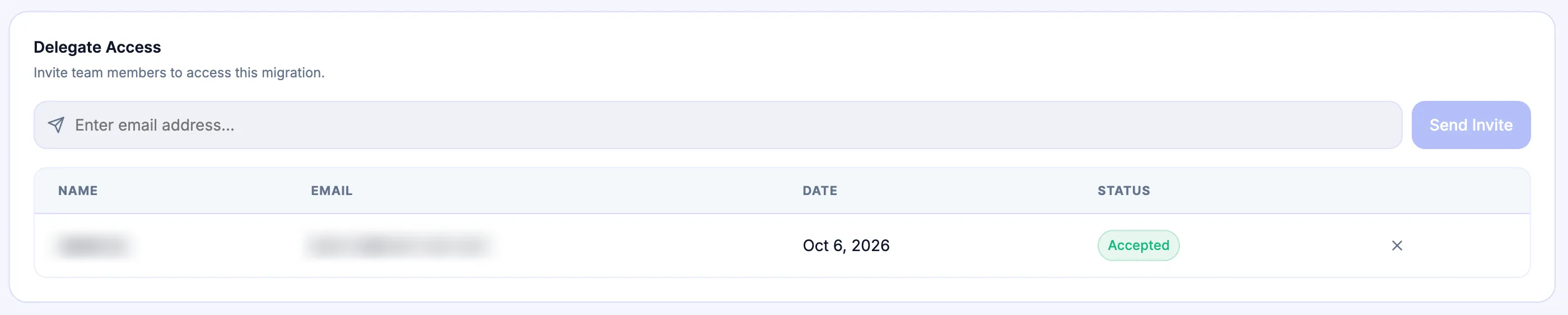
-
Select the
[X]button on that user’s entry row.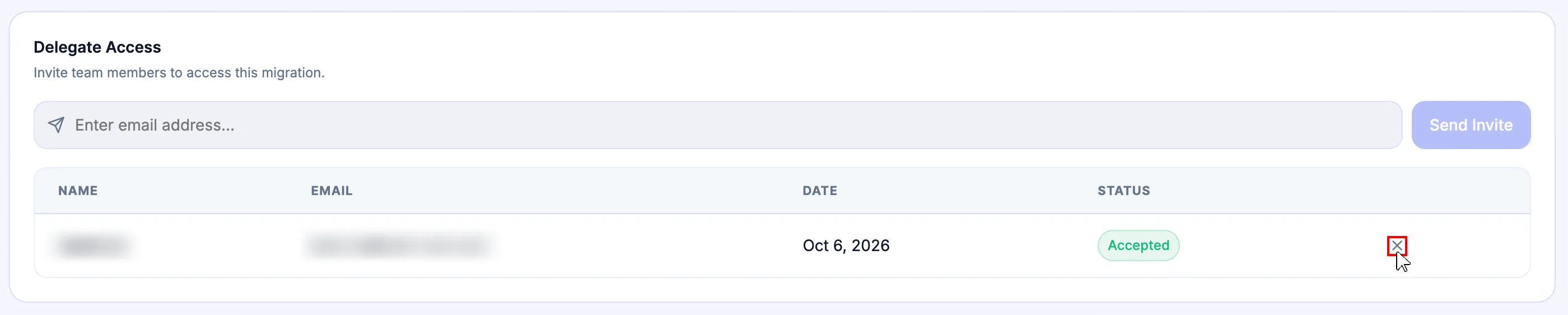
-
Confirm the removal prompt to immediately unassign the user’s delegated permissions.
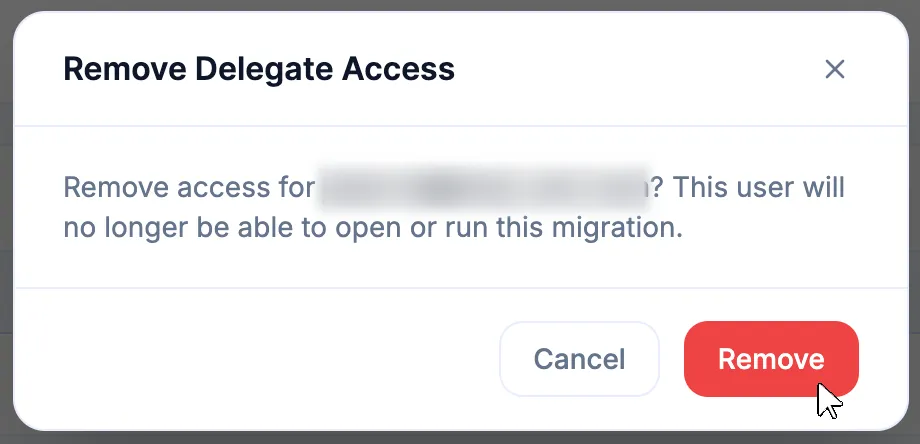
After confirmation, verify that the user no longer appears as an authorized delegated user and can no longer access the migration.
Review delegated activity
Section titled “Review delegated activity”All operational actions performed on a migration are recorded in its History. Use the Activity Timeline to distinguish actions performed by the migration owner from actions performed through delegated access.
For the same migration in My Migrations, select History and review the event.
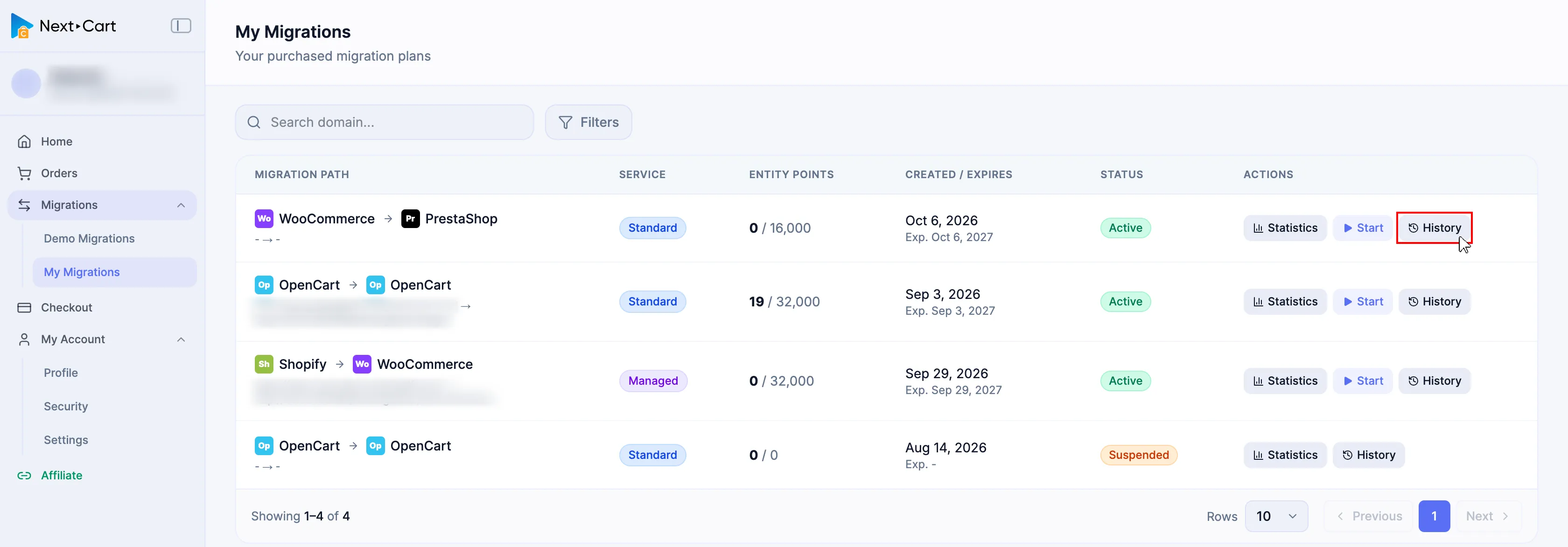
Review the Activity Timeline to identify the operator and delegated context for each relevant event.
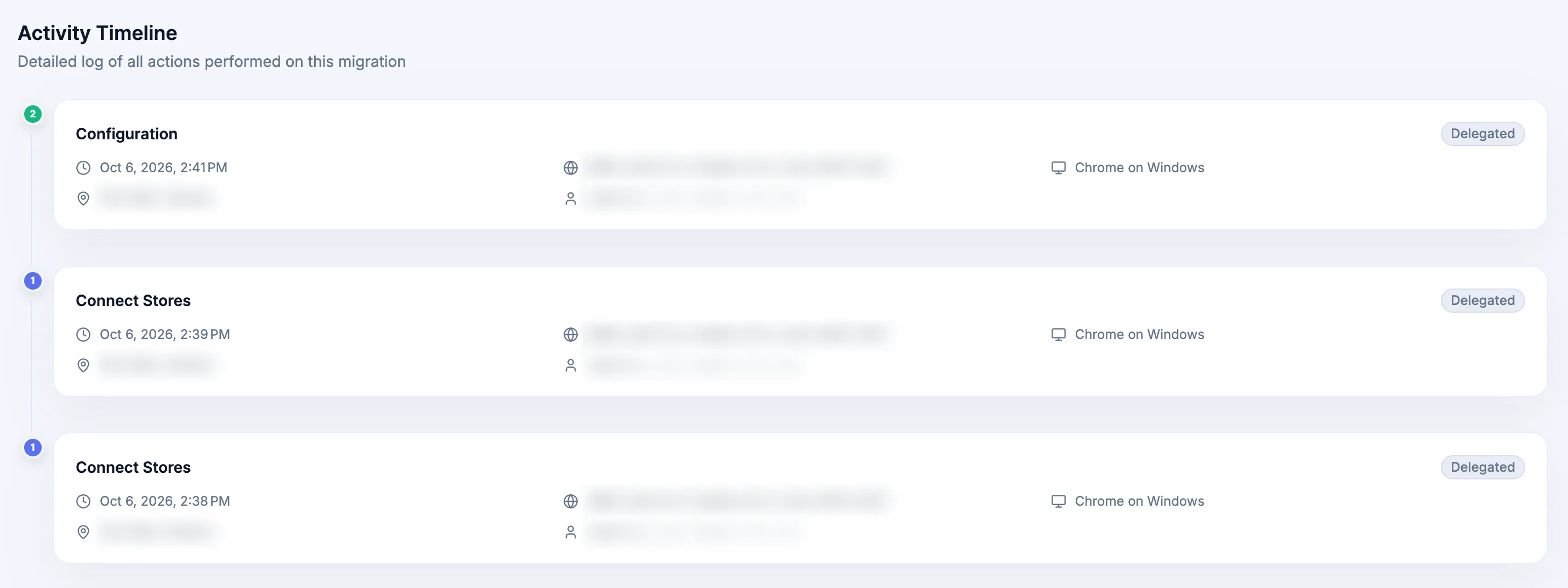
| Activity detail | What to verify |
|---|---|
| Action | The recorded operation, such as Connect Stores, Configuration, Migration, or another migration action. |
| Timestamp | When the action occurred. |
| IP Address | The network address recorded for the action. |
| Location | The geographical location recorded for the action. |
| Operator | The account name and email associated with the action. |
| Role | Whether the action is attributed to the migration owner or to delegated access. The Activity Timeline can show this as Owner or Delegated. |
| Browser/Client | The browser, operating system, or client information recorded for the action. |
History is an audit trail for migration activity. It does not replace validation of migrated data or target-store behavior.
Verify access and activity
Section titled “Verify access and activity”| Check | Pass condition |
|---|---|
| Invitation | The invitation was sent to the intended email address for the intended migration. |
| Acceptance | The recipient accepted the invitation while signed in with the invited email address. |
| Delegated access | The authorized user can open the intended migration with delegated permissions. |
| Activity attribution | Actions performed by the delegated user appear in History with the correct operator and delegated context. |
| Revocation | A revoked user can no longer access the delegated migration. |
Failure handling
Section titled “Failure handling”| Issue | What to do |
|---|---|
| The invitation email does not arrive | Confirm the email address entered under Delegate Access and ask the recipient to check spam or junk folders. If the invitation is still unavailable, submit a Support Ticket with the migration path and invited email address. |
| The recipient cannot accept the invitation | Confirm that the recipient is signed in with the exact email address that received the invitation. Review the expiration shown on the invitation page and send a new invitation if the previous invitation has expired. |
| The wrong person received or retains access | Revoke that user’s delegated access immediately, then invite the correct email address if access is still required. |
| A Standard Migration or Custom Migration without Expert Handle needs technical support access | Use Delegate Access to invite the Next-Cart specialist identified through the Support Ticket or through an AI Help conversation transferred to a Support Agent. |
| A Managed Migration or Custom Migration with Expert Handle is waiting for engineer access | Do not create a manual support invitation solely for expert handling. System-level engineer access is provisioned automatically; submit a Support Ticket if the assigned team cannot access the migration. |
| History shows unfamiliar delegated activity | Revoke the relevant delegated access, preserve the History details, and submit a Support Ticket with the Action, Timestamp, IP Address, Location, Operator, Role, Browser/Client, and affected migration. |
Next Steps
Section titled “Next Steps”- Use Migrations to open the purchased migration and review Statistics or History.
- Use Support Tickets when a Next-Cart specialist requests manual access or when delegated activity requires investigation.
- Use Account Security Best Practices to review temporary-access and credential-cleanup practices.