Maropost / Neto API Connection
Prepare Maropost / Neto API connection values for a Next-Cart migration service when API setup is shown for Maropost / Neto.
Maropost / Neto API Connection
Section titled “Maropost / Neto API Connection”A valid Maropost / Neto API connection gives Next-Cart the authorized platform access required by the selected migration path.
Next-Cart may ask for your Maropost / Neto Store URL and API Key. Prepare the API Key from the control panel API settings for the correct store.
When to use this guide
Section titled “When to use this guide”Use this guide when:
- Maropost / Neto is the Source Platform or Target Platform in your selected migration path;
- Next-Cart shows Maropost / Neto API setup;
- Next-Cart asks for Store URL and API Key.
Prerequisites
Section titled “Prerequisites”Before you begin, confirm that:
| Requirement | Why it matters |
|---|---|
| Maropost / Neto control panel access | You need access to the control panel for the correct store. |
| Permission to manage API settings | Your role must allow you to view or regenerate API keys. |
| Awareness of existing integrations | Regenerating a key can affect other systems that use it. |
| Secure storage | API keys should not be stored in insecure notes or shared files. |
Required values
Section titled “Required values”| Required value | Where to prepare it | Notes |
|---|---|---|
| Store URL | Your Maropost / Neto store or control panel domain | Use the URL requested by Next-Cart. |
| API Key | API Settings in the control panel | Copy the key exactly as shown after saving changes. |
Prepare the API connection values
Section titled “Prepare the API connection values”- Sign in to the Maropost / Neto control panel.
- Confirm that you are working with the store selected in the migration path.
- Go to Settings & Tools.
- Open All Settings & Tools.
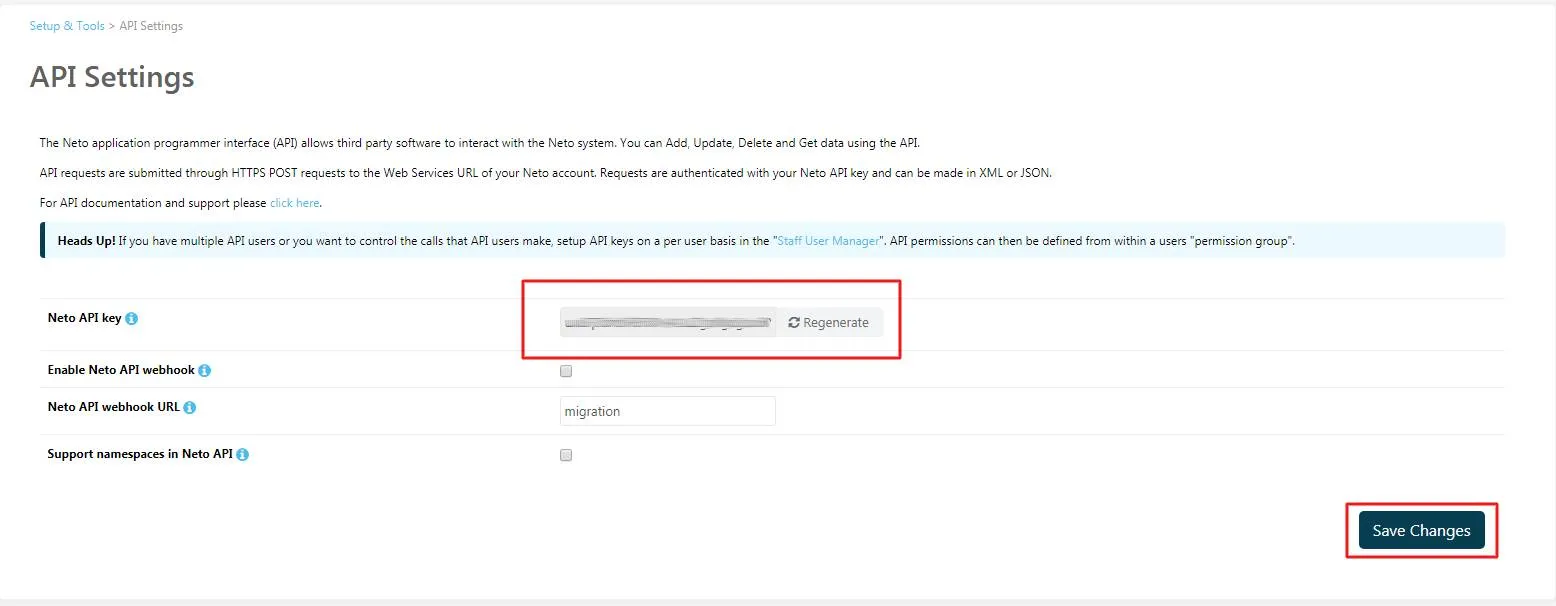
- Under Developer Tools, open API Settings.
- If needed and approved, select Regenerate to create a fresh API Key.
- Save changes.
- Copy the API Key displayed on the API Settings page.
- Store the Store URL and API Key securely until you enter them in Next-Cart.
Enter the values in Next-Cart
Section titled “Enter the values in Next-Cart”In the Next-Cart connection setup screen for Maropost / Neto, enter only the values requested by the interface.
| Next-Cart field | Platform value |
|---|---|
| Store URL | Maropost / Neto store URL requested by Next-Cart. |
| API Key | API Key from API Settings. |
Expected result
Section titled “Expected result”The Maropost / Neto API connection values are ready to test in Next-Cart.
Verify the connection
Section titled “Verify the connection”| Check | Pass condition |
|---|---|
| Store match | The Store URL belongs to the store selected for the migration path. |
| Key status | The API Key is active and saved. |
| Integration impact | Any key regeneration impact on other integrations has been reviewed. |
| Connection test | Next-Cart can authenticate and read supported Maropost / Neto data. |
If the connection fails
Section titled “If the connection fails”| Issue | What to check |
|---|---|
| Authentication error | Copy the API Key again and confirm changes were saved. |
| Regeneration risk | Do not regenerate the key until existing integration impact is reviewed. |
| Wrong store connected | Confirm the control panel domain and selected store. |
| Permission error | Ask an administrator to access or update API Settings. |
Security cleanup
Section titled “Security cleanup”After migration work is complete and verified:
- remove or revoke temporary API credentials where the platform provides that option;
- reduce access if a broader permission set was used only for migration work;
- remove copied credentials from insecure notes, tickets, chats, or shared files;
- review the store admin account used for API setup.
Next step
Section titled “Next step”| Goal | Go to |
|---|---|
| Test the connection | Verify Platform Connections |
| Fix an authentication or permission issue | Troubleshoot Connection Setup |
| Continue after the connection passes | Configure Your Migration |