

Attribute Mapping
Align supported source values with target values that preserve the intended operational meaning for the active migration.
Attribute Mapping
Section titled “Attribute Mapping”Attribute Mapping aligns supported source values with target values that represent the same operational meaning. Next-Cart pre-fills supported mappings where possible; review those defaults and change only the mappings that need a different target result.
Configure the mappings
Section titled “Configure the mappings”Screenshots illustrate the procedure. Available entities, fields, values, and controls depend on your migration path and platform versions.
-
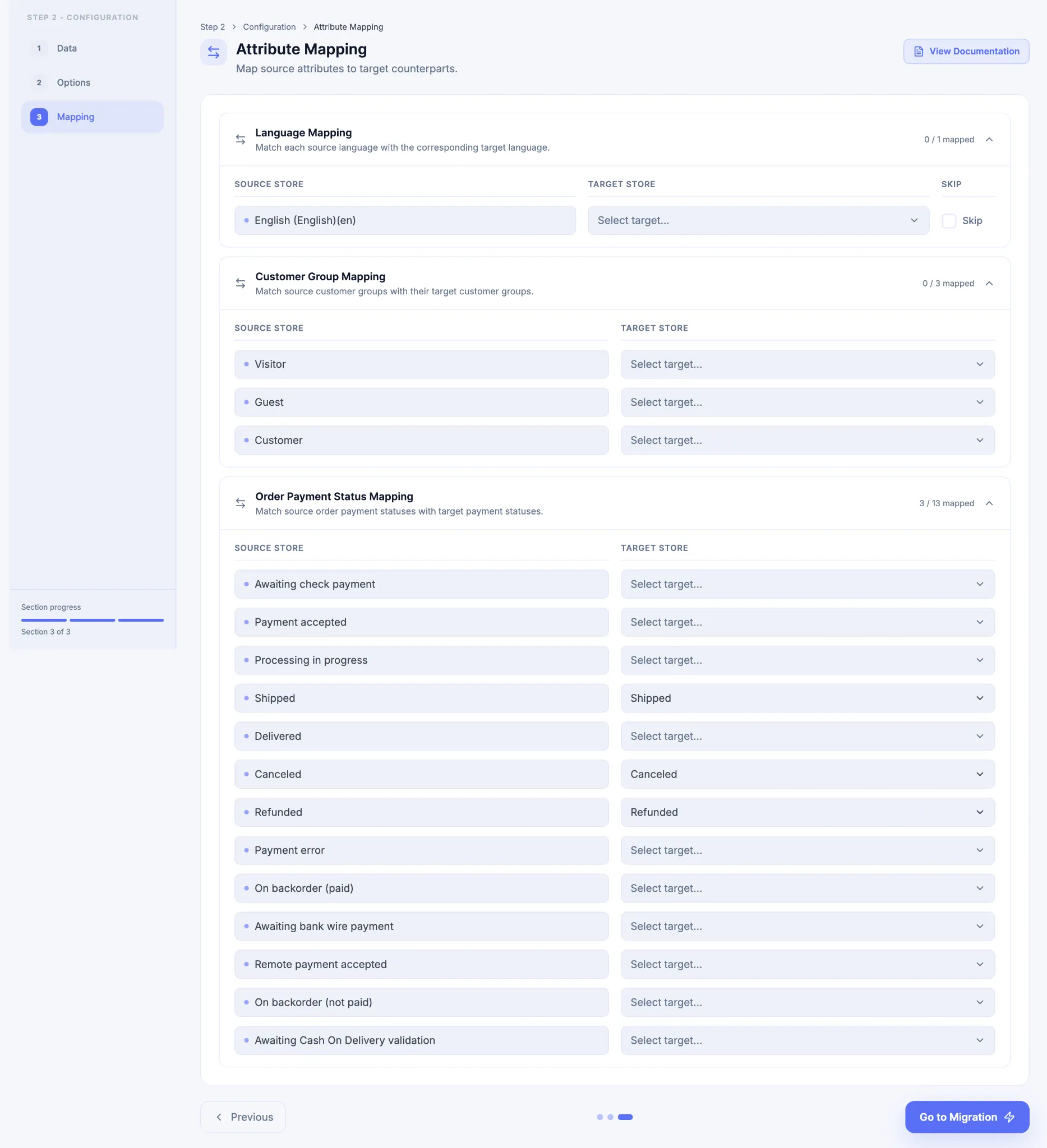
Review each mapping category displayed for the active migration.
-
Confirm that each pre-filled target value represents the intended source meaning.
-
Change a target selection when another supported value is required. Select Skip only when that source value should not transfer to the Target Store.
-
Review the remaining source values for missing or inappropriate target choices.
-
Click Next when Add-ons, Custom, or both follow. If neither screen is included, click Go to Migration.
Mapping categories
Section titled “Mapping categories”Only categories supported for the active Source-to-Target path are displayed.
Store, catalog, and customer context
Section titled “Store, catalog, and customer context”| Mapping category | What it aligns |
|---|---|
| Site Mapping | Source site contexts with the intended target sites. |
| Language Mapping | Source languages with target languages. |
| Inventory Location Mapping | Source inventory locations with target locations. |
| Attribute Set Mapping | Source attribute sets with compatible target attribute sets. |
| Root Category Mapping | The migrated catalog with the intended target root category. |
| Customer Group Mapping | Source Customer Groups with target groups. |
Order lifecycle
Section titled “Order lifecycle”| Mapping category | What it aligns |
|---|---|
| Order Payment Status Mapping | Historical source payment states with target payment states that represent the same payment meaning. |
| Order Fulfillment Status Mapping | Historical source fulfillment states with target fulfillment states that represent the same fulfillment meaning. |
Payment and fulfillment statuses are separate mapping problems
Section titled “Payment and fulfillment statuses are separate mapping problems”Payment status and fulfillment status describe different parts of an Order lifecycle. A payment status records the financial state of the Order, while a fulfillment status records what has happened to the goods or fulfillment process. Do not map one dimension by using the other as a shortcut.
When both mapping categories are available, review them independently. Match each source value to the target value that preserves its business meaning, then validate representative Orders that cover paid, pending, refunded, canceled, fulfilled, partially fulfilled, and exception cases that exist in the source. Use the values shown by the active migration rather than assuming another platform’s status list applies.
Shopify payment and fulfillment status meaning
Section titled “Shopify payment and fulfillment status meaning”For Shopify-bound Order history, keep Payment Status and Fulfillment Status as separate dimensions. Payment status describes the financial state of the Order and fulfillment status describes the fulfilled line items.
When Order Payment Status Mapping appears for a Shopify-bound migration, review every source payment state before selecting its target meaning.
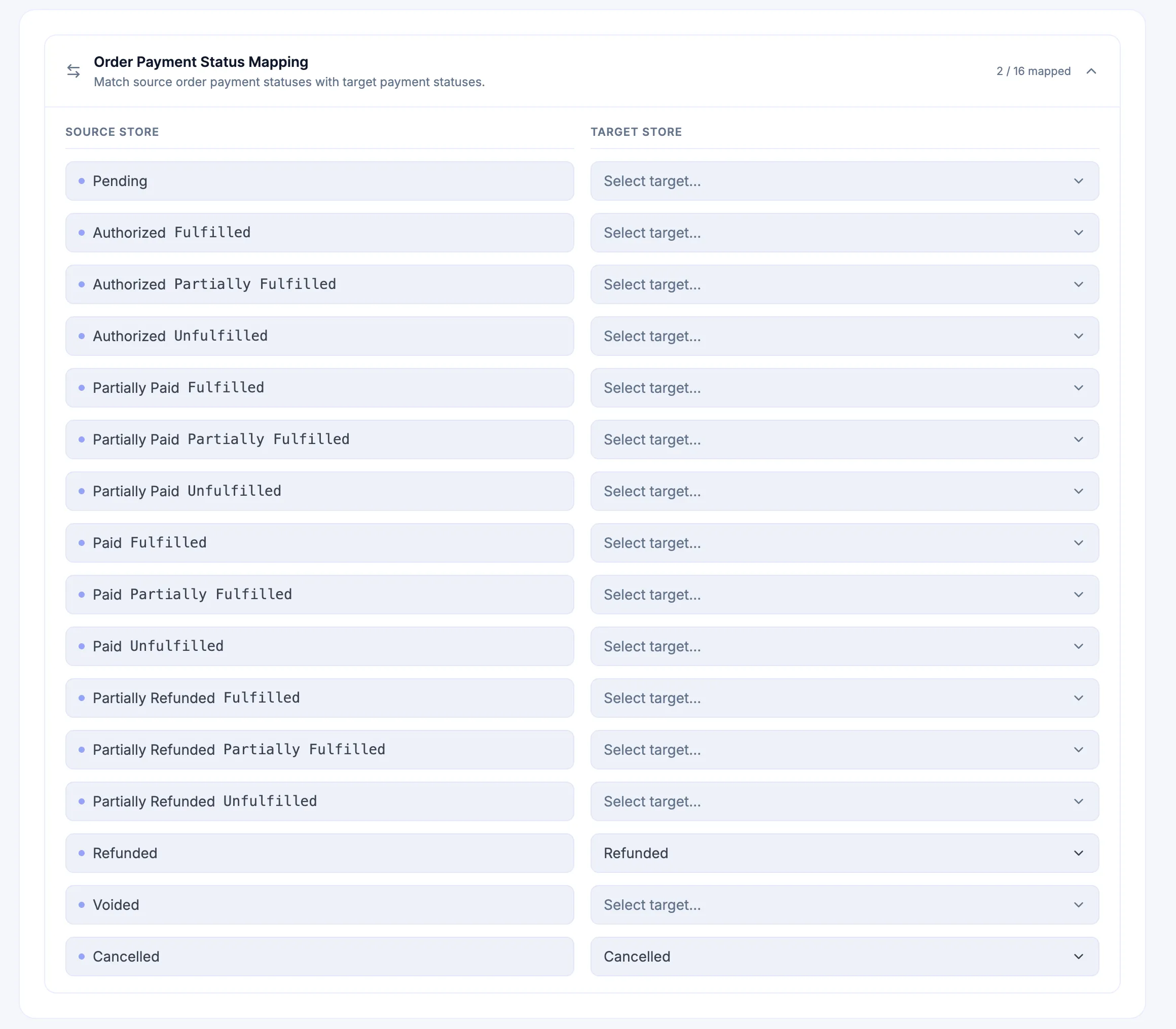
Use these Shopify payment-status meanings:
| Payment status | Meaning |
|---|---|
| Pending | Payments are pending. Payment can still fail in this state, so confirm later whether payment completed successfully. |
| Authorized | The payments have been authorized. |
| Partially Paid | The Order has been partially paid. |
| Paid | The payments have been paid. |
| Partially Refunded | The payments have been partially refunded. |
| Refunded | The payments have been refunded. |
| Voided | The payments have been voided. |
| Cancelled | The payments and the Order have been cancelled. |
The payment status can only be set when the Order is created. Preserve that constraint when deciding how source payment meaning should map into Shopify Order history.
The meaning of order’s fulfillment statuses
Section titled “The meaning of order’s fulfillment statuses”An Order fulfillment status describes the Order in terms of fulfilled line items. Preserve these meanings when mapping historical Shopify-bound Order data:
| Fulfillment status | Meaning |
|---|---|
| Fulfilled | All line items in the Order have been fulfilled. |
| Partially Fulfilled | Some, but not all, of the Order’s line items have been fulfilled. |
| Not Fulfilled/Null/Unfulfilled | None of the line items in the Order have been fulfilled. |
| Restocked/Canceled | The Order has been cancelled and all line items have been restocked. |
When the active migration exposes the applicable mappings:
- interpret what the source status means financially and operationally;
- map payment meaning through Order Payment Status Mapping;
- map fulfillment meaning through Order Fulfillment Status Mapping;
- validate representative historical Orders that cover the status values present in the Source Store.
Do not collapse payment and fulfillment into a single status simply because a source label combines both ideas.
Attribute Mapping and Add-on mapping serve different needs
Section titled “Attribute Mapping and Add-on mapping serve different needs”| Requirement | Use |
|---|---|
| Align supported standard sites, languages, locations, groups, or order states | Attribute Mapping |
| Change a supported value before mapping | Data Transformation |
| Route a supported field to a different compatible target field | Advanced Data Mapping |
| Route supported data through an eligible database field or column destination | Advanced Database Mapping, subject to platform and schema eligibility |
A missing Attribute Mapping category is not automatically solved by an Add-on. Use the capability that matches the requirement and its supported scope.
Data Update uses default mappings. Choices on Attribute Mapping do not change its update values or destinations; configure its supported fields in the Add-on instead.
When a mapping cannot be completed
Section titled “When a mapping cannot be completed”| Situation | Next action |
|---|---|
| A required mapping category is not displayed | Confirm the active Source-to-Target path. Do not infer support from another path. |
| The required target value does not exist | Where the Target Platform supports creating it, prepare the target value and review the mapping choices again. |
| No equivalent target meaning exists | Define an acceptable fallback or have the requirement reviewed before processing. |
| The requirement is field redirection or value transformation | Use the applicable purchased Add-on only when its supported scope covers the requirement. |
Next Steps
Section titled “Next Steps”If Add-ons is included, continue to Add-ons. If only approved Custom requirements follow, continue to Custom. When neither screen is included, use Go to Migration after confirming that the mappings are correct.