Clover API Connection
Prepare Clover Merchant ID and API token details for the Next-Cart migration service.
Clover API Connection
Section titled “Clover API Connection”A valid Clover API connection gives Next-Cart the authorized platform access required by the selected migration path.
The goal is to prepare the Merchant ID and API token required for Next-Cart to test access to Clover data.
When to use this guide
Section titled “When to use this guide”Use this guide when:
- the selected platform is Clover;
- Next-Cart asks for a Merchant ID and API token;
- you can access the Clover dashboard;
- you can create API tokens for the business.
Prerequisites
Section titled “Prerequisites”| Requirement | Why it matters |
|---|---|
| Clover dashboard access | You need access to business setup and API token settings. |
| Permission to create API tokens | The API token is generated from the business operations or API token area. |
| Migration scope | Token permissions should cover the data types selected for migration. |
| Secure token handling | Copy the token directly into Next-Cart and store it securely. |
Required values
Section titled “Required values”| Value | Where to find it | Notes |
|---|---|---|
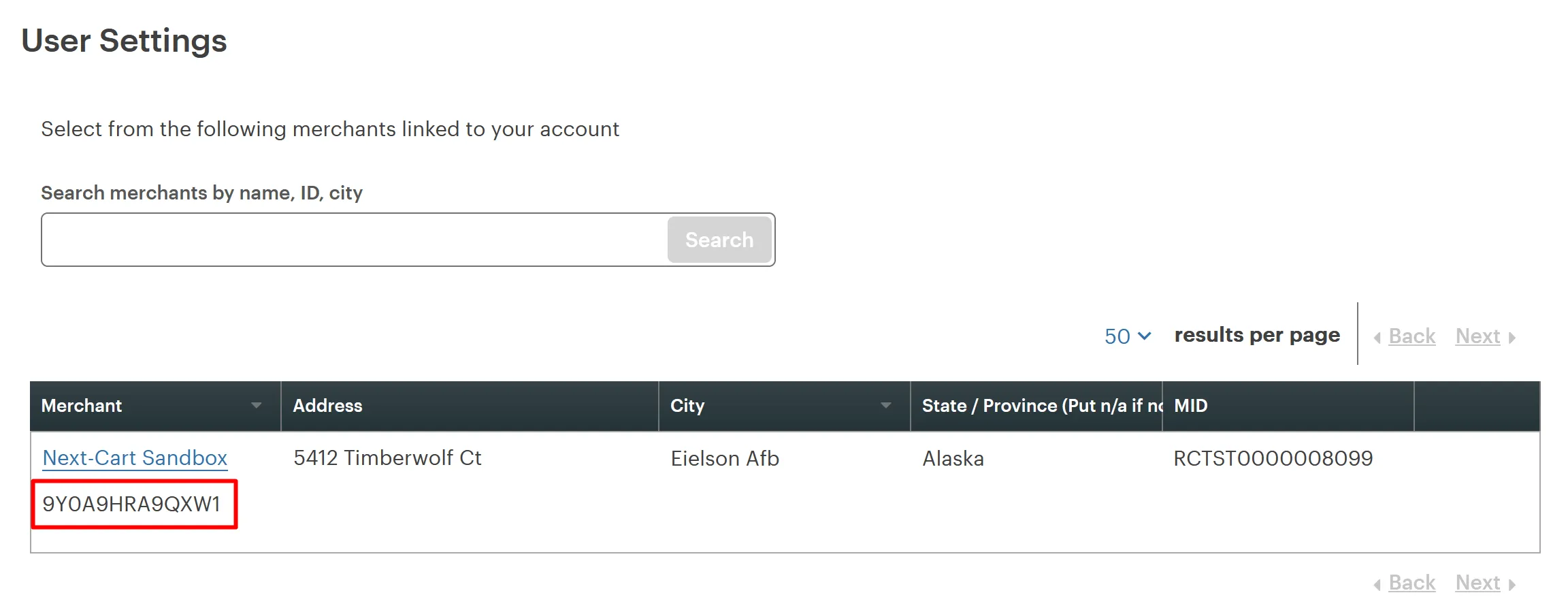
| Merchant ID | Clover business or merchant details area. | Copy the ID for the business associated with the migration path. |
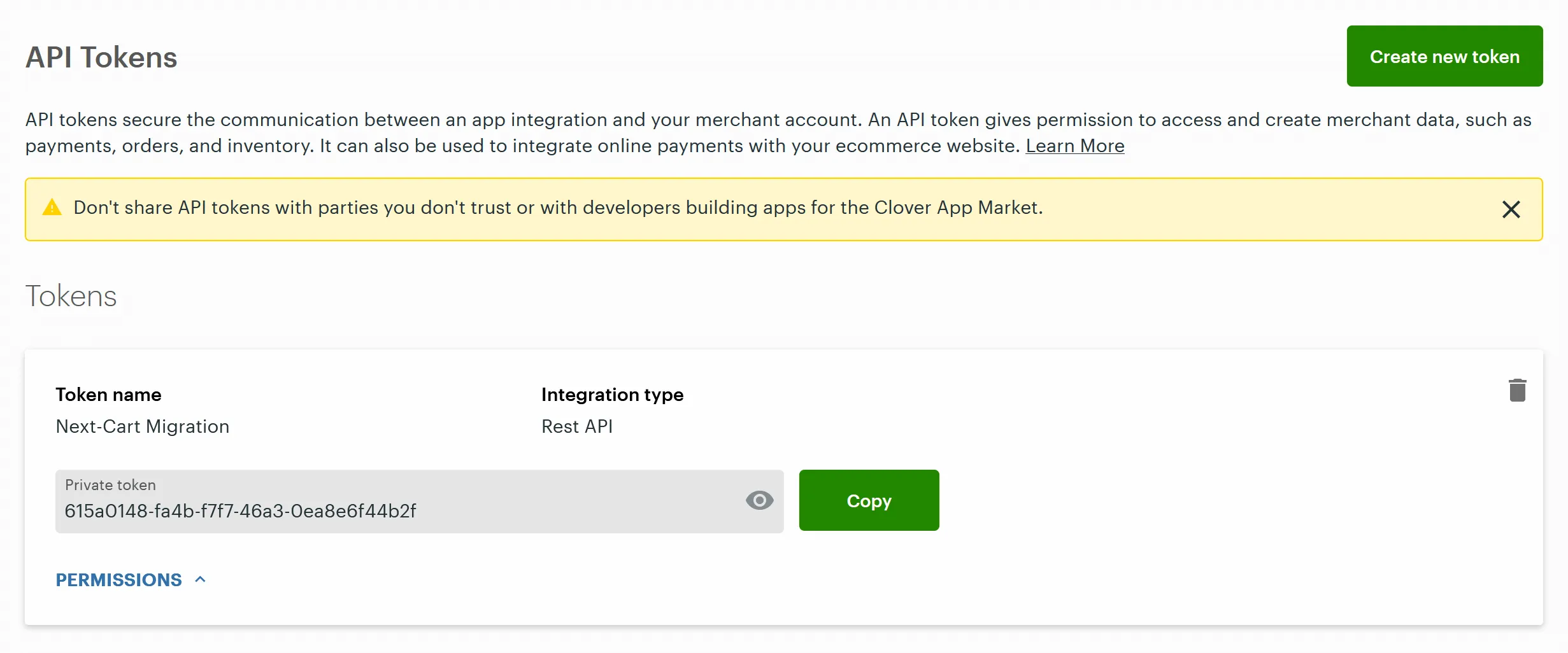
| API Token | API token area after creating a token. | Copy the private token when it is shown. |
Create an API token
Section titled “Create an API token”- Sign in to the Clover dashboard.
- Open Account & Setup.
- Under business information, open the merchant or business details area.
- Copy the Merchant ID.
- Return to Account & Setup.
- Open the API token area under business operations or integrations.
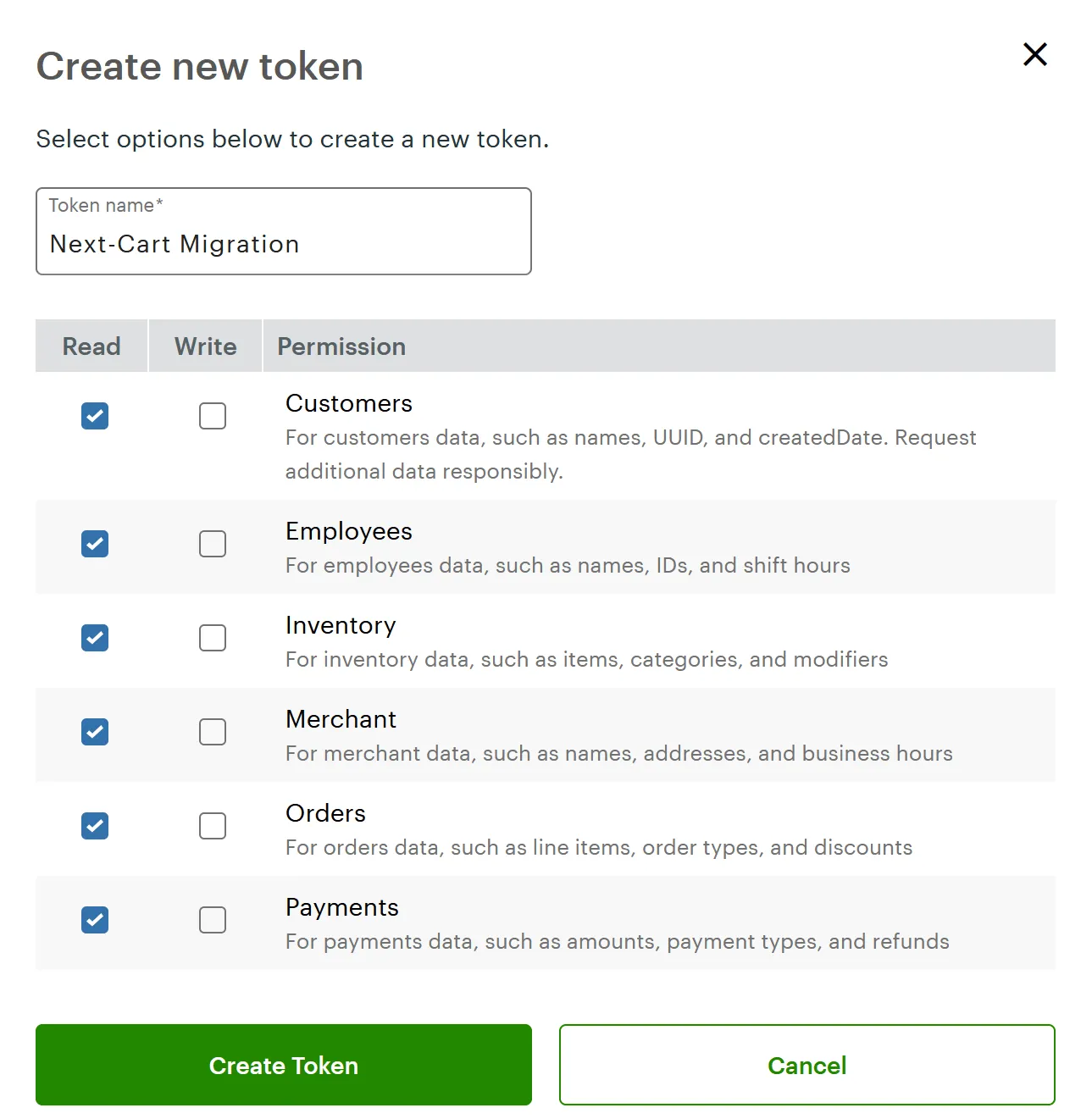
- Create a new token.
- Use a clear name such as Next-Cart Migration.
- Enable read permissions for the data included in the migration scope.
- Create the token and copy the private token shown.
Enter the values in Next-Cart
Section titled “Enter the values in Next-Cart”In Next-Cart, enter the Merchant ID and API Token.
Use values from the Clover business associated with the selected migration path.
Expected result
Section titled “Expected result”Next-Cart has the Clover connection details required for connection testing.
Verify the connection
Section titled “Verify the connection”| Check | Pass condition |
|---|---|
| Merchant ID | The ID belongs to the intended Clover business. |
| API Token | The token is active and copied exactly. |
| Permissions | The token has read access to the required data. |
| Connection test | Next-Cart verifies access without authentication or permission errors. |
If the connection fails
Section titled “If the connection fails”| Issue | What to check |
|---|---|
| Merchant ID rejected | Confirm the Merchant ID belongs to the correct business. |
| Token rejected | Create a new token and copy it again. |
| Permission error | Review token permissions and enable the required read access. |
| Wrong business selected | Confirm you are signed in to the correct Clover account and business. |
| Token no longer available | Create a fresh token and replace the value in Next-Cart. |
Security cleanup
Section titled “Security cleanup”After migration work is complete and verified, delete or revoke the token if it is no longer needed.
Next step
Section titled “Next step”| Situation | Go to |
|---|---|
| API values are ready | Verify Platform Connections |
| You need general API setup guidance | Set Up an API Connection |
| The connection test fails | Troubleshoot Connection Setup |