

Payment Methods and Verification
Complete payment through the selected method, verify the Order status, and access the purchased migration after settlement is confirmed.
Payment Methods and Verification
Section titled “Payment Methods and Verification”Payment is complete only when the Order reaches Paid. Automated methods can confirm through the payment provider. Bank Transfer and other manual methods remain subject to Next-Cart settlement verification.
Payment states
Section titled “Payment states”| Status | Operational meaning | Action |
|---|---|---|
| Pending Payment | The Order exists but payment has not been completed. | Open the Order and use Pay or Pay Now when available. |
| Pending Approval | A manual payment workflow is waiting for customer action, settlement arrival, or Next-Cart verification. | Follow the assigned instructions; if payment was already sent, wait for verification rather than duplicating it. |
| Paid | Payment and required verification are complete. | Open the related migration and verify the purchased configuration. |
Payment methods
Section titled “Payment methods”| Method | Verification |
|---|---|
| PayPal / Credit & Debit Cards | Automated provider confirmation. |
| Cryptocurrency | Automated after the required network confirmations. |
| Bank Transfer (SWIFT / Wire Transfer) | Manual settlement verification by Next-Cart. |
| Payoneer Invoice | Manual receipt verification by Next-Cart. |
Pay by bank transfer
Section titled “Pay by bank transfer”Use the secure Bank Transfer page for the Order-specific amount, beneficiary details, and Reference / Memo. Then monitor the same Order until settlement is verified.
-
In Checkout, select Bank Transfer (SWIFT / Wire Transfer) and place the Order.
-
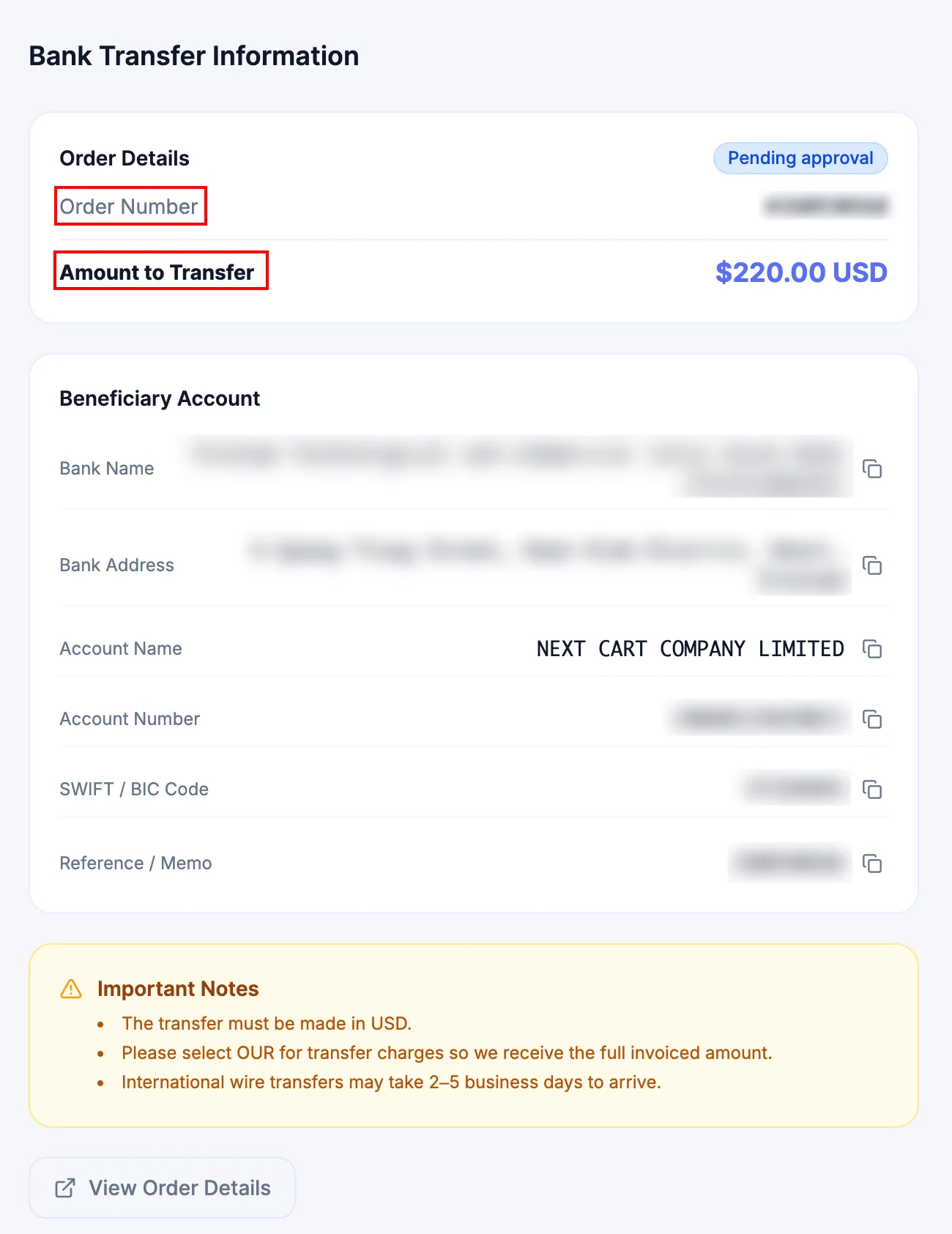
On the secure Bank Transfer page, confirm the Order Number and Amount to Transfer before sending funds.
-
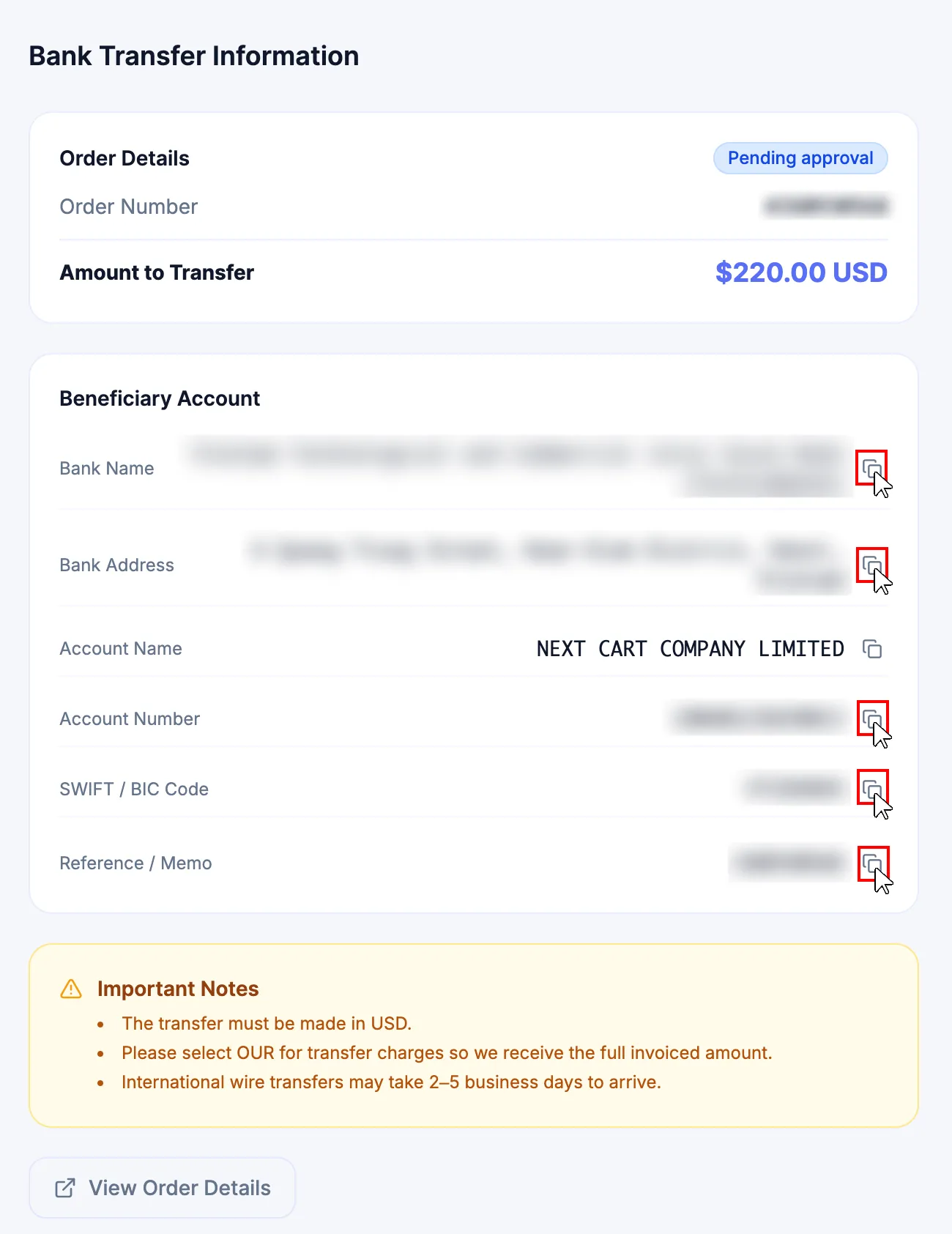
Copy the beneficiary values exactly as shown, including Bank Name, Bank Address, Account Name, Account Number, SWIFT / BIC Code, and Reference / Memo.
-
Send the transfer in USD using the exact Reference / Memo. Select OUR for transfer charges so Next-Cart receives the full invoiced amount, then keep the bank receipt or transfer confirmation.
-
While the payment is being matched and verified, the Order can remain Pending Approval. Do not send the transfer again.
-
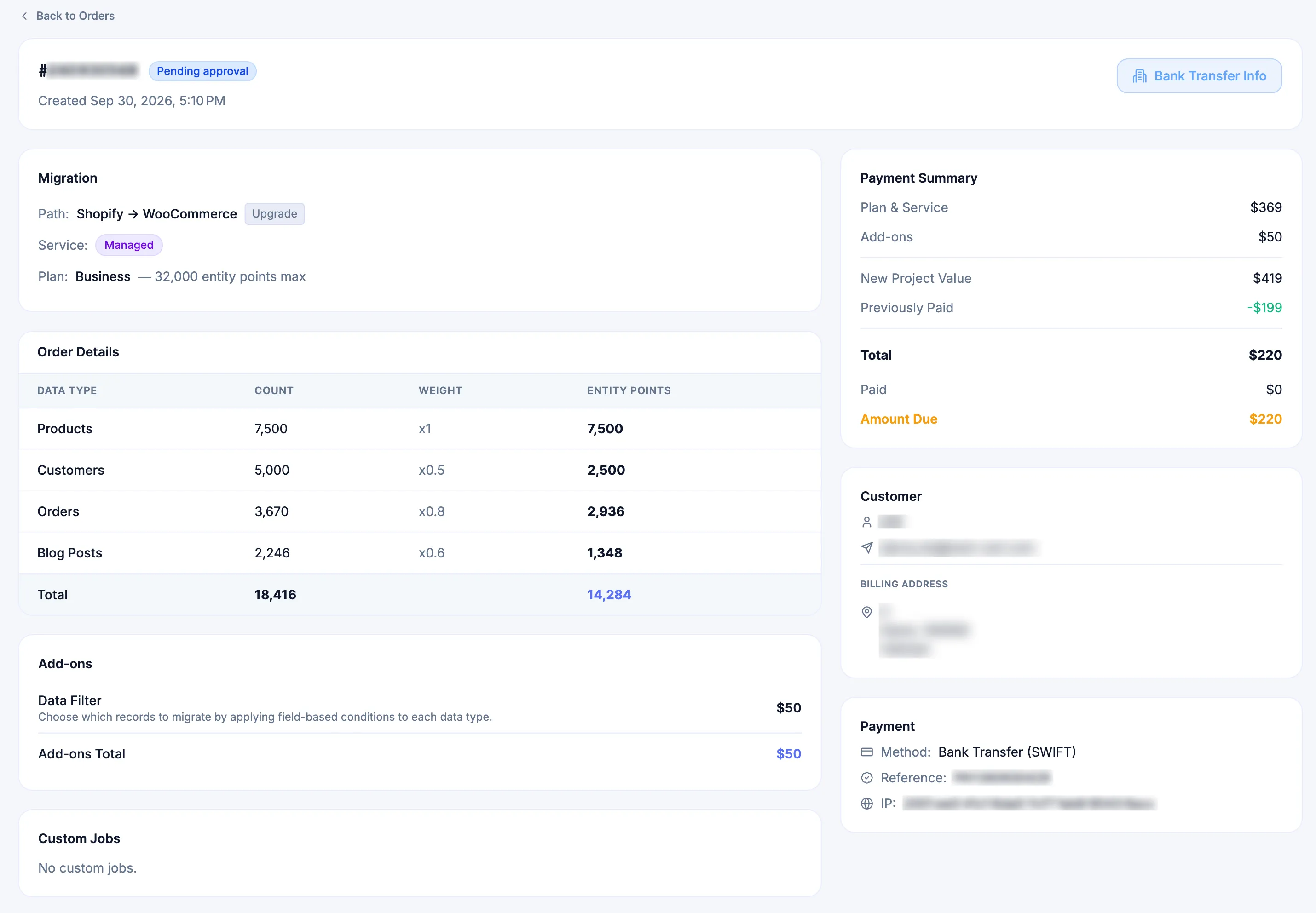
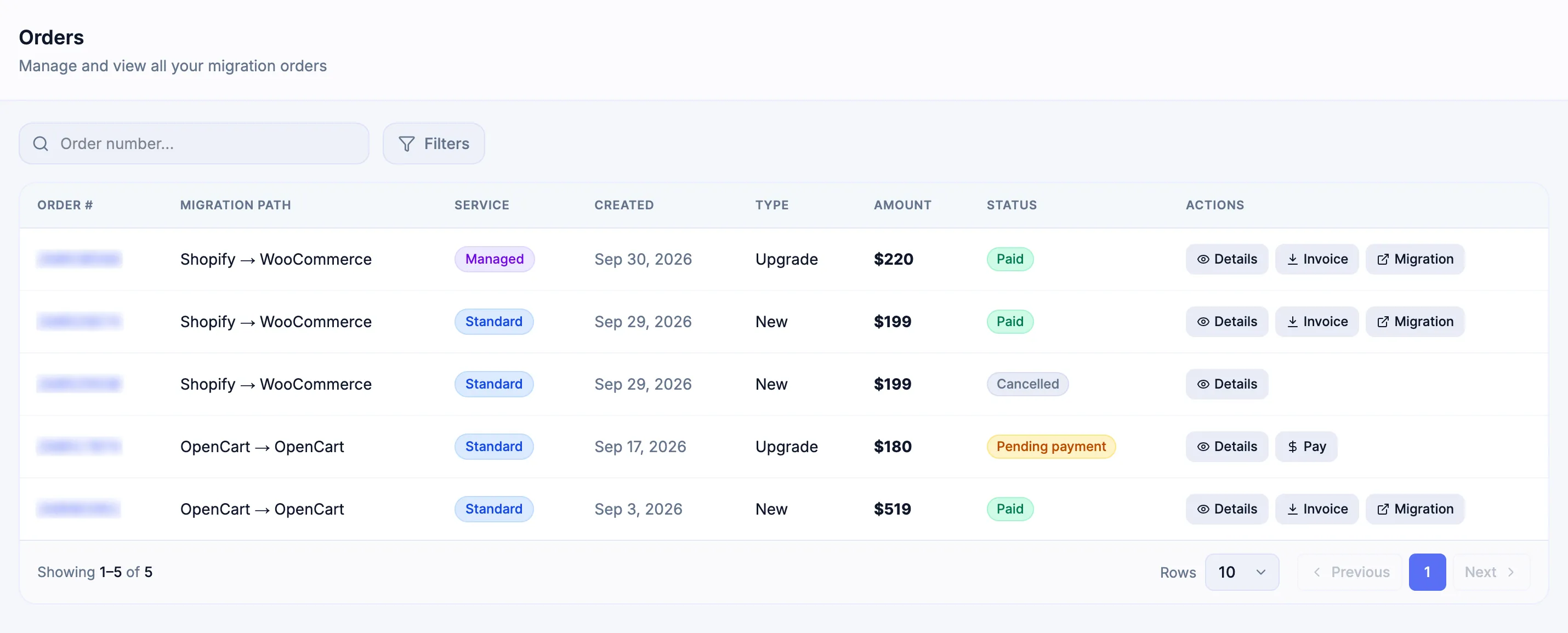
If you are still on the Bank Transfer page, select View Order Details to open the transaction directly. You can also return to Orders and monitor the same Order #.
-
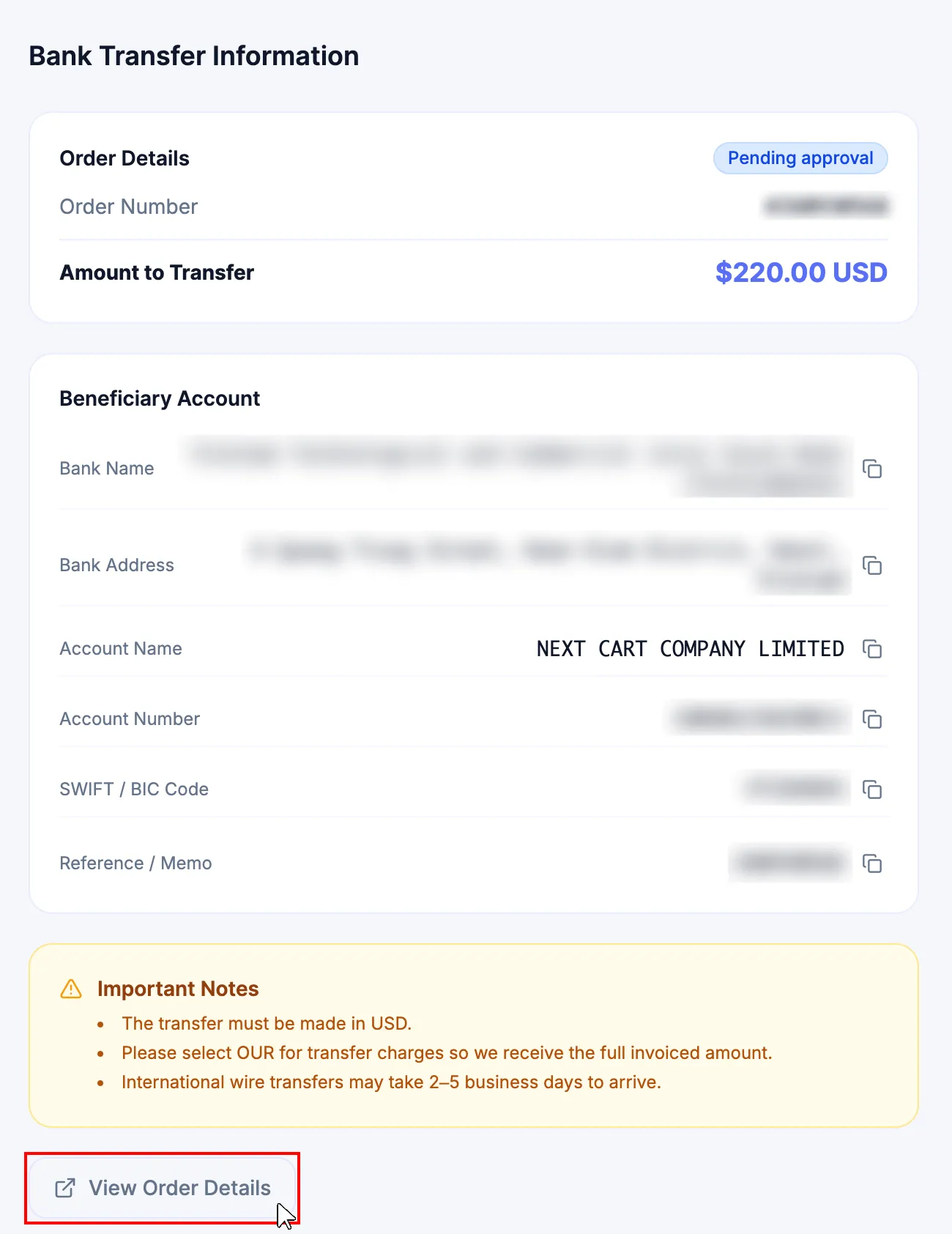
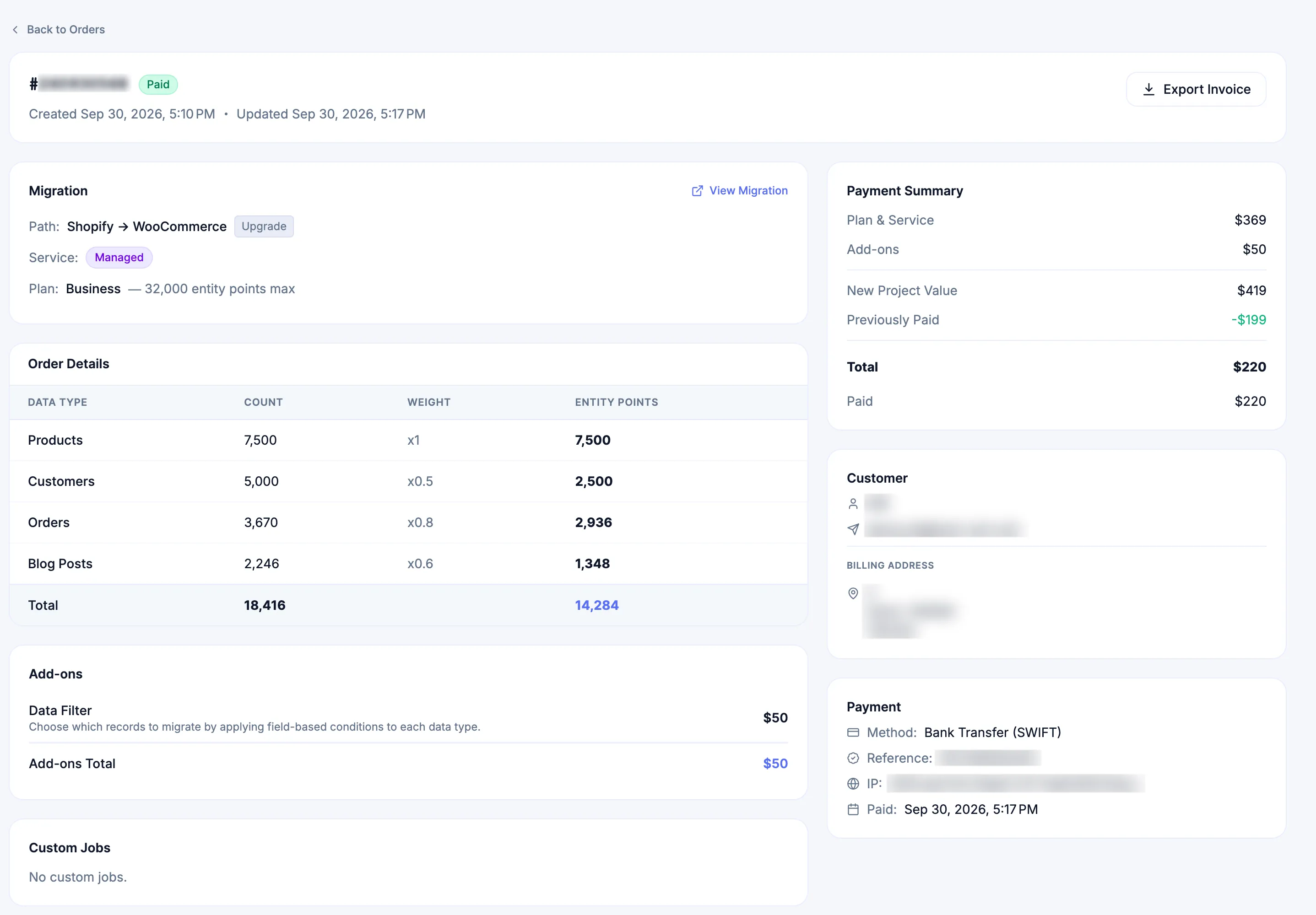
Continue only after the Order becomes Paid. Open Order Details or the related migration and confirm the purchased configuration.
The Paid Order Details show the purchased configuration.
Pay with PayPal or a credit or debit card
Section titled “Pay with PayPal or a credit or debit card”When the PayPal checkout flow is used, it presents two payment paths:
- sign in to an existing PayPal account; or
- use the second option, which can be labeled Create an Account or Pay with Debit or Credit Card.
The two second-option labels serve the guest-card payment path described by the provider flow. Guest-card availability can vary by country.
- Select the available PayPal or card method from Checkout or an eligible Pending Payment order.
- If using PayPal, choose the existing-account sign-in path or the second guest-card option shown for the checkout.
- Complete the hosted provider flow.
- Return to Next-Cart and confirm that the order reaches Paid.
- Open the related migration from the payment result, Orders, or My Migrations.
If a separate debit or credit card control is unavailable or problematic, use the PayPal checkout flow and its second option when that option is offered for the country and transaction. If the provider reports a completed charge but the order does not become Paid, do not pay again. Preserve the Order # and provider reference and submit a Support Ticket.
Pay with cryptocurrency
Section titled “Pay with cryptocurrency”- Select the available cryptocurrency method.
- Send the required amount using the payment details shown for the Order.
- Wait for the required network confirmations.
- Confirm that the Order reaches Paid before using the purchased migration.
A submitted blockchain transaction is not a confirmed Next-Cart payment until the required gateway confirmations are complete.
Pay through a Payoneer invoice
Section titled “Pay through a Payoneer invoice”- Confirm that the billing email on the Order is correct.
- Open the Payoneer invoice sent to that email.
- Complete payment through the options provided by Payoneer.
- Preserve the Payoneer payment reference.
- Monitor the Order in Orders until it becomes Paid.
If a payment method is unavailable
Section titled “If a payment method is unavailable”A customer does not need to bypass regional restrictions or provide a false billing address when PayPal is unavailable. Use another payment method offered by Checkout for the order.
Depending on the order and account, available alternatives can include:
- a supported credit or debit card through the automated checkout path;
- Cryptocurrency where offered;
- Bank Transfer (SWIFT/Wire) using the generated payment instructions;
- a Payoneer invoice when that manual invoicing path is available for the order.
Availability can differ by country, payment provider, order type, and Checkout state. Use only the methods actually presented or formally provided for the order. If none of the legitimate methods can be completed, contact Next-Cart through a Support Ticket before attempting payment.
Verify payment and migration access
Section titled “Verify payment and migration access”| Check | Pass condition |
|---|---|
| Order | The intended Order # and migration path are correct. |
| Amount | The transferred or charged amount matches the Order total. |
| Reference | A manual payment uses the exact reference assigned to that Order. |
| Status | The Order shows Paid. |
| Migration | The purchased migration is available from the Order or My Migrations. |
| Configuration | Path, Service, Plan, Add-ons, and other purchased scope match the effective Order. |
For Custom Migration, Paid confirms settlement. Approved Customization can still require engineering preparation before execution readiness is confirmed.
Failure handling
Section titled “Failure handling”| Issue | Action |
|---|---|
| Bank Transfer remains Pending Approval after the expected settlement window | Preserve the Order #, payment reference, amount, transfer date, and bank receipt, then submit a Support Ticket. |
| Bank Transfer used the wrong or missing reference | Preserve the bank evidence and submit a Support Ticket with the Order # and reconciliation details. |
| Provider confirms payment but the Order is not Paid | Do not submit another payment. Preserve the provider reference and Order #, then contact Support. |
| A Paid Order does not expose the related migration | Open Order Details, preserve the Order # and payment evidence, then contact Support. |
Next Steps
Section titled “Next Steps”Use Orders to verify the transaction and invoice, Migrations to confirm the active project after settlement, and Support Tickets when the payment or Order state cannot be reconciled.