

Orders
Review account transactions, open Order Details, trace Linked Orders to the live migration, retrieve invoices, and resolve payment, refund, Upgrade, and Extend states.
Orders
Section titled “Orders”Use Orders to find transactions, review payment status, open Order Details, and download invoices. One migration can have several New, Upgrade, or Extend Orders. Check My Migrations for the package currently in effect.
Review account transactions
Section titled “Review account transactions”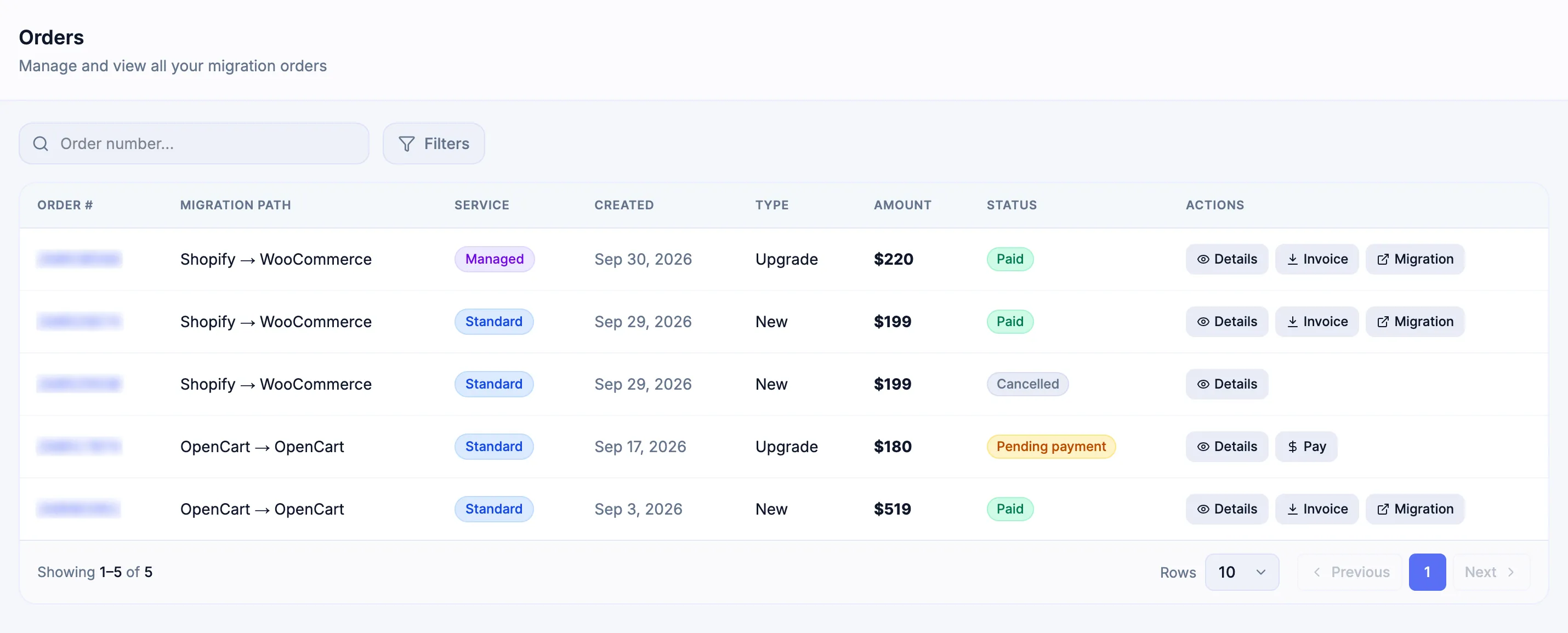
| Field | What to use it for |
|---|---|
| Order # | Identify the transaction and open Details. |
| Migration Path | Confirm the fixed Source Platform → Target Platform project. |
| Service | Review the Service recorded for that transaction. |
| Created / Type | Distinguish when the record was created and whether it is New, Upgrade, Extend, or another recorded type. |
| Amount / Status | Review the financial amount and the recorded transaction state. |
| Actions | Open Details and, when available, Pay, Invoice, or the related Migration. |
Use Search and Filters when the account has many Orders. A Pending Payment Order can expose Pay so payment can resume without creating another Order.
Compare Orders, Linked Orders, and the live migration
Section titled “Compare Orders, Linked Orders, and the live migration”| Question | Owner | Use it for |
|---|---|---|
| What transactions exist across the account? | Orders | Search transaction history, status, amount, invoice, and Order Details. |
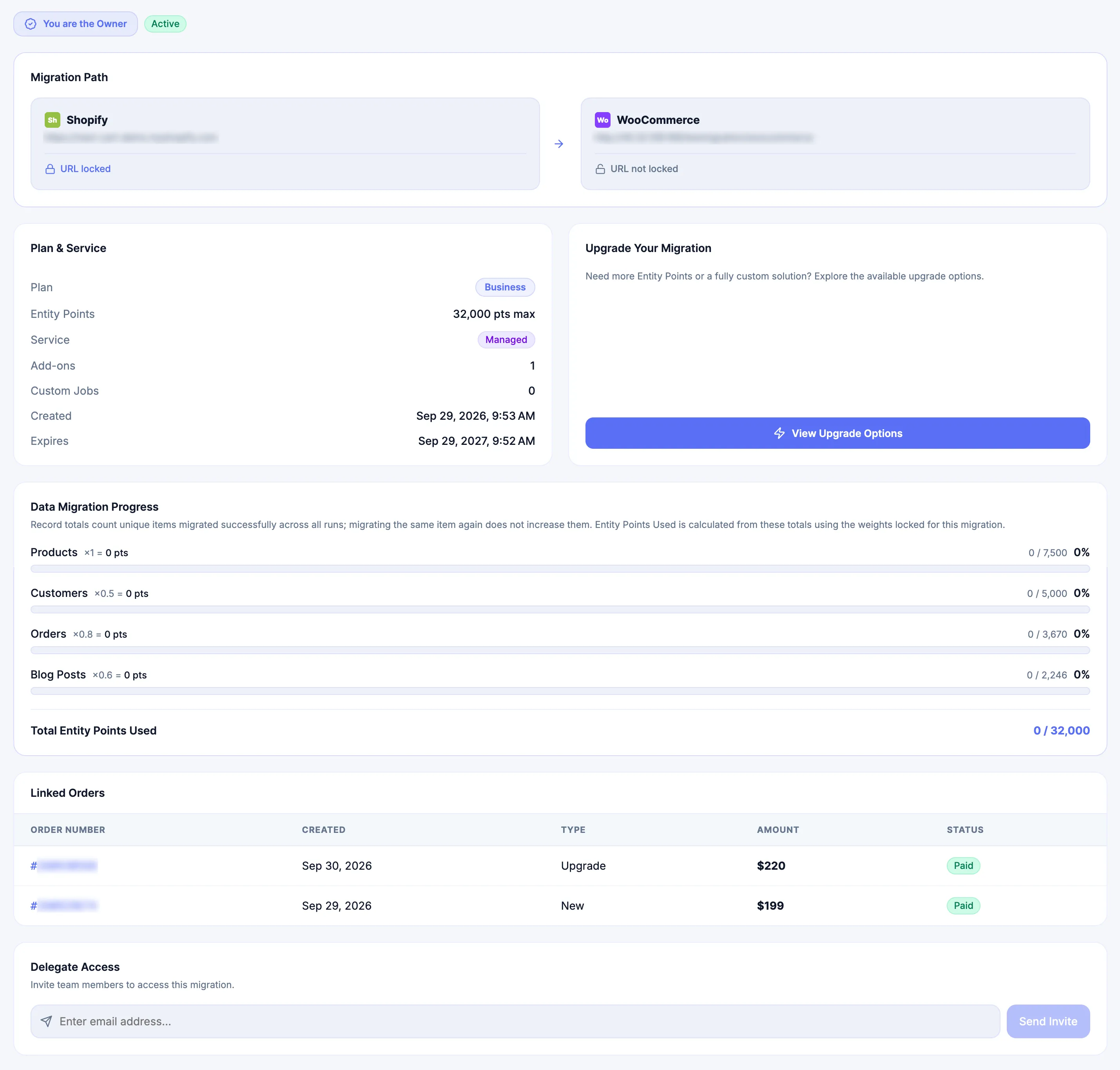
| What transactions belong to this one project? | Statistics → Linked Orders | Review every linked successful, pending, or failed transaction for the migration. |
| What package is active now? | My Migrations → Statistics | Confirm the live Service, Entity Points, Add-ons, status, and expiration after effective transactions. |
Review a project’s Linked Orders
Section titled “Review a project’s Linked Orders”-
Open Migrations → My Migrations and select Statistics for the project.
-
Scroll to Linked Orders and compare Order Number, Created, Type, Amount, and Status.

-
Select the hyperlinked Order # to open that transaction in Orders.
-
Return to Statistics when you need to compare the historical transaction with the migration’s active package.
Confirm the live migration state
Section titled “Confirm the live migration state”Statistics shows the live project after successful transaction processing. A failed or pending Order remains visible in transaction history but does not automatically become the active package.
Review one Order in detail
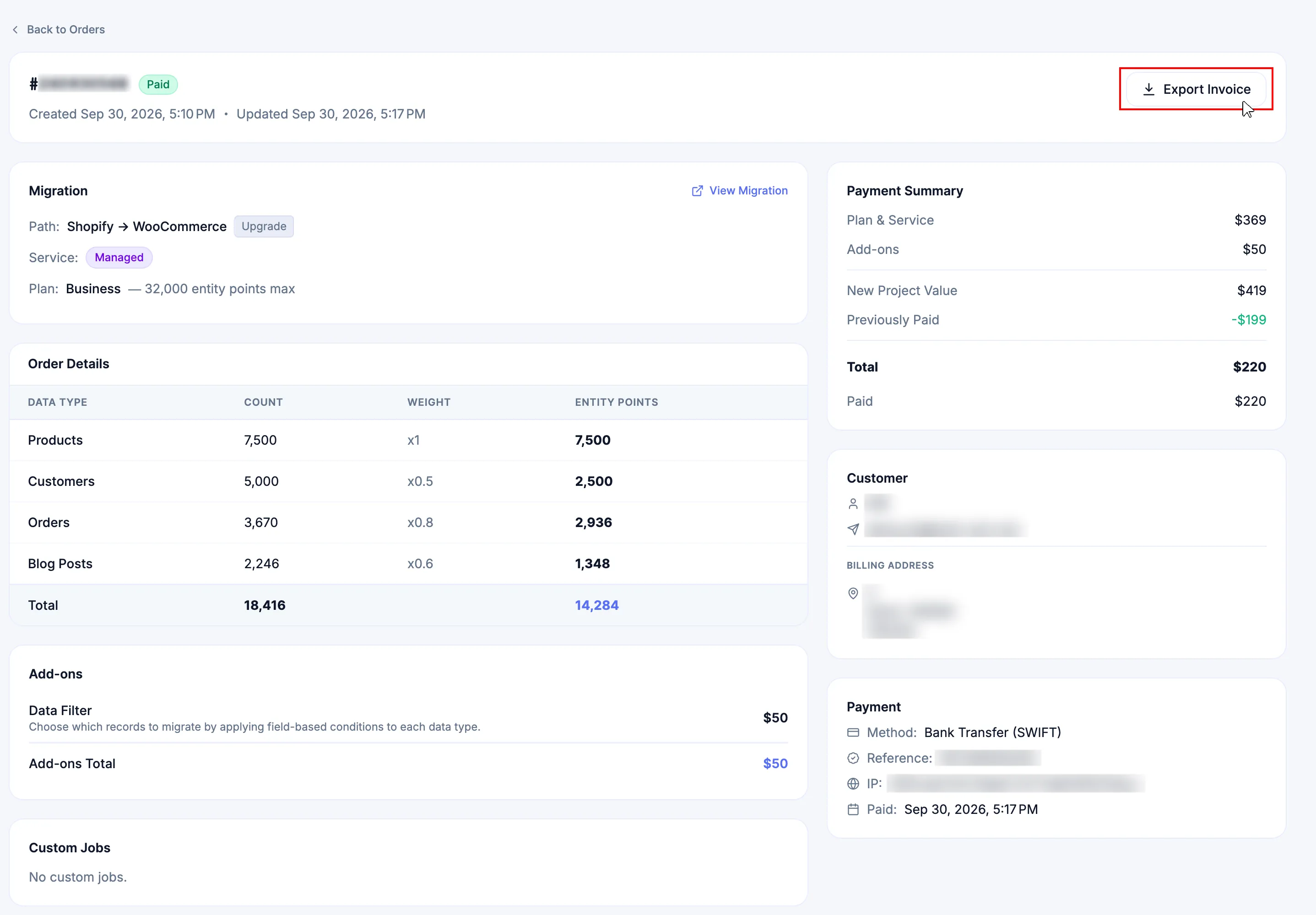
Section titled “Review one Order in detail”Select Details from Orders or select an Order # from Linked Orders. Order Details is the snapshot for that specific transaction, not a reconstruction of the project’s current state.
Typical details include the Order #, status, timestamps, Migration Path, Type, Service, Entity Points Plan, counted data, Add-ons, approved custom work, Payment Summary, billing information, payment method/reference, and available Export Invoice or View Migration actions.
| Transaction | What the detail page proves |
|---|---|
| New | The baseline package purchased for the migration. |
| Upgrade | The configuration proposed by that Upgrade attempt and its differential billing values. A failed Upgrade can still show the proposed changes even though they never became active. |
| Extend | The retained package and any supported concurrent upgrades used as the renewal basis. |
Understand Upgrade and Extend transactions
Section titled “Understand Upgrade and Extend transactions”For the purchase steps, see Purchase a Migration Upgrade. Review the resulting transaction here.
Upgrade Amount Due = New Project Value - Previously Paid
A successful Upgrade can add supported Add-ons, increase the Entity Points Plan, or move upward from Standard Migration → Managed Migration, Standard Migration → Custom Migration, or Managed Migration → Custom Migration. It stays on the same migration path and does not restart the service period. A failed or unpaid Upgrade does not replace the last effective successful package.
Downgrades are not supported through an Upgrade. If the required structure cannot be reached through the supported upward path, use the appropriate New migration purchase instead of forcing the existing Order history to represent a different project.
An Extend Order renews the same migration from its latest effective package. Successful settlement starts a new 12-month access period from the extension-payment settlement timestamp. Eligible supported upgrades can be included in the same Extend Order. After settlement, verify the resulting package and Expires value in My Migrations.
Payment completed but the order is not Paid
Section titled “Payment completed but the order is not Paid”Do not use a provider-side transitional status as settlement proof. A completed purchase must reach Paid before it is treated as settled. The active service period is tracked separately from the order transaction state, so an order does not remain in an intermediate processing state merely because the migration retains active access.
If the payment provider or bank indicates that payment was sent but the order is still Pending Payment, Pending Approval, Failed, or otherwise unresolved:
- do not pay the same order again;
- open the order Details and confirm the Order #, amount, payment method, and recorded status;
- preserve the provider or bank payment reference;
- follow Payment Methods and Verification for the applicable verification path;
- submit the Order # and payment reference through Support Tickets when the provider shows a completed payment but the order does not reach Paid.
Refund eligibility and money-back questions
Section titled “Refund eligibility and money-back questions”Refund eligibility is governed by the Next-Cart Refund Policy, together with the Terms of Service and any applicable Agreement, approved quote, or order-specific scope. The policy does not create an unconditional money-back guarantee.
Refund request window
Section titled “Refund request window”A refund request must be submitted within 30 days from the purchase date of the applicable Migration Service unless Next-Cart expressly agrees otherwise or applicable law requires a different result.
When a full refund may apply
Section titled “When a full refund may apply”Next-Cart may provide a 100% refund of the applicable Migration Service charge when a major technical issue with migrated data:
- is reported within the 30-day refund request period;
- is verified and confirmed by the Next-Cart technical team;
- materially prevents the purchased Migration Service from delivering the supported result; and
- cannot be resolved within 72 hours from the first customer report.
The 72-hour condition does not cover issues caused by Source Platform or Target Platform limitations, third-party systems, hosting or network conditions, customer-side changes, or other circumstances outside Next-Cart’s reasonable control. A 100% refund may also apply when Next-Cart confirms that its technicians materially failed to meet an explicit commitment that formed part of the purchased and approved service scope.
Partial refunds and exclusions
Section titled “Partial refunds and exclusions”When migration processing or service work has already been substantially completed, Next-Cart may provide a partial refund of up to 50% of the applicable Migration Service charge. The amount depends on the work completed, resources consumed, and the circumstances of the request.
A refund is not provided merely because the customer changes preference, business decision, migration timing, Target Platform choice, or requirements after work has begun. The Refund Policy also excludes, subject to its full terms and applicable law:
- requests resulting from violation of the Terms of Service or applicable Agreement;
- unsupported requirements or issues caused by platform limitations, third-party systems, hosting environments, APIs, extensions, plugins, or customer-side modifications that Next-Cart cannot reasonably control;
- delivered Custom Migration work, expert work, or separately performed technical services unless Next-Cart confirms a refundable service failure; and
- charges expressly identified as non-refundable in an applicable approved quote or scope.
Refund eligibility for Add-ons, Entity Points Plan upgrades, additional capacity, and Custom Migration work depends on whether the item has been activated, consumed, performed, or otherwise delivered and on any applicable order-specific terms.
Request a refund
Section titled “Request a refund”Use Contact Sales or email [email protected]. Include:
- your name and reachable email address;
- the Migration Order ID or other purchase reference;
- the refund amount requested; and
- the reason for the request, including relevant migration or support details.
Next-Cart may request additional information or representative examples to verify a technical issue. The Refund Policy states a target to review and process the request within 2 working days after the required information is received. If approved, the refund is initiated to the original payment method or payment gateway unless another method is agreed or required. Provider or financial-institution processing time can extend beyond Next-Cart’s processing step.
After a refund is completed, the refunded Migration may be disabled and Next-Cart may stop migration, support, and related work for the refunded service. Use Orders, Linked Orders, and My Migrations to verify the resulting transaction and migration state.
Order statuses
Section titled “Order statuses”| Status | Meaning | Next action |
|---|---|---|
| Draft | The Order is still being prepared or scoped. | Complete the required configuration or quote-alignment process. |
| Pending Payment | The Order exists but standard payment has not been completed. | Open the Order and use Pay or Pay Now when available. |
| Pending Approval | A manual payment workflow is awaiting customer action, settlement arrival, or Next-Cart verification. | Follow the assigned payment instructions; do not duplicate a payment already sent. |
| Paid | Payment and required verification are complete. | Confirm the resulting purchase state in My Migrations. |
| Failed | The transaction did not complete successfully. | Review Details and preserve provider evidence before another attempt. |
| Cancelled | The Order was not completed or was cancelled. | Review Details and create or request the appropriate Order again if still needed. |
| Refunded | The Order has been fully refunded. | Review Details and the related migration state. |
| Partially Refunded | Part of the Order value has been refunded. | Compare Details, Linked Orders, and the live migration package. |
| Disputed | The payment or Order is under unresolved dispute. | Preserve evidence and use the active Support or dispute process. |
Download an invoice for a Paid Order
Section titled “Download an invoice for a Paid Order”Billing information stored with the Order is used for the invoice. Retrieve invoice evidence only after the transaction is successfully settled.
-
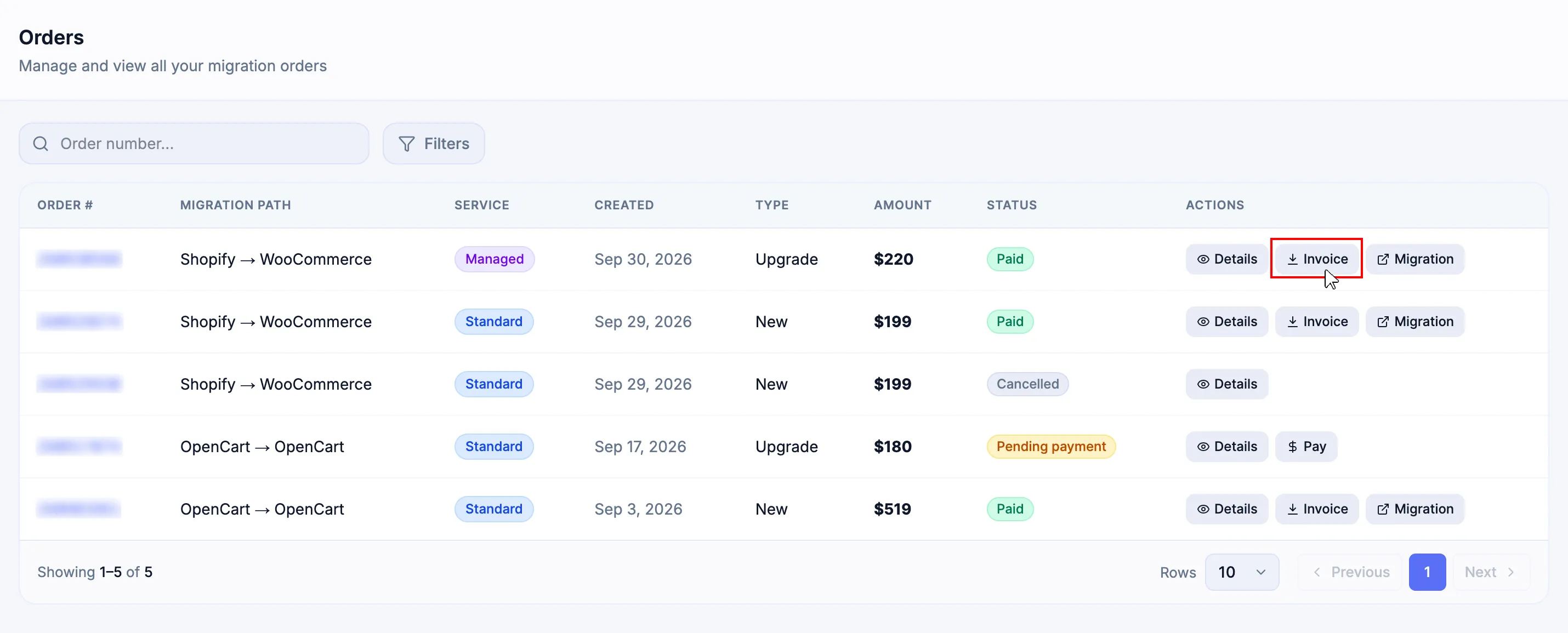
In Orders, locate the Paid Order.
-
Select Invoice in the row when you want the direct invoice action.
-
Alternatively, select Details and use Export Invoice.
-
Confirm the Order #, customer/company information, billing address, and settled amount.
-
Save the invoice with the Order # for accounting or Support reference.
Draft, Pending Payment, and Pending Approval are not successfully settled states. If an invoice cannot be retrieved after the Order is Paid, submit a billing Support Ticket with the Order #.
Verify the active state after a transaction
Section titled “Verify the active state after a transaction”| Transaction | Verify in Orders or Linked Orders | Verify in My Migrations |
|---|---|---|
| New | Status is Paid and the purchased configuration is correct. | The new migration exists with the expected path, Service, capacity, Add-ons, Active status, and validity period. |
| Upgrade | Status is Paid and the differential values/configuration are correct. | The same migration reflects the successful upward change without a new path or renewed expiration. |
| Failed Upgrade | Status is Failed and the failed proposal remains reviewable. | The migration remains at the last effective successful package. |
| Extend | Status is Paid and the retained package plus any concurrent upgrade are correct. | The same migration reflects the resulting package and a new Expires time 12 months after extension settlement. |
Failure handling
Section titled “Failure handling”| Issue | What to do |
|---|---|
| Payment was submitted but the Order is unresolved | Do not pay again. Use Payment Methods and Verification and preserve the Order # plus payment reference. |
| A Pending Payment Order has the wrong configuration | Do not select Pay. Preserve the Order # and create or request the correct Order through the appropriate purchase flow. |
| Upgrade Total is unexpected | Do not pay. Recheck New Project Value, Previously Paid, and Total from the intended migration’s Upgrade flow. |
| A Paid Upgrade or Extend is missing from the live migration | Preserve the Order # and transaction details, compare Linked Orders with Statistics, then submit a Support Ticket. |
| A failed Upgrade appears to have changed the live package | Preserve both the failed Order and the My Migrations state, then contact Support before continuing. |
| A refund state does not match the remaining package | Preserve the affected Order # and live project details and submit a Support Ticket before relying on the disputed component. |
Next Steps
Section titled “Next Steps”Use Purchase a Migration for a New purchase, Purchase a Migration Upgrade for an existing-project Upgrade, Payment Methods and Verification for settlement workflows, and Migrations for the active project after a transaction succeeds.