

Weebly Source Data Export
Download Weebly Product and Order exports, and request technician assistance to export and migrate product Reviews.
Weebly Source Data Export
Section titled “Weebly Source Data Export”Export Products and Orders using Weebly’s native export controls. Categories are included in the Product export, and Customers are included in the Order export. Product Reviews follow the separate technician-assisted procedure below.
Supported Files
Section titled “Supported Files”The Supported Files table in the selected Next-Cart Source setup identifies these upload files. This table does not replace the export procedures below.
| Data | Expected upload filename |
|---|---|
| Product | products.csv |
| Order | orders.csv |
| Review, prepared with technician assistance | reviewf1.txt |
| Review, prepared with technician assistance | reviewf2.txt |
Export the source data
Section titled “Export the source data”Products and Categories
Section titled “Products and Categories”-
Sign in to Weebly and go to Items > Item Library.
-
Click the … button in the upper-right corner, then Export Items.
-
Use the export link sent to your email address to download the Products CSV. Category data is included in this file.
Orders and Customers
Section titled “Orders and Customers”-
Open Orders and click Export Orders in the upper-right corner.
-
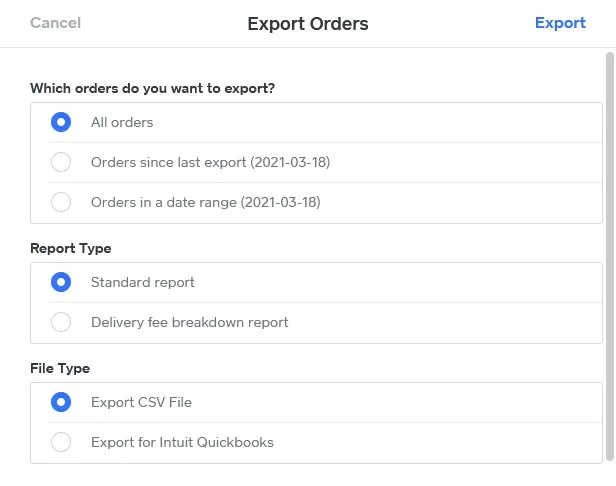
Select All orders, Orders since last export, or Orders in a date range, according to the records required for migration.
-
Use Standard report and Export CSV File, then click Export.
-
Download the exported Orders CSV. Customer data is included in this file.
Product Reviews
Section titled “Product Reviews”Weebly does not provide a default export for product reviews. To migrate Reviews, submit a support ticket. Next-Cart technicians will help export and migrate the reviews.
Follow the technician’s instructions for the Review files.
Next Steps
Section titled “Next Steps”Continue with Upload Source Data Files to prepare and validate the exported files for the Source connection.