Skip to content
Back to Site

Squarespace API Connection

Prepare Squarespace API connection values for a Next-Cart migration service when Squarespace API setup is shown.

A valid Squarespace API connection gives Next-Cart the authorized platform access required by the selected migration path.

Next-Cart may ask for your Squarespace API key, OAuth access value, or related connection value depending on the supported setup shown for your migration path.

Use this guide when:

  • Squarespace is the Source Platform or Target Platform in your selected migration path;
  • Next-Cart shows Squarespace API setup;
  • Next-Cart asks for Squarespace connection values.

Before you begin, confirm that:

RequirementWhy it matters
Correct Squarespace account accessThe credentials must be created in the store or account shown in the migration path.
Permission to manage API or integration accessThe account must be allowed to create, view, or authorize connection values.
Scope decisionsYou need to know which data types Next-Cart must access.
Secure storageAPI credentials and tokens must be copied only into approved secure locations.
Next-Cart connection screen openEnter only the values requested by the interface.
Required valueWhere to prepare itNotes
API Key or OAuth access tokenSquarespace developer or API settings areaUse the authentication value requested by Next-Cart.
Site URL or connection URLSquarespace site settings or live siteUse the site associated with the selected migration path.
User-Agent description, if requestedCustom app or integration descriptionRequired by some Squarespace API requests; provide only when Next-Cart asks for it.
  1. Sign in to the Squarespace account that owns or manages the correct site.
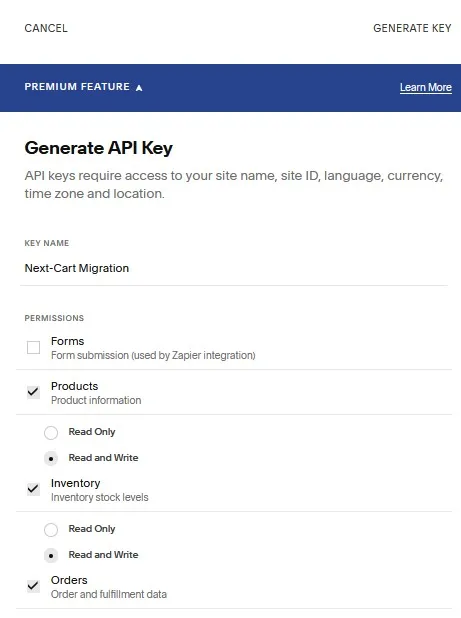
  2. Open the developer, API, or integration area available for the site.
  3. Create or locate the API key, OAuth access value, or connected application required for commerce data access.
  4. Confirm the credential can access the data areas included in the migration scope, such as products, contacts or customers, orders, inventory, and transactions where supported.
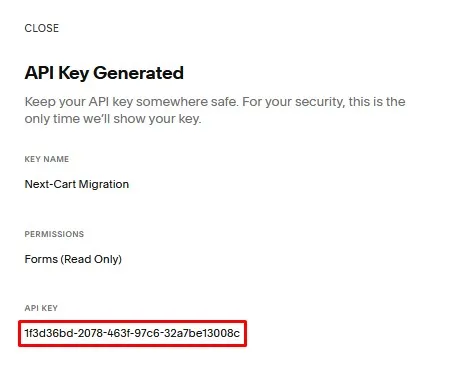
  5. Copy the full authentication value exactly as shown.
  6. Copy the Site URL or connection URL requested by Next-Cart.

In the Next-Cart connection setup screen, enter only the values requested by the interface.

Next-Cart fieldPlatform value
API Key or OAuth access tokenAPI Key or OAuth access token prepared from Squarespace.
Site URL or connection URLSite URL or connection URL prepared from Squarespace.
User-Agent description, if requestedUser-Agent description, if requested prepared from Squarespace.

The Squarespace API connection values are ready to test in Next-Cart.

CheckPass condition
Store matchThe prepared values belong to the Squarespace store shown in Next-Cart.
Permission coverageThe credentials cover the selected migration data.
Value completenessEach value is copied without truncation, extra spaces, or missing characters.
Connection testNext-Cart can authenticate and read supported Squarespace data.
IssueWhat to check
Authentication errorConfirm the API key or OAuth value belongs to the correct Squarespace site.
Permission errorConfirm the credential has access to the commerce data areas needed for the migration scope.
Missing recordsConfirm the data type is exposed by the available Squarespace API or supported source setup.
Wrong site connectedVerify the Site URL and the Squarespace account before testing again.

After migration work is complete and verified:

  • remove or revoke temporary API credentials where the platform provides that option;
  • reduce access if a broader permission set was used only for migration work;
  • remove copied credentials from insecure notes, tickets, chats, or shared files;
  • review the store admin account or API user used for API setup.
GoalGo to
Test the connectionVerify Platform Connections
Fix an authentication or permission issueTroubleshoot Connection Setup
Continue after the connection passesConfigure Your Migration