3dCart / Shift4Shop API Connection
Prepare 3dCart / Shift4Shop API access details for the Next-Cart migration service.
3dCart / Shift4Shop API Connection
Section titled “3dCart / Shift4Shop API Connection”A valid 3dCart / Shift4Shop API connection gives Next-Cart the authorized platform access required by the selected migration path.
The goal is to prepare the store URL and API credential details required for Next-Cart to test access to the selected store.
When to use this guide
Section titled “When to use this guide”Use this guide when:
- the selected platform is 3dCart or Shift4Shop;
- Next-Cart asks for API connection details;
- you have admin access to the store;
- you can enable API access and create or copy an API key.
Prerequisites
Section titled “Prerequisites”Before you begin, confirm that:
| Requirement | Why it matters |
|---|---|
| Admin access | You need access to the store admin panel to enable API access and create keys. |
| Permission to manage modules or API settings | API access is controlled from the store admin area. |
| Migration scope | You need to know which data types Next-Cart must access. |
| Secure storage | API keys should be copied into Next-Cart only and stored securely until cleanup. |
Required values
Section titled “Required values”Prepare these values for Next-Cart.
| Value | Where to find it | Notes |
|---|---|---|
| Store URL | Your live store URL or the URL requested by the Next-Cart interface. | Use the exact store associated with the purchased migration path. |
| API Key | REST API or API module area in the admin panel. | Copy the key exactly as shown. |
| API Username | API settings area, if shown. | Some stores may show a username or account identifier with the API key. |
Create or locate API access
Section titled “Create or locate API access”- Sign in to the 3dCart / Shift4Shop admin panel.
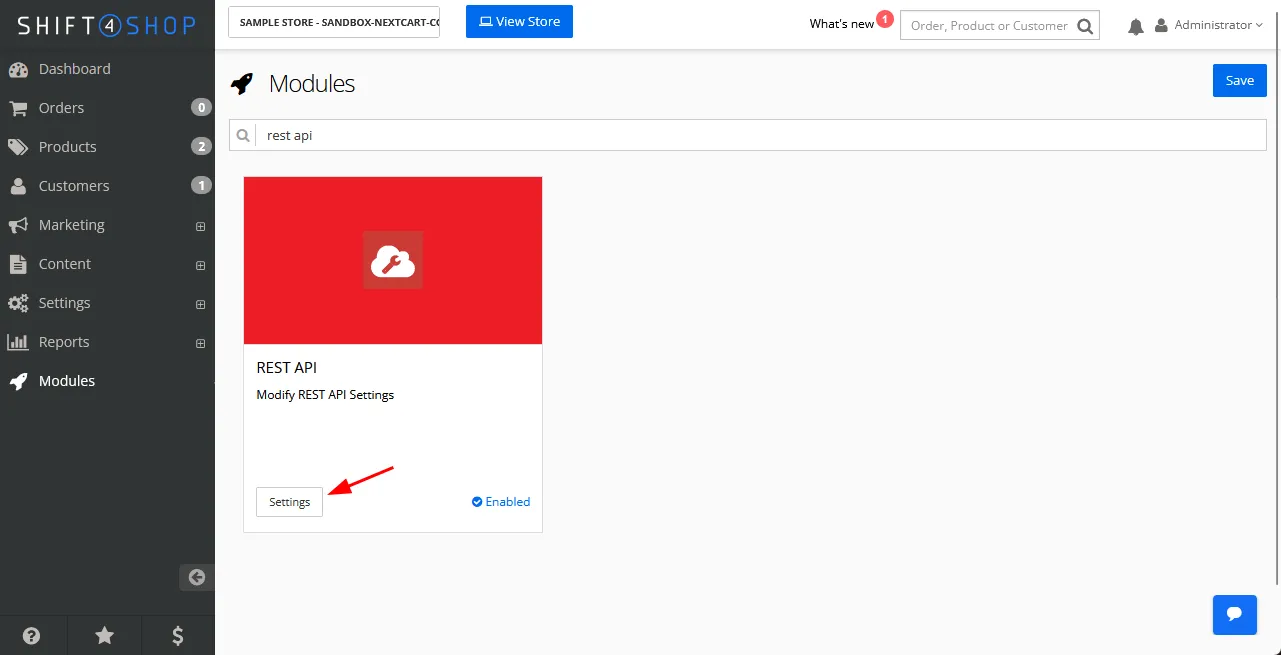
- Open Modules.
- Find and open REST API or API.
- Enable API access if it is disabled.
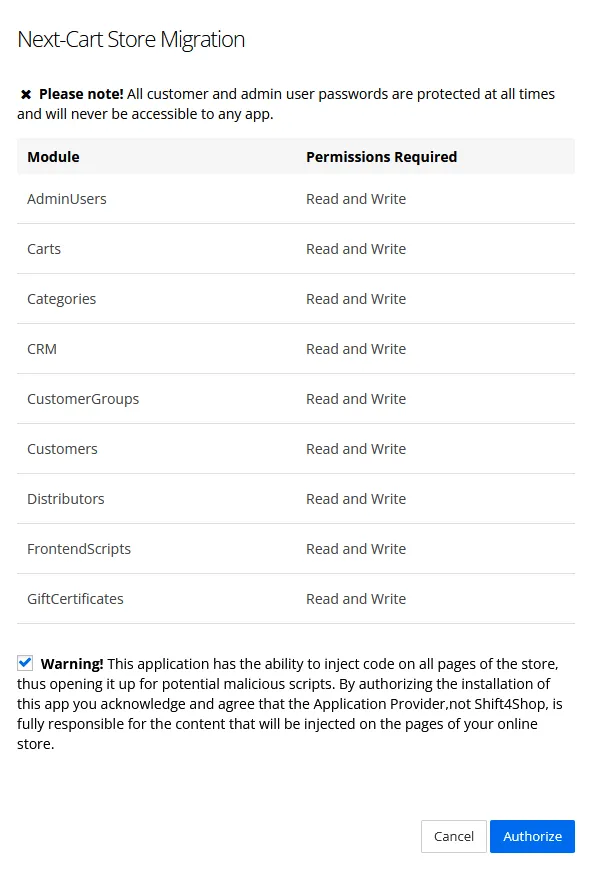
- Create a new API key or access key.
- Use a clear label such as Next-Cart Migration.
- Grant read access for the data types included in the migration scope, such as Products, Categories, Customers, and Orders.
- Save the key.
- Copy the API Key and API Username if the admin panel shows one.
Enter the values in Next-Cart
Section titled “Enter the values in Next-Cart”In the Next-Cart interface, enter the Store URL, API Key, and API Username if the field appears.
Do not enter credentials from a different store or environment.
Expected result
Section titled “Expected result”Next-Cart has the API values needed to test access to the 3dCart / Shift4Shop store.
Verify the connection
Section titled “Verify the connection”| Check | Pass condition |
|---|---|
| Store URL | The URL belongs to the intended store. |
| API access | API access is enabled in the admin panel. |
| API key | The key is active and copied exactly. |
| Permissions | The key can read the selected data types. |
| Connection test | Next-Cart completes the connection test without authentication or permission errors. |
If the connection fails
Section titled “If the connection fails”| Issue | What to check |
|---|---|
| Authentication error | Re-copy the API Key and API Username if shown. |
| Permission error | Confirm the key has read access to the required data types. |
| API disabled | Return to the API module and confirm the API is enabled. |
| Wrong store | Confirm the Store URL matches the purchased migration path. |
| Firewall or security rule | Confirm the store does not block API access needed for connection testing. |
Security cleanup
Section titled “Security cleanup”After migration work is complete and verified, disable or delete the temporary API key if it is no longer needed.
Next step
Section titled “Next step”| Situation | Go to |
|---|---|
| API values are ready | Verify Platform Connections |
| You need general API setup guidance | Set Up an API Connection |
| The connection test fails | Troubleshoot Connection Setup |