

Start and Monitor a Migration
Review the selected data types, choose Run Mode, start the migration, and interpret the processing result.
Start and Monitor a Migration
Section titled “Start and Monitor a Migration”Migration is where you start the configured run. The summary on this screen shows the selected Data Types; it does not display the detailed settings from the Configuration step.
Start the migration
Section titled “Start the migration”-
In the Migration step, review the migration summary and confirm the selected Data Types and displayed project details.
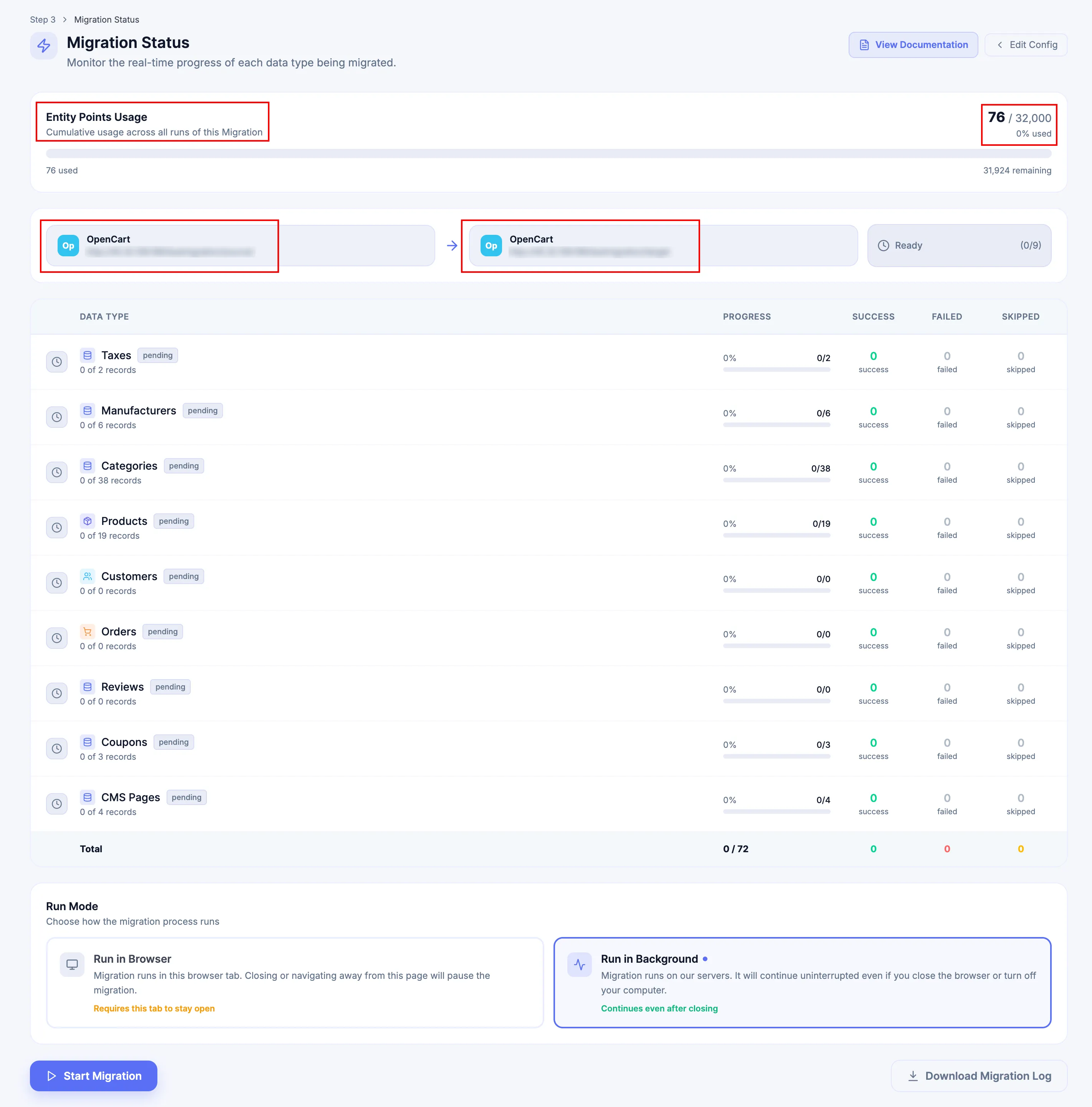
-
Select Run Mode. Choose Run in Browser or Run in Background for a Full Migration. Demo Migration supports only Run in Browser.
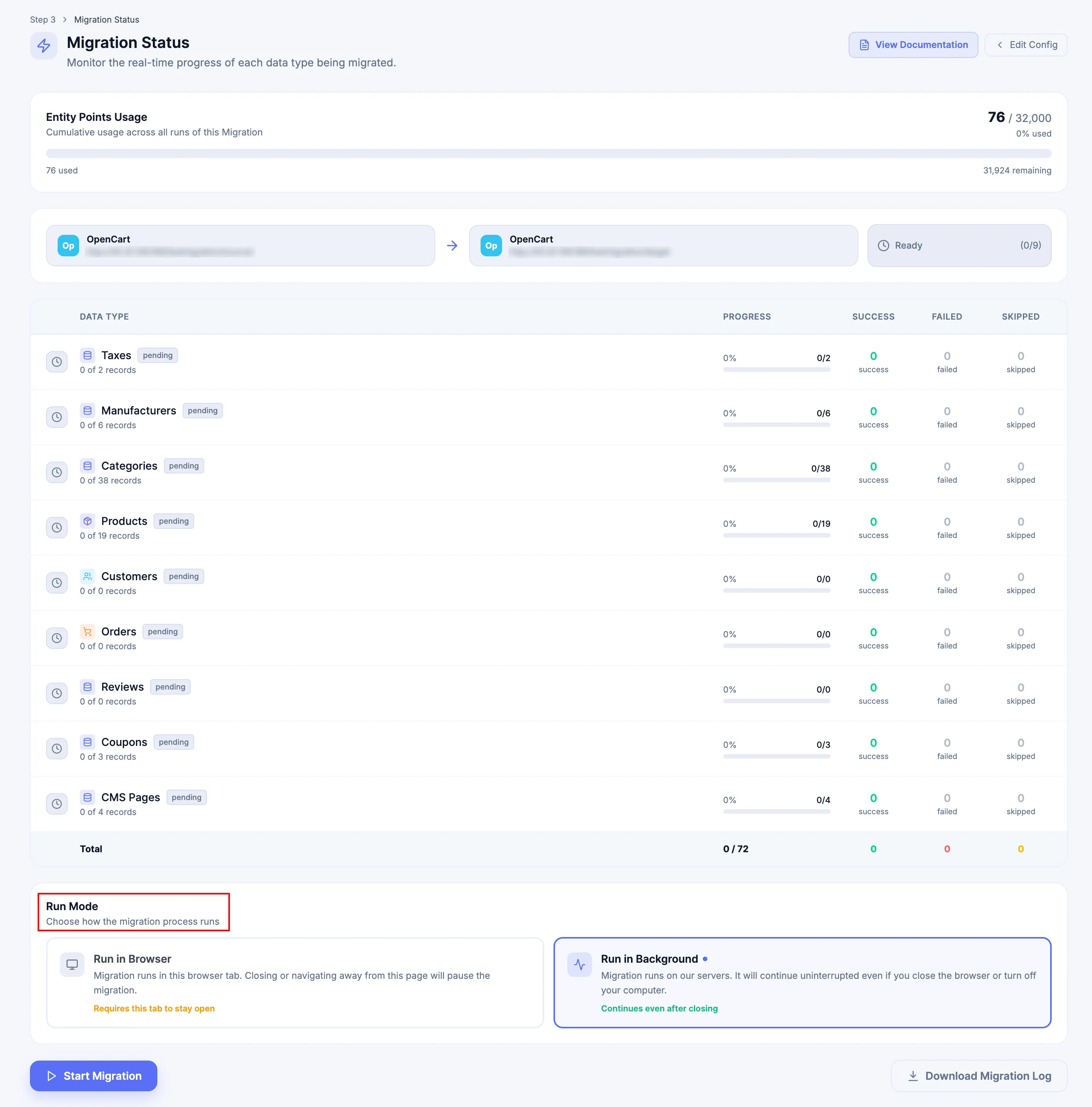
-
Click Start Migration to begin processing.
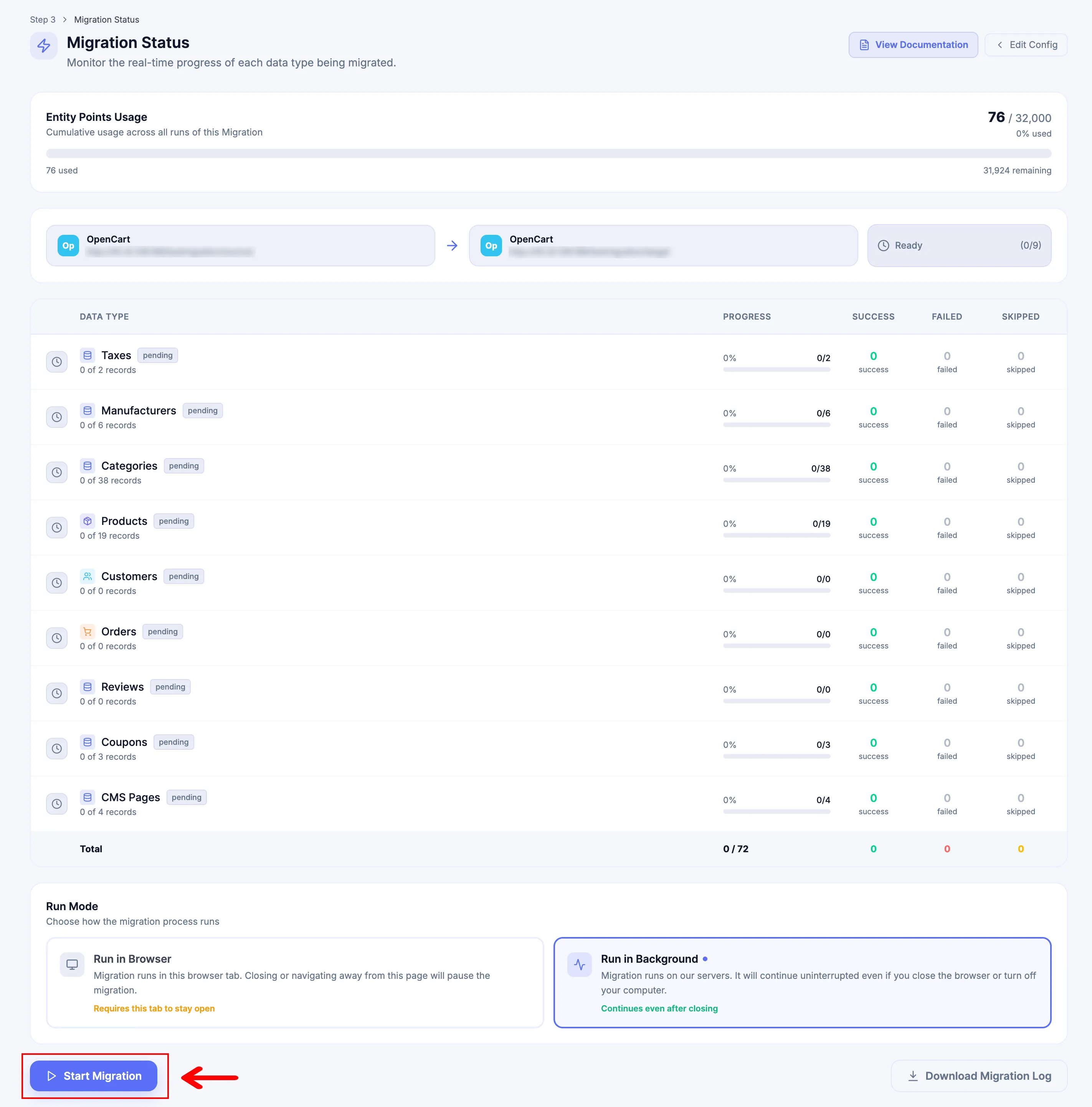
Run Mode
Section titled “Run Mode”| Run Mode | Use |
|---|---|
| Run in Browser | The migration runs in the active browser tab. Closing the tab or navigating away pauses processing. Available for Demo and Full Migration. |
| Run in Background | The migration runs on Next-Cart servers and continues after the browser is closed or the computer is turned off. Available for Full Migration, not Demo Migration. |
While either mode is actively running, Stop Migration stops the activity. When the stopped Migration page remains open, Resume Migration resumes that same execution session.
Monitor the migration
Section titled “Monitor the migration”During processing, review the Data Type rows and result columns:
| Display | What it shows |
|---|---|
| Progress | Processing progress for the selected Data Type. |
| Success | Records processed successfully. |
| Failed | Records that require investigation. |
| Skipped | Records not imported during the run. |
| Total | Combined counts for the displayed Data Types. |
A Completed status means processing has finished. It does not by itself confirm that every record was imported successfully, so review failed and skipped records before accepting the result.
Stop, pause, and resume processing
Section titled “Stop, pause, and resume processing”Run in Browser
Section titled “Run in Browser”-
Closing the migration tab or navigating away pauses the migration.
-
Click Stop Migration when the active run must be halted intentionally.
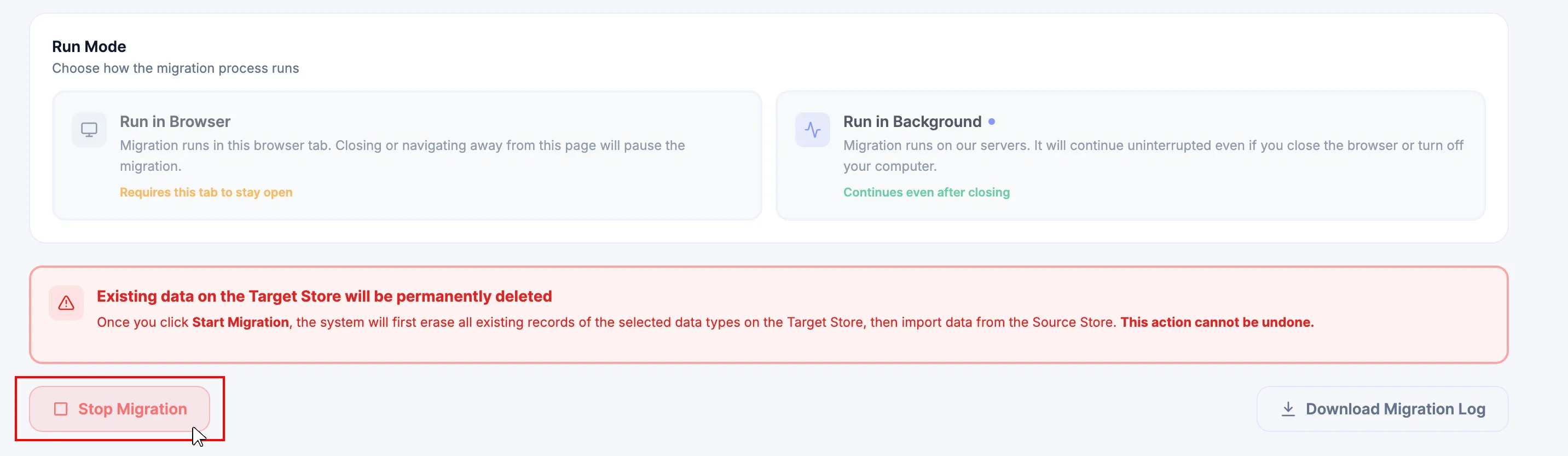
-
After the run stops, confirm that the Migration page shows the stopped execution state.
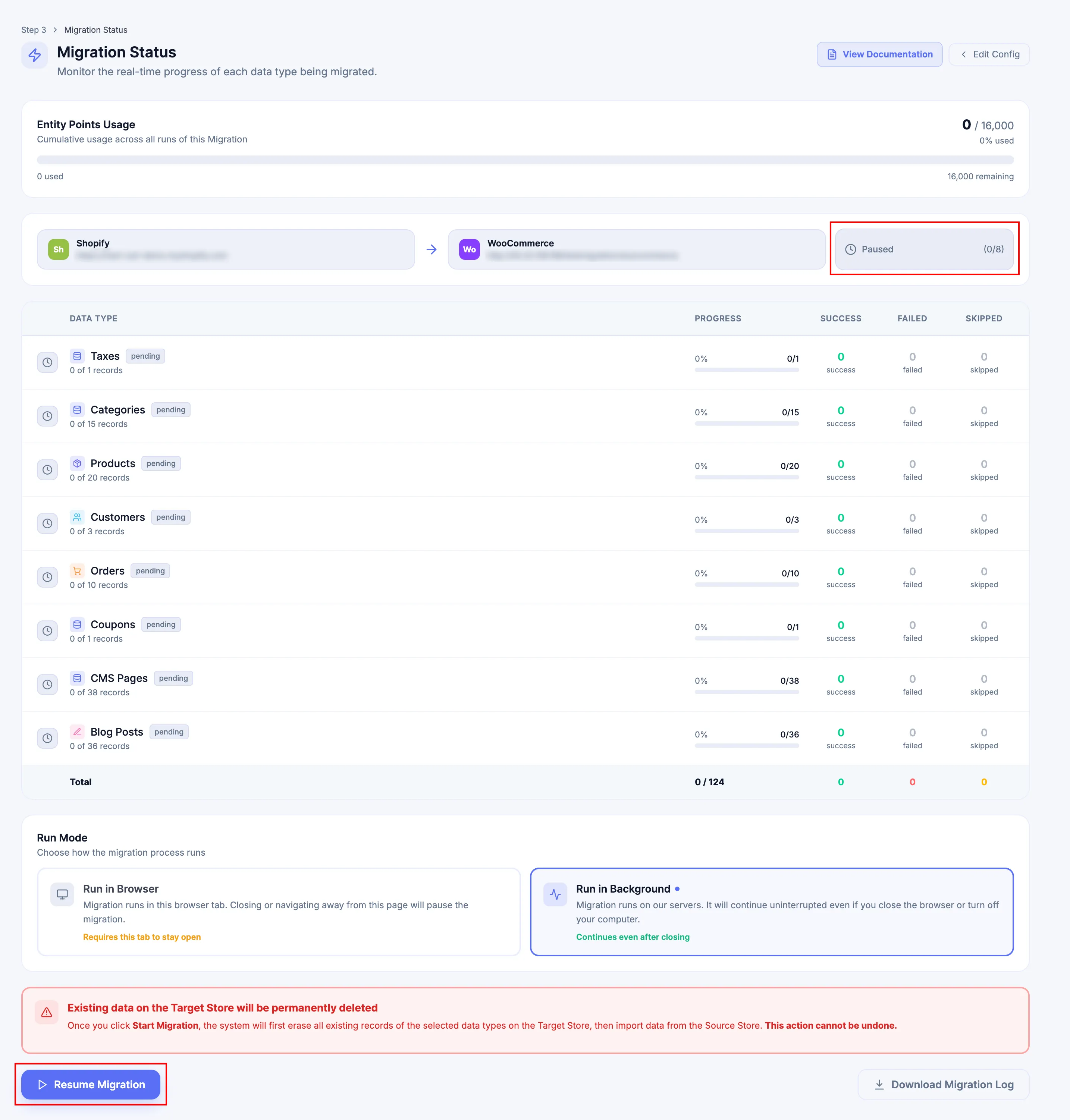
-
If the stopped Migration page remains open, click Resume Migration to continue the same execution session.
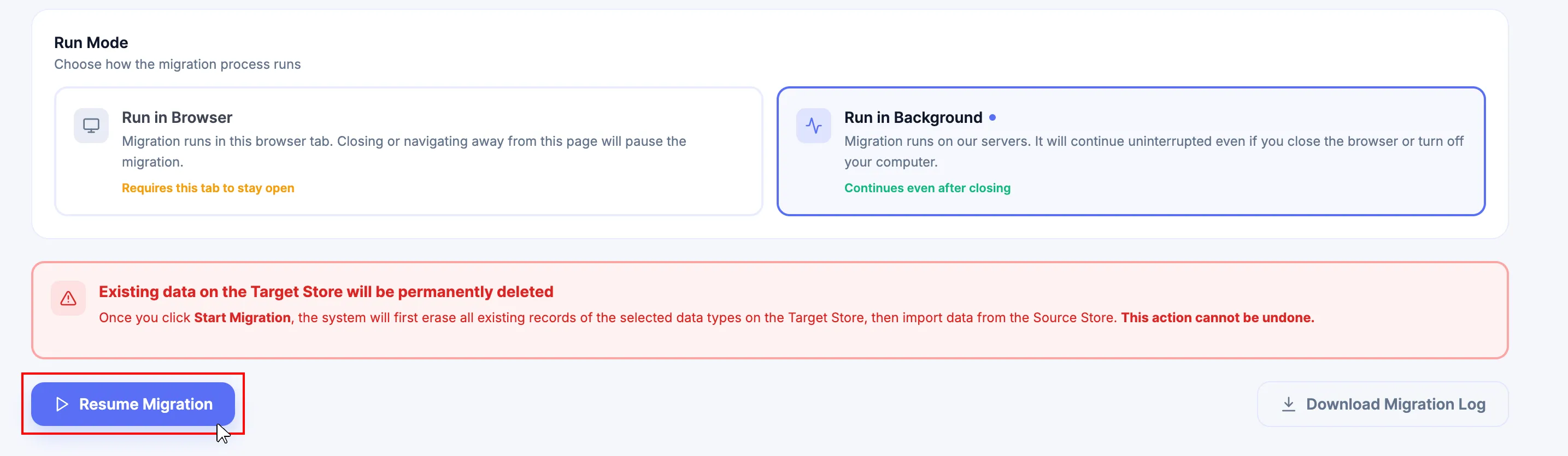
-
If the tab/page has been closed or you navigated away, open My Migrations, select the project, and click Start. Continue through the Connect Stores step → Configuration step → Migration step.
-
At Connect Stores, select Continue previous migration or Continue previous + reconfig according to the intended Migration Action. Open Configuration when the selected path requires it.
-
Perform a New Migration creates a fresh migration cycle instead of continuing the earlier stopped/paused result. In the Connect Stores step, the corresponding UI label is Start a new migration.
Run in Background
Section titled “Run in Background”- Closing the browser or turning off the computer does not interrupt the server-side migration.
- While the active Migration page is open, Stop Migration and Resume Migration control the running/stopped session.
- If the background migration is still running after you leave the page, open My Migrations, select the project, and click Start. Next-Cart returns you directly to the active Migration step so you can monitor or click Stop Migration.
- If you manually stopped the migration and then closed the page, return through the full Connect Stores step → Configuration step → Migration step flow and select Continue previous migration or Continue previous + reconfig according to the required Migration Action.
Do not confuse resume with a Continue action paired with Continue the previous migration
Section titled “Do not confuse resume with a Continue action paired with Continue the previous migration”Continue the previous migration inside Configuration → Additional Options is for additional new Source data and relationship continuity. It is not the control that resumes a browser-paused or manually stopped execution session.
Use Download Migration Log to preserve migration results and error details. Use Activity Timeline for operational history; it does not display saved Configuration settings.
A stop or interruption does not reverse records already written or data already removed. When the safe continuation path is unclear, use Migration Continuation Issues or Support Tickets.
Next Steps
Section titled “Next Steps”After processing, validate representative Target Store records and relationships using the applicable guide under Validate and Launch Your Target Store.