

Configure Data Update
Refresh selected supported fields on existing records previously migrated by Next-Cart.
Configure Data Update
Section titled “Configure Data Update”Data Update refreshes selected fields in records previously migrated by Next-Cart. The corresponding records must still exist on the Target Store.
Both Source and Target platforms must support this Add-on.
Screenshots illustrate the procedure. Available entities, fields, values, and controls depend on your migration path and platform versions.
Configure an update
Section titled “Configure an update”-
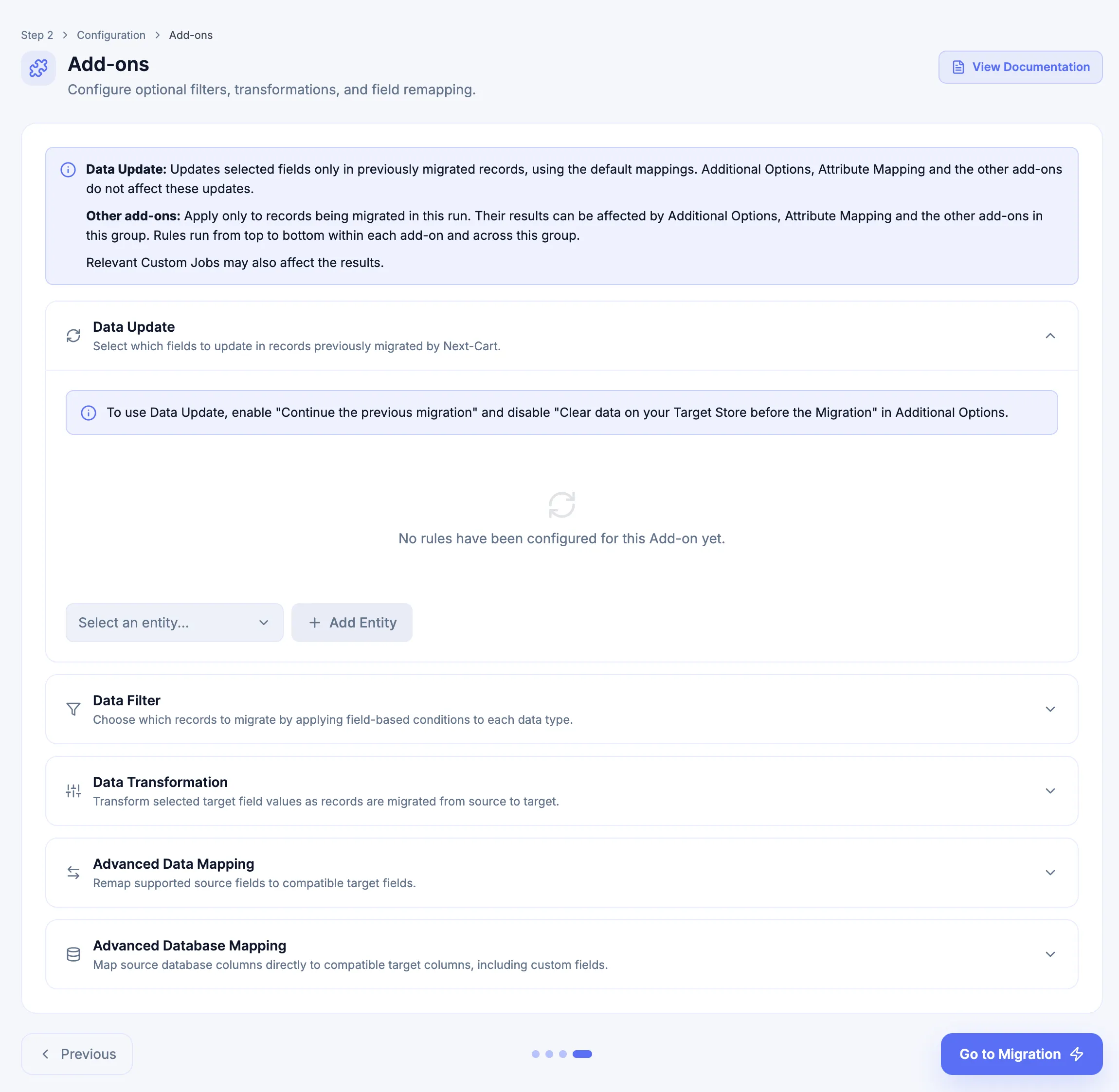
Open Configuration → Add-ons for the same migration, expand Data Update, and review the reminder.
-
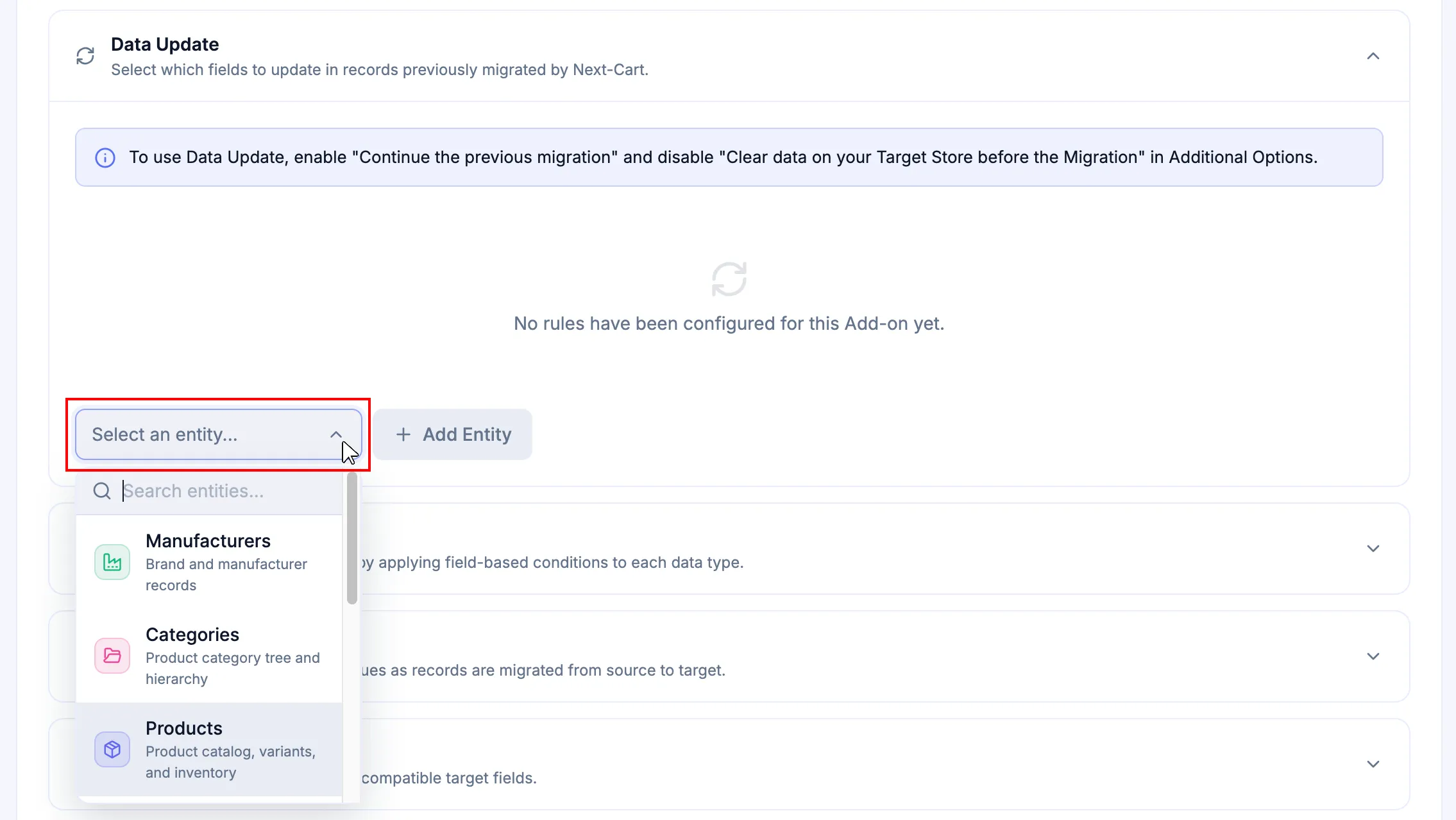
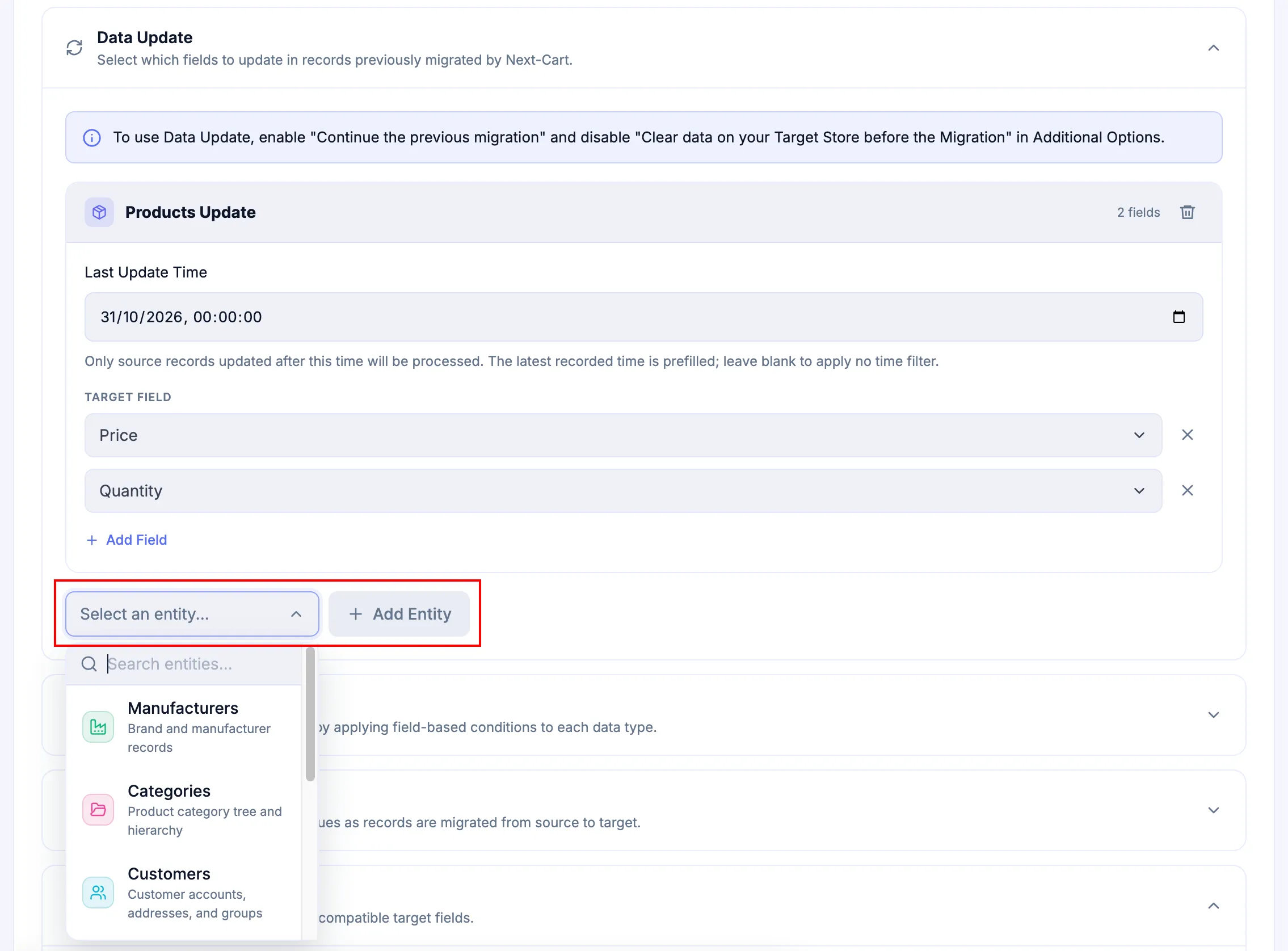
Open Select an entity… and choose one of the available data types.
-
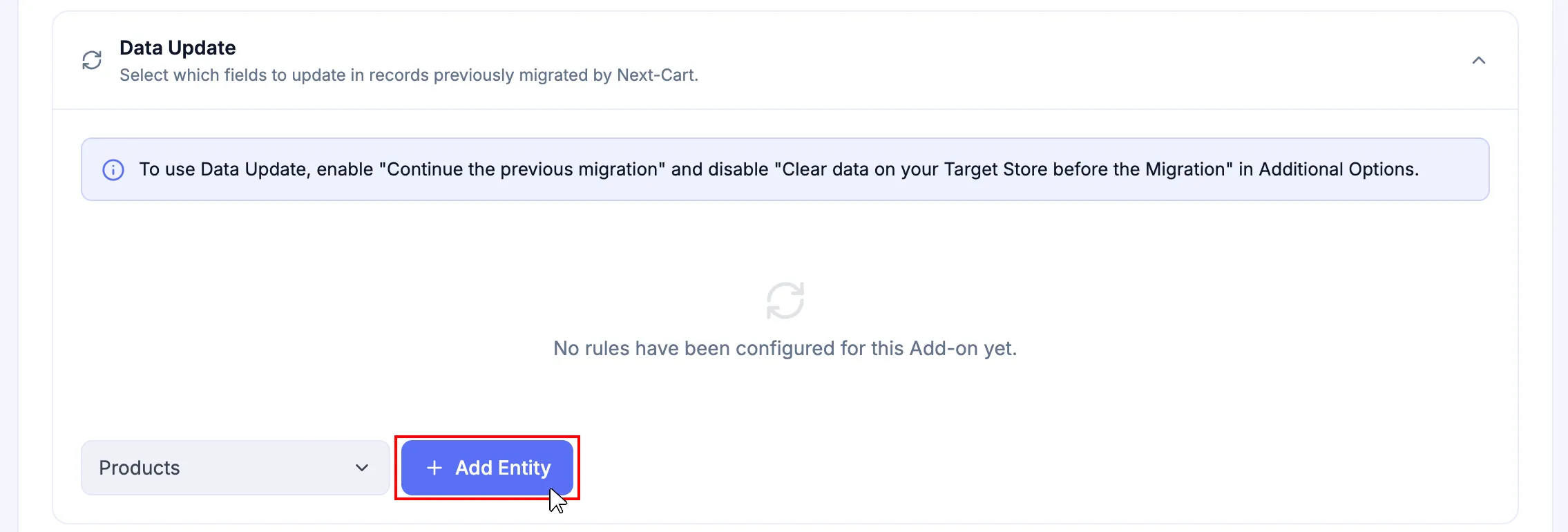
Click Add Entity to create its update group.
-
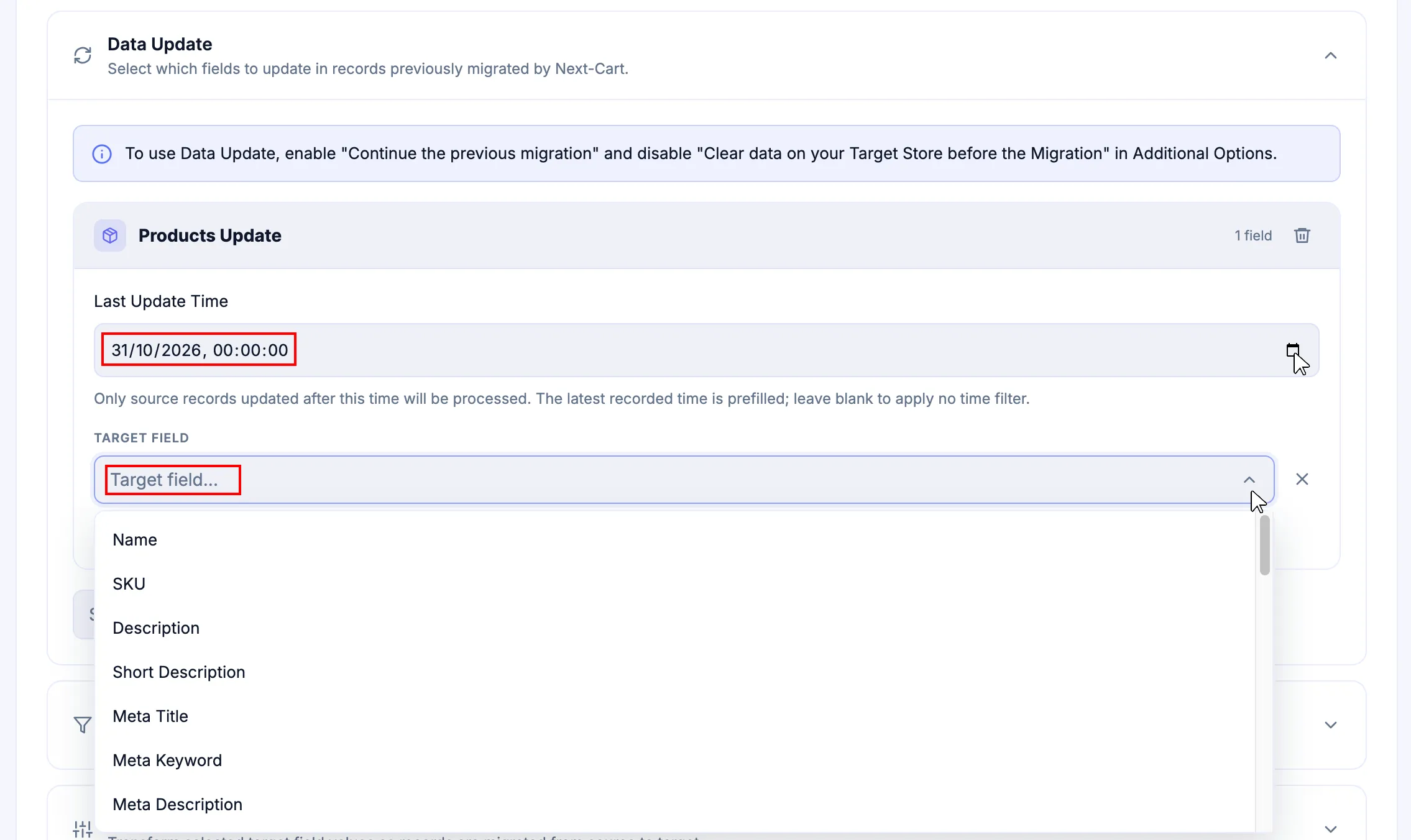
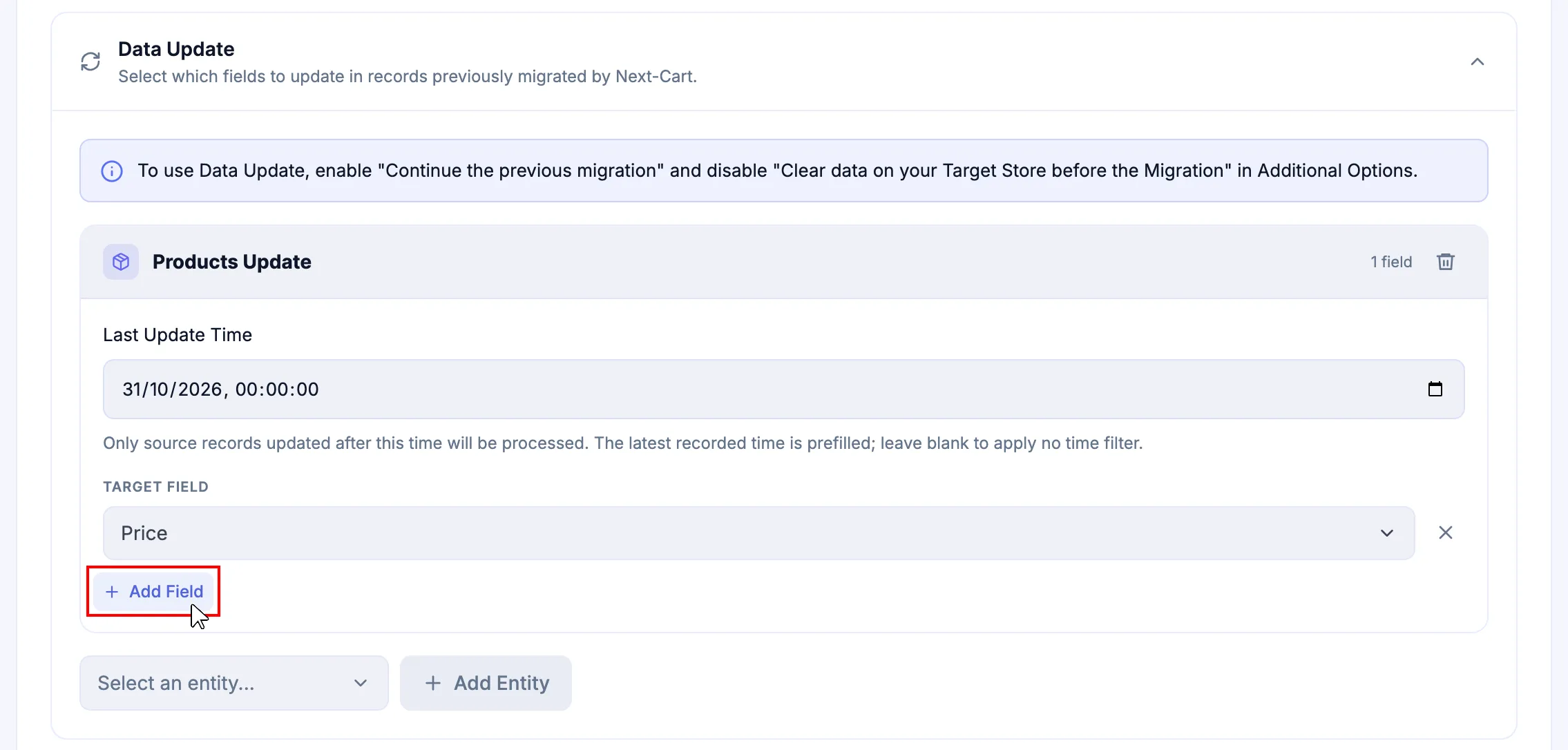
Select an available Target Field. If Last Update Time is shown, review it before continuing.
A time restriction includes only Source records updated after that time. Check any prefilled value; leave it blank for no time filter.
-
Click Add Field and select each additional attribute to update.
Select only fields whose Source values should replace their Target values, including any manual Target edits.
-
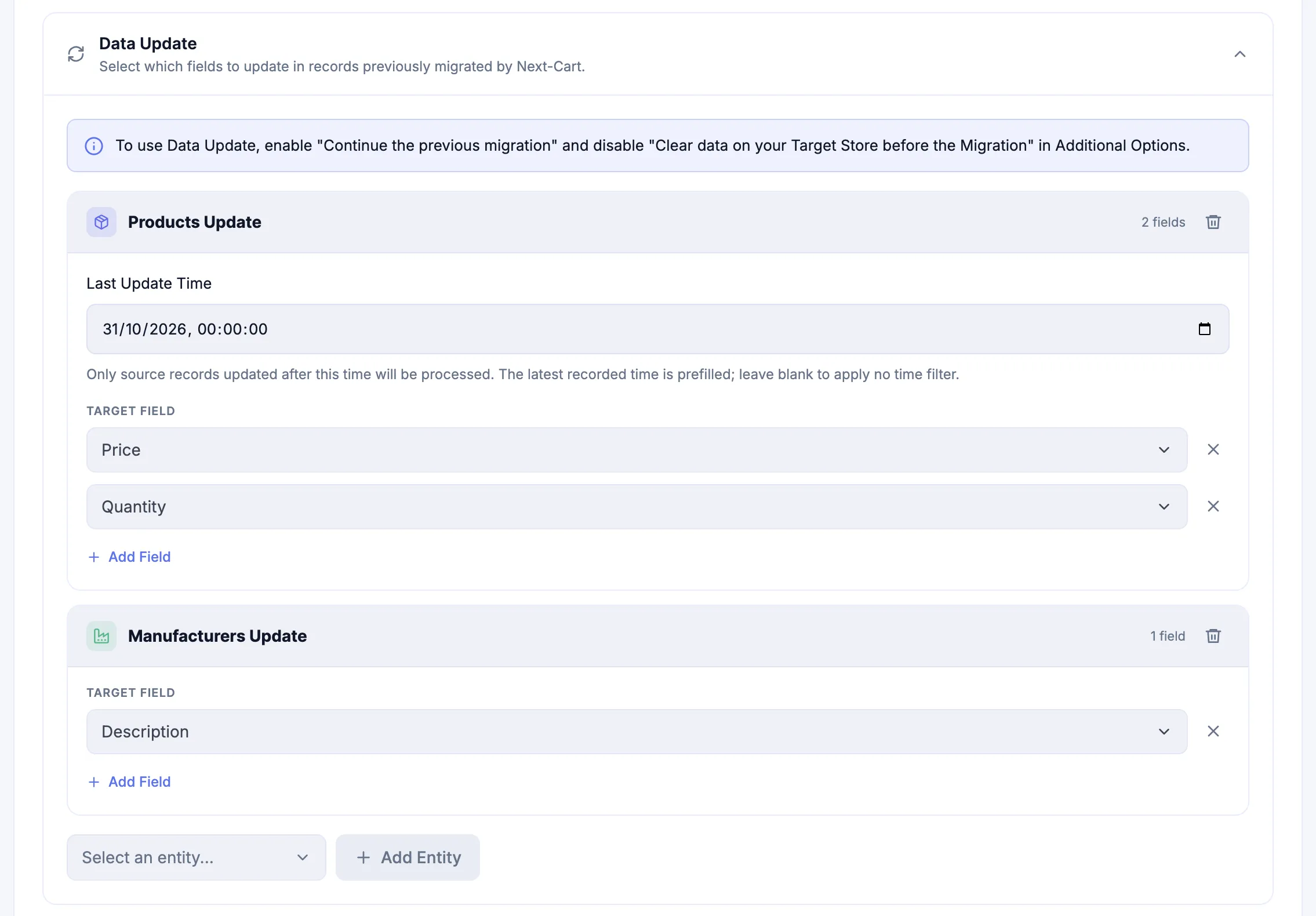
If another data type is available and needs updates, select it, click Add Entity, and choose its fields separately.
Products and Manufacturers have separate update groups in this example.
If the migration opens directly at the Migration step, use Edit Config before starting. See Migration Actions and Additional Options for re-entry guidance.
Supported records and fields
Section titled “Supported records and fields”Select only the supported data types and fields available in your migration.
| Record situation | Data Update behavior |
|---|---|
| Previously migrated record with an existing Target counterpart | Updates only the selected supported fields. |
| New Source record never migrated by Next-Cart | Does not create a Target record. |
| Previously migrated record deleted from Target | Does not recreate the record. |
| Record created independently on Target | Does not update the record. |
Data Update creates no new or duplicate records. Non-selected fields and unassociated Target data remain untouched.
When Last Update Time is available, leaving it blank removes only the time restriction; record and field eligibility still apply.
Verify the update
Section titled “Verify the update”Before starting, check the selected fields and any available time restriction. For a strictly update-only activity, also check any separately configured new-record migration scope.
After the activity, compare representative Source and Target values in selected fields. Confirm that non-selected fields and unrelated data are preserved and that Data Update created no duplicate or replacement records. Record counts do not verify field values.
If an update is missing, check prior migration eligibility, Target record existence, field support, and any time restriction. For an unavailable field, request assistance through Support Tickets. Other mapping Add-ons cannot extend Data Update.
Remove a field or update group
Section titled “Remove a field or update group”Click × beside a field to remove it from the update configuration.
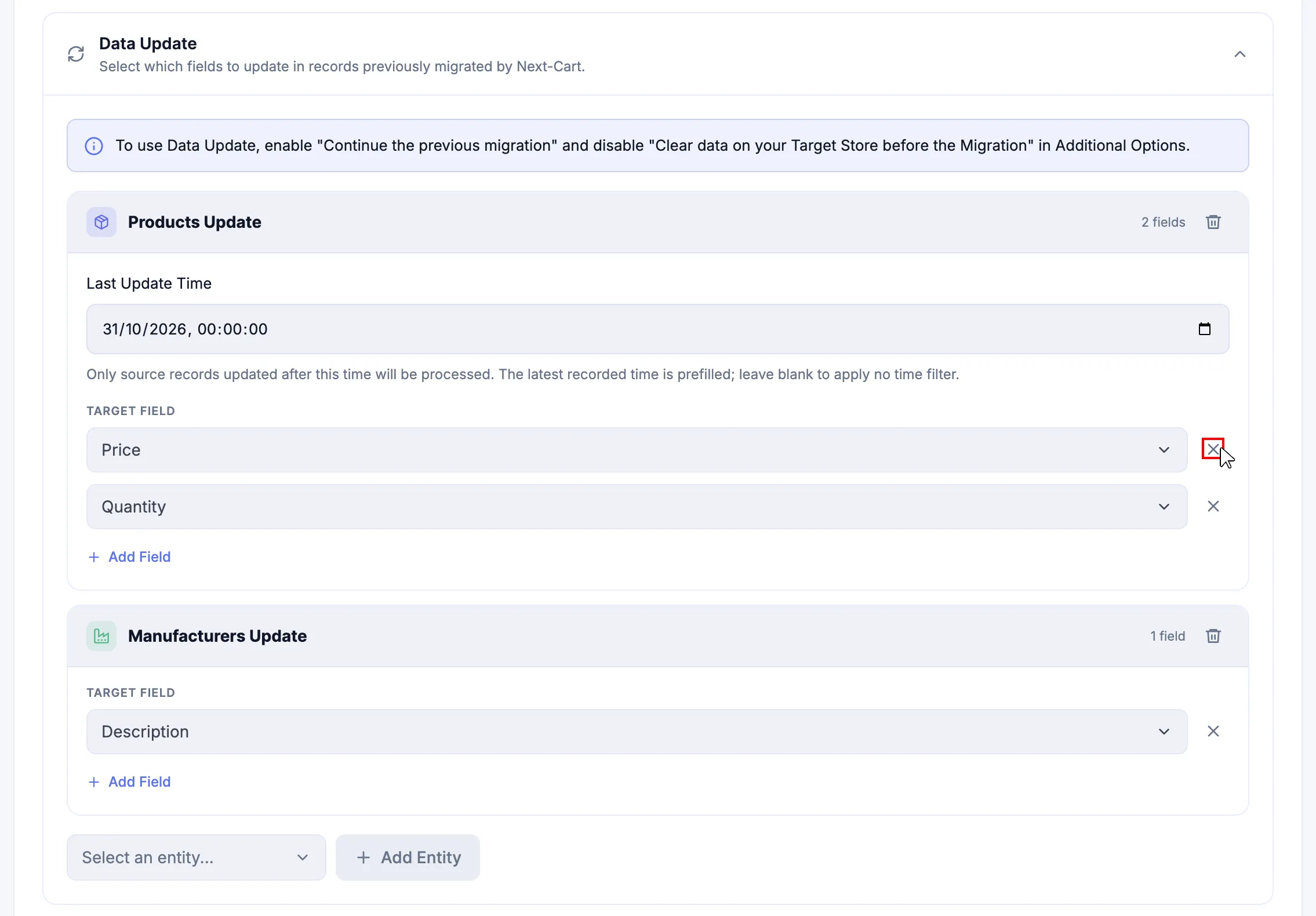
Use the delete icon in the group header to remove the entire update group.
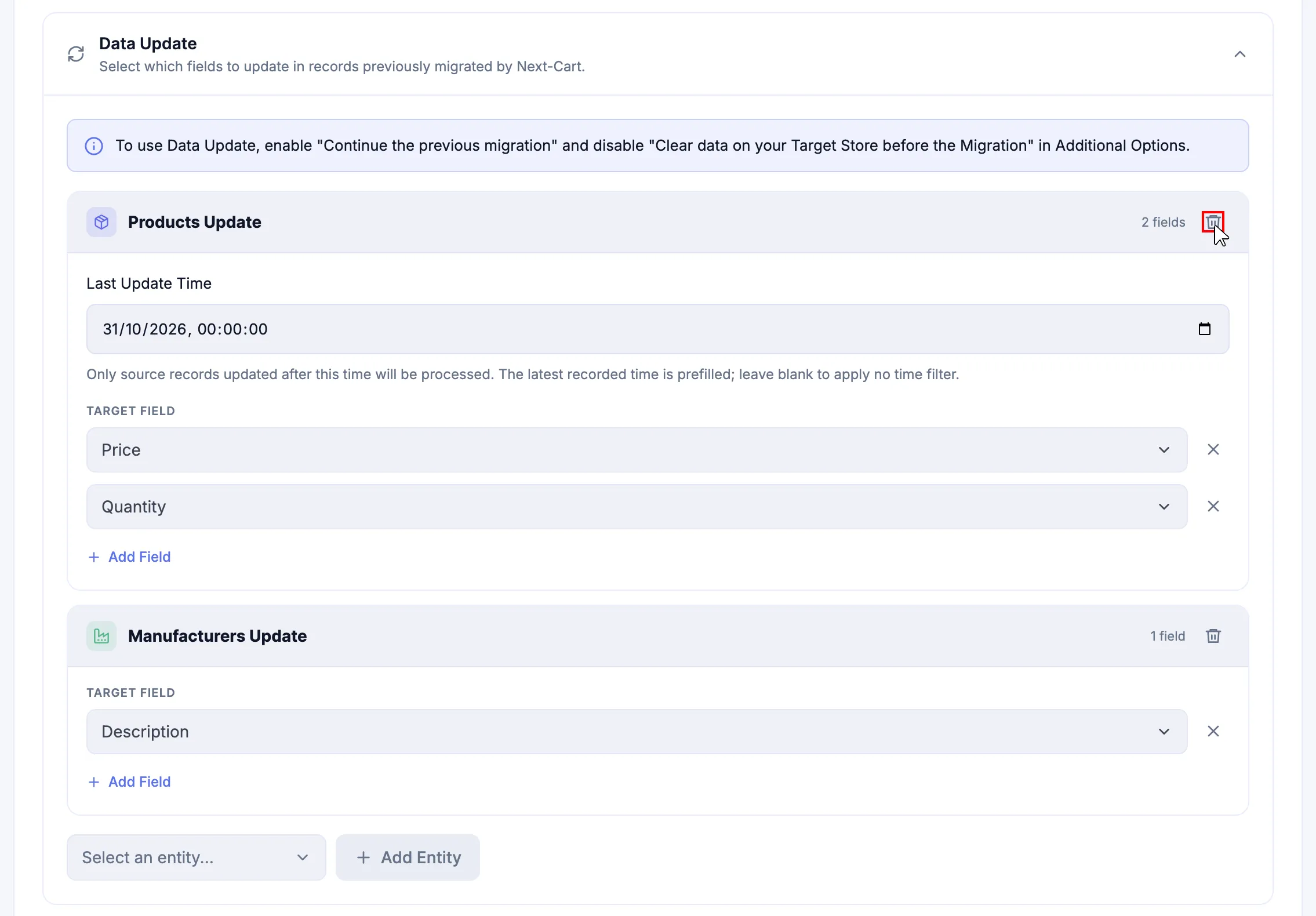
These controls remove configuration entries, not Target records.
Next Steps
Section titled “Next Steps”After reviewing all included Add-ons, click Next if Custom follows. Otherwise use Go to Migration, then follow Start and Monitor Migration to run the reviewed configuration.
For guidance on when selective updates fit your migration plan, see Add-ons in the Learning Center.