Skip to content
Back to Site

Ecwid API Connection

Prepare Ecwid connection values for a Next-Cart migration service when API setup is shown for Ecwid.

A valid Ecwid API connection gives Next-Cart the authorized platform access required by the selected migration path.

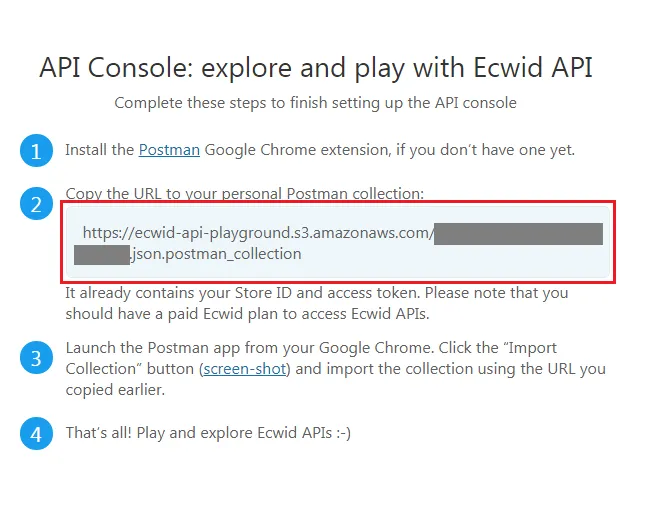
Next-Cart may ask for an Ecwid store URL and a Personal Collection URL from the Ecwid API Playground or another Ecwid connection value shown in your setup. Prepare the values first, then enter them in the Next-Cart connection setup screen.

Use this guide when:

  • Ecwid is the Source Platform or Target Platform in your selected migration path;
  • Next-Cart shows Ecwid API setup;
  • Next-Cart asks for a Store URL, Personal Collection URL, or another Ecwid connection value.

Before you begin, confirm that:

RequirementWhy it matters
Ecwid admin accessYou need access to authorize or locate connection values.
Access to the correct Ecwid storeThe connection values must belong to the store in your migration path.
Browser access to the Ecwid API Playground if requestedThe Personal Collection URL is prepared from the authorized Ecwid API Playground flow.
Secure storageThe connection URL should be treated as sensitive setup information.
Required valueWhere to prepare itNotes
Store URLYour Ecwid storefront or store URLUse the URL requested by the Next-Cart interface.
Personal Collection URLEcwid API Playground, if requestedCopy the entire URL. It may be long and should not be edited.
  1. Sign in to your Ecwid Admin Panel.
  2. Confirm that you are working with the correct Ecwid store.
  3. Copy the Ecwid store URL requested by Next-Cart.
  4. If Next-Cart asks for a Personal Collection URL, open the Ecwid API Playground in a new browser tab.
  5. Select Connect with Ecwid.
  6. Authorize access when prompted.
  7. After the page reloads, locate the Personal Collection URL.
  8. Copy the complete Personal Collection URL.
  9. Store the value securely until the connection setup is complete.

In the Next-Cart connection setup screen for Ecwid, enter the values requested by the interface.

Next-Cart fieldEcwid value
Store URLEcwid store URL.
Personal Collection URLComplete Personal Collection URL from the Ecwid API Playground, if requested.

The Ecwid connection values are ready to test in Next-Cart.

CheckPass condition
AuthorizationEcwid authorization was completed with the correct store account.
URL completenessThe Personal Collection URL is pasted in full, if required.
Store matchThe values belong to the Ecwid store selected for the migration path.
Data accessNext-Cart can access supported Ecwid data for the selected migration scope.
IssueWhat to check
Authorization errorReopen the Ecwid API Playground and authorize again with the correct Ecwid account.
Invalid URLCopy the complete Personal Collection URL again without editing it.
Wrong store connectedSign out of other Ecwid sessions and reconnect using the correct store account.
Access blockedConfirm your Ecwid account has permission to authorize the connection.
Data preview failsConfirm the source store contains supported data for the selected data types.

After migration work is complete and verified:

  • remove or revoke temporary authorization where Ecwid provides that option;
  • remove copied connection values from insecure notes or shared files;
  • review account access for the Ecwid store.
GoalGo to
Test the connectionVerify Platform Connections
Fix an authorization or URL issueTroubleshoot Connection Setup
Continue after the connection passesConfigure Your Migration