GoDaddy Source Data Export
Prepare GoDaddy Products, Orders, and Customers export files for Next-Cart source data file upload.
GoDaddy Source Data Export
Section titled “GoDaddy Source Data Export”A complete GoDaddy export gives Next-Cart the source files required by the selected migration path.
When to use this guide
Section titled “When to use this guide”Use this guide when:
- GoDaddy is the Source Platform;
- Next-Cart shows source data file upload for GoDaddy;
- you need to prepare Products, Orders, and Customers files before upload.
Prerequisites
Section titled “Prerequisites”Before you begin, confirm that:
| Requirement | Why it matters |
|---|---|
| GoDaddy account access | You need access to the site or store admin area that contains the source data. |
| Commerce export permission | The account must be allowed to export Products and Orders. |
| Customer export permission | The account must be allowed to export customer records from the customer area. |
| Email access | GoDaddy may send export download links by email. Make sure you can access the mailbox used by the store account. |
| Scope decisions | Decide whether to export all records or a filtered subset approved for the migration. |
| Secure storage location | Prepare a local folder for the downloaded CSV files. |
Data types to export
Section titled “Data types to export”| Data type | Export file | Notes |
|---|---|---|
| Products | Products CSV | Export all products unless your approved scope is intentionally limited. |
| Orders | Orders CSV with line item details | Use the required date range and include line item details. |
| Customers | Customers CSV | Export all customer accounts required for the migration. |
Before you export
Section titled “Before you export”Create a folder such as:
source-exports/└── godaddy/ ├── products/ ├── orders/ └── customers/Export the files
Section titled “Export the files”- Sign in to the GoDaddy admin area for the source store.
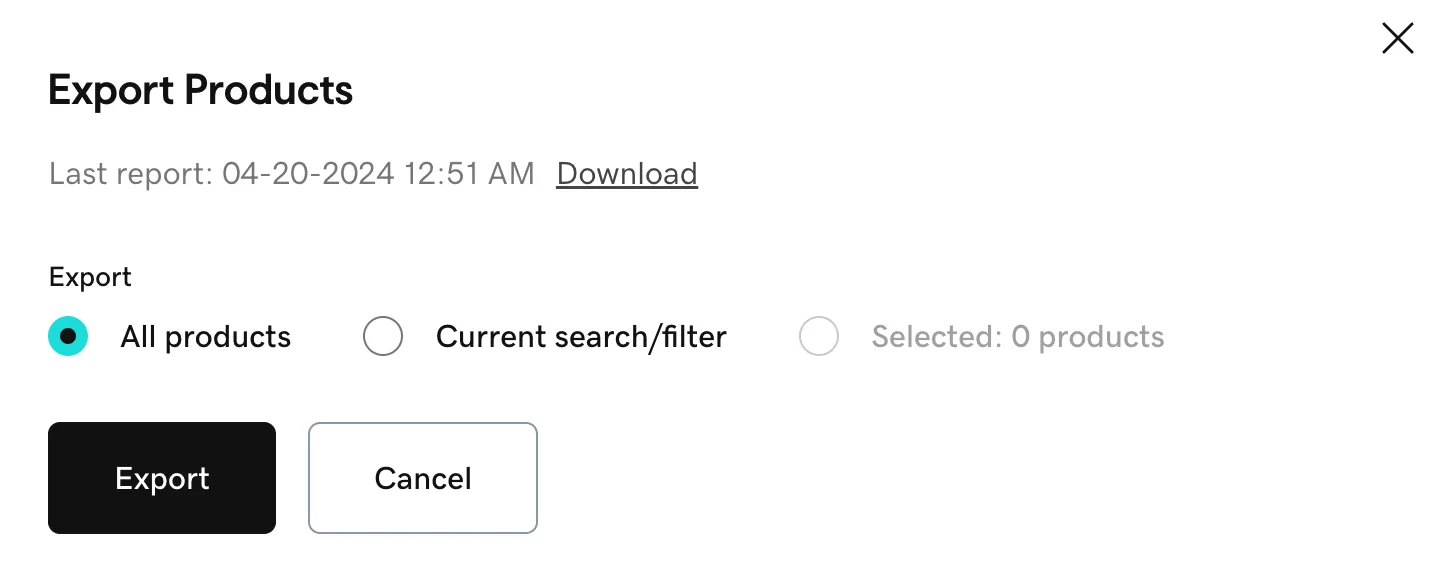
- Go to Commerce > Products.
- Open the Import/Export menu and select Export.
- Apply the approved product filter if needed, then start the export.
- Download the products CSV from the download link or email link provided by GoDaddy.
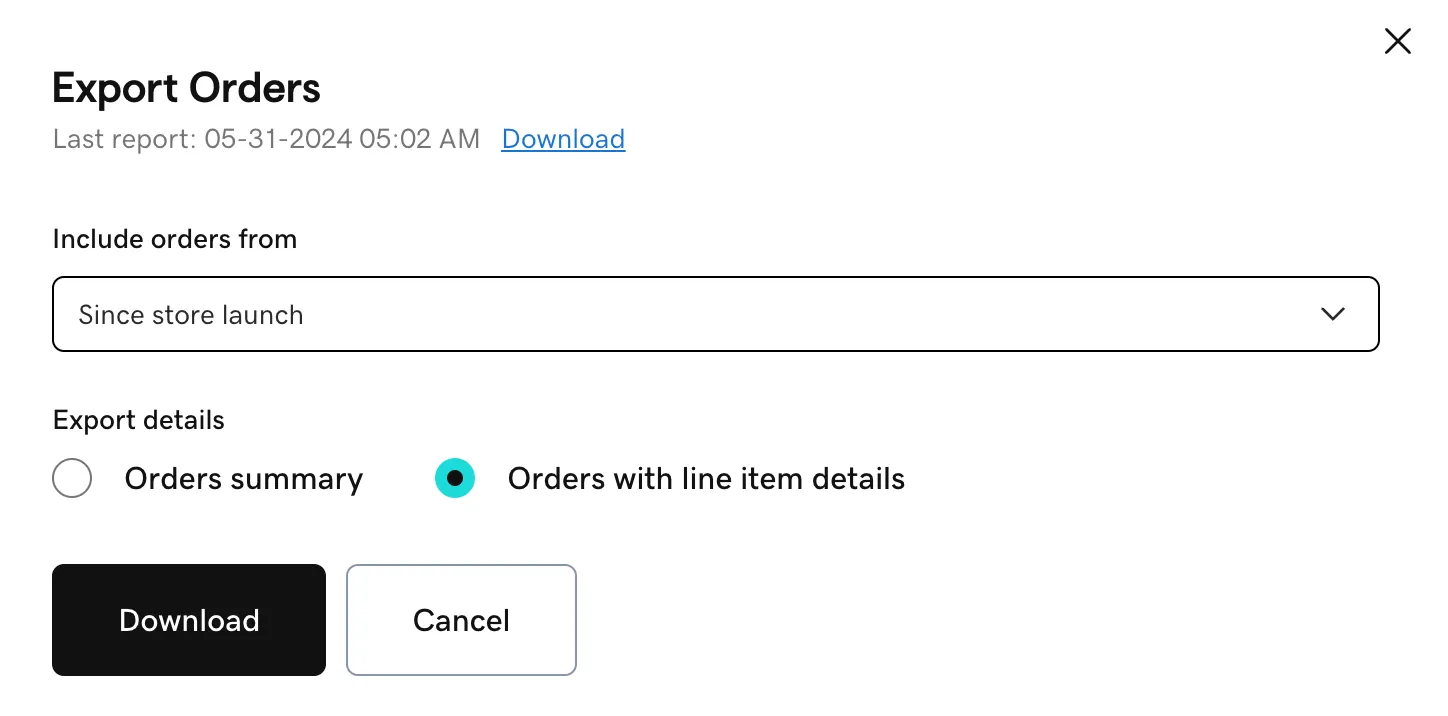
- Go to Commerce > Orders.
- Select Download.
- Choose the required date range in the order export options.
- Under export details, select the option that includes orders with line item details.
- Confirm the export and download the orders CSV from the link provided.
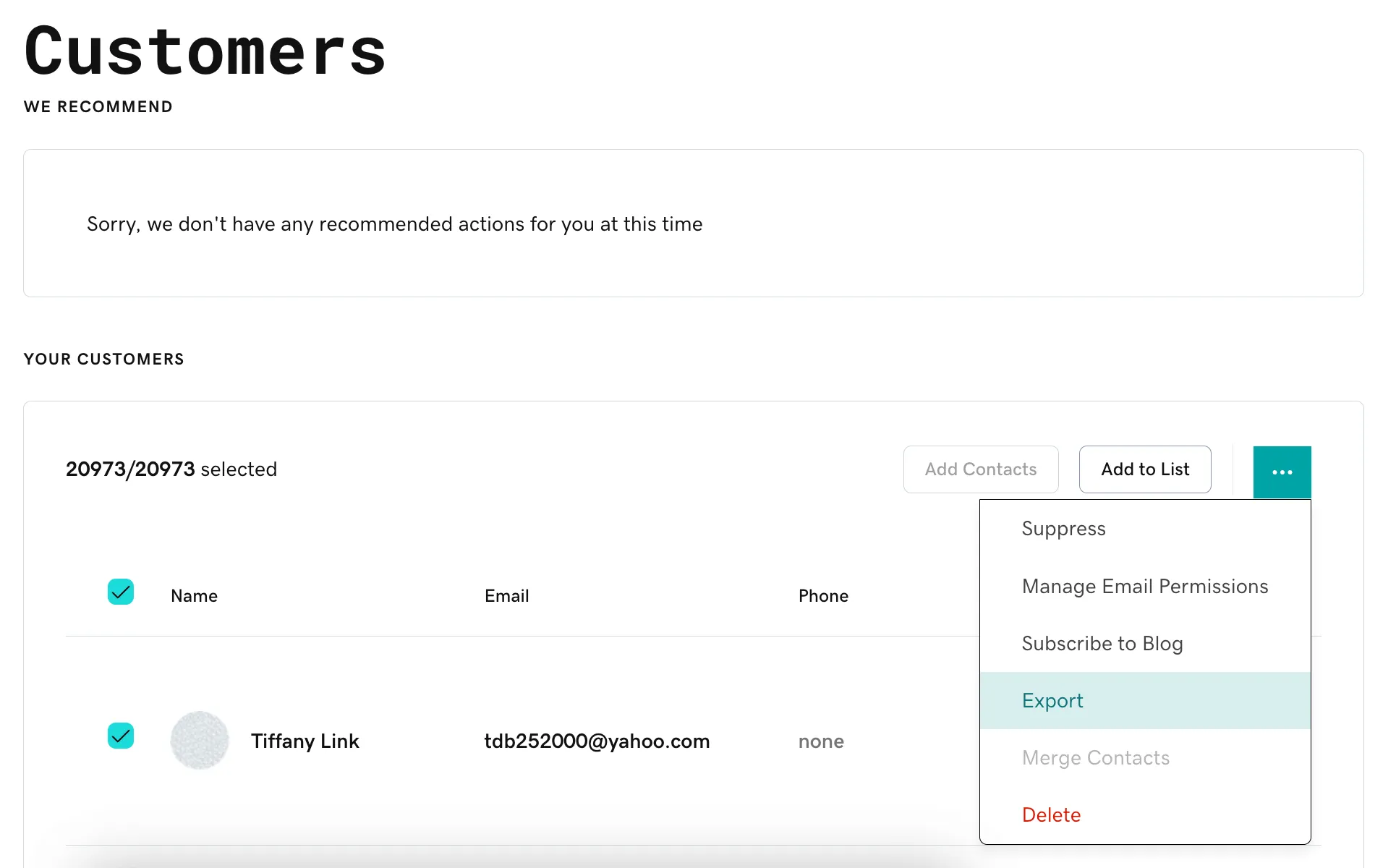
- Go to Customers > All.
- Select all required customer accounts.
- Open the actions menu and select Export.
- Download the customers CSV from the link provided.
Organize the exported files
Section titled “Organize the exported files”| File | Place it in |
|---|---|
| Products CSV | source-exports/godaddy/products/ |
| Orders CSV | source-exports/godaddy/orders/ |
| Customers CSV | source-exports/godaddy/customers/ |
Keep the original file names where possible. If you need to add context, append a short label such as the export date without removing the original file meaning.
Expected result
Section titled “Expected result”You have GoDaddy Products, Orders, and Customers CSV files ready for upload to Next-Cart.
Verify the export
Section titled “Verify the export”| Check | Pass condition |
|---|---|
| Products | The products CSV opens successfully and contains the expected product records. |
| Orders | The orders CSV covers the required date range and includes line item details. |
| Customers | The customers CSV contains the expected customer accounts. |
| Download links | Any email download links were used before they expired. |
| File integrity | The files are readable and still contain their original headers. |
If the export is incomplete
Section titled “If the export is incomplete”| Issue | What to check |
|---|---|
| Products are missing | Re-export from Commerce > Products and confirm the export filter did not exclude records. |
| Orders are missing line items | Re-export orders and select the option that includes line item details. |
| Orders are outside the required date range | Create a new export with the full approved date range. |
| Customers are missing | Confirm all required customer accounts were selected before exporting. |
| Export link expired | Start a new export and download the file again. |
| Required data is not available in standard exports | Document the missing data and submit it as a Custom Service requirement. |
Next step
Section titled “Next step”| Goal | Go to |
|---|---|
| Upload the prepared files | Upload Source Data Files |
| Verify source file readiness | Verify Platform Connections |
| Ask for help with missing export data | Tickets |