

Dashboard Home
Use Dashboard Home to spot migration or Order activity that needs attention and jump directly into Sales, Demo, Support, or the relevant project record.
Dashboard Home
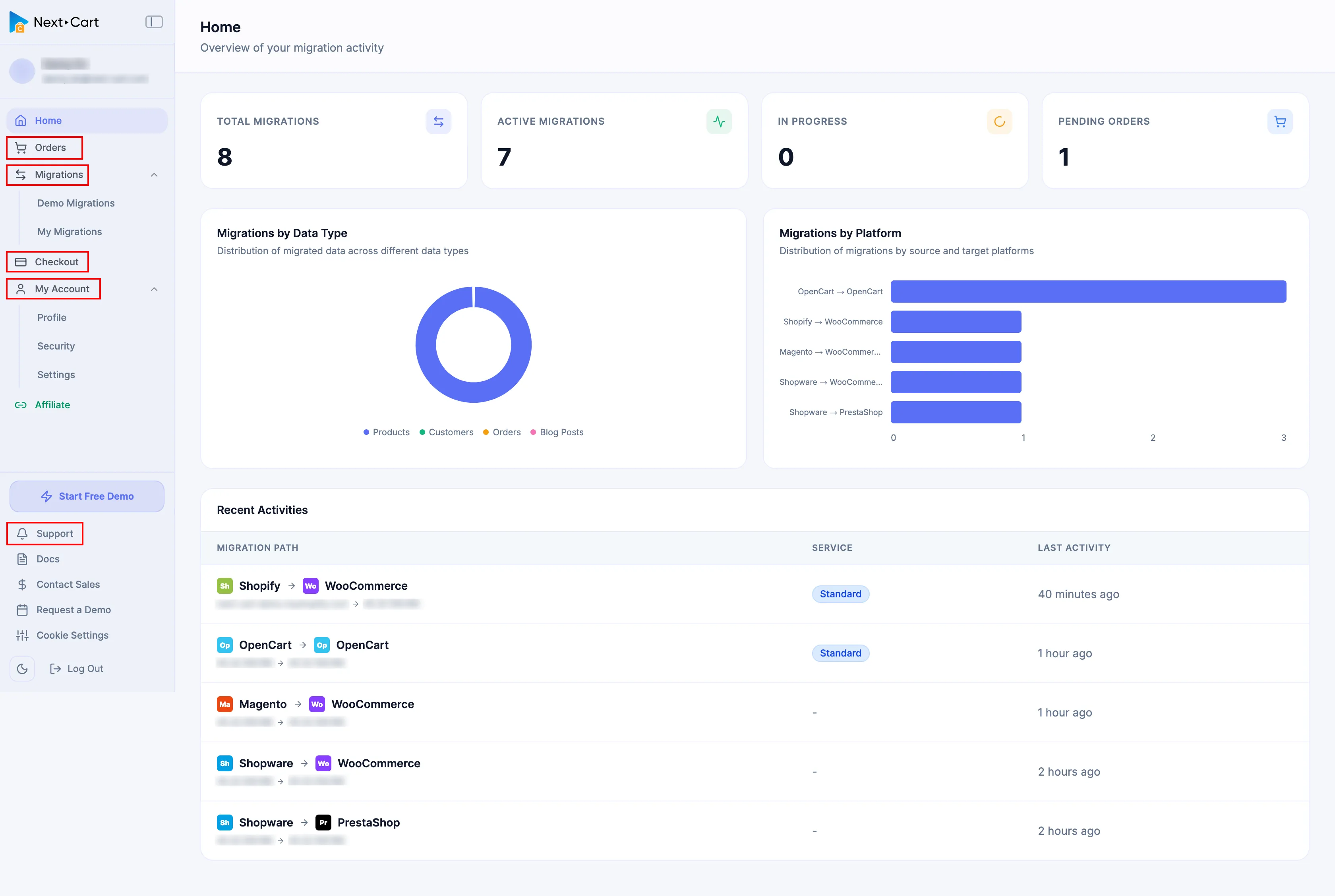
Section titled “Dashboard Home”Home is the default Dashboard landing view. Use it to identify what needs attention, then open the underlying Order, migration, support case, or account workflow for detailed work.
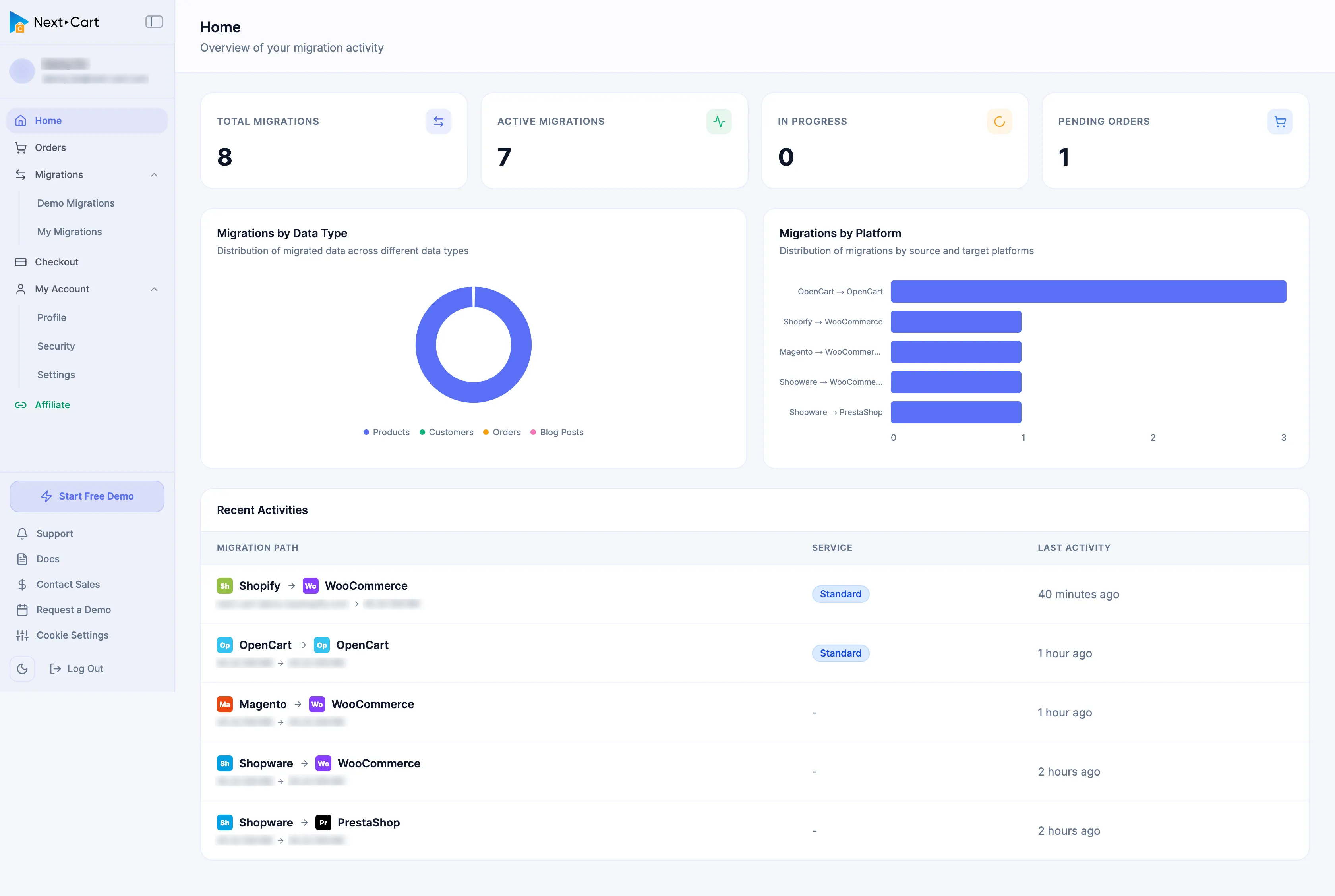
Review Dashboard Home
Section titled “Review Dashboard Home”-
Sign in to Next-Cart. Home opens automatically. If you are elsewhere in the Dashboard, select Home in the sidebar.
-
Review Total Migrations, Active Migrations, In Progress, and Pending Orders for work that needs attention.
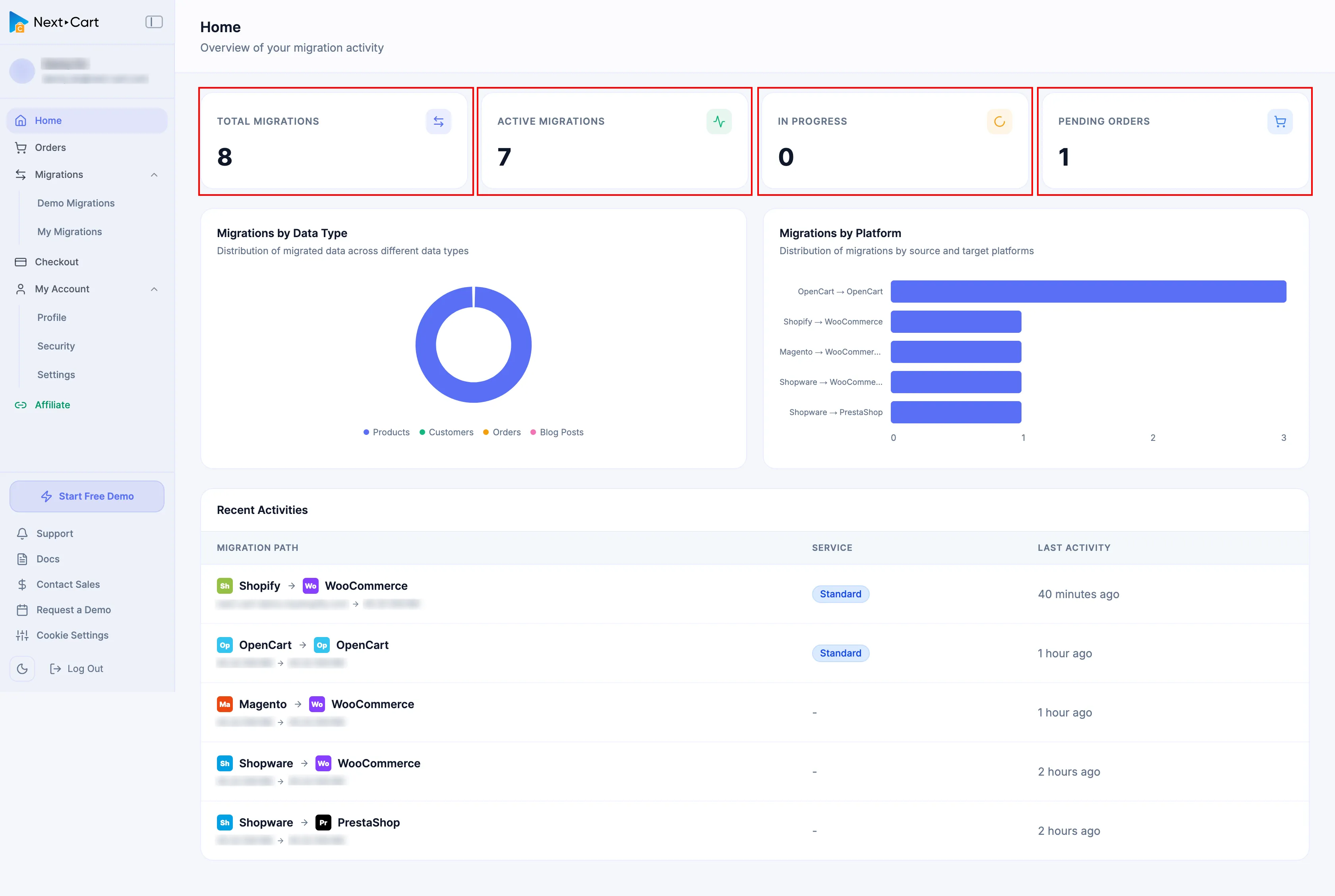
-
Review Migrations by Data Type and Migrations by Platform for activity that does not match the projects you expect.
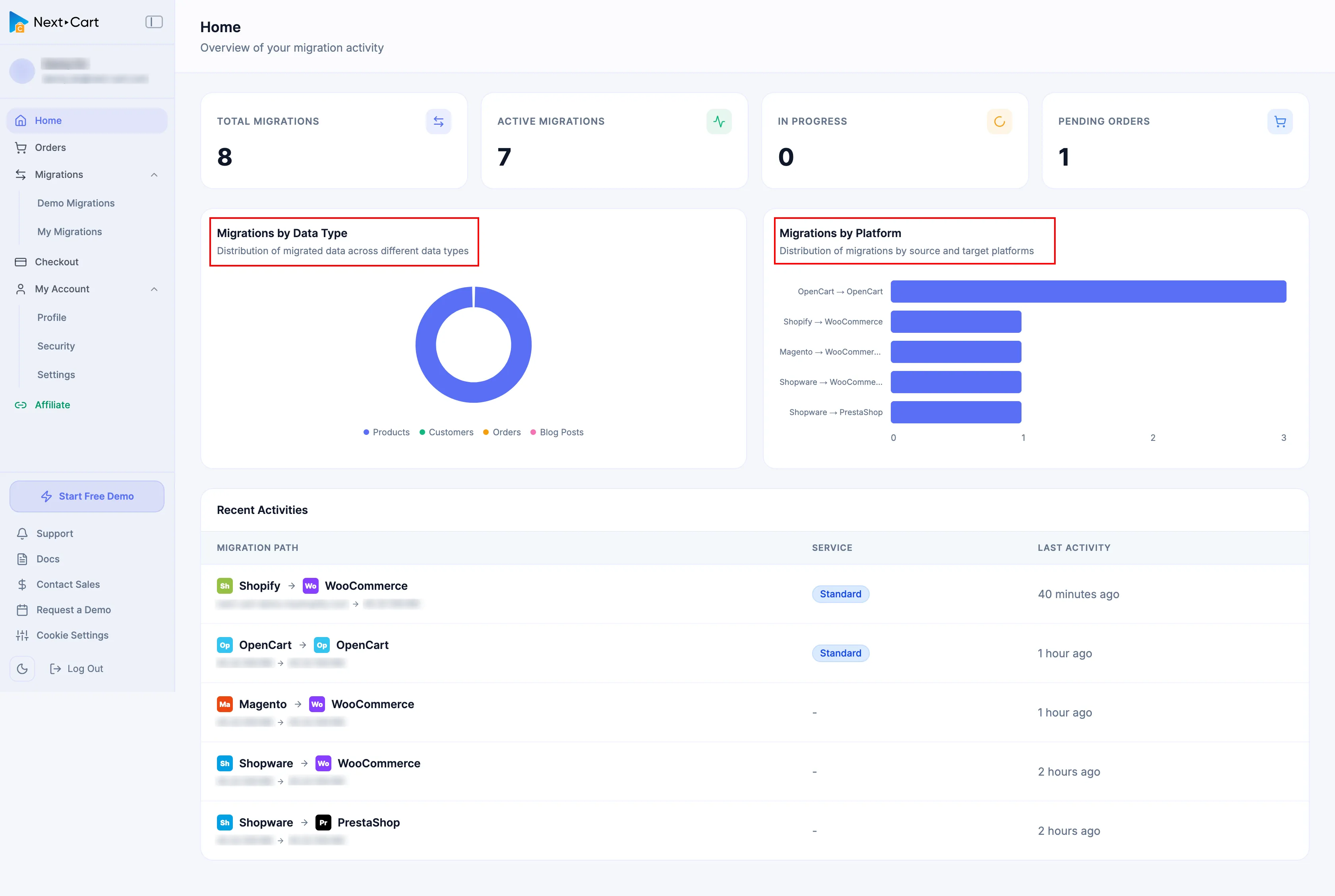
-
Review Recent Activities and identify the migration path or Service that needs follow-up.
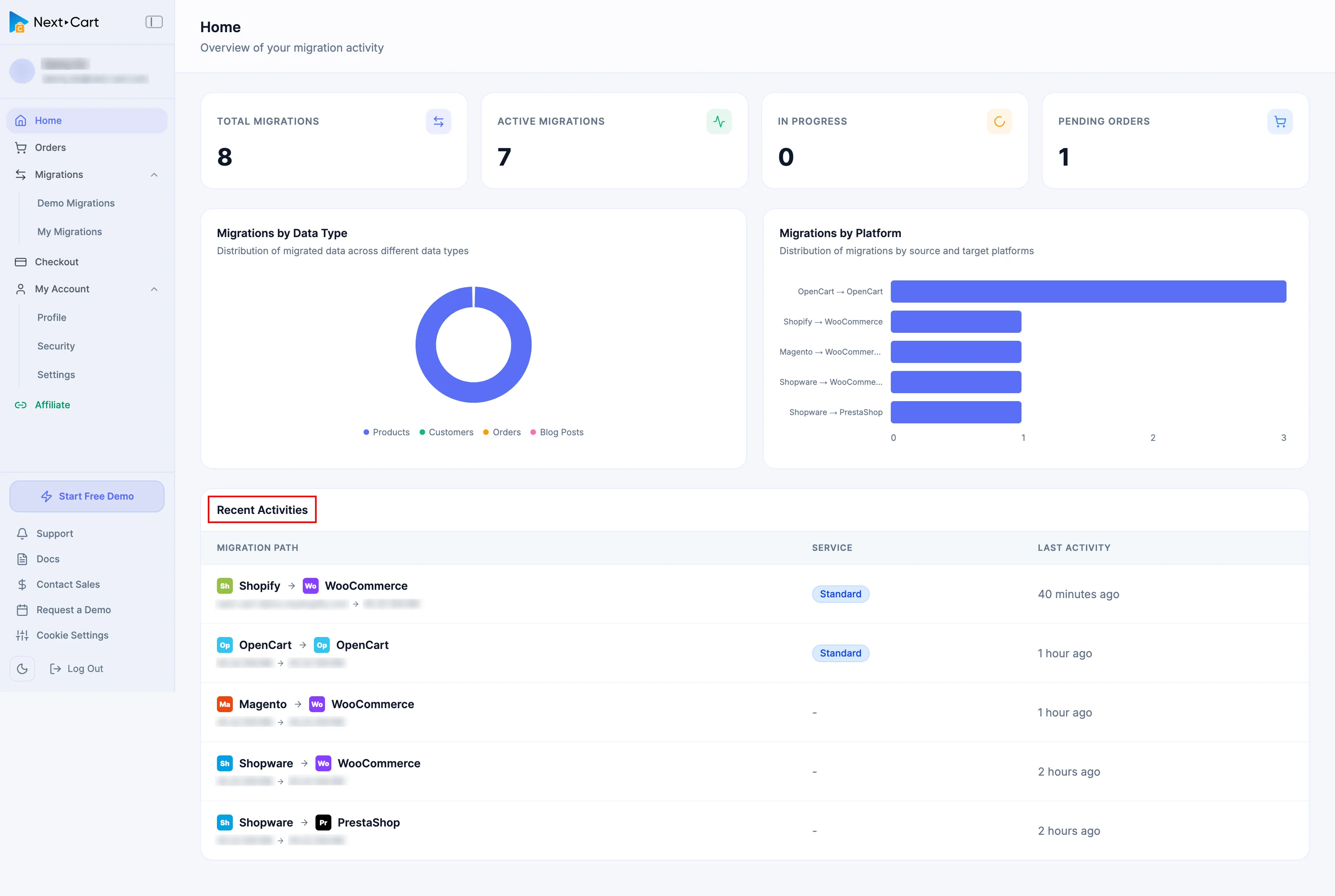
-
Open the owner for the next task: select Orders for a transaction, Support for a tracked case, or expand Migrations and select Demo Migrations or My Migrations for migration work.
Choose the right Home shortcut
Section titled “Choose the right Home shortcut”Contact Sales
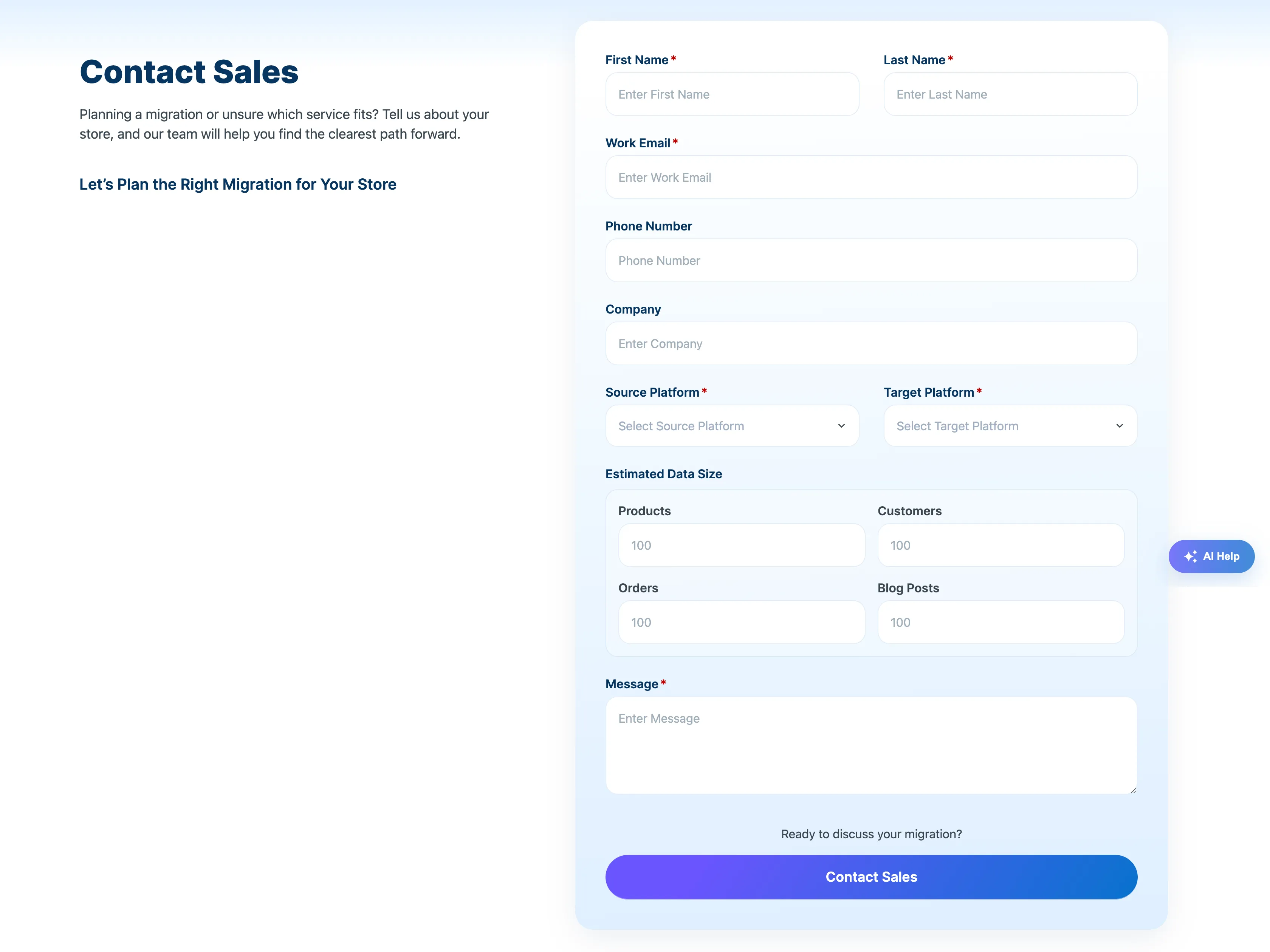
Section titled “Contact Sales”Use Contact Sales when you are planning a migration or need help choosing the appropriate service. Provide the store and project context requested by the form, then select Contact Sales.
Request a Demo
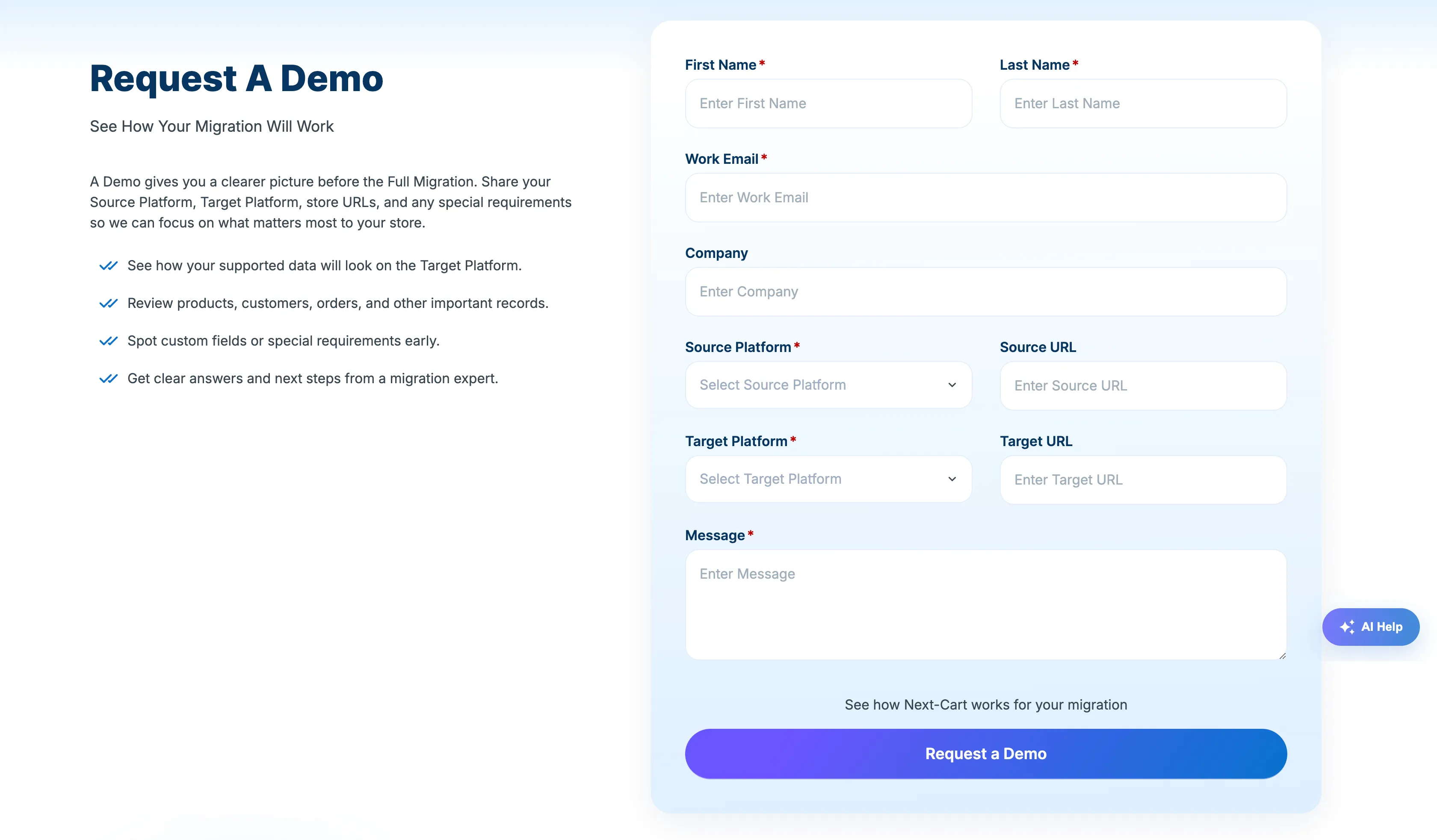
Section titled “Request a Demo”Use Request a Demo when the project needs technician-assisted evaluation for special requirements, custom entities, or project-specific behavior. Provide the Source, Target, and scenario that should be evaluated, then submit the request.
Start Free Demo
Section titled “Start Free Demo”Use Start Free Demo when you are ready to begin a self-service Demo immediately. It opens Demo setup directly instead of requiring Migrations → Demo Migrations → Start a New Demo.
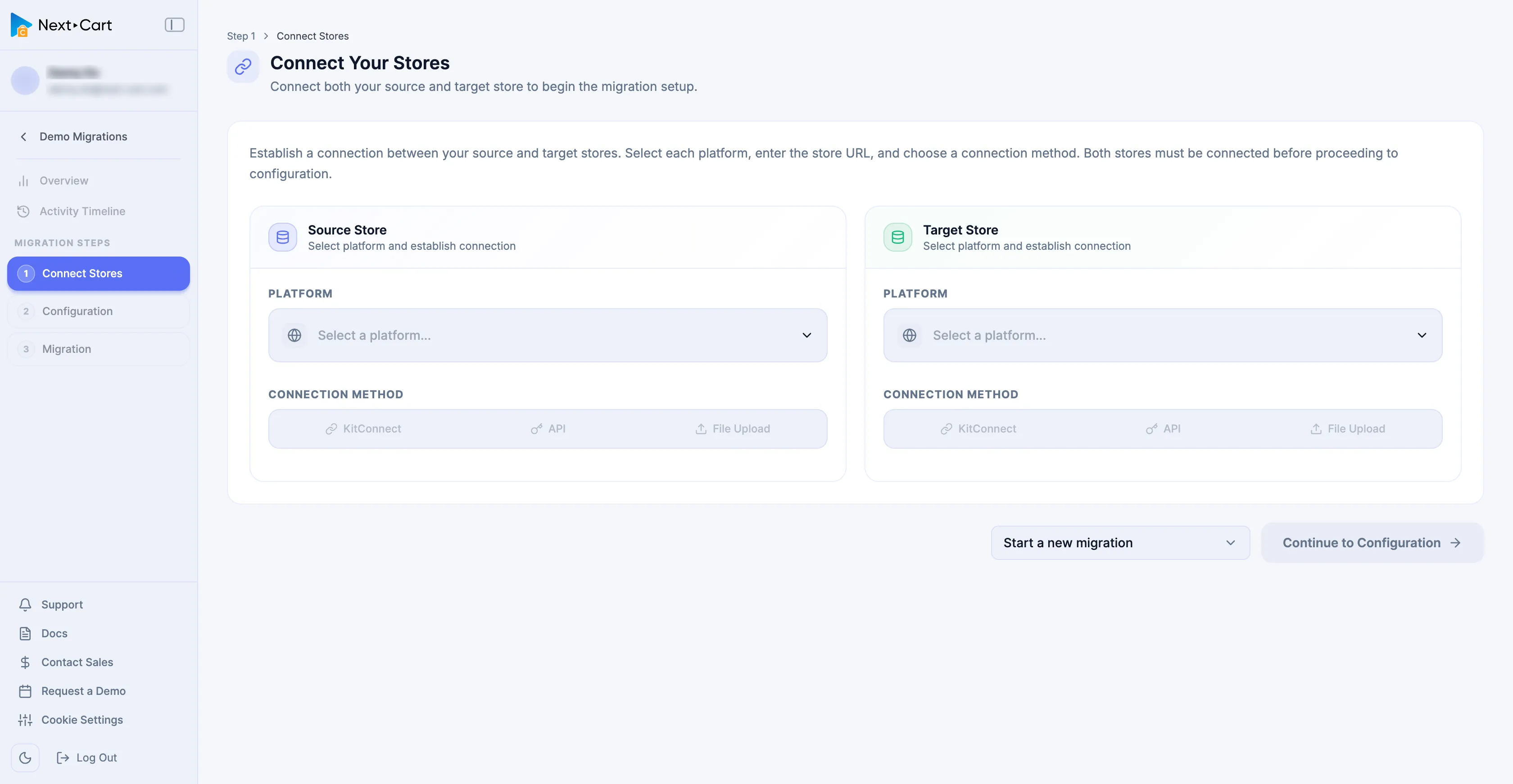
The shortcut changes only the entry point. Demo limits and operating rules remain the same. Continue with the Demo Migration walkthrough.
Support
Section titled “Support”Select Support when you need a tracked Support Ticket. The Support Portal opens with Home, My tickets, and New ticket navigation.
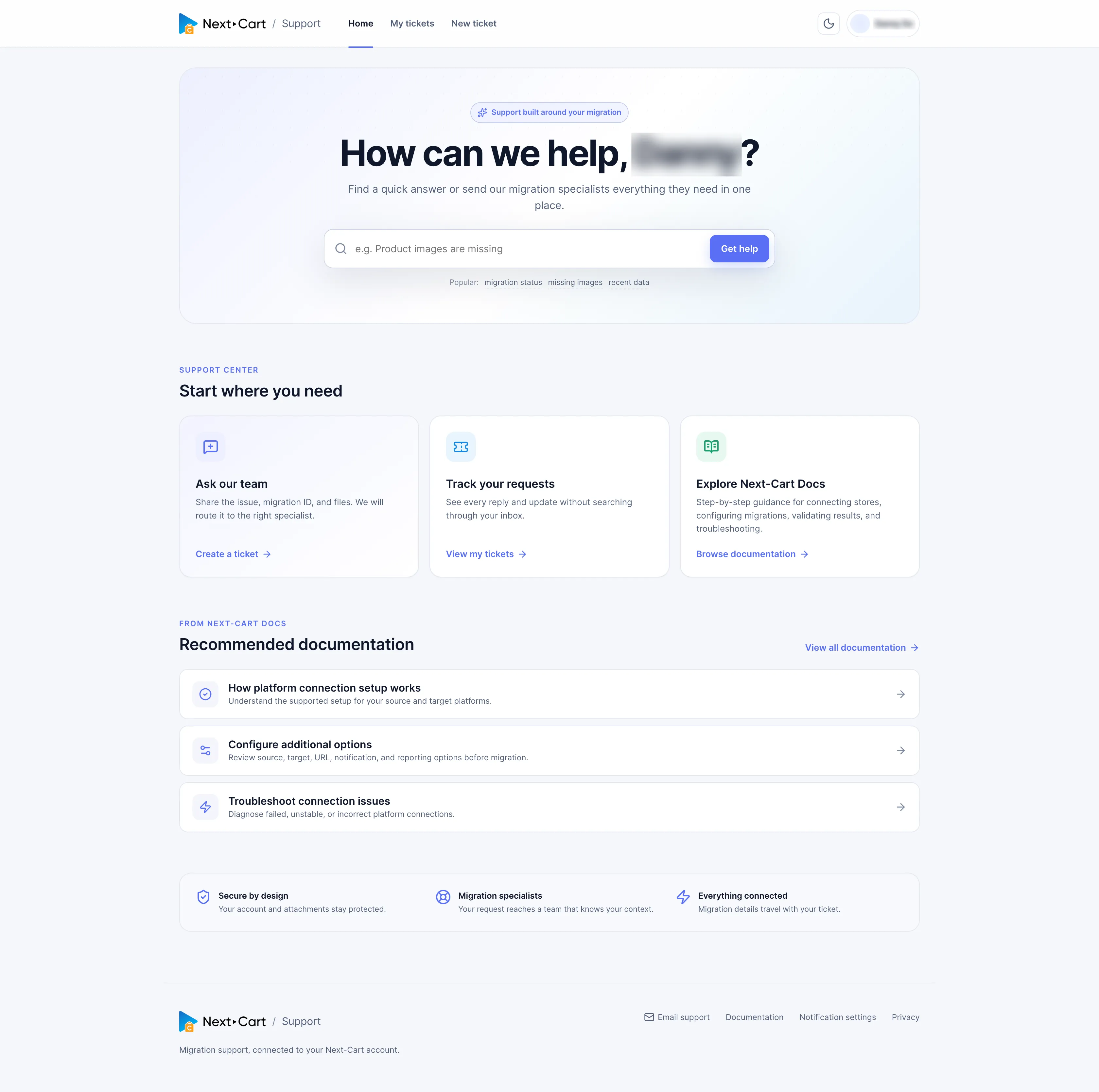
Use Support Tickets for ticket submission, search, status filters, replies, support channels, and Add Support to this device. Use AI Help when automated guidance is sufficient before a tracked case is needed.
Verify before continuing
Section titled “Verify before continuing”| Check | Pass condition | If it does not pass |
|---|---|---|
| Account context | The activity belongs to the intended signed-in account. | Confirm the signed-in account before acting. |
| Migration activity | Home totals and recent activity are recognizable. | Open Demo Migrations or My Migrations and compare the underlying records. |
| Commercial activity | Pending items correspond to Orders that still need attention. | Open Orders and review the affected transaction. |
| Shortcut intent | The selected shortcut matches Sales guidance, technician-assisted Demo, self-service Demo, or Support. | Return to Home and choose the correct shortcut. |
Failure handling
Section titled “Failure handling”| Issue | What to do |
|---|---|
| A purchased migration is missing | Confirm the effective purchase is Paid in Orders, then open Migrations → My Migrations. |
| A Demo is missing | Open Migrations → Demo Migrations and locate the intended path. |
| An unfamiliar activity appears | Open the migration History and review the recorded action. |
| Home totals appear stale | Refresh Home and compare the underlying Orders and Migrations records. Submit a Support Ticket if they still disagree. |
Next Steps
Section titled “Next Steps”Open Migrations for project work, Orders for transaction evidence, or Support Tickets when the issue requires Next-Cart assistance.